Configure Invoice Purchase Terms for Outbound Invoices
Set up a facility-level Invoice Purchase Terms block with rich-text payment instructions, remit-to details, and terms & conditions that automatically render at the end of every outbound B2B invoice PDF.
Setting Up Invoice Purchase Terms for a Facility
Summary
Invoice Purchase Terms is a facility-level setting that lets you enter rich-text content, such as payment instructions, remit-to information, and terms & conditions, that automatically renders at the end of every outbound B2B invoice PDF generated by that facility.
Before you start
- Required permissions: Admin access to update facility settings
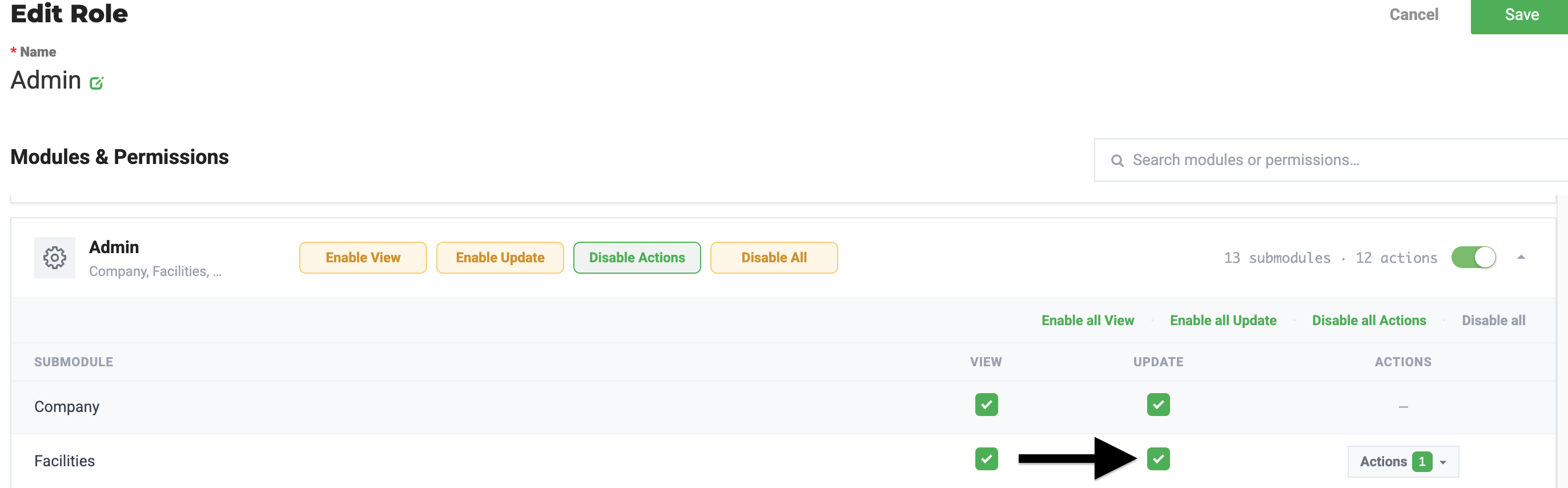
- Prerequisites: Coordinate with your sales and/or finance team
- Applies to: Facility configuration screen; renders on the outbound (B2B sales) invoice PDF only. Does not apply to inbound documents, manifests, packing slips, or other reports.
Steps
- Navigate to the facility configuration screen. (Settings > Configuration)
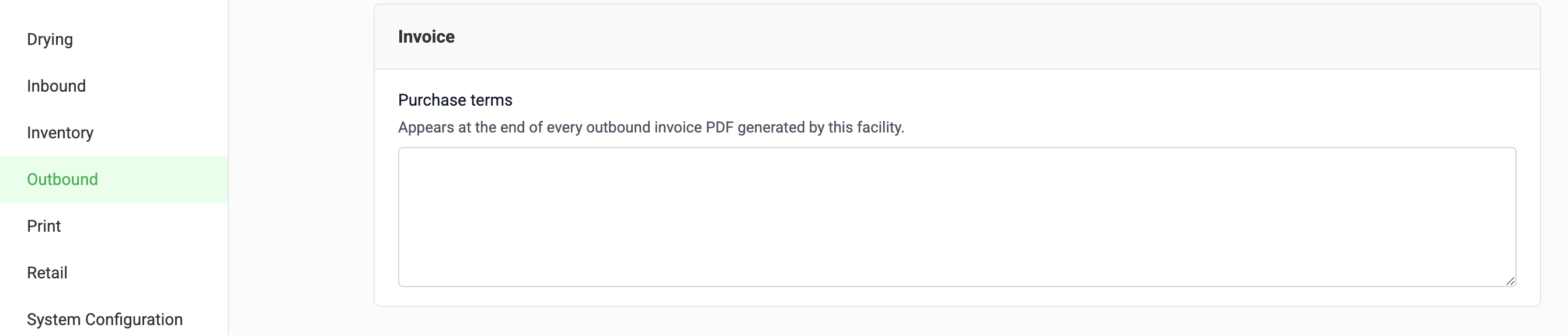
- Locate the Invoice Purchase Terms field and enter or paste your content. You can type directly or paste formatted text from Word, Google Docs, or an existing terms document. Formatting such as bold, italics, underline, ordered/unordered lists, hyperlinks, headings, and line breaks is preserved.
- Review the character/byte counter to confirm your content is within the supported capacity (suggested limit: approximately 10,000 characters of stored HTML).
- The field auto-saves (debounced) as you edit
Expected result
Once saved, the content you entered will appear at the end of every new outbound invoice PDF generated by this facility on the last page, immediately after the order totals. It is end-of-document content only, not a repeating per-page footer. If the terms content is too long to fit in the remaining space on the last page, it flows onto an additional page.
If the field is left empty, no terms block renders on the invoice, preserving prior invoice behavior.
This setting is scoped to the facility where it was configured. It does not apply to other facilities in the same company, which allows you to configure facility-specific terms if needed.
Common issues
- Some formatting or content missing after save: Content is sanitized using an allow-list approach (scripts, event handlers, and certain inline styles are stripped) to ensure safe, consistent PDF rendering. Some advanced formatting (e.g., embedded images or custom inline styles) is not supported.
How did we do?
Set a Default Distributor for your Outbound orders
Set Default Area upon receiving
