Table of Contents
Connecting to Flourish with an LLM Using Our MCP Server
Connect Flourish to Claude, ChatGPT and other LLMs via our MCP server to query inventory, build B2B orders, manage destinations, and lock packages. Read tools always allowed; writes need approval.
Table of Contents
Use Flourish's MCP server to access tools from your LLM (Large Language Model) interface of choice, including Claude, ChatGPT, Gemini, Grok, etc.
What's an MCP Server? The Model Context Protocol (MCP) is a new way for AI tools to communicate with software applications. The Flourish MCP server exposes a set of tools to perform certain actions in Flourish using an LLM chat interface.
What tools are available? We're working closely with accounts to safely expose functionality through this interface, and we will regularly update the tool list as we add new capabilities.
Important: Read tools return Flourish data only. Write tools change records in Flourish. Two write tools reach outside Flourish, and both are flagged in the table below:
- packages_locate reports the move to that facility's state compliance system (Metrc or BioTrack).
- destinations_create and destinations_update may queue a customer sync to QuickBooks Online, depending on your company's QuickBooks settings.
Every other write tool, items_update, item_case_config_apply, packages_lock, packages_unlock, outbound_order_create, and outbound_orders_patch, saves in Flourish only and does not sync to Metrc, BioTrack, or other state compliance systems.
What's new
Recent additions to the MCP server. If you connected before these shipped, open your connector settings and click Refresh tools list to pick them up.
Pack size, online menu categories, and case sizes. items_update now sets pack size and the e-commerce category, sub-category, and active flag, and ecommerce_categories_query looks up your menu categories by name. item_case_configs_query finds items with no case size, and item_case_config_apply adds the same case sizes to up to 5,000 items in one request. See Items & Catalog: Update Items in Bulk with an LLM for permissions and example prompts.
Build and edit B2B orders. outbound_order_create drafts a wholesale outbound order (destination plus lines and pricing) or overlays an existing draft. outbound_orders_patch edits order header fields and order notes across up to 10 orders at once. Neither tool allocates, submits, approves, or takes payment; those stay in the app.
Manage destinations. destinations_query, destinations_create, and destinations_update let you search and maintain the customer and vendor facilities you sell to — addresses, licenses, payment terms, contacts, sales reps, and delivery windows. facility_types_query and contact_job_title_suggestions_query resolve the reference values those tools need.
Better tool discovery. tool_search now accepts a regular expression and returns a short summary per tool; tool_get returns the full, untruncated description for up to 10 tools by name. This keeps token use down while still letting your AI client read the complete instructions for a tool before calling it.
Manufacturing: BOMs and work orders. Query and create bills of materials, check whether you can build one from on-hand inventory, and create or update draft work orders. These tools don't start, complete, cancel, or move cannabis — that still happens in the app. See Manufacturing: Build BOMs and Work Orders with an LLM for the full tool list, permissions, and example prompts.
Inbound transfers: receiving shipments. Look up vendors, open a new inbound transfer for an arriving shipment, and stage cannabis packages or non-cannabis inventory lines onto it. See Inbound Transfers: Receive Shipments with an LLM for the full tool list, permissions, and example prompts.
Retired and deprecated tools. Two older order tools have been removed, and one more is deprecated: it still works today but will be removed. Your AI client will use the replacement automatically once you refresh your tool list.
Tool | Use instead | Status |
orders_query | outbound_orders_query | Removed 2026-09-10 |
order_get_by_id | outbound_order_get_by_id | Removed 2026-09-10 |
orders_update | outbound_orders_patch | Deprecated; removal planned |
Core things it can do
1. Explore facilities
You can list facilities you have access to, including facility type, license info, location, company compliance configuration, and whether the company/facility is tied to Metrc or BioTrack integrations.
2. Search and review items
You can search active items by item name, retail display name, part number, or SKU. The item data includes category/class, inventory type, ecommerce fields, sellable/purchasable flags, pricing/cost fields, cannabis attributes, serving size, THC/CBD fields, supplier info, tracking flags, and more.
3. Update item attributes and case sizes
It can make limited item edits, such as SKU, part number, retail display name, brand, sellable/purchasable flags, lot tracking, reorder point, storage instructions, serving size, THC/CBD fields, pack size, e-commerce category and sub-category, e-commerce active, and other approved fields. The tool is intentionally allow-listed, so it cannot edit every item field. Changes are saved in Flourish only.
It can also find items with no case size and add the same case sizes (units per case) to many items in one request. Case sizes belong to the item, so they apply at every facility. Replacing a default case size or deactivating one needs your confirmation first.
4. Query packages and inventory, including an inventory summary
You can search packages by item/SKU/part number, lot number, package status, and locked/unlocked state. Package data includes available and non-available quantity, lot, location, lock state, item details, testing status, THC/CBD percentages, unit cost, total cost, package status, PO linkage, and compliance sync status. This includes a dedicated tool for querying inventory summary levels.
5. Lock, unlock, and locate packages
You can apply facility-specific lock codes to packages or clear lock states. Before locking, you can query valid lock codes for a facility. The package lock tool has guardrails, including a max of 50 entries and restrictions around packages allocated to open orders or manufacturing runs. There is also a tool to locate packages — assigning them to an area and optionally a sub-location — that includes querying areas and locations. Relocating a package reports the move to your state compliance system, so treat it as a compliance action.
6. Search and review outbound (B2B) orders
You can search wholesale outbound orders by facility, order ID, destination, sales rep, order status, and payment status. You can also open a single order to see header details, order lines, charges, discounts, payments, and per-line inventory levels.
7. Create and edit outbound (B2B) orders
It can draft a new wholesale outbound order from a destination facility and a set of item lines, including unit price, line total, and discounts. Re-running the same request with the same external reference (a PO number or source email ID) overlays the existing draft rather than creating a duplicate. You can also overlay lines on an existing draft, or replace the full line set.
A separate patch tool edits order header fields — external order ID, reference fields, sales rep, requested delivery date, payment terms, invoice date — and adds, edits, or removes order notes, across up to 10 orders in one call. Removing a note or editing a destination-level note requires an extra confirmation.
These tools stop at the draft. They do not allocate inventory, submit or approve an order, or record payment. Shipped orders can no longer have their lines changed; header and note edits still work unless the order is BioTrack V1 manifested.
8. Review outbound order inventory and compliance readiness
For B2B outbound orders, it can check per-line inventory availability, including on-hand, locked, allocated, on-order, and available-to-sell quantities (including by lot when applicable). It can also check whether allocated packages are synced with the compliance system before shipment.
9. Review retail order metrics
It can pull retail order dashboard counts by company and store: all purchases, pickup, delivery, in-store, open orders, back orders, pre-orders, needs-review orders, today's orders, and tomorrow's orders.
10. Review delivery and shipment route orders
It can list orders assigned to a delivery route or outbound shipment, including stop sequence, delivery timestamp, order/payment status, destination facility/address, totals, and package counts. Shipment results can include manifest and external transfer fields where your integration supports them.
11. Search and maintain destinations
You can search the customer and vendor facilities you ship or sell to by name, alias, email, license number, state, type, or active status, and open the full record — shipping and billing addresses, licenses, payment terms, delivery windows, contacts, sales reps, taxes, and QuickBooks mapping.
You can also create a new destination and update an existing one: header fields, contacts (add, update, remove), assigned sales reps, and per-weekday delivery windows. Some fields are locked and the tool will refuse to change them — a compliance-synced destination locks its name, license number, destination type, and universal business identifier, and an internal (same-company) destination also locks state and cannot be deactivated. Depending on your QuickBooks Online settings, creating or updating a destination may also queue a customer sync to QuickBooks.
12. Work with brands and reference data
It can list brand records used for retail/ecommerce menus (including active status and logo/image metadata), e-commerce menu categories and sub-categories, units of measure, destination/facility types, contact job title suggestions, order payment types, order payment statuses, and company integration sync status summaries.
13. Work with sales reps
It can list company sales reps (and whether a sales rep is required on outbound orders) so you can resolve the right sales rep before updating an order or assigning one to a destination.
14. Preview a retail cart quote
It can price a hypothetical retail cart — auto-applied discounts, promo codes, and taxes included — without creating an order or touching inventory. The quote is customerless, so loyalty and customer-group discounts (veteran, senior, and similar) are not evaluated.
15. Explore the tool catalog
It can search the available tools by regular expression and pull the full description for any tool by name, so you can ask your AI client what it is able to do before asking it to do something.
16. View & disable user connections
In Flourish, admins with access to Admin → Integrations → MCP Server can review MCP connections. They can see which users are connected, each connection's client name (for example, Claude or ChatGPT), tool call count, and expiry date. They can disable a connection or all of a user's connections.
How tools describe themselves
Every tool description starts with one or more markers. These tell your AI client how to treat the tool, and they're useful when you're deciding how to gate a tool in your client's permission settings.
Marker | What it means |
[READ] | Returns data only. Nothing is inserted, updated, or deleted. |
[WRITE] | May insert, update, or delete. Your AI client should state the exact action and get your confirmation first. |
[DESTRUCTIVE] | May overwrite or remove existing values rather than only adding. Not trivially reversible. |
[COMPLIANCE] | Touches a state compliance system. Each call is a regulatory event with audit-trail consequences. |
[IDEMPOTENT] | Safe to retry with the same arguments after a timeout or unclear error. |
[ORG] | Operates across your whole company rather than one facility. |
[PAGED] / [SORTED] | Supports paging and sorting. Large result sets come back a page at a time. |
[DEPRECATED] | Being retired. The description names the replacement tool and a scheduled removal date. |
Read tools return a trimmed set of fields by default to keep responses small and fast. If you need the complete record — addresses, IDs, audit timestamps — just ask for the full detail and your AI client will request it.
Managing MCP connections in Flourish
Company admins can review and revoke MCP access inside Flourish.
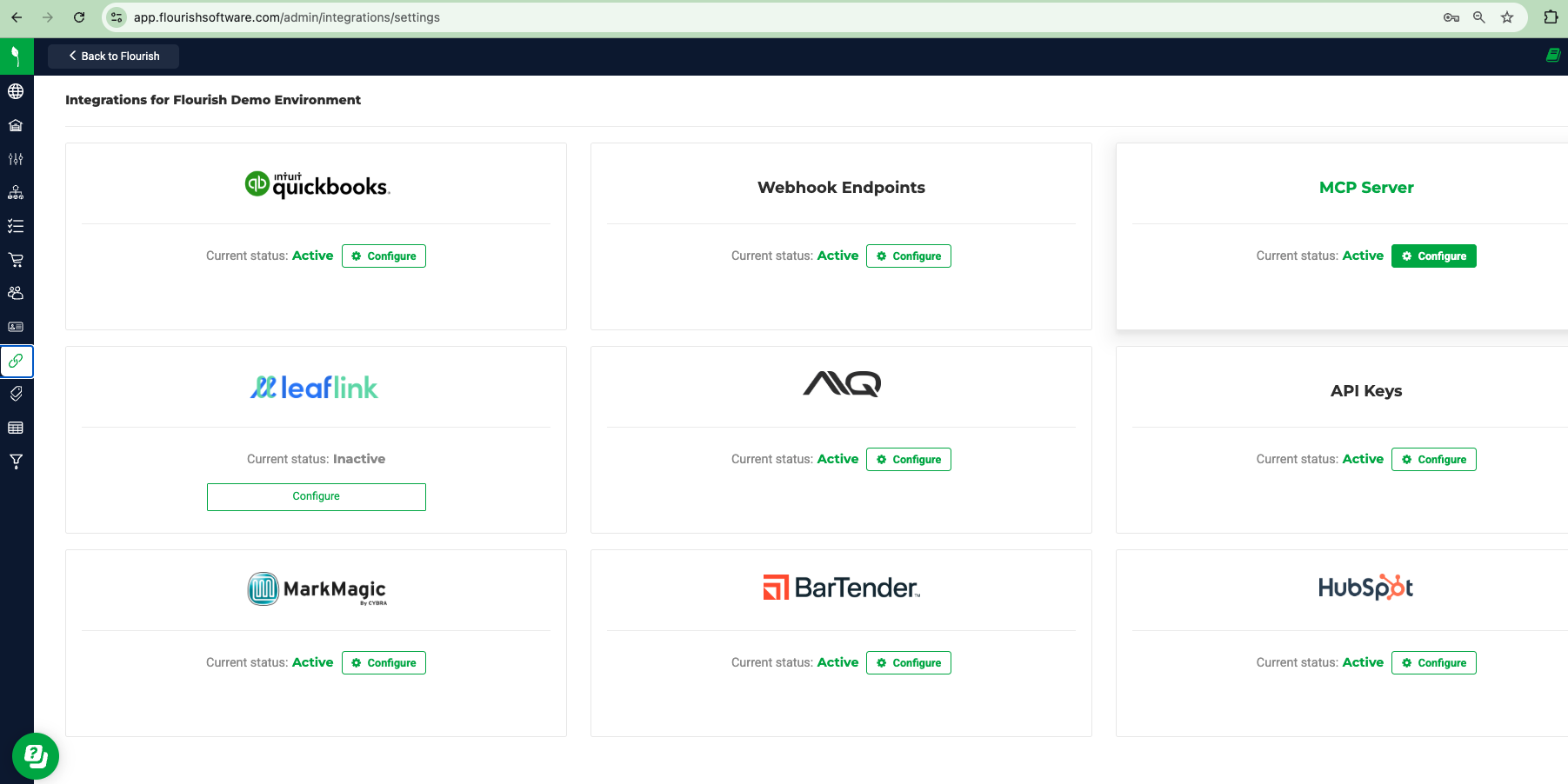
- Go to Admin → Integrations → MCP Server.
- The MCP Users grid lists users who have connected an AI client, their last access time, and how many active connections they have.
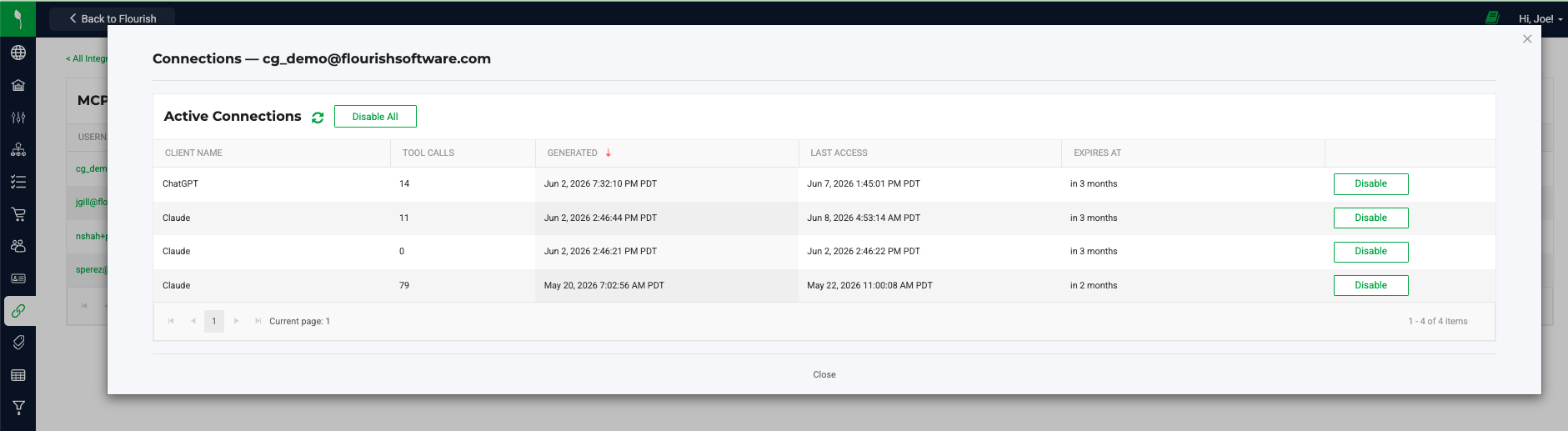
- Click a username to open that user's Active Connections. Each row shows the client name (for example, Claude or ChatGPT), when the connection was created, last access, expiration, and a tool call count for that connection.
- Use Disconnect on a connection to revoke that client immediately, or disable all connections for a user from the connections modal.

Each MCP connection stays active for up to 90 days. After it expires, sign in again through your AI client to reconnect.
Audit log. Flourish records every tool call an AI client makes. Click View audit log on the MCP Server screen, or Audit next to a user or connection, to browse calls by user, connection, tool, result and date. Click View on a row to see the full request. Records changed through MCP also show the user's email as last modified, just like changes made in the app.
User Permissions
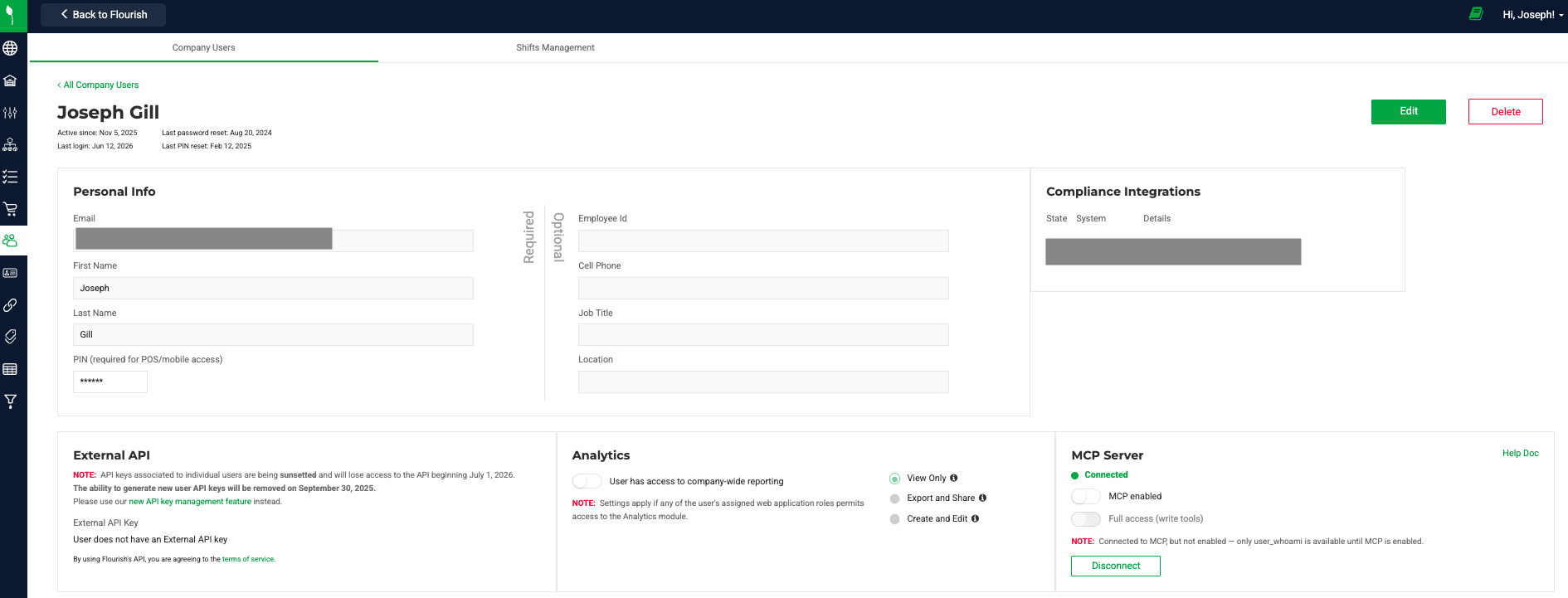
Your MCP session carries three states, and your AI client can report them back to you at any time if you ask who it is signed in as:
- Not enabled — only the "who am I" tool responds; every other tool is unavailable until an admin enables MCP on your user.
- Enabled, read-only — every read tool works; write tools are blocked.
- Enabled with write — read and write tools are both available, still subject to your normal Flourish role permissions and facility access.
Connect Flourish Software to Claude (claude.ai chat)
Follow these steps to connect your Flourish account to Claude using Flourish's MCP server. Claude only sees data you have permission to access in Flourish, scoped to your user's facility access. You can opt out of exposing data to AI training when you configure your Claude account.
1. Add Flourish as a new Connector
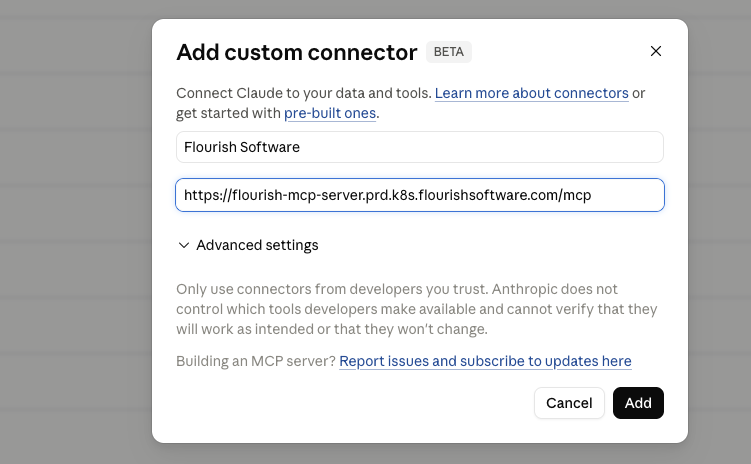
First, click "Customize" to show the customization screen. Navigate to Connectors, click the plus sign, and click "Add custom connector."
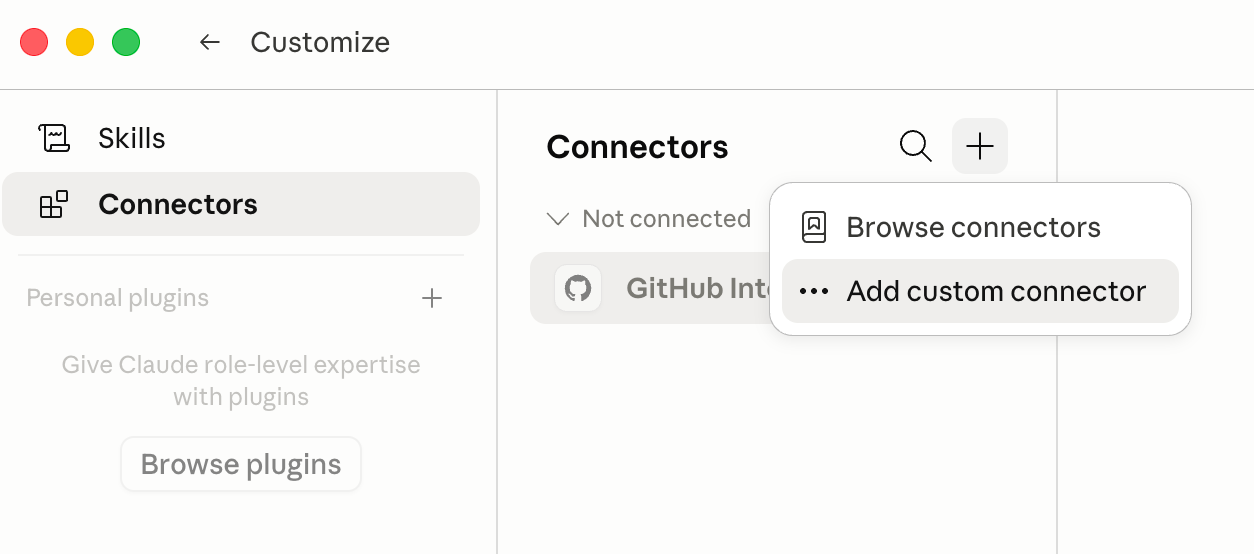
Then, name the connector. For example, "Flourish Software." Enter the Flourish MCP Server URL into the screen, and click "add."
Flourish Server URL: https://flourish-mcp-server.prd.k8s.flourishsoftware.com/mcp
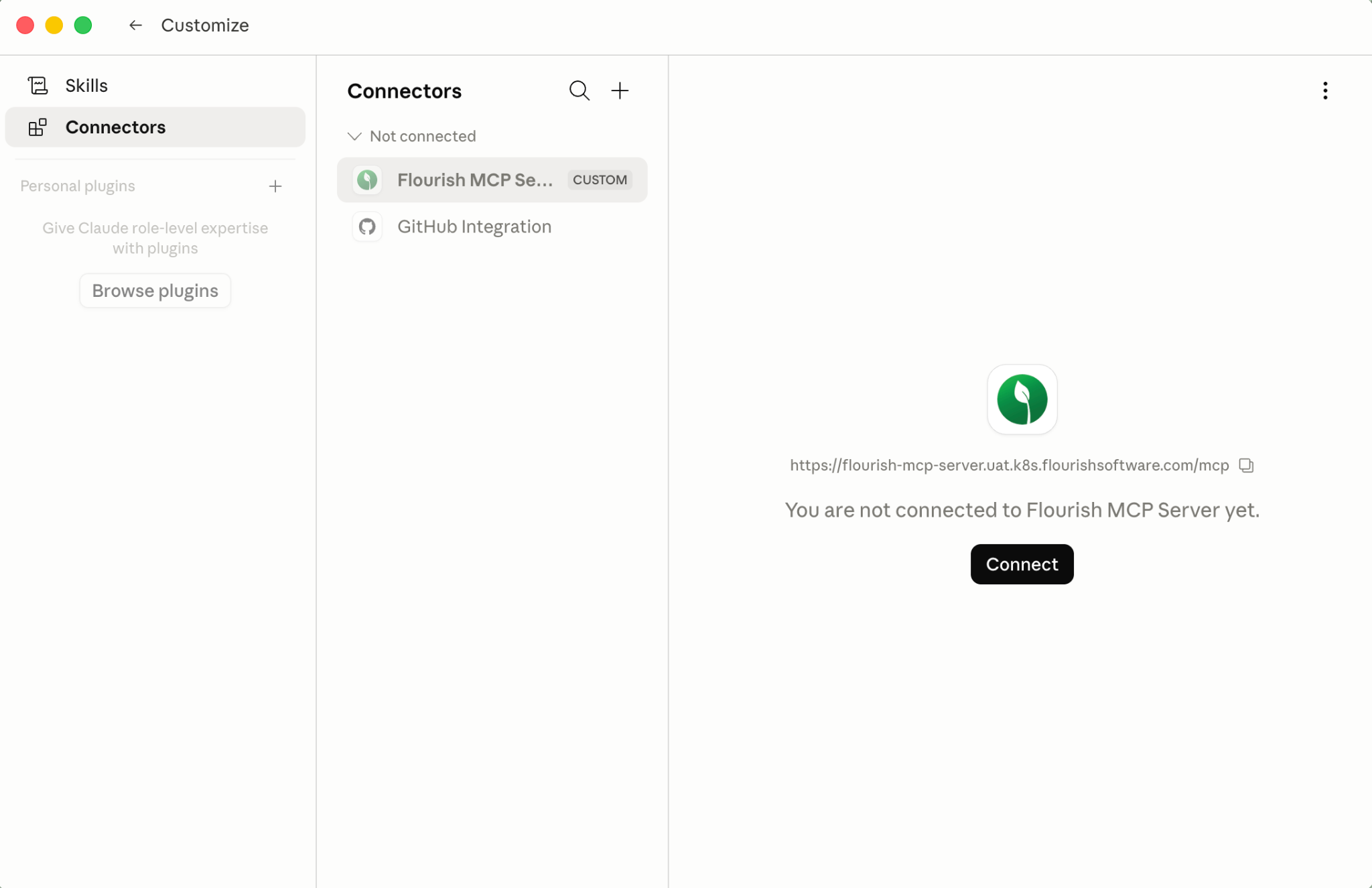
2. Connect to Flourish
Click "Connect" to open the login page.
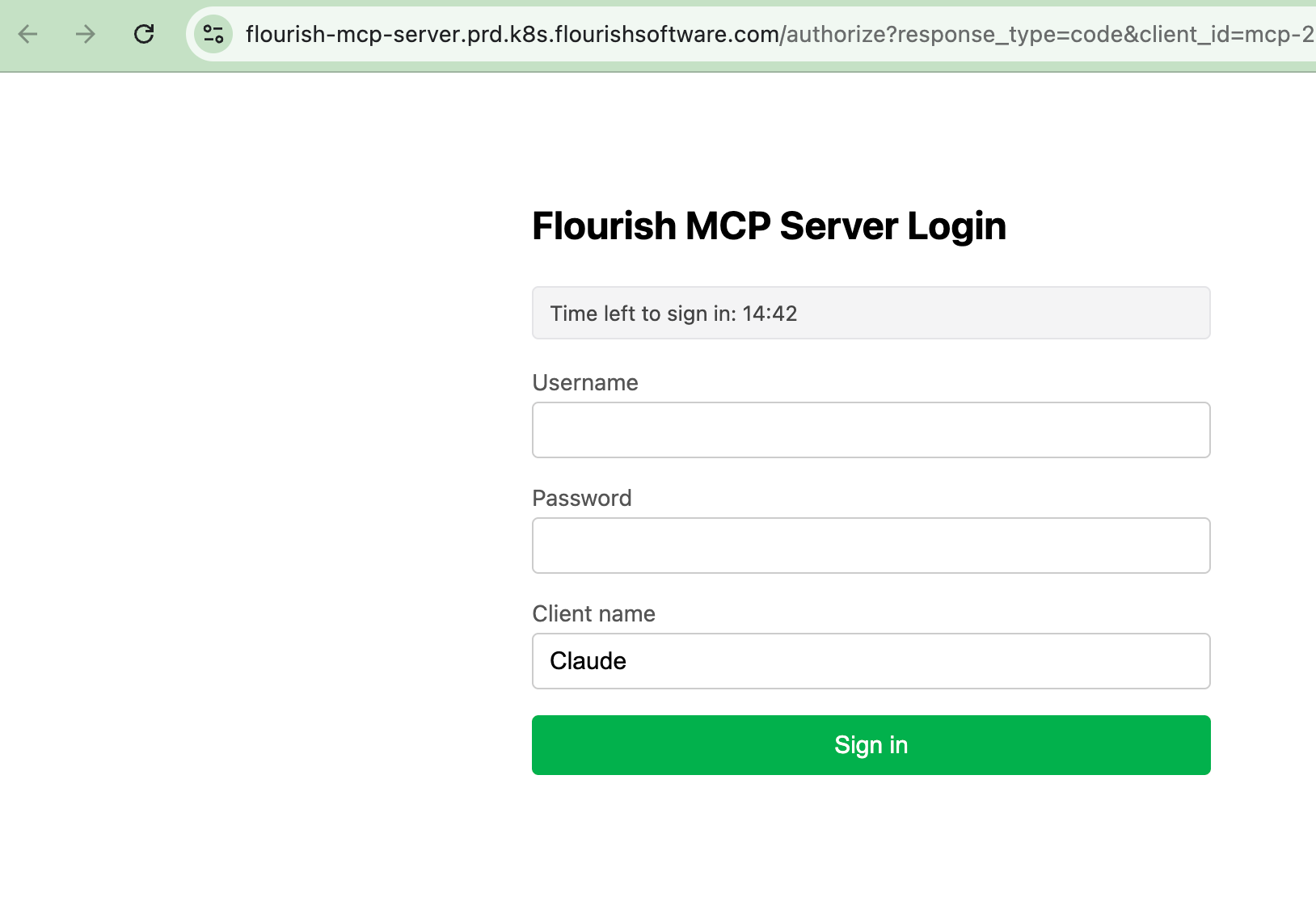
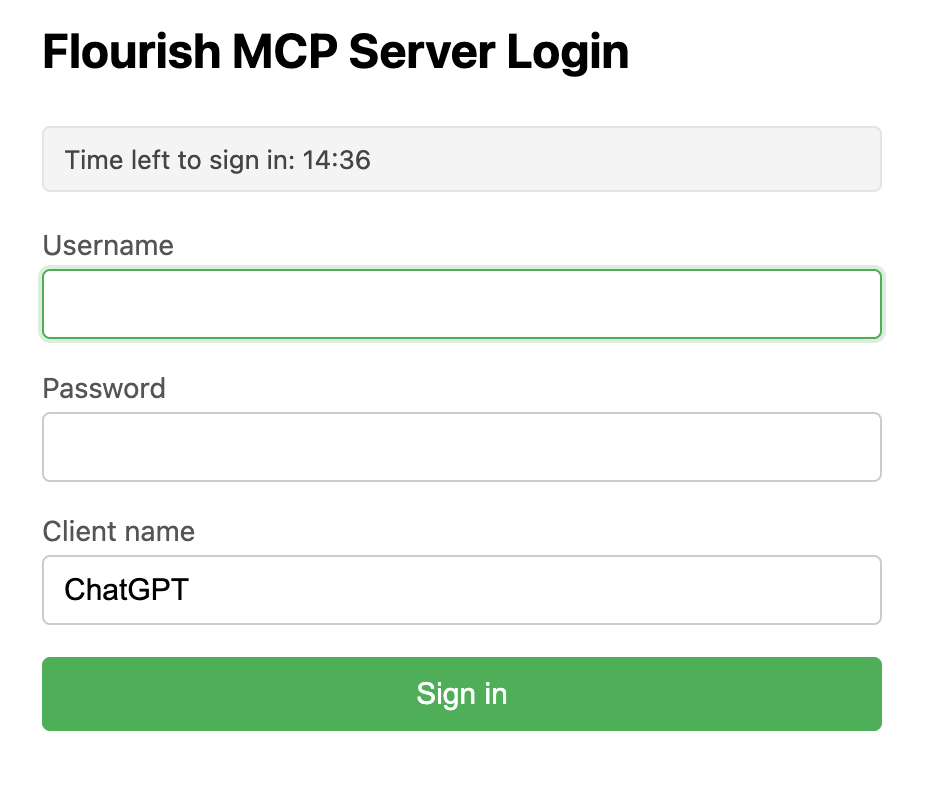
Sign in with your normal Flourish username and password. Client name is used to identify the connection in Flourish (for example, "Claude").
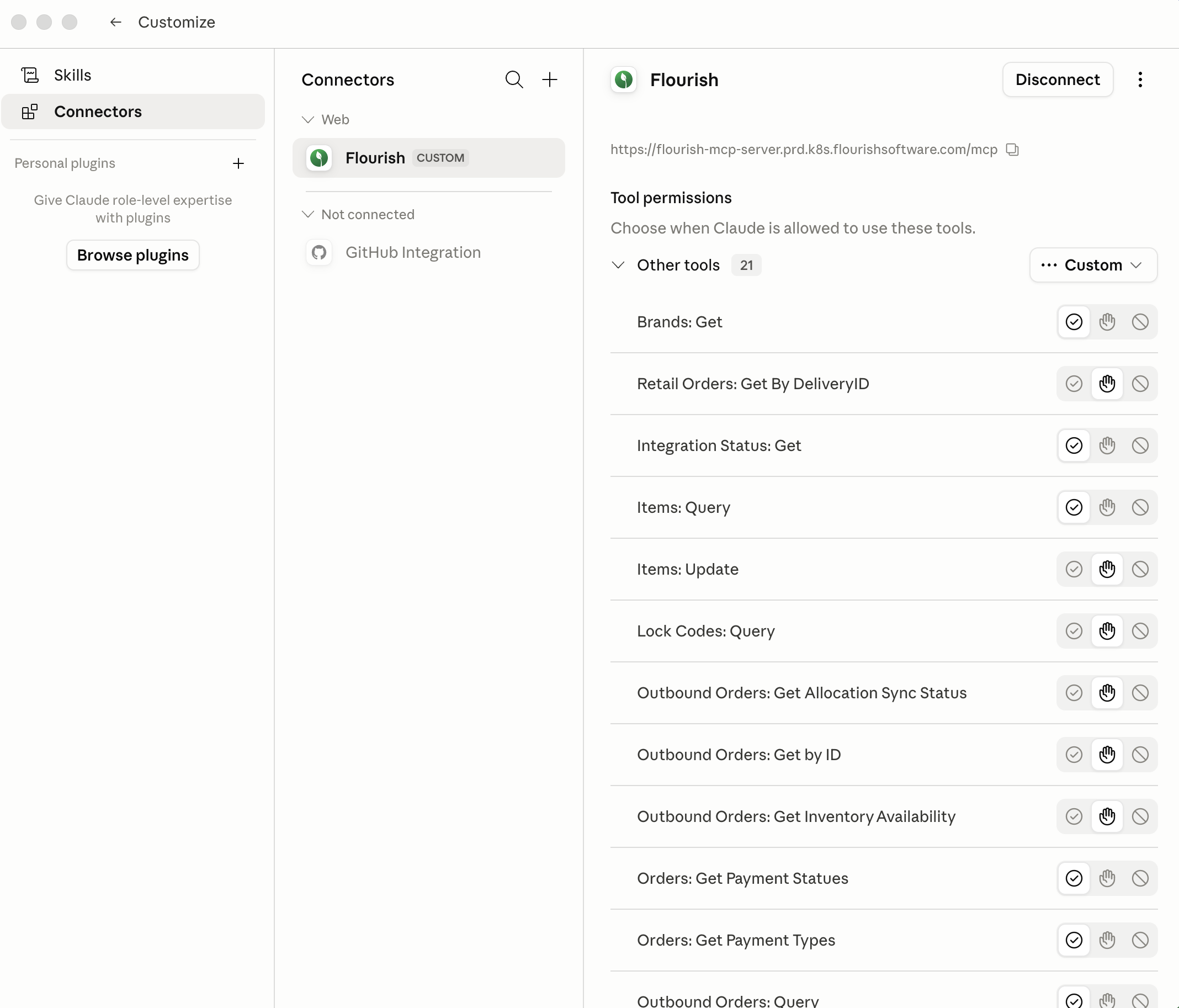
3. Customize Permissions
Modify the tool permissions to align with your comfort level for tool approval.
Note: We update tools on a regular basis, so you may need to refresh the tool list to access new tools.
Other Claude clients (Desktop, Claude Code)
Claude Desktop and Claude Code can use the same production MCP URL and OAuth sign-in flow as Claude on the web. Add a remote HTTP MCP server pointing at https://flourish-mcp-server.prd.k8s.flourishsoftware.com/mcp, then authenticate with your Flourish username and password when prompted.
Connect to OpenAI's ChatGPT
If your Flourish MCP server is a remote MCP endpoint, you can connect it to ChatGPT using the Connectors feature and Developer Mode. ChatGPT supports custom MCP servers through Connectors.
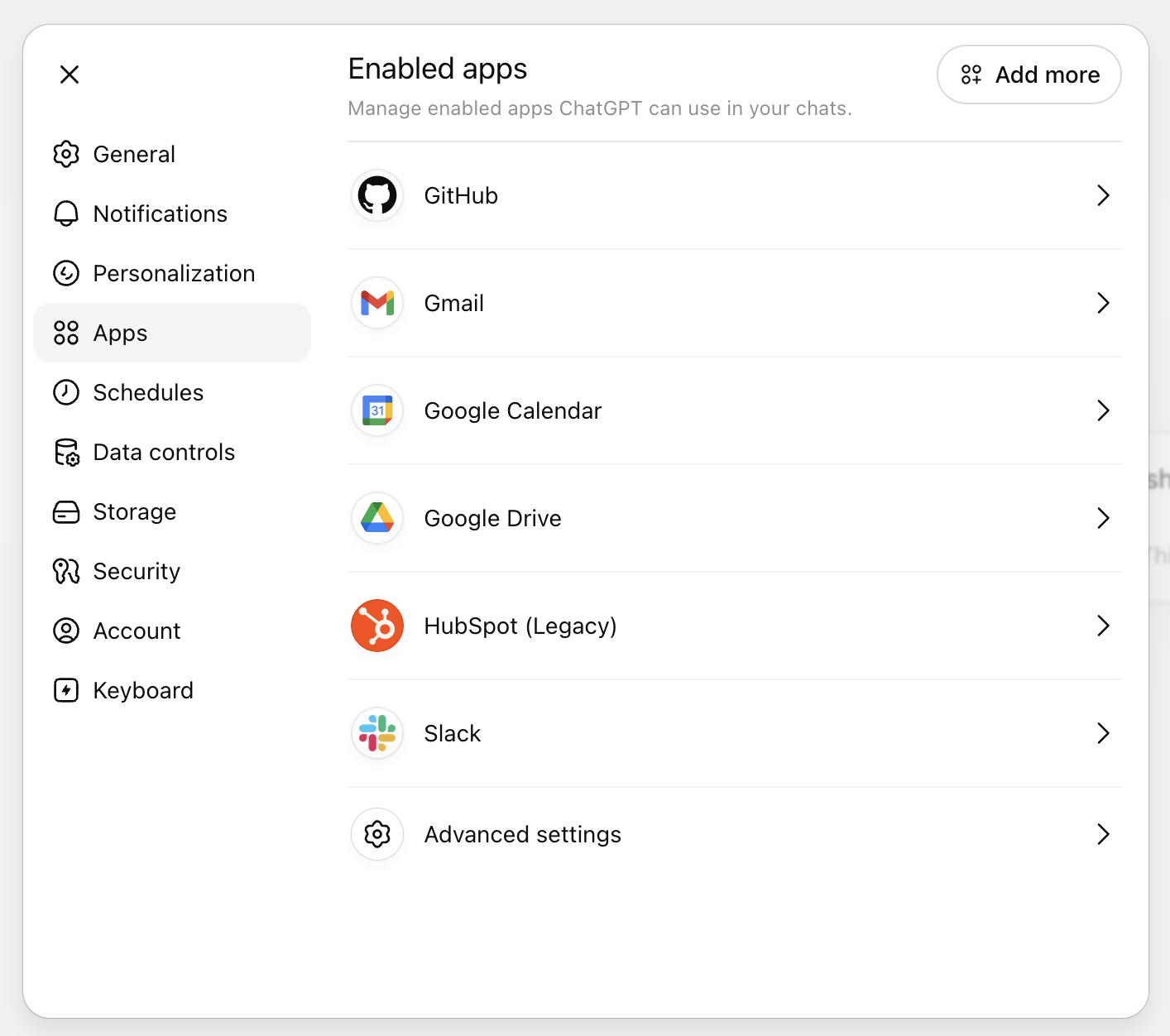
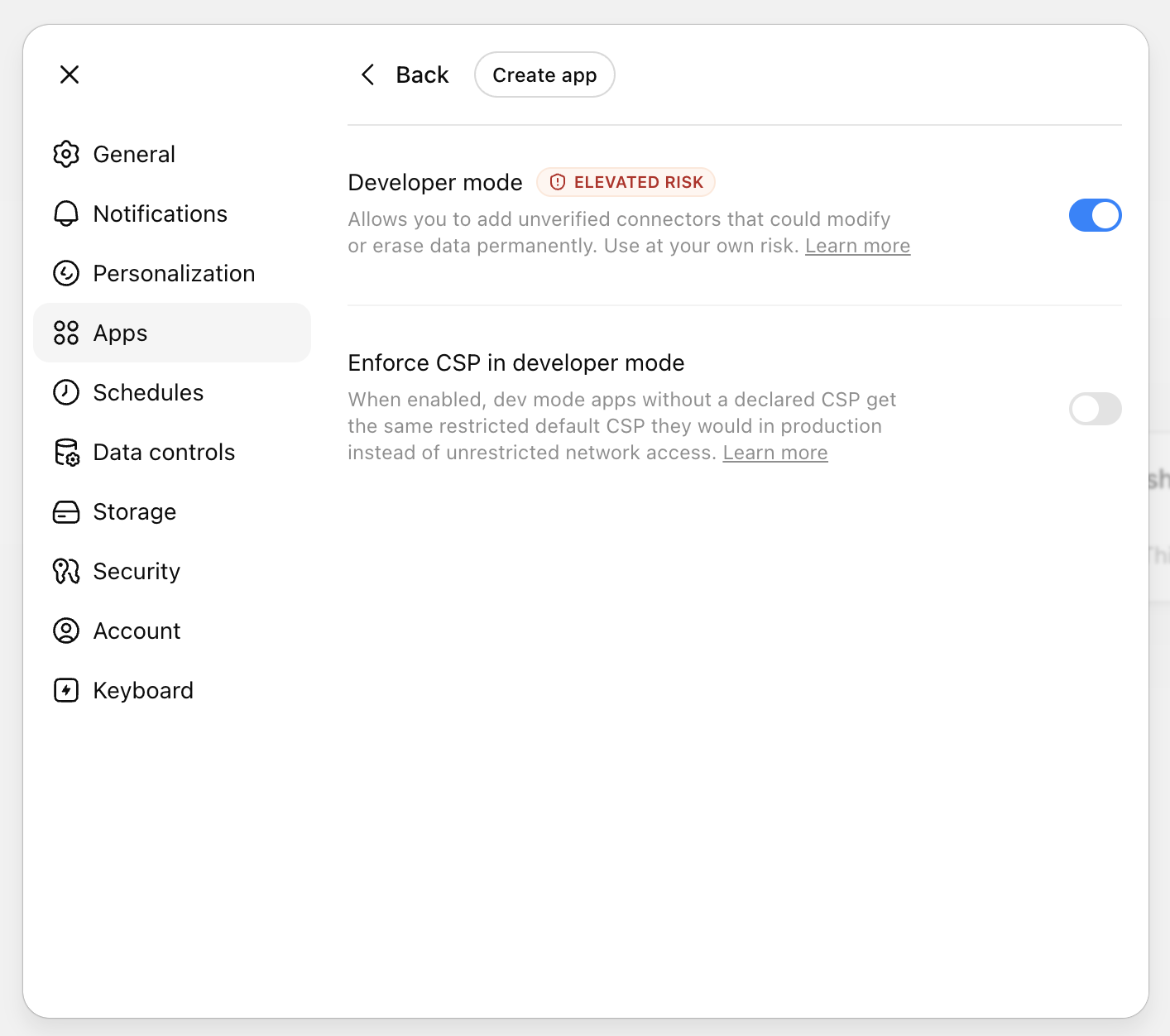
1. Enable Developer Mode
- Open ChatGPT.
- Click your profile picture → Settings.
- Go to Apps
- Click on Advanced Settings at the bottom
- Enable Developer Mode
2. Add the Flourish MCP Server
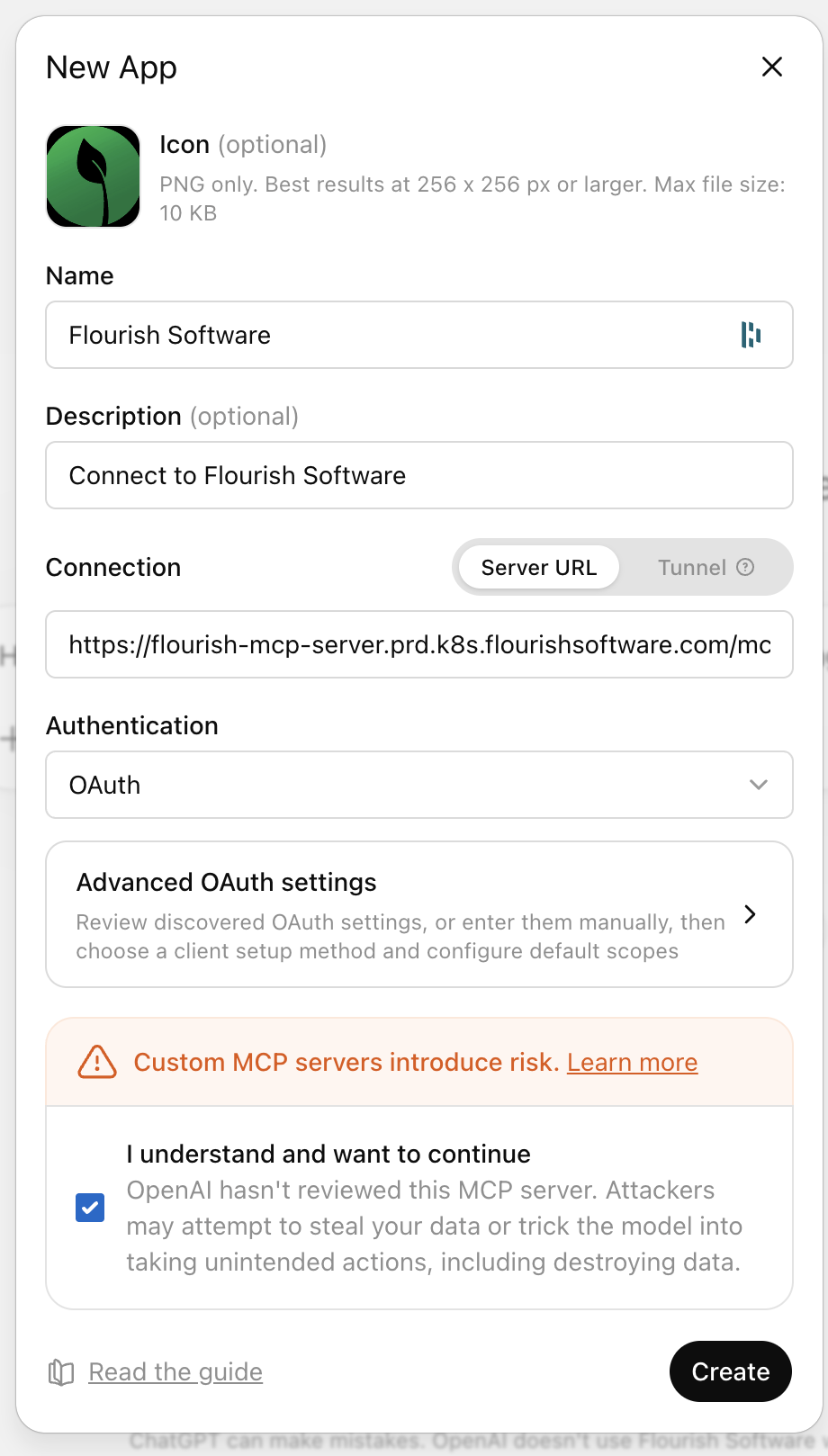
- In Settings → Apps, click New App.
- Enter:
- Icon: optional
- Name: Flourish Software
- Description: optional
- MCP Server URL: https://flourish-mcp-server.prd.k8s.flourishsoftware.com/mcp
- Authentication: OAuth
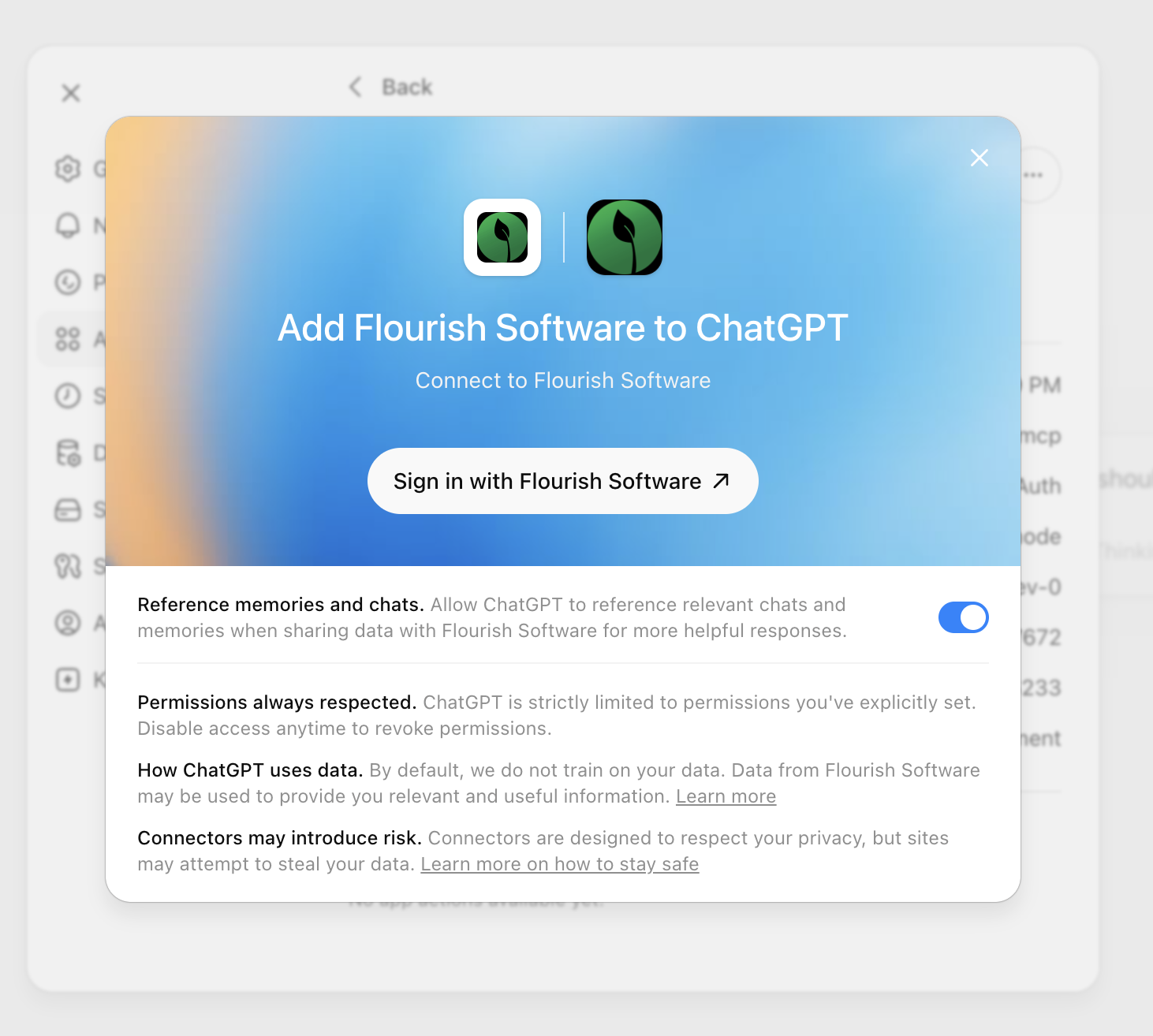
3. Authenticate
Sign into the App using your Flourish username (email) and password.
4. Use It in a Chat
- Start a new chat.
- Open Tools or Add Sources.
- Enable the Flourish Software connector.
- Ask ChatGPT something like:
- "List my Flourish facilities."
- "Show inventory for facility X."
- "Find all items with SKU Y."
ChatGPT will discover the tools exposed by your MCP server and call them as needed.
Make the App available to the others in your org
- Go to the Organization Settings
- Navigate to Apps
- Click on "Drafts"
- Click Publish
Recommended Tool Permissions
Claude and other MCP clients let you choose how each tool is gated. We recommend the following starting configuration. You can tighten or loosen these later as you build trust with the workflow.
Rule of thumb: tools that only read data are safe to allow freely (most names end in _query, _get, or _get_by_id). Write tools should stay on "Needs approval" until you're comfortable with how your AI client uses them. We will never auto-elevate a read tool to a write tool. New write tools always arrive on the "Needs approval" default.
Tool | Type | Recommended Setting | Notes |
User: Who Am I ( | Read | Always allow | Identifies your session and reports whether MCP is enabled and whether you have write access. No business data exposure. |
User: Get Facilities ( | Read | Always allow | Lists facilities you already have access to, with each one's compliance environment. |
MCP Tools: Search ( | Read | Always allow | Discovery only; doesn't return business data. Accepts a regular expression. |
MCP Tools: Get ( | Read | Always allow | Returns the full description for named tools. Discovery only; no business data. |
UOMs: Get ( | Read | Always allow | Static reference data for units of measure. |
Areas: Locations Query ( | Read | Always allow | Lists locations within your facilities. |
Area Types: Query ( | Read | Always allow | Static reference data for area types. |
Areas: Query ( | Read | Always allow | Lists storage areas within your facility. |
Brands: Query ( | Read | Always allow | Lists brands configured in your account. |
Contact Job Titles: Query ( | Read | Always allow | Suggested job titles for destination contacts, matching the web app picklist. |
Delivery Orders: Get by Delivery ID ( | Read | Always allow | Returns line items for a specific delivery. |
Destinations: Query ( | Read | Always allow | Searches customer/vendor facilities. Use it to resolve a destination before creating or editing one. |
Destinations: Create ( | Write | Needs approval | Creates a new customer/vendor facility. May queue a customer sync to QuickBooks Online depending on your settings. |
Destinations: Update ( | Write (destructive) | Needs approval | Overwrites existing destination values. Refuses locked fields on compliance-synced and internal destinations. May queue a QuickBooks sync. |
E-commerce Categories: Query ( | Read | Always allow | Lists your active online menu categories and sub-categories. Company-wide. |
Facility Types: Query ( | Read | Always allow | Static reference data for destination types (Dispensary, Cultivator, …). |
Integration Sync Statuses: Query ( | Read | Always allow | Returns Metrc/compliance sync status. |
Inventory Summary: Query ( | Read | Always allow | Returns aggregated inventory data across your facility. |
Inventory Types: Get ( | Read | Always allow | Static reference data for inventory types (Cannabis, Raw Materials, Supplies, …). |
Item Case Configs: Query ( | Read | Always allow | Lists the case sizes on items, or only the items that have none. |
Item Case Configs: Apply ( | Write (destructive) | Needs approval | Sets the same case sizes on up to 5,000 items in one call, all or nothing. Asks you to confirm before replacing a default or deactivating a case size. |
Item Categories: Query ( | Read | Always allow | Static reference data for item categories. |
Item Classes: Query ( | Read | Always allow | Static reference data for item classes. |
Items: Query ( | Read | Always allow | Returns product catalog items with filters. |
Items: Update ( | Write | Needs approval | Modifies item records, including pack size and e-commerce fields. Requires explicit confirmation. |
Lab Test Result Statuses: Query ( | Read | Always allow | Returns available lab result status values. |
Lock Codes: Query ( | Read | Always allow | Returns package lock code reference data. |
Order: Allocation Sync Status ( | Read | Always allow | Returns allocation and sync status for a specific order. |
Order: Inventory Availability ( | Read | Always allow | Checks available inventory for fulfilling an order. |
Order Payment Status: Query ( | Read | Always allow | Returns payment status reference values. |
Order Payment Types: Query ( | Read | Always allow | Static reference data for payment types. |
Outbound Orders: Query ( | Read | Always allow | Returns outbound order list with filtering support. |
Outbound Orders: Get by ID ( | Read | Always allow | Returns full detail for a single outbound order. |
Outbound Orders: Create ( | Write | Needs approval | Creates or overlays a draft B2B order and its lines. Does not allocate, submit, approve, or take payment. |
Outbound Orders: Patch ( | Write | Needs approval | Edits order header fields and order notes on up to 10 orders per call. Header only — not lines. |
Outbound Orders: Update ( | Write | Needs approval | Replaced by outbound_orders_patch. Removal is planned. |
Package Statuses: Query ( | Read | Always allow | Static reference data for package statuses. |
Packages: Locate ( | Write (compliance) | Needs approval | Moves packages to an area/location and reports the move to Metrc or BioTrack. Max 50 placements per call; all-or-nothing. |
Packages: Lock ( | Write | Needs approval | Locks a package in Flourish. Blocked for packages allocated to open orders or manufacturing runs. |
Packages: Query ( | Read | Always allow | Returns package inventory with filtering support. |
Packages: Unlock ( | Write | Needs approval | Unlocks a package in Flourish. |
Retail Order Metrics: Get ( | Read | Always allow | Returns aggregated retail sales metrics. |
Retail Orders: Quote ( | Read | Always allow | Prices a hypothetical retail cart (discounts + taxes) without creating an order. |
Sales Reps: Query ( | Read | Always allow | Lists company sales reps; use before updating an order's sales rep. |
Shipment Orders: Get by Shipment ID ( | Read | Always allow | Returns orders associated with a specific shipment. |
Strains: Query ( | Read | Always allow | Returns strain catalog data. |
Example Prompts
Once connected, try these to get a feel for what the integration can do. Your AI client will ask you to choose a facility on the first prompt of a session if you have access to more than one.
Inventory & operations
- "What facilities do I have access to in Flourish?"
- "Show me all packages at [facility name] that are currently locked, and why."
- "List items where the SKU starts with 'GUM-' and the product class is edible."
- "How many packages of [strain name] do I have on hand, grouped by facility?"
Outbound orders — review
- "Show submitted outbound orders from [facility] with payment status Awaiting Payment."
- "Open order OUT-20240115-0001 and tell me whether each line has enough available inventory to allocate."
- "For order OUT-20240115-0001, are all allocated packages in sync with Metrc?"
- "List the orders on shipment SHP-20240115-0001 in stop order."
Outbound orders — build and edit (write actions — your AI client will ask before executing)
- "Draft an outbound order from [origin facility] to [destination] for 10 units of SKU GUM-001 at $22 each and 5 of SKU PR-050 at $14, referencing PO-9981."
- "Here's the PO my customer emailed — match each line to an item and build the draft order, then show me what you matched before you save it."
- "Add two more lines to that draft and bump the GUM-001 line to 15 units."
- "Set the requested delivery date on orders SO-1001 and SO-1002 to next Tuesday and put PO-88231 in ref field 1."
- "Add an internal note to order SO-1001 saying the buyer wants delivery before noon."
- "List active sales reps available for [destination], then set the sales rep on order SO-1001."
Destinations & customer master data
- "Find all active dispensary destinations in Colorado, sorted by license expiration date."
- "Which of my destinations have a license expiring in the next 60 days?"
- "Show me everything on the [destination name] record — contacts, sales reps, delivery windows, and payment terms."
- "Which fields are locked on [destination name], and why?"
- "Create a new dispensary destination for [name] with license C10-0000123, Net 30 terms, and Jane Doe as the buyer contact." (write — asks first)
- "Update the shipping address on [destination name] and add Tuesday and Thursday delivery windows from 9:00 to 13:00." (write — asks first)
Retail
- "Give me today's and tomorrow's retail order counts for each store."
- "List orders on delivery route [delivery ID] with stop sequence and payment status."
- "Quote a retail cart at [facility] with 2 of SKU GUM-001 and promo code SUMMER10."
Compliance & sync health
- "What's the current sync status of my Metrc integration? Are there any failed records?"
- "Show me any integration sync errors from the last 24 hours and explain what they likely mean."
Lock and locate workflow (write actions — your AI client will ask before executing)
- "Find all packages at [facility] tagged with the test batch ID 1A4… and lock them with the 'Pending QA Review' lock code."
- "Unlock the three packages I just locked for QA — testing came back clean."
- "Move those packages into the Quarantine area, shelf B2." (this one reports to Metrc/BioTrack)
Reference & exploration
- "What units of measure does Flourish support, and which ones are 'count' vs 'weight'?"
- "List active brands and which ones have logo images."
- "What tools does the Flourish MCP server expose? Group them by read vs write."
- "Search the Flourish tools for anything to do with destinations, then show me the full instructions for the create tool."
Tip: Your AI client works best when you give it a facility name or ID up front and tell it whether you want a summary, a table, or raw data. The more specific the prompt, the better the result.
Troubleshooting
The "Connect" button does nothing, or the login window closes immediately.
Pop-ups may be blocked. Allow pop-ups for your AI client in your browser and try again.
The login screen shows a countdown timer and times out before I finish.
The sign-in window is short-lived (about 15 minutes) for security. If it expires, close the window and click "Connect" again. A fresh login window will be issued. Have your password and 2FA device ready before you start.
"Invalid credentials" even though my Flourish login works in the app.
Make sure you're using the email that you log into Flourish with.
My password expired or was reset after I connected.
Disconnect the connector (three-dot menu → Disconnect), then click Connect again and sign in with your new password. Existing chats won't retroactively reauthenticate.
My connection stopped working after a long period of inactivity.
MCP sessions expire after 90 days. Disconnect and connect again, or sign in fresh when your AI client prompts you.
Tools are missing, or new tools you announced aren't showing up.
Open the connector settings and click "Refresh tools list" at the top right. We add and update tools regularly; refreshing pulls the current catalog without requiring you to disconnect and reconnect.
Only one tool responds, or my AI client says MCP isn't enabled for me.
Until an admin enables MCP on your Flourish user, the connection authenticates but only the "who am I" tool returns data. Ask an admin to enable MCP on your user profile, then refresh the tool list.
Read tools work but every write is refused.
Your user is enabled for MCP in read-only mode. An admin can grant write access in your user profile in Flourish. Ask your AI client "what access do I have in Flourish?" and it will report whether writes are permitted.
My AI client says it "doesn't have access" to a facility I should be able to see.
The MCP session inherits the same facility access as your Flourish user account. If a facility is missing, check your user's facility permissions inside Flourish first. If your access is correct there, disconnect and reconnect the connector to refresh your session token.
A write action (lock, unlock, update) failed.
Check the error message your AI client returns. Common causes include: the package is allocated to an open order or manufacturing run (which blocks locking), an invalid lock_code_id for that facility (lock codes are facility-specific), or insufficient role permissions on your Flourish user. Re-running the read query first (for example, packages_query) will usually surface the underlying state.
An order edit was refused because the order is already shipped.
Shipped orders can't have their lines changed. Header fields and notes can still be edited unless the order is BioTrack V1 manifested, which rejects header edits too. Ask your AI client to patch the header instead of rebuilding the order.
A destination field wouldn't save.
Some destination fields are read-only and the tool refuses them up front. A compliance-synced destination locks its name, license number, destination type, and universal business identifier. An internal (same-company) destination also locks state and can't be deactivated. Those changes have to happen at the source — in your compliance system, or on the facility record itself.
I created the same order twice.
Pass the same external reference (the customer PO, source email ID, or similar) each time you ask for the order. The create tool uses that reference to find and overlay the existing draft instead of inserting a second one.
My AI client told me a tool is deprecated.
Older order tools have replacements: outbound_orders_query replaces orders_query and outbound_order_get_by_id replaces order_get_by_id (both removed 2026-09-10), and outbound_orders_patch replaces orders_update (deprecated). Refresh your tool list and your AI client will pick the right one on its own.
Something else is broken.
Email support with: your Flourish username, the approximate time of the issue, the prompt you sent, and any error message displayed. Screenshots help.
How did we do?
Daily Ops Digest and Scheduled Reports with an LLM
