Flourish Software HubSpot App and Integration Guide
Sync Flourish data to the HubSpot CRM, including companies, contacts, items, and orders
Flourish HubSpot App Overview
Install Flourish's native HubSpot app to sync data from the Flourish application back into HubSpot's CRM. This fully aligns sales and marketing activities with Flourish's operational power.
This integration supports:
- Full data sync
- Ongoing data sync
- Custom field mapping per object
- Control over what data objects to sync
Flourish Data Object | HubSpot Data Object |
Destination | Company |
Item | Product |
Retail Customer | Contact |
Outbound Order | Order |
Retail Order | Order |
Setup Guide for the Flourish Software HubSpot App
The Flourish Software HubSpot App integrates Flourish Software data and orders with HubSpot contacts, companies, and commerce orders, which lets users:
- Align Flourish data with the HubSpot CRM
- Drive marketing workflows off of data originating in Flourish
- Empower sales teams with sales performance context around accounts
Prerequisites for Customer
BEFORE enabling sync, you must have a HubSpot Account. Best practice is to use HubSpot's export/import feature to add Flourish's destination ID to existing Company records and Flourish's SKU to existing item records within the CRM.
- For Destinations (if CRM already has companies):
- Export companies from HubSpot to Excel
- Add column: flourish_destination_id
- Populate with Flourish destination IDs (manual mapping)
- For Orders: No prerequisite needed
- Fresh sync from Flourish
- For Items (if CRM already has products):
- Similar Excel export/import process
- Ensure SKUs match between systems
- Or just let Flourish create all products (cleaner)
- Re-import to HubSpot as UPDATE (not create)
HubSpot App Installation
- Log into Flourish
- Navigate to Settings > Integrations
- Click "Install" on the HubSpot App card
- Select your HubSpot account
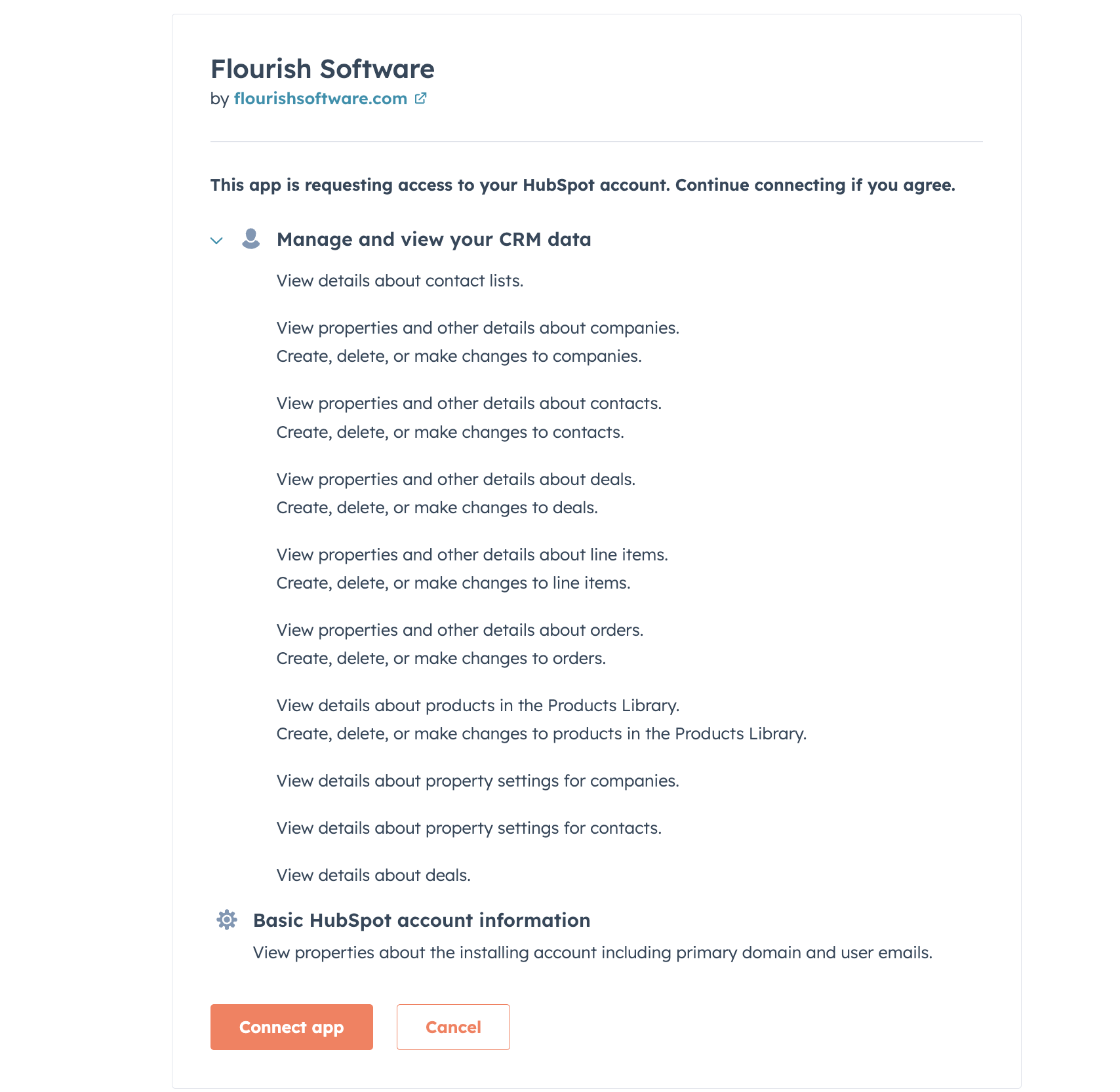
- Review the requested scopes on this screen.
- Click Connect app.
- You will be redirected to the Flourish "Integrations" page, and new configuration options will appear.
Integration Steps within Flourish
Navigate to Settings > Integrations to see the HubSpot integration configuration option. Click "Configure" to start.
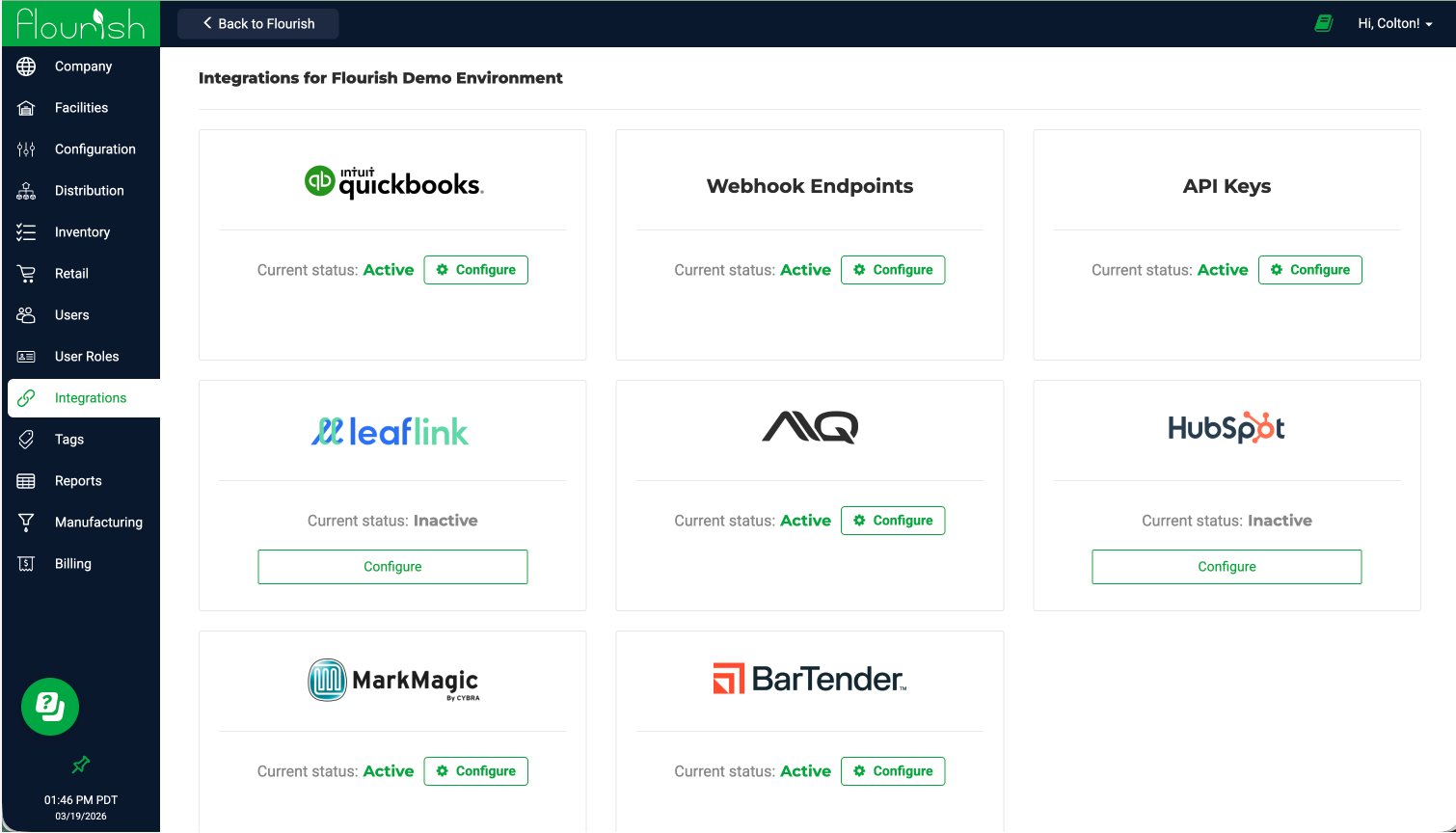
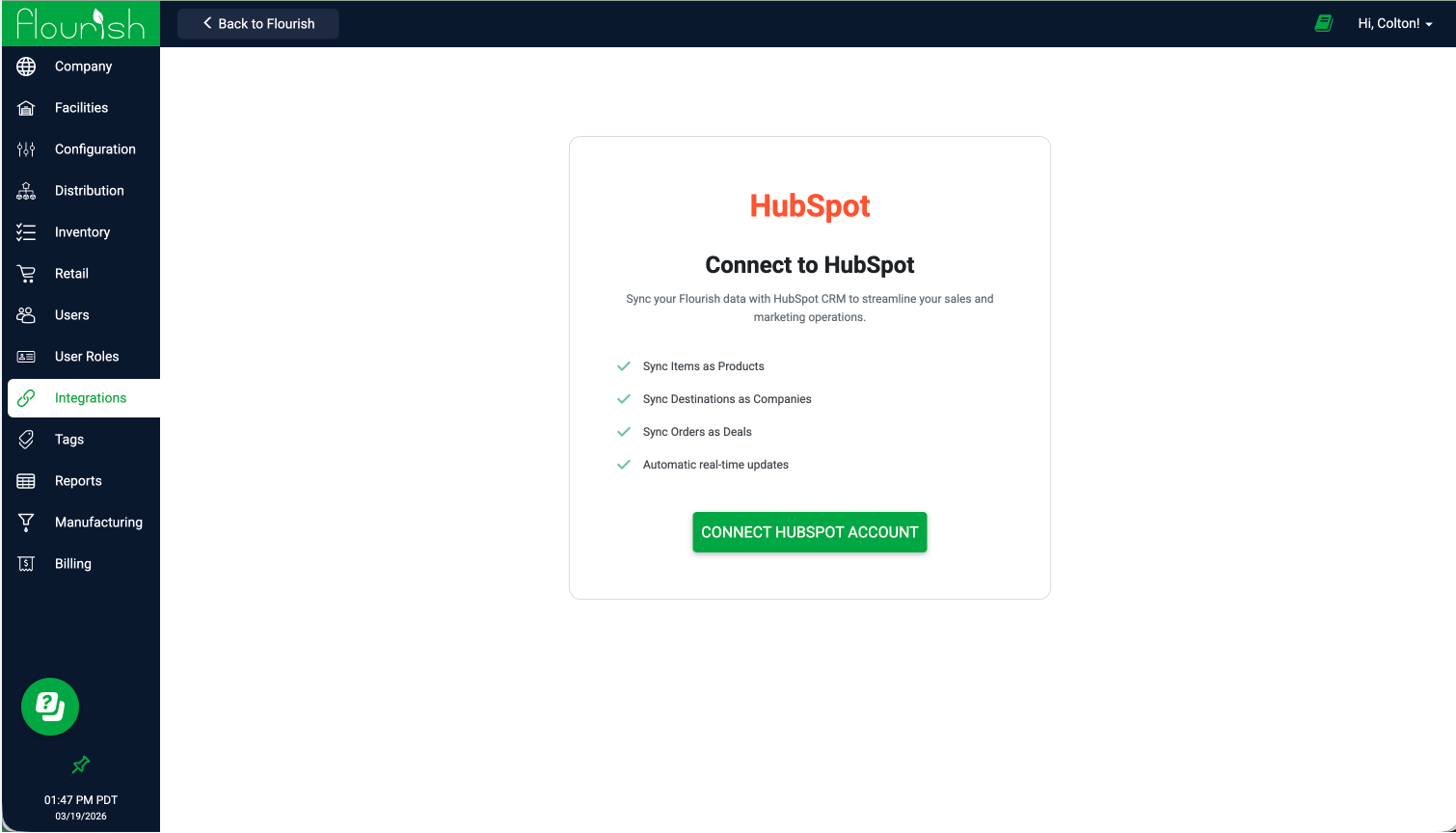
Step 1: OAuth Connection
Flourish connects to HubSpot using an OAuth consent screen. Click "Connect HubSpot Account" here
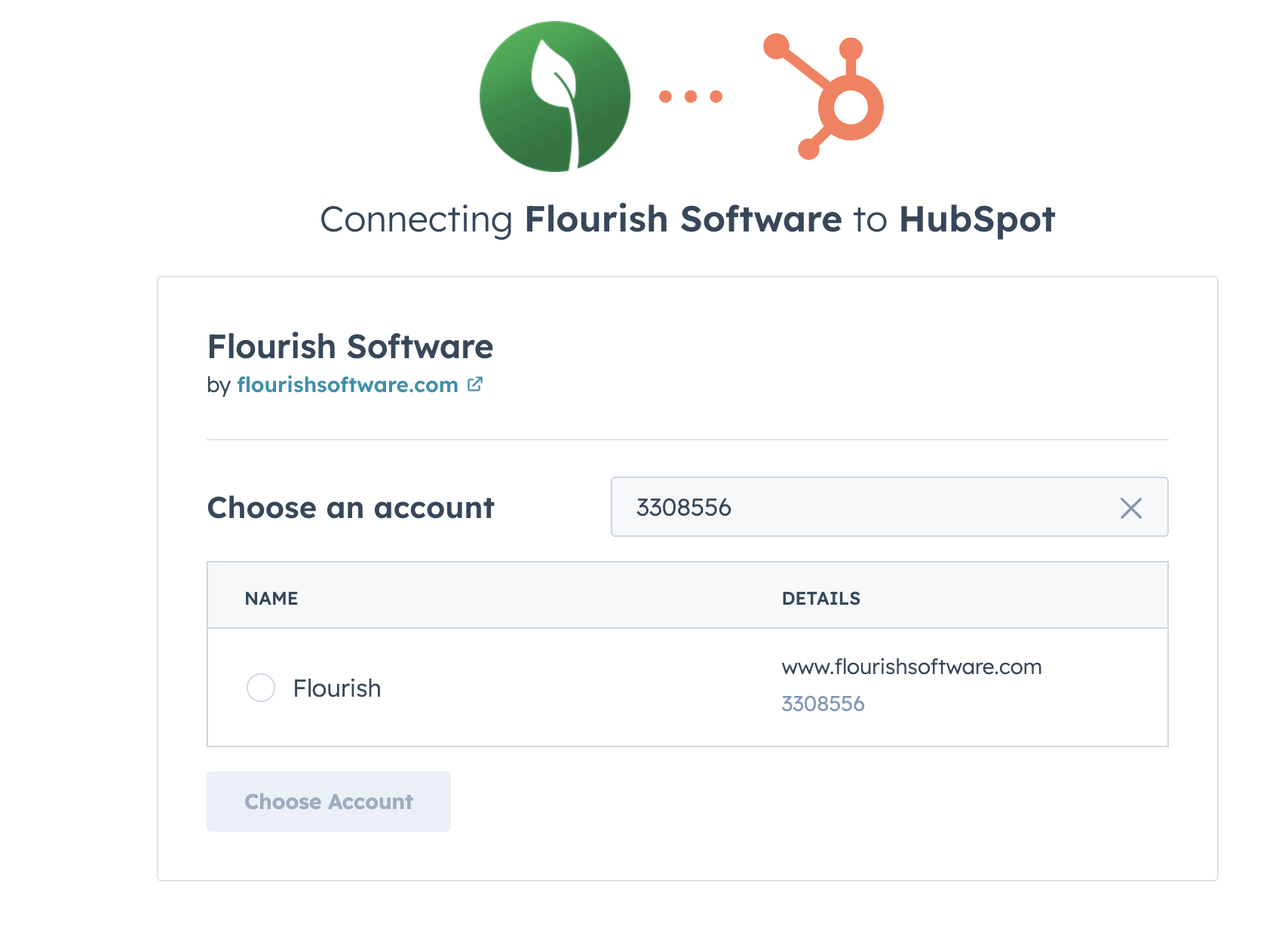
Step 2: Select your HubSpot Account
Choose the account to connect to Flourish.
Step 3: Accept the permissions and click Connect app
Step 4: Review existing CRM Data
Follow the steps in the pre-integration if not addressed prior to installing the app.
Step 5: Update mappings
Define field mappings as desired

Step 6: Sync items
Click the button to run a full product catalog sync
Step 7: Sync destinations / customers
Click the button to run a full destination sync. The Flourish App creates the destination_id Custom Field if it does not exist. Sync these data objects prior to syncing orders to ensure the orders have a matching record in HubSpot.
Step 8: Sync Orders
Optional: Click the button to run a historical order sync. Enable the order sync for ongoing data syncing.
- Choose the pipeline to sync orders to
- Map the orders statuses
- Configure custom field mapping as desired
Disconnect the App
Disconnect the app by clicking "Disconnect" in the integrations screen.
Note: If you disconnect your HubSpot account from Flourish, account data will no longer sync to HubSpot. Existing data will remain on your HubSpot records and within Flourish.
- Log in to Flourish
- Navigate to Settings > Integrations
- Locate the HubSpot card
- Click Disconnect
- Click Yes, I am sure.
Uninstalling the App within HubSpot
To uninstall the app from within a HubSpot account, you may simply link and refer to the HubSpot Knowledge Base article on this topic.
How did we do?
View and Manage Notifications in Flourish
