Table of Contents
Create and Manage Shifts
Manage shifts for your facility in Flourish through the Shifts Management grid. This feature allows you to add, edit, enable, and disable shifts while preserving historical data. Access Shifts Manage…
Table of Contents
Manage shifts for your facility in Flourish through the Shifts Management grid. This feature allows you to add, edit, enable, and disable shifts while preserving historical data.
Access Shifts Management
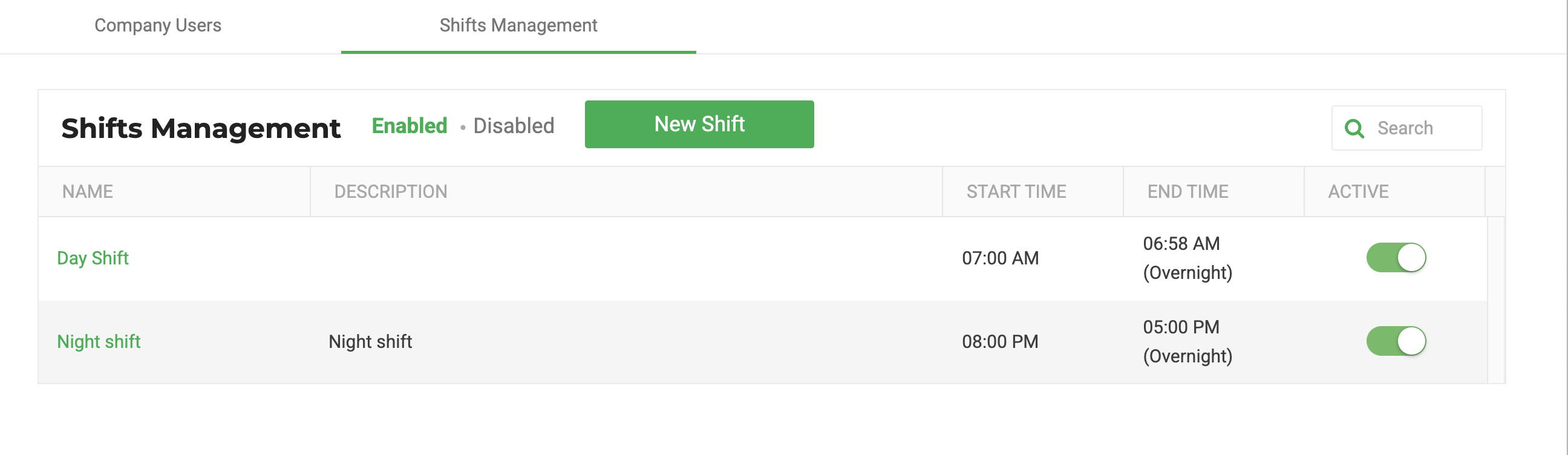
Go to Settings > Users > Shifts to access the "Shifts Management" screen.
Adding a Shift
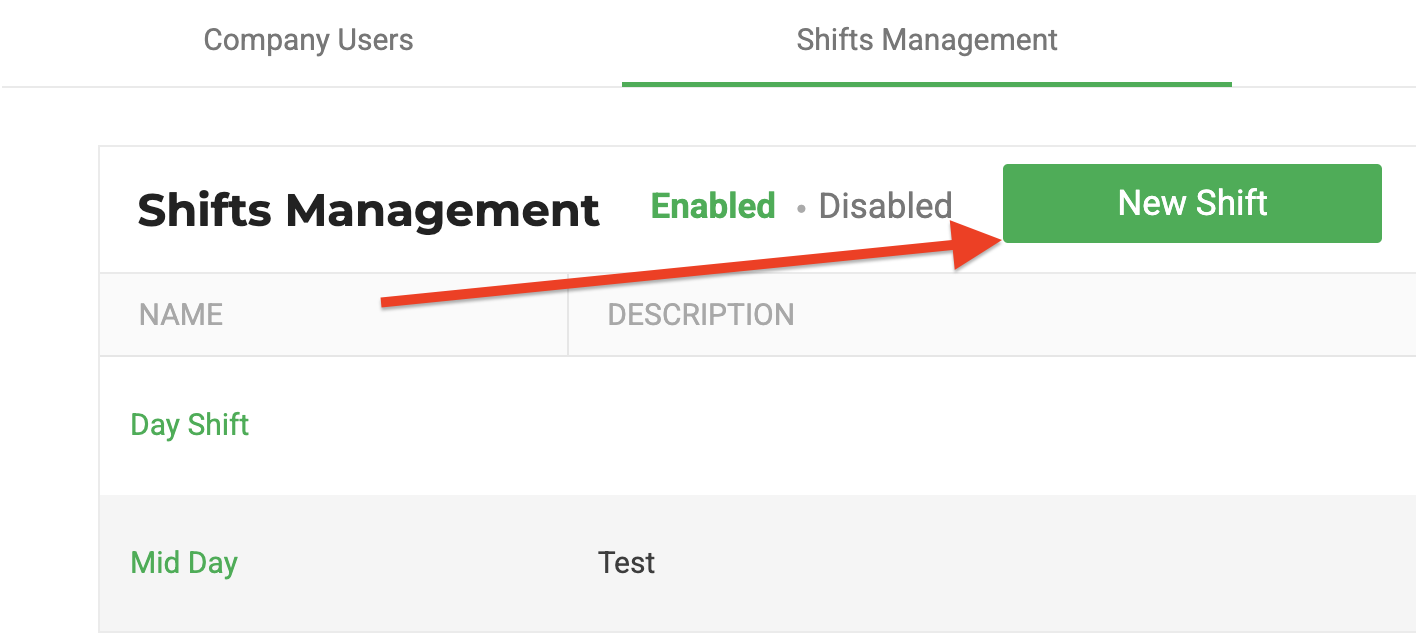
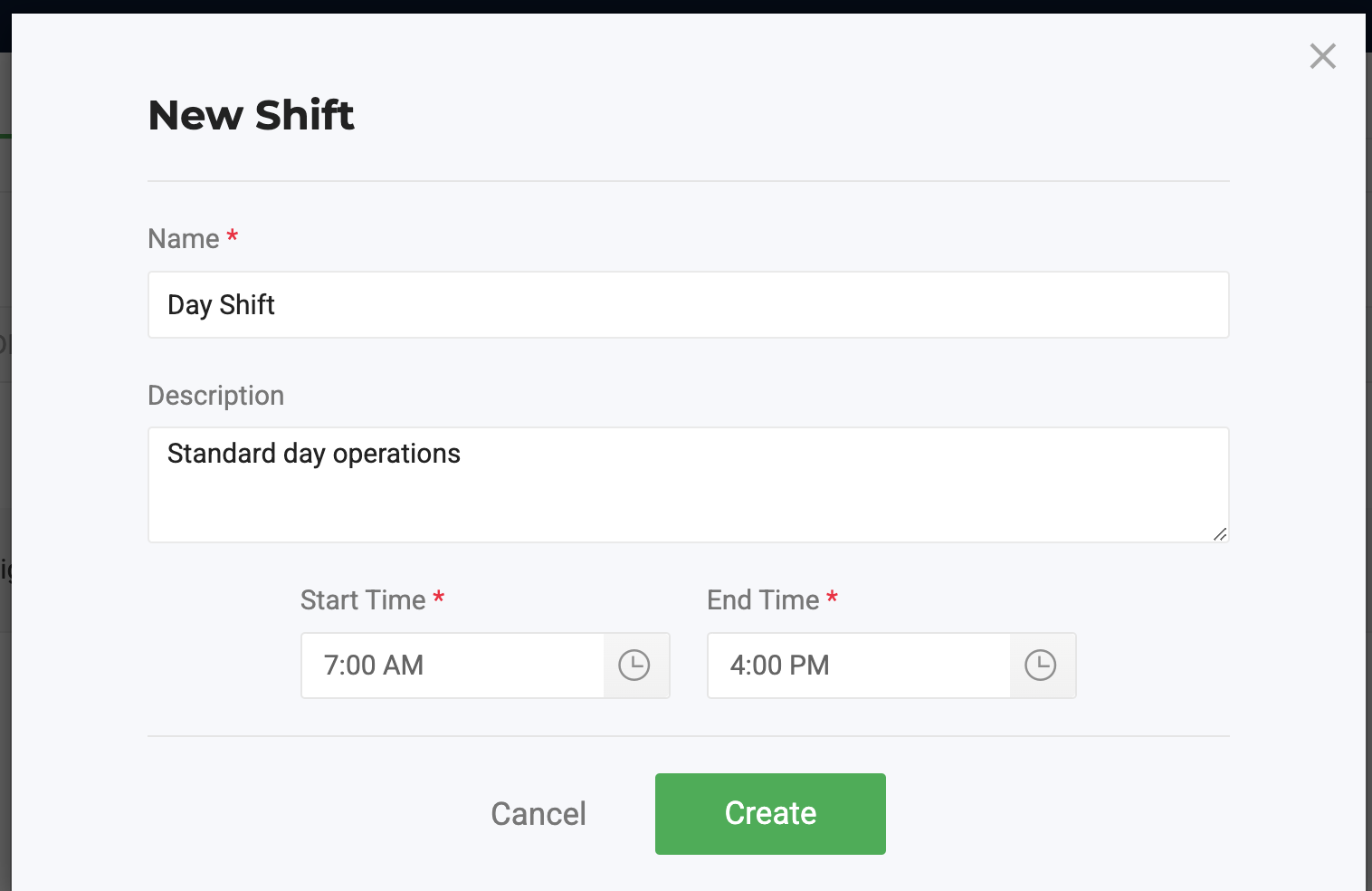
You can create a new shift to define when work hours are available for selection in manufacturing runs.
|   |
Actions on Shifts
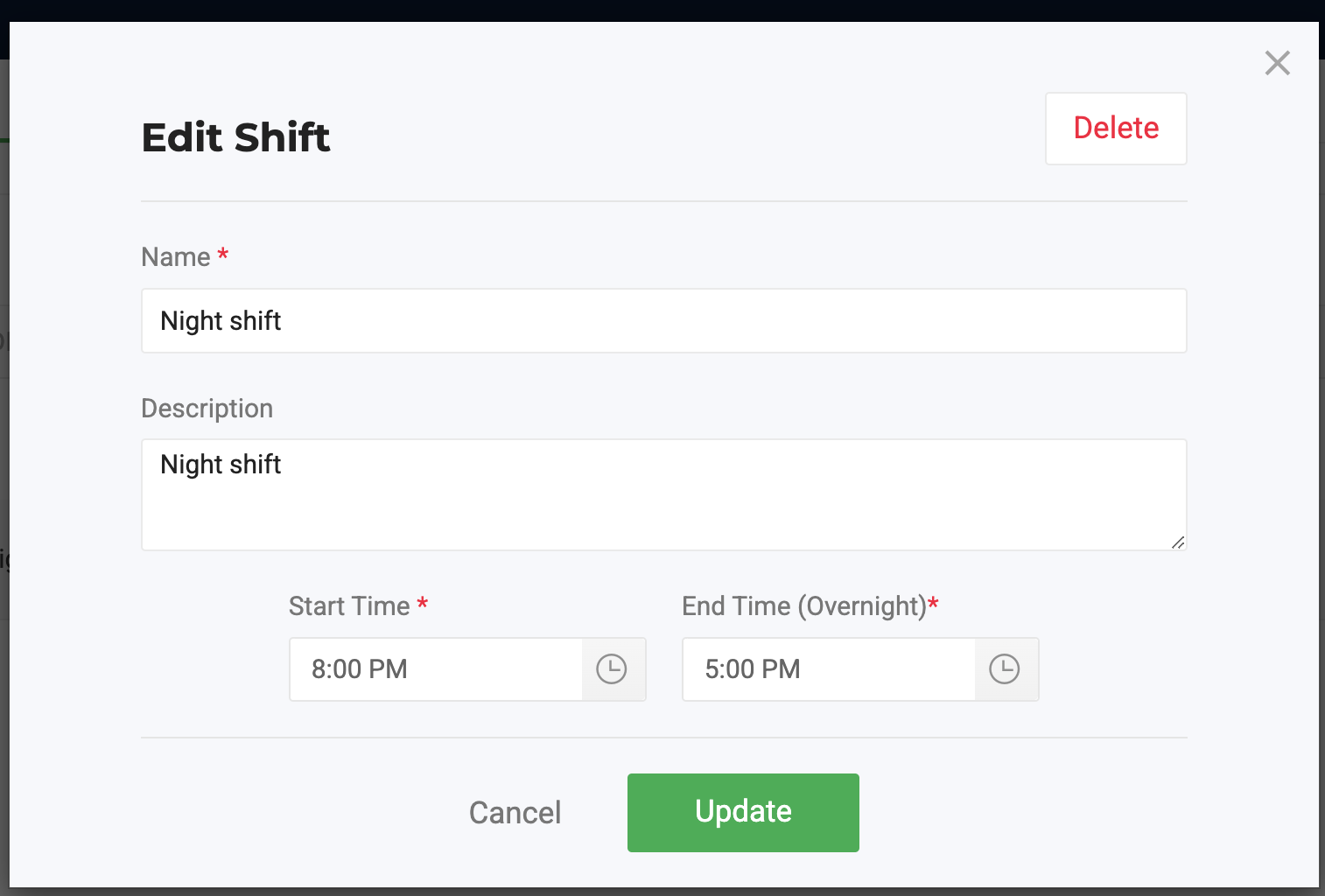
- Edit – Update the shift’s Name, Description, Start Time, End Time, or Status.
- Delete – ❌ You cannot delete a shift that has been used in manufacturing runs.
- Disable – Deactivate the shift. Disabled shifts are hidden from manufacturing run dropdowns
- Enable – Reactivate a disabled shift, making it selectable again in manufacturing runs.
Edit a Shift
|  |
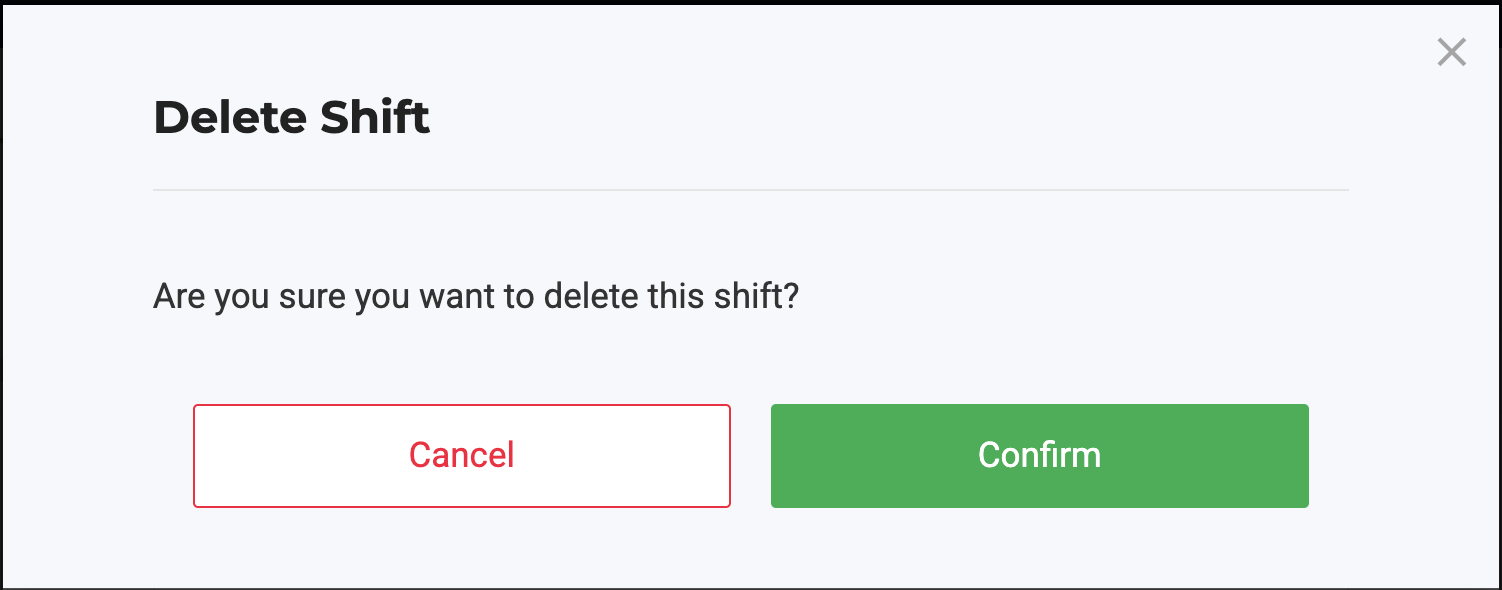
Delete a Shift
Shifts cannot be deleted once they have been used in manufacturing runs. If a shift is no longer needed, use the Disable option instead to preserve historical integrity.
|  |
Disable a Shift
From the Actions column, you can update or change the status of a shift.
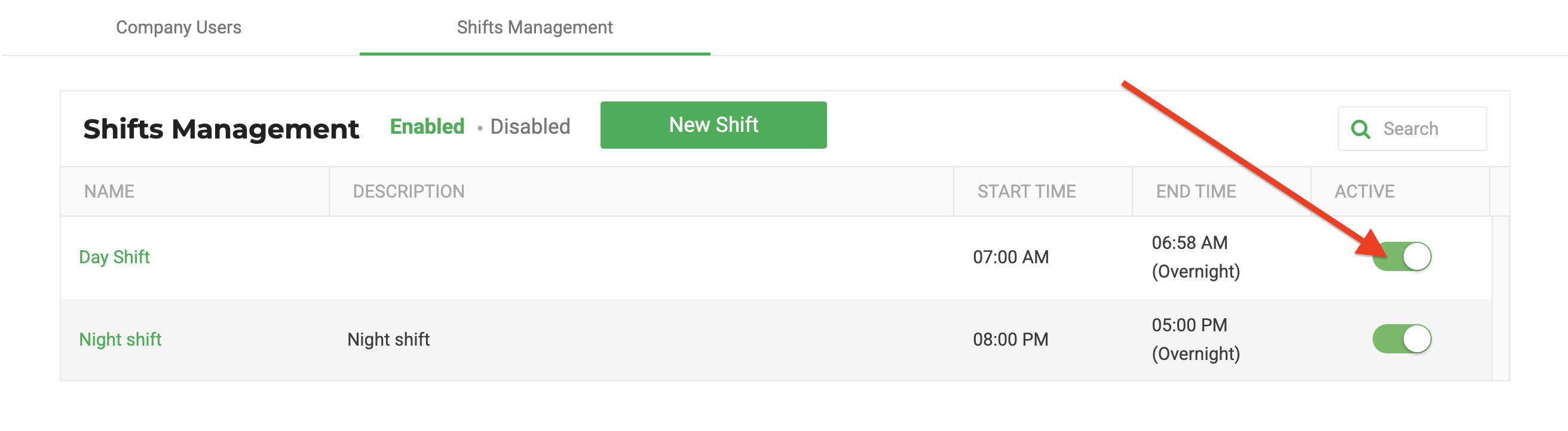
Disabling a shift removes it from dropdowns in manufacturing runs while preserving historical data.
- Locate the shift in the "Shifts Management" screen.
- Toggle the button OFF under the ACTIVE column.
- The shift will display on the 'DIsabled' screen and will no longer appear in dropdowns for manufacturing runs.
Enable a Shift
Enabling a shift restores it for use in manufacturing runs.
- Click Disabled in the "Shifts Management" screen.
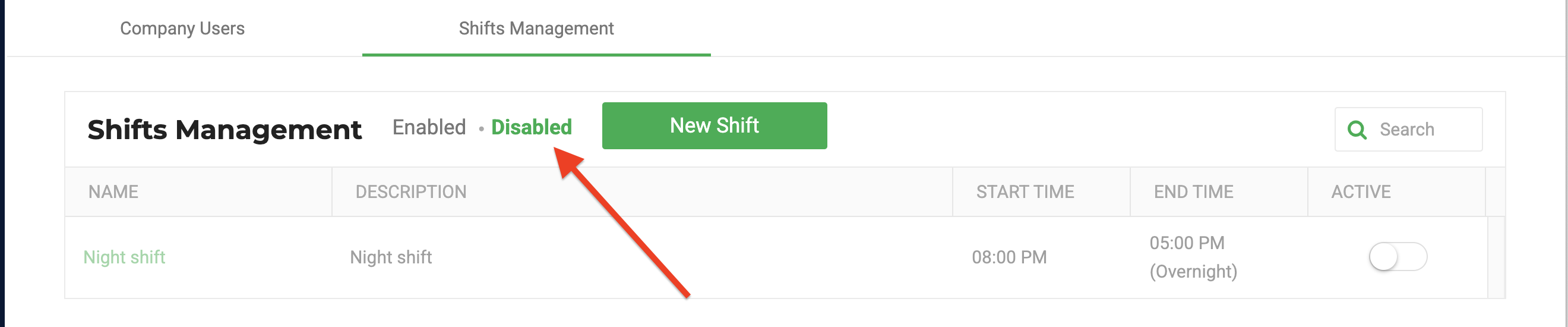
- Toggle the button ON under the ACTIVE column.
- The shift will display on the default screen and will appear in dropdowns for manufacturing runs.
How did we do?
Sales Order Approval
How to enable "Update financial info for shipped orders"
