Change an Item Category
Change an Item Category
Flourish supports changing an item's class and category within the "Edit Item" screen and the "Bulk Update" feature.
Flourish has several restrictions on this feature, which are influenced by the state compliance system and inventory management.
- If an item is synced to Metrc, you can not change the Metrc category. You can change the current Flourish category to a custom category that aliases the same Metrc category.
- Once inventory is created, you can not change an "Each" item to a "Weight" or "Volume" item (or the opposite). There is no way for the application to reliably convert all on-hand inventory from each unit to grams or from grams to each unit, for example.
How to Change the Item Class or Category in the Edit Item Screen
- Find the item in the Settings > Inventory > Items screen
- Edit the item
- Select a different class & category
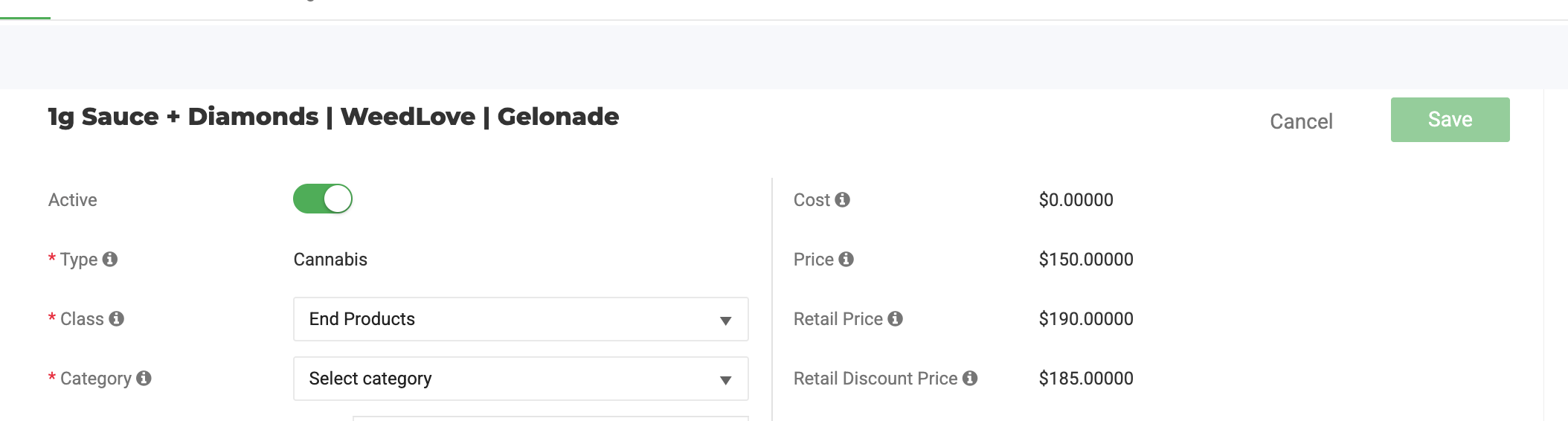
How to Change the Item Class or Category in the Edit Item Screen
- Navigate to the Settings > Inventory > Items > Bulk Update screen
- Export the CSV
- Manually change the class and category to match the defined categories
NOTE: Flourish will continue to validate business rules using this process.
How did we do?
Set Up Deli-Style Retail Pricing with Price Sets
Set Up Item Pricing
