Table of Contents
Set Up Separate Retail and Wholesale Pricing
What is EIP. Extended Item Pricing (EIP) was developed to give companies more flexibility and precision when managing pricing across both retail (B2C) and wholesale (B2B) channels. With EIP, companie…
Table of Contents
What is EIP
Extended Item Pricing (EIP) was developed to give companies more flexibility and precision when managing pricing across both retail (B2C) and wholesale (B2B) channels. With EIP, companies can define separate standard and sale prices for both retail and wholesale. This enables more accurate pricing strategies, enhanced customer-facing visibility, and streamlined promotion management without disrupting existing workflows. Importantly, the change is backwards-compatible, so existing integrations will continue to function without modification.

EIP sets prices on individual items. To apply shared pricing, wholesale tiers, or promotions across many items, use price sets. Price sets do not require EIP, and an active price set always wins over the item's own prices. See Create and Manage Item Price Sets for Retail and Wholesale. For an overview of all pricing options, see Set Up Item Pricing.
Video Tutorial
EIP Price fields
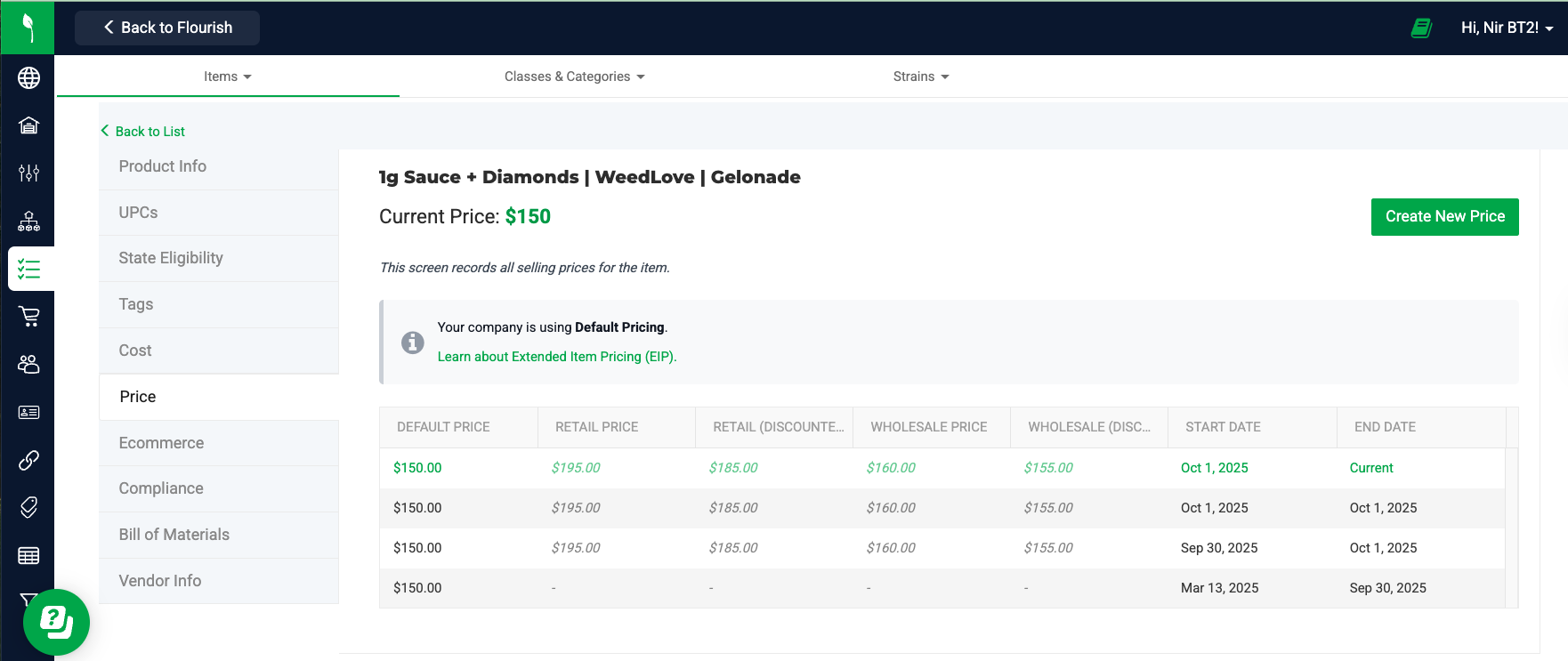
Once enabled at the company level (via Company Settings), EIP introduces four new pricing fields in addition to the existing price field (Default Price):
- Retail Price – Standard B2C price per unit
- Retail Discount Price – B2C sale price
- Wholesale Price – Standard B2B price per unit
- Wholesale Discount Price – B2B sale price
The original price field remains as the Default Price. Companies not opted into EIP will continue to use this single field with no changes.
How It Works for Outbound and Retail
If an active price set applies to the item, Flourish uses the price set's price first. If no price set applies, Flourish uses the fallback orders below.
Retail (B2C)
When Flourish calculates the retail price for an item under EIP, it follows this fallback order:
- First, it looks for a retail discount price.
- If a retail discount price is set, that's the price used.
- If no retail discount price is set, it uses the retail price.
- This is the standard retail price per unit.
- If neither of those are set, it falls back to the default price.
- This is the same price field that has always existed in Flourish.
- If no prices at all are set, it defaults to zero.
- This ensures the system always has a numeric value, even if pricing is missing.
Exclude Discounted Items From Retail Discounts
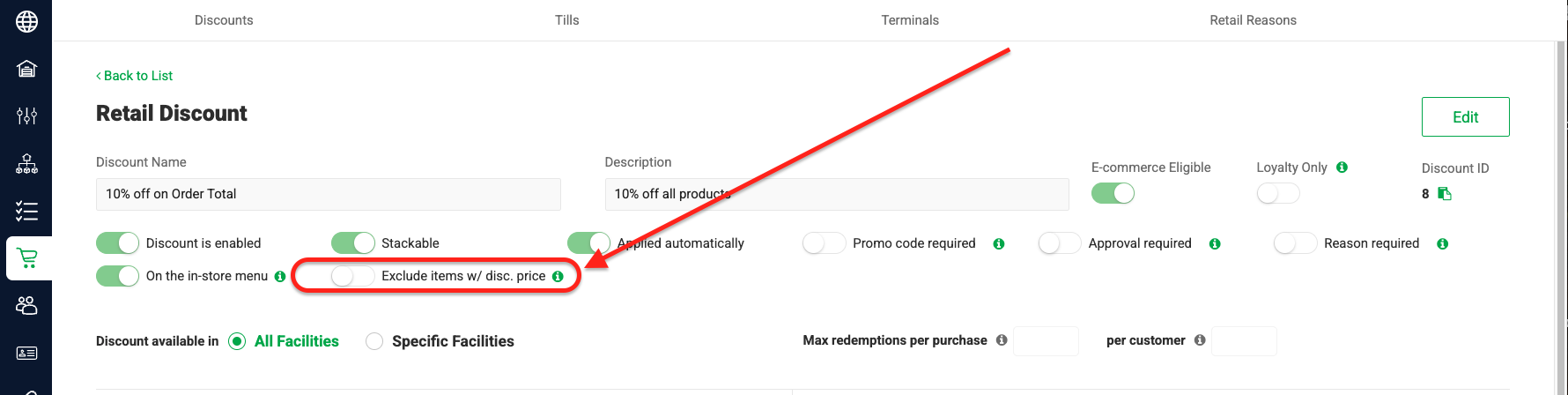
You can choose to exclude items that already have discounted prices from your retail discount promotions.
To do this:
- Open the Retail Discount edit screen.
- Click Edit.
- Toggle the "Exclude items w/ disc. price" button to ON.
- Click Save.
When enabled, the discount skips items that already have a discounted price.
👉 Learn more about Retail Discounts
Wholesale (B2B)
When Flourish calculates the wholesale price for an item under EIP, it follows this order of priority:
- First, it looks for a wholesale discount price.
- If a wholesale discount price is defined, that's the price that will be used.
- If no wholesale discount price is set, it uses the wholesale price.
- This is the standard wholesale price per unit.
- If neither of those are set, it falls back to the default price.
- This is the same price field that has always existed in Flourish.
- If none of the above are available, it defaults to zero.
- This ensures a numeric value is always returned, even if no pricing has been entered.
This means wholesale customers can be given dedicated sale or standard pricing, independent of consumer-facing prices.
In both cases, the actual price reflected to the customer is based on what is entered at the line item level during outbound order creation. The new fields provide more options, but users maintain full control over final pricing.
How It Works with the External API
For companies integrated with the Flourish External API, the following applies:
- The existing price field is unchanged and continues to represent the Default Price.
- The new fields (retail_price, retail_discount_price, wholesale_price, wholesale_discount_price) are now available across key API endpoints, including:
- GetItem & GetItems
- GetPackage & GetPackages
- GetInventory & GetInventorySummary
- No integration changes are required if you only rely on price. However, to take advantage of the new functionality, API consumers can update their logic to use the new fields.
- Integrations must explicitly choose which field(s) to use, since Flourish won't overwrite the price field with EIP values.
At this time, the opt-in status of EIP cannot be observed via API — it is only configurable by Flourish admin users in the web application.
Opt In EIP
Log out and log back in to see the setting updates take effect. | 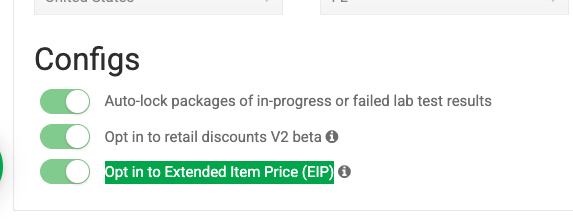 |
 Settings.
Access And Setup EIP
You can access and set up the EIP in three ways:
The Item Master
Setup EIP
- Click
 Settings.
 - Select Inventory. [VERIFY: menu label — Items vs. Inventory]
- Locate the item.
- Click the name of the item to edit.
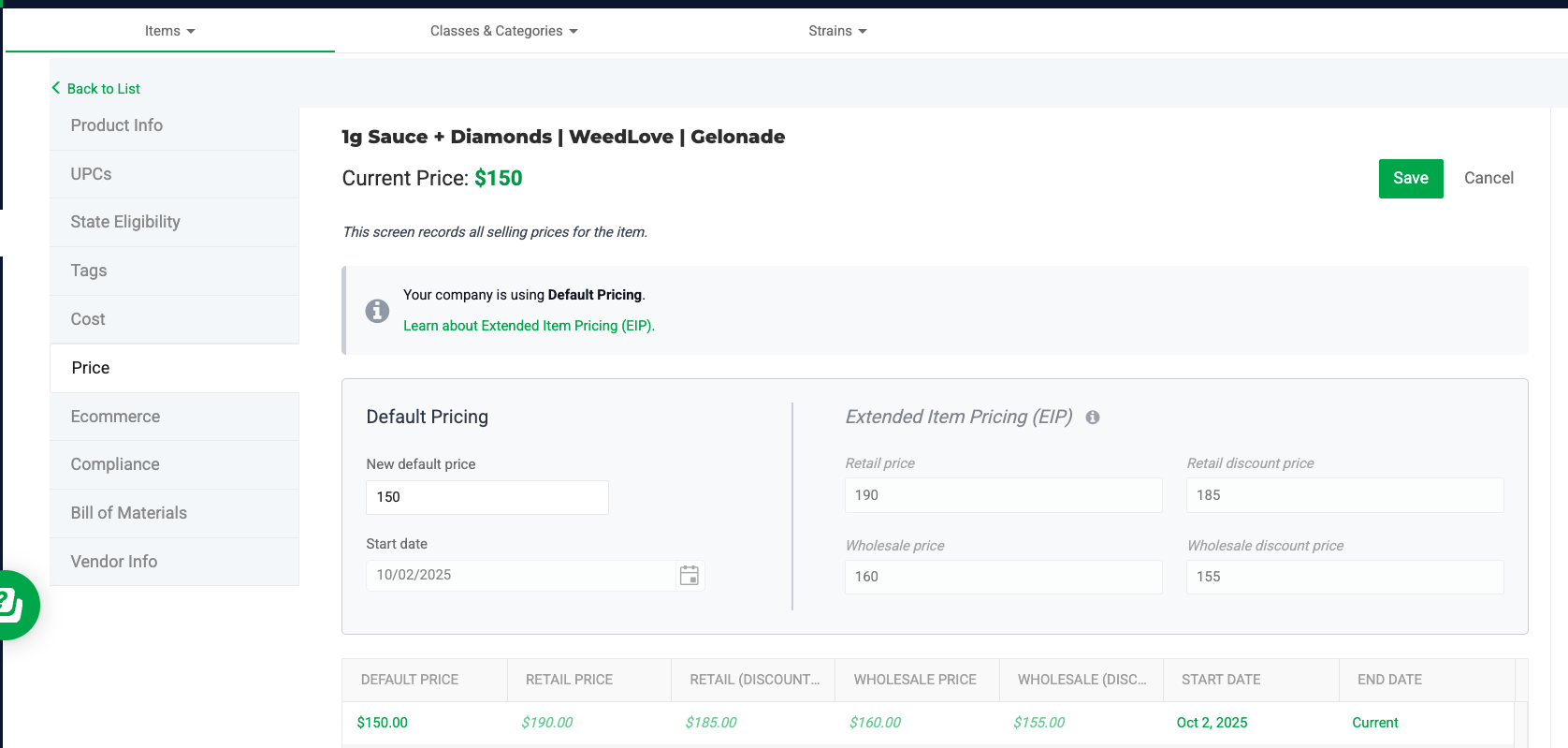
- Select Price from the left menu.
- Click Create New Price.
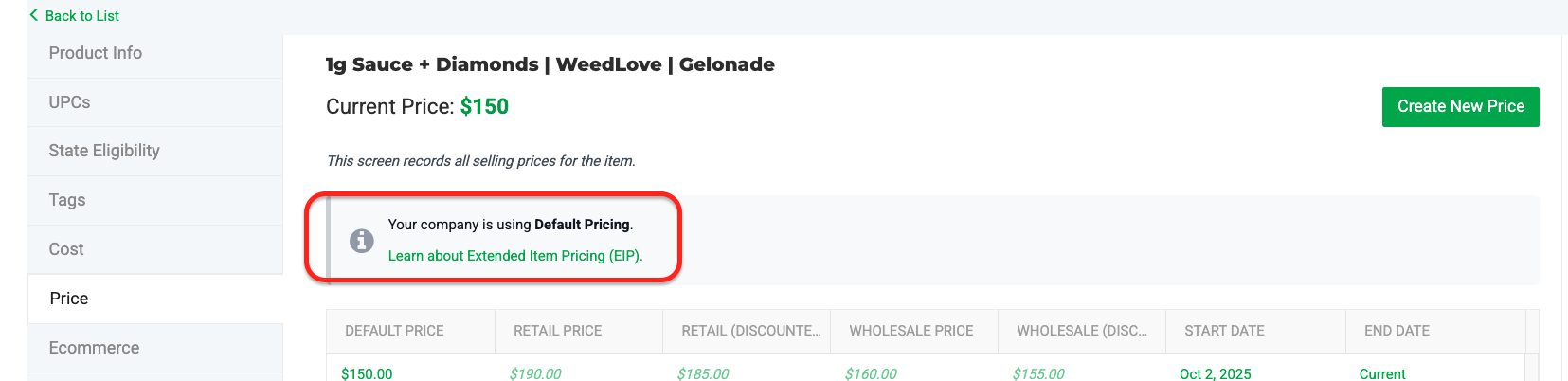
- Fill in the fields in the "Default Pricing" and "Extended Item Pricing (EIP)" sections. The EIP fields are optional. For example, you can leave "Wholesale price" empty or set it to zero.
- Click Save.
The Date fields
The "START DATE" and "END DATE" have no functionality, and you cannot edit them.
- The "START DATE" refers to the date you established the new pricing.
- The "END DATE" is the last date on which an old price was current.
Item Pricing
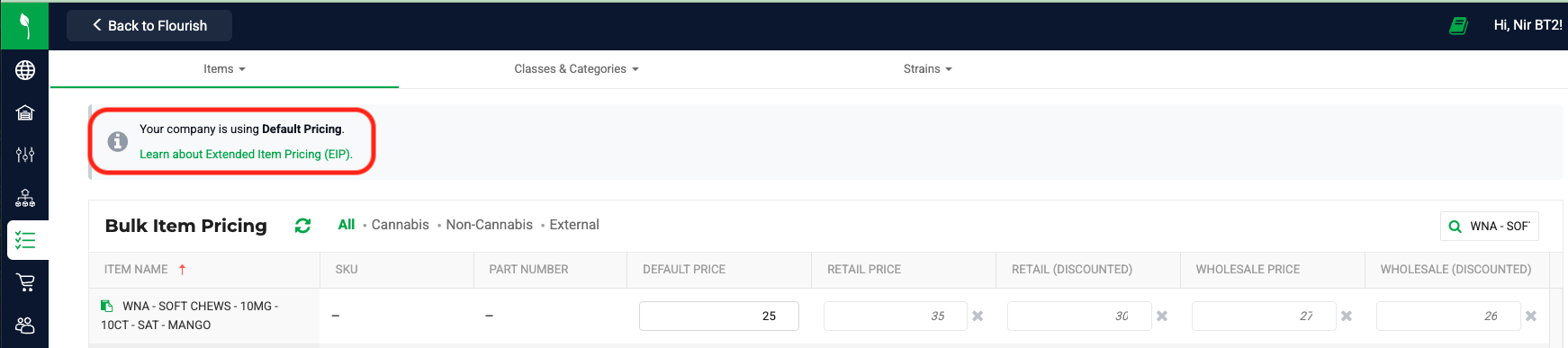
- The Item Pricing grid includes EIP fields, and changes save automatically. Learn more in Update Item Prices in the Item Pricing Grid.
- If you did not opt in to EIP, Flourish Software will note that for you:
Bulk Update Items
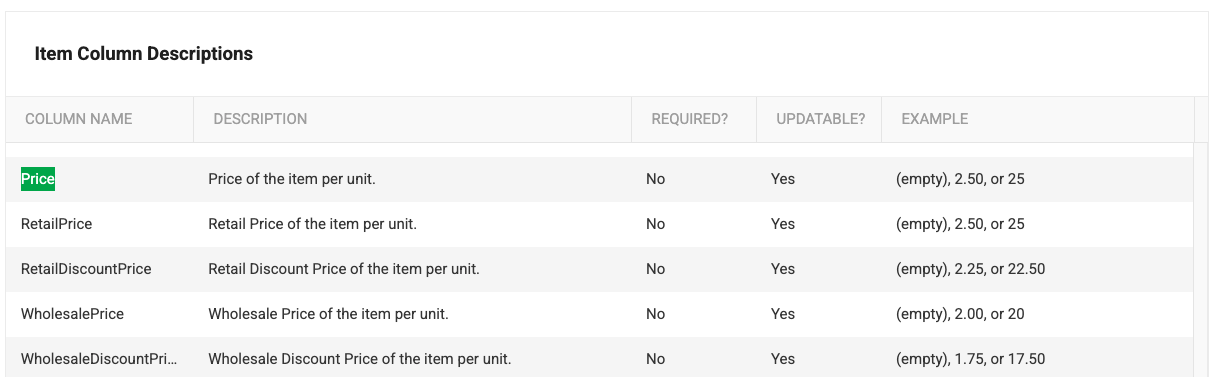
Bulk Update Items includes EIP fields. It updates item-level prices only, not price sets. You can update prices on Metrc-synced items this way, because Metrc does not store item prices. Learn more in Update Items in bulk.
How did we do?
Update Item Prices in the Item Pricing Grid
Create and Manage Item Price Sets for Retail and Wholesale
