Table of Contents
POS Item Scanning Rules
How Flourish POS matches a scanned barcode or QR code to a package or item, in what order, and what each error and warning message means.
Table of Contents
This article explains the logic and workflow behind scanning products into Flourish's Point of Sale (POS) system, especially during the allocation of items for retail orders. Scanning products is a part of fulfilling a Retail Order.
Where these rules apply
The scan-to-allocate behavior described here is shared by Retail POS and the Flourish web app retail order screen — both send the scanned value to the same endpoint, so the matching rules and messages are identical in either place.
In Retail POS, the cart only listens for scanner input when Enable fulfillment at point of sale is turned on for the facility. If that setting is off, scanning into the cart does nothing; build the cart by searching for the item instead.
Overview
When a barcode or QR code is scanned into the cart, Flourish takes the encoded string and walks through a fixed list of identifiers, stopping at the first one that matches. What happens next depends on whether that match points to a specific package or only to an item.
Key notes
- Cannabis is tracked at the package level, so a cannabis order line can only be completed once a specific package is attached to it. A scan that identifies a package — Package ID, Lot Number, Metrc Retail ID, or RFID tag — can do that automatically.
- A UPC or SKU identifies a product, not a unit of inventory, so it cannot resolve to a package. Scanning a UPC or SKU adds and allocates non-cannabis items only; for cannabis items it is currently rejected with an error.
- When a scan matches more than one eligible package, Flourish no longer refuses the scan. If those packages are all the same item and strain, the line is added to the cart without a package and you pick the right one from the package dropdown on the line. See When more than one package matches.
- Item Name and Retail Display Name are not matched by the scanner. Scanning or typing a product name into the cart returns “could not match scanned value…”. Use the product search to add the item, then allocate a package to the line.
Priority order of matching
Flourish attempts to match the scanned value in the following order, and stops at the first match:
- Package ID
- Lot Number
- Metrc Retail ID (only in states where the feature is enabled, and only when the scanned value begins with
http) - Package RFID tag (EPC)
- Item UPC
- Item or variation SKU
Tiers 1–4 identify a package. Tiers 5–6 identify only an item.
Is the scanned data point a Package ID?
- Flourish looks for a package with that exact ID at the order's origin store.
- In BioTrack-integrated facilities, the original Flourish Package ID is checked alongside the state compliance system ID, so either one can be scanned.
- If a package is found, it still has to pass the eligibility checks below before it can be allocated.
If no matching Package ID is found, the system proceeds to the next step.
Is the scanned data point a Lot Number?
- Flourish searches for packages in Created status carrying that Lot Number. Locked packages are included in the search so that a clear message can be returned about them.
- Outcomes:
- If exactly one eligible package is found, it is allocated automatically.
- If more than one eligible package is found, see When more than one package matches.
- If no packages are found at all, the system proceeds to the next step.
Is the scanned data point a Metrc Retail ID?
- This step runs only when the facility's state has Metrc Retail IDs enabled and the scanned value begins with
http— a Retail ID QR code encodes a URL, for examplehttps://1a4.com/5LO1I9DSO225NCZ3K3YW. - Flourish looks up the active Retail ID, then follows it to the package or packages it is linked to.
- A single Retail ID can legitimately map to several packages, because child packages split from a parent inherit the same retail tag. If more than one of those is still active, see When more than one package matches.
Is the scanned data point a package RFID tag?
- Flourish checks the scanned value against package RFID tags (EPC) for packages in Created status.
- This makes an RFID read behave the same as a Package ID scan, including the multiple-match handling described below.
Is the scanned data point a UPC?
- Flourish checks the scanned value against item UPCs.
- If a match is found and the item is non-cannabis, the line is added and allocated from available inventory.
- If a match is found and the item is cannabis, the scan is rejected: “scanned value matches UPC of cannabis item. Need to allocate by package ID or lot number”.
Is the scanned data point a SKU?
- If no UPC matched, Flourish checks item and item-variation SKUs, and applies the same rules as for UPCs.
- Cannabis items still require a package-level identifier and will not be allocated by SKU. Flourish displays an error:
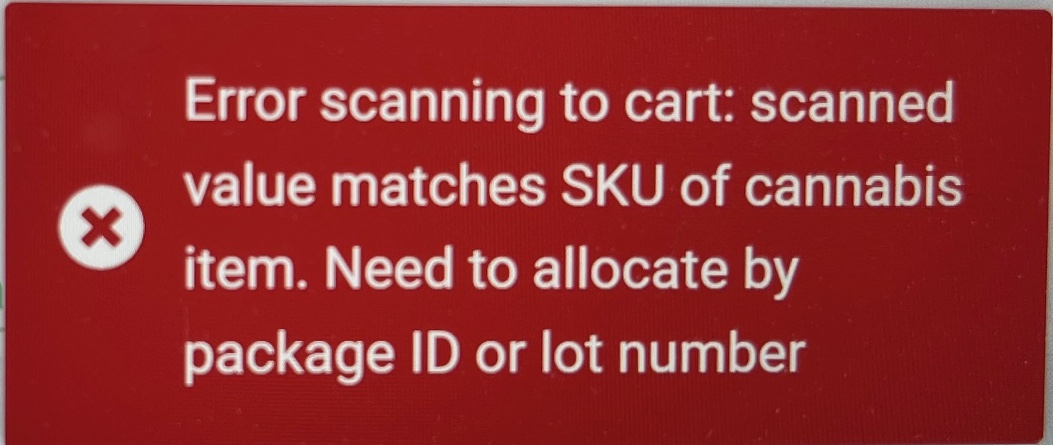
If the scanned value matches no package, lot number, UPC, or SKU, Flourish returns “could not match scanned value to package, lot number, item UPC or SKU”.
When more than one package matches
A Lot Number, Retail ID, or RFID scan can resolve to several active, unlocked packages. Flourish does not guess which one you are holding, but it no longer discards the scan either. Two things can happen:
Situation | What Flourish does | Message |
All matched packages are the same item and strain | Adds the order line to the cart with no package attached, and asks you to allocate manually. Choose the package from the dropdown on the cart line. | “multiple active, unlocked packages found for the scanned [value]; please allocate manually.” |
Matched packages span different items or strains | Adds nothing, because Flourish cannot tell which product you meant. Scan a more specific value, such as the Package ID. | “multiple active packages found for the scanned [value] across different items or strains; please scan a more specific value or allocate manually.” |
Both appear as a warning, not a hard error. When the line is added without a package, nothing is allocated until you select one — the order cannot be completed while a cannabis line is short.
Package eligibility checks
Once a scan resolves to a single package — by any of the four package-level tiers — that package must still pass every check below. These messages are not specific to Lot Number scans; a direct Package ID scan can produce any of them.
Condition | User message |
Package has not synced to the state compliance system, or is out of sync | “cannot allocate package [ID] because it is not in sync with the state compliance system” |
Package is locked | “package [ID] is currently locked” |
Package has no available quantity remaining | “not enough available quantity remains in package [ID]” |
Package has moved past Created status | “package [ID] is in an invalid status [status] for retail order allocation” |
Messages when candidate packages are all ineligible
When a Lot Number, Retail ID, or RFID scan matches packages but none of them can be sold, Flourish explains why. In these cases, allocate a specific package manually or edit the order.
Case | Condition | User message |
Multiple locked packages | Every matched package is locked, and there is more than one | “multiple locked packages found for this lot number” |
Single locked package | One package matched, and it is locked | “package [ID] is currently locked” |
Single package, zero quantity | One unlocked package matched, with no available quantity | “package [ID] is does not have any available quantity” |
Multiple packages, zero quantity | Several unlocked packages matched, all with zero available quantity | “multiple unlocked packages with zero available quantity found for this lot number” |
These four messages say “lot number” even when the scan was a Retail ID or an RFID tag. Read them as “for the scanned value”.
In POS, scan errors are shown prefixed with Error scanning to cart: followed by the message above.
If a scan will not allocate
- Scan the Package ID printed on the package label. It is the most specific identifier and never matches more than one package.
- If the line is already in the cart but short, use the package dropdown on the cart line to select a package by hand. The dropdown lists every eligible package for that item, with available quantity.
- If the package is not listed, confirm it belongs to the order's origin store, is in Created status, is not locked, has available quantity, and is synced with the state system.
How did we do?
Allocate Cannabis Packages to Retail Orders (POS or Web)
Retail POS Complete a Purchase
