Table of Contents
Build a Customer's Cart in Retail POS
After you've checked in a customer, it's time to build their cart. Create an in store purchase by following these steps.
Table of Contents
Build a Customer's Cart in Retail POS
Purpose
After checking in a customer, start their sale and add the requested products to the cart in Retail POS. Review quantities and discounts before allocating cannabis packages.
Prerequisites
Confirm POS cart and discount permissions.
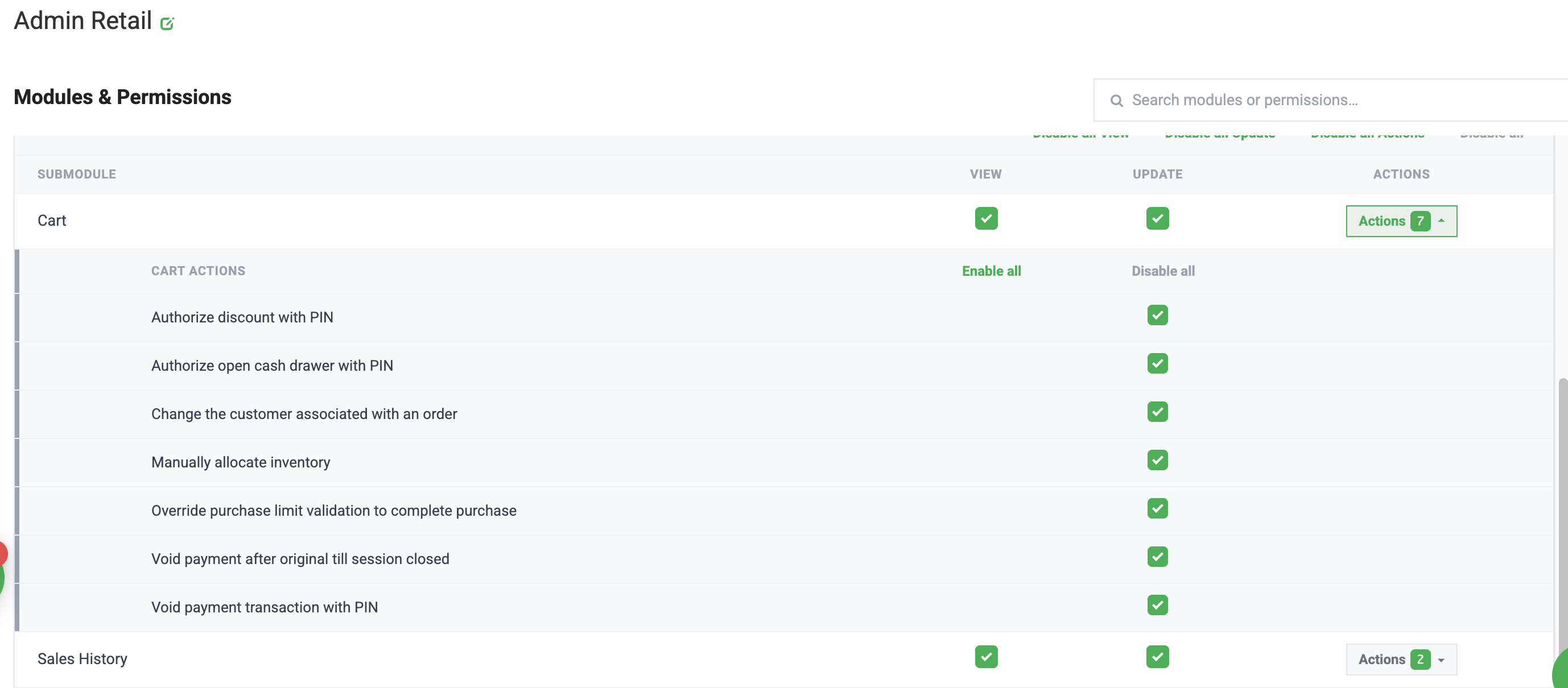
Before you start:
- Confirm you're working in the correct facility.
- Check in the customer.
- Confirm the items are available in that facility's inventory.
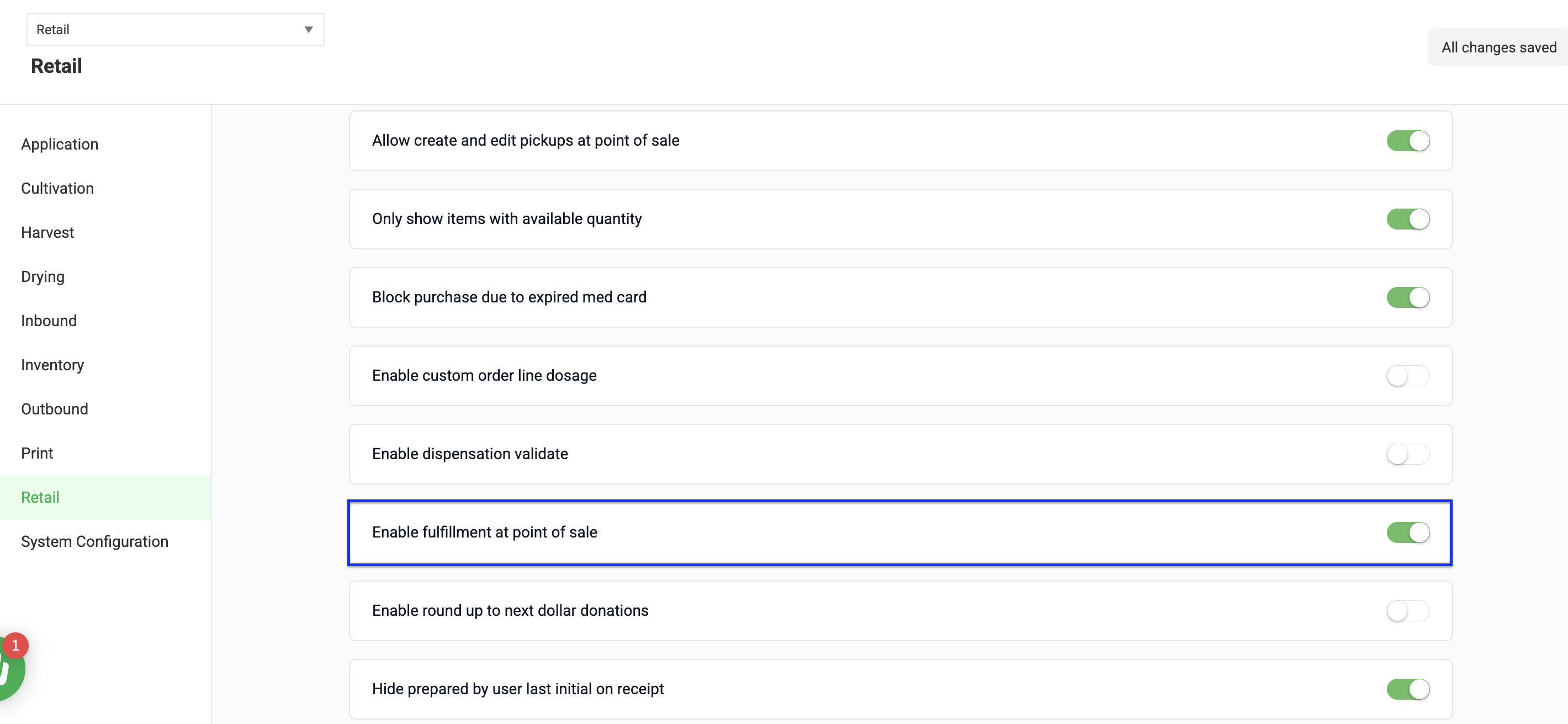
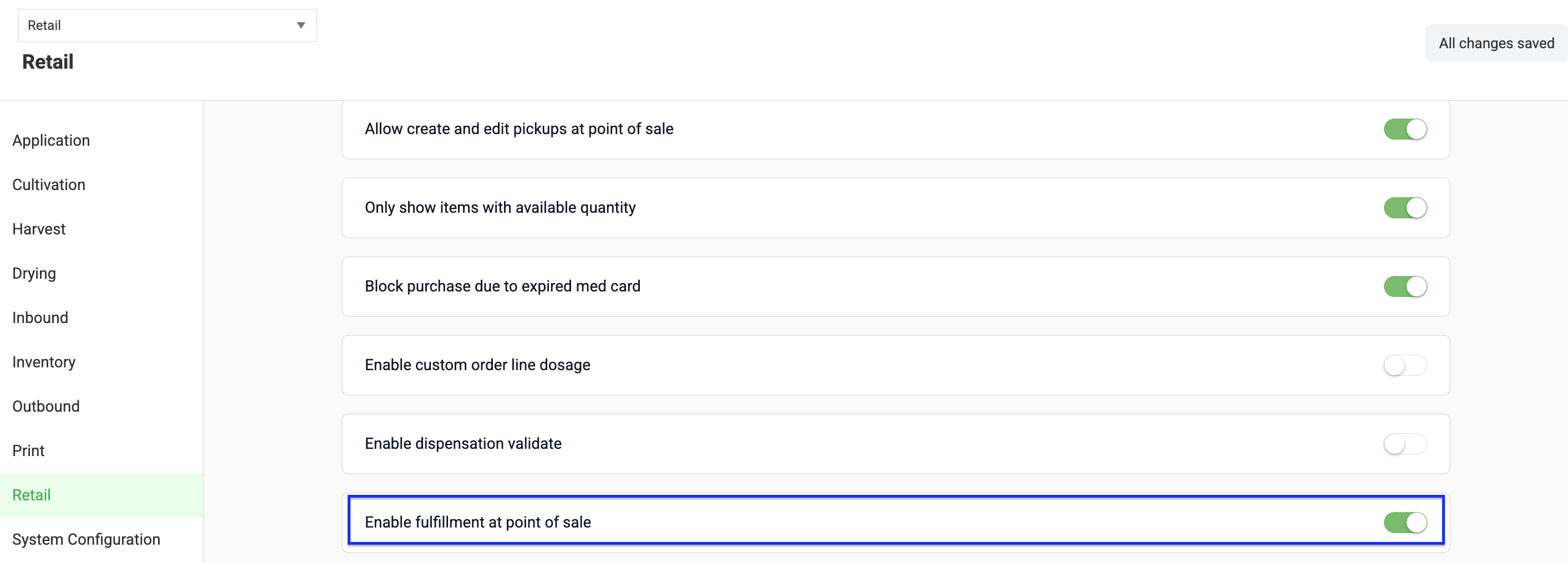
- To allocate packages without leaving POS, the facility must enable Fulfillment at Point of Sale. This can be found in Manage Settings > Configuration > Retail
Build the Cart
- In Retail POS, select Queue > In-Store > Checked In.
- Find the customer and select Add to Queue.
- Search for a product using the cart search field, or scan a supported identifier.
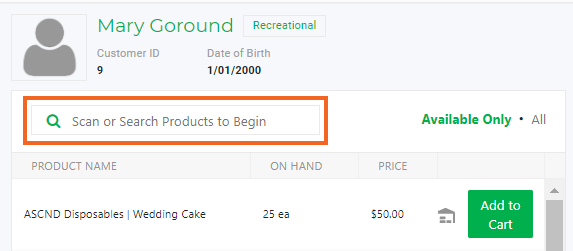
- Confirm you selected the correct item, then select Add to Cart.
- Use the quantity controls to enter the requested quantity.

- Repeat steps 3 through 5 until the cart is complete.
- Apply any eligible discounts.
- Review the items, quantities, discounts, and order total with the customer.
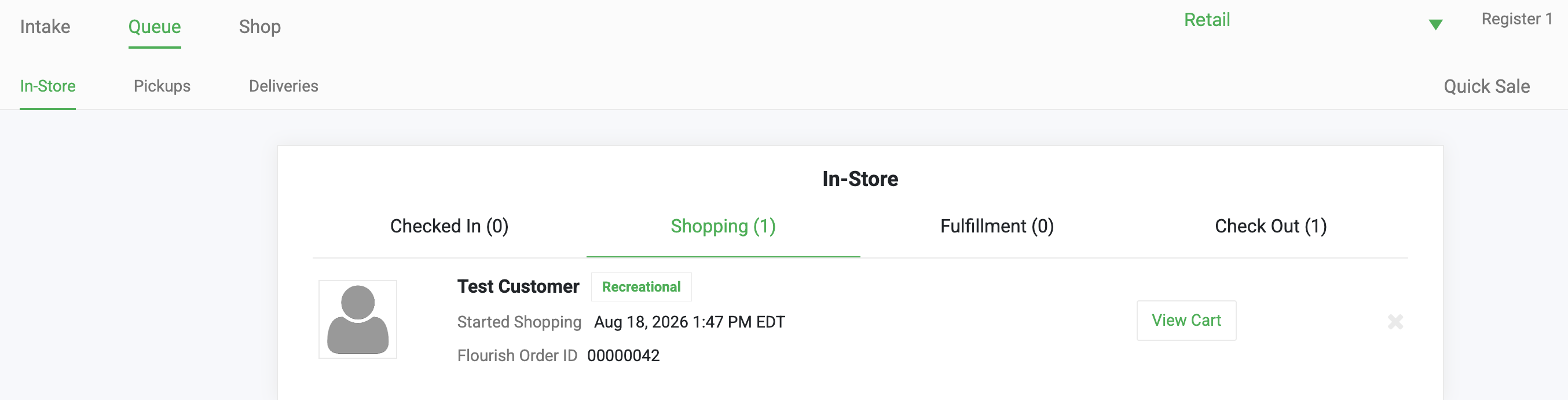
If an order was started but not sent to fulfillment, find it under Queue > In-Store > Shopping and select View Cart.
Choose a Fulfillment Method
Cannabis items must be allocated to specific inventory packages before the purchase can complete.
- To allocate packages in Retail POS, use the POS fulfillment method when the facility enables it.
- Select Add Package > Select the package ID of the product in the cart.
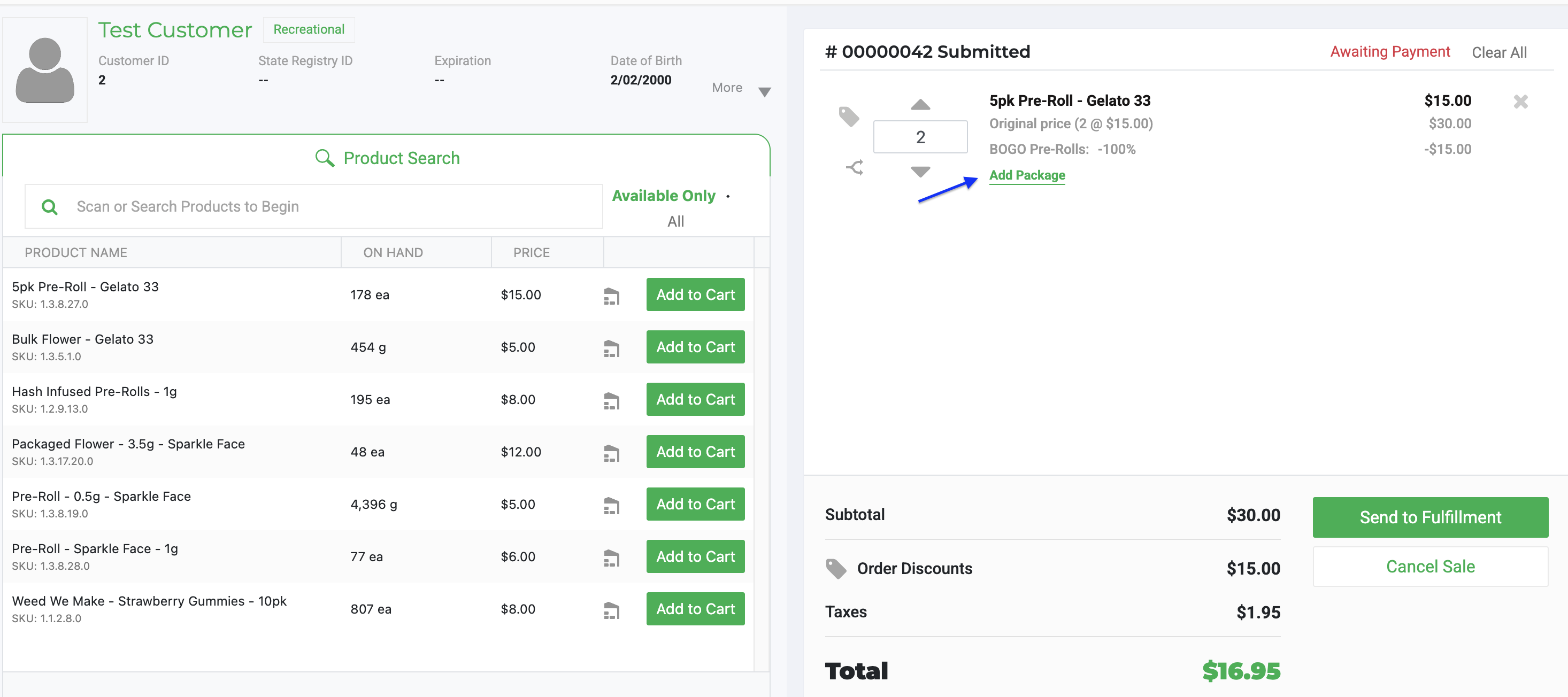
- Select Add Package > Select the package ID of the product in the cart.
- To pack the order in Flourish Web or the mobile app, select Send to Fulfillment.
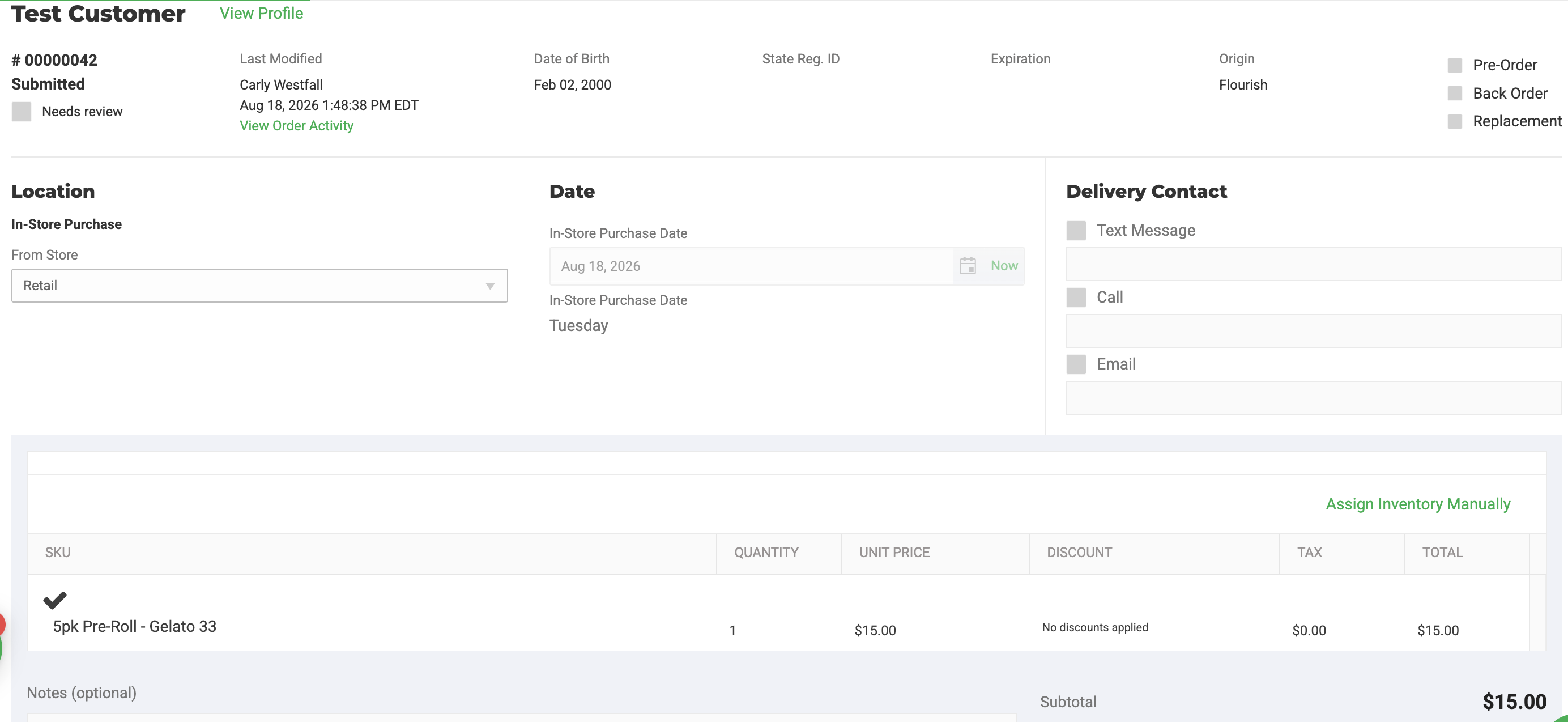
- In the Web App, go to Retail > Purchases > Find the Customer > Click on the Order ID.
- Click Assign Inventory Manually. Add the packages for the order.
For scanner identifier rules, see the POS Item Scanning Rules article.
Expected Result
The cart contains the correct products, quantities, and discounts. The order is ready for package allocation in POS or has been sent to the fulfillment queue.
Common Issues
An item does not appear in search
- Confirm the correct facility is selected.
- Confirm the item has available inventory.
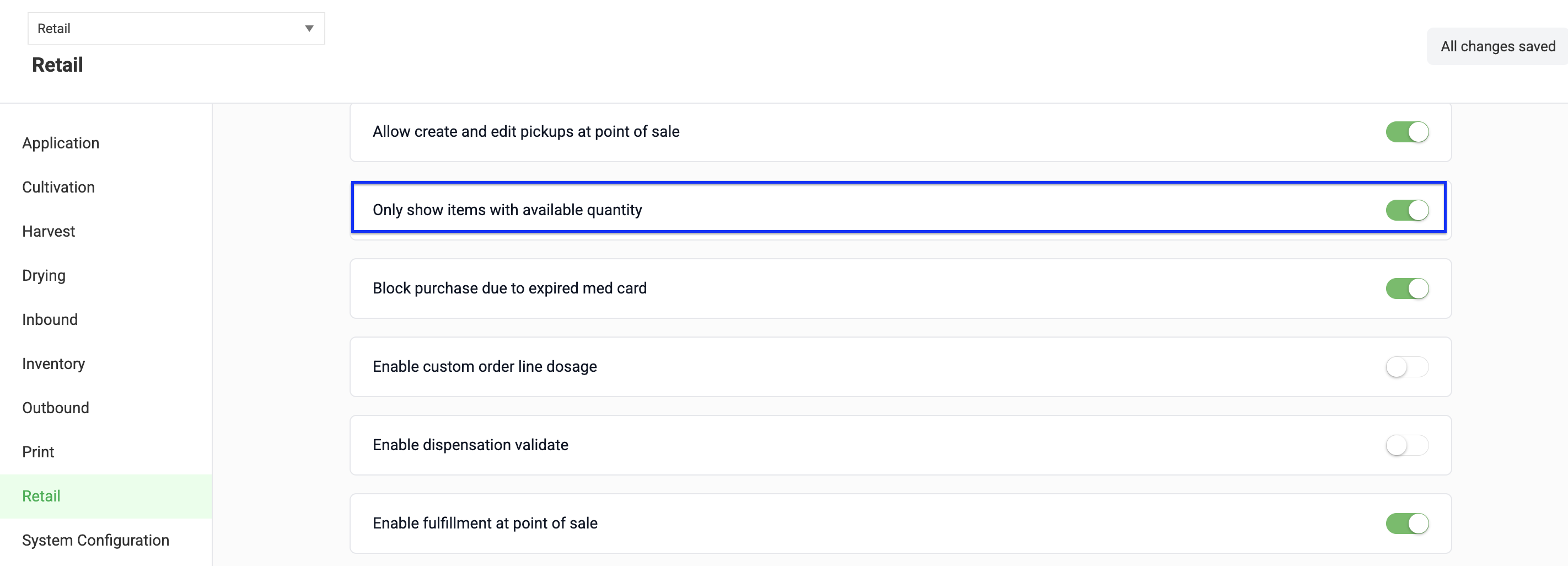
- Check whether the Only show items with available quantity retail setting is hiding unavailable items from the POS cart.
- Find this in Manage Settings > Configuration > Retail
A cannabis UPC or SKU does not allocate inventory
Cannabis allocation requires a Package ID or Lot Number under the documented scanning rules. UPC and SKU scanning is intended for non-cannabis items.
Fulfillment controls do not appear in POS
Confirm that Enable Fulfillment at Point of Sale is enabled for the facility.
Related Articles
How did we do?
Retail POS Complete a Purchase
Split Order Lines for Granular POS Discounts
