Table of Contents
Allocate Cannabis Packages to Retail Orders (POS or Web)
Options to fulfill a retail order. Scan or manually allocate at POS or send to fulfillment to pack in the web app (back of house). Manually allocate or use a scanner to complete packing.
Table of Contents
Allocate Cannabis Packages to a Retail Order
Purpose
Cannabis order lines must be associated with specific inventory packages before a retail order can be completed. Flourish supports package allocation in Retail POS, Flourish Web, and the Flourish mobile app. Choose the surface that matches where your inventory is stored and how your team packs orders.
Prerequisites
You will need to enable the Admin > Configuration > Retail > Enable fulfillment at point of sale configuration before you can fulfill orders at the POS.
Compare Fulfillment Methods
Method | Best For | Requirements and Limitations |
Retail POS | In-store orders when sellable inventory is available at the counter | The facility must enable Fulfillment at Point of Sale. Staff select packages and quantities from the cart. |
Flourish Web | Back-of-house packing for in-store, pickup, and delivery orders | The order must be sent to fulfillment and be in Submitted status. Staff allocate manually or scan package identifiers. |
Flourish Mobile App | Scan-first packing on a supported mobile device | Supports fulfillment only, not order creation or modification. Supports pre-packed inventory, not weight-based deli-style items. |
Your state, compliance integration, facility layout, or operating procedure may determine which method your team uses.
Retail POS Fulfillment
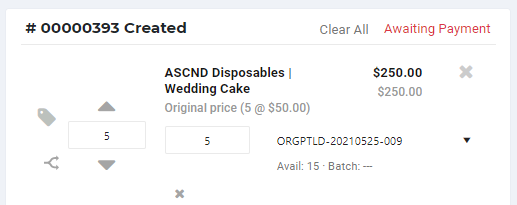
Use Retail POS when the facility permits front-of-house fulfillment and Enable Fulfillment at Point of Sale is turned on.
- Open the order.
- Select Add Package.
- Select the package ID.
- Enter the allocated units.
- Repeat for each order line.
- Select Check Out.
Flourish Web Fulfillment
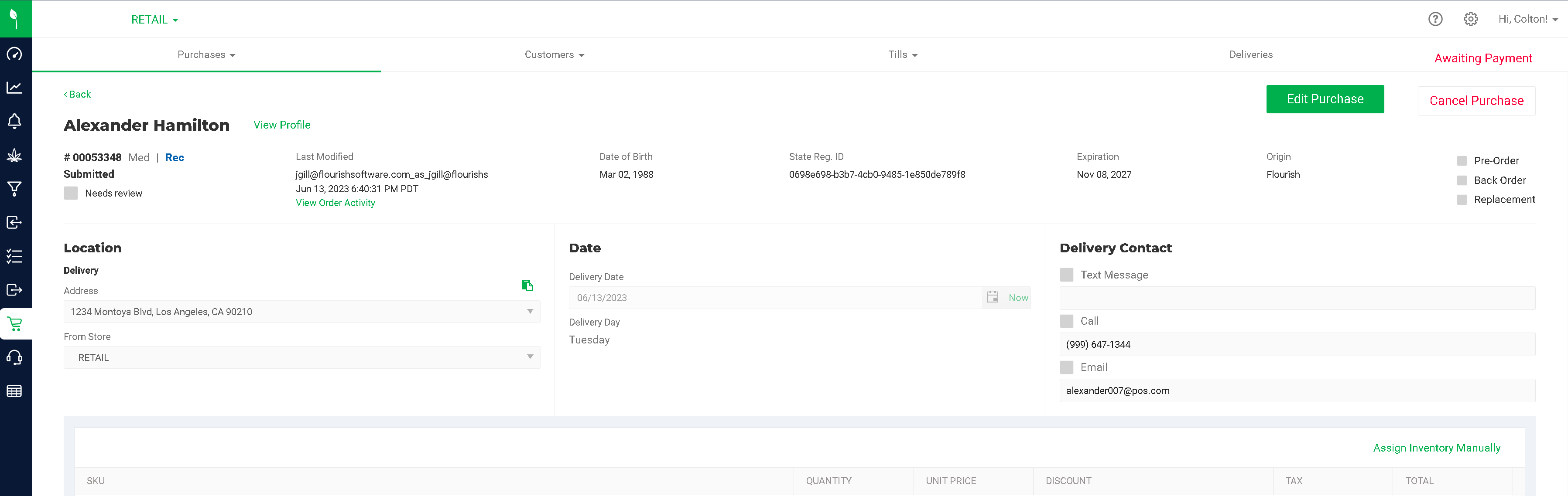
Use Flourish Web when orders are packed away from the checkout counter. Send the order to fulfillment, then open it from Retail > Purchases > Fulfillment. The order must be in Submitted status.
To allocate manually:
- Select Assign Inventory Manually.
- Select Add Package.
- Enter the quantity.
- Repeat for each order line.
- Select Save & Exit.
- Select Send to Checkout, or select Complete Packing for a pickup order.
To allocate by scanning:
- Scan each package identifier. Each scan allocates one unit.
- Continue scanning until the order is fully allocated.
Scanning an item that isn't on the original order adds a new order line automatically.
For more information, please see Pack a Retail Order in Flourish Web App.
Mobile Fulfillment
Use the mobile app to search or scan an order and allocate pre-packed inventory. See Mobile App - Retail Order Fulfillment.
Scanning Considerations
Cannabis items require package-level traceability. Cannabis items must be allocated using a Package ID or Lot Number; UPC and SKU scans are for non-cannabis items only.
See POS Item Scanning Rules for matching priority, eligible-package conditions, and documented error messages.
Expected Handoff
After all required inventory is allocated:
- Send an in-store order to checkout.
- Complete packing for a pickup order.
- Leave a packed delivery order ready to add to a matching delivery route.
Related Articles
How did we do?
Retail POS Refund a Purchase
POS Item Scanning Rules
