Pack a Retail Order in Flourish Web App
Purpose. Pack an in-store, pickup, or delivery order in Flourish Web by allocating eligible cannabis packages to every order line. Allocate packages manually or by scanning package identifiers, then…
Purpose
Pack an in-store, pickup, or delivery order in Flourish Web by allocating eligible cannabis packages to every order line. Allocate packages manually or by scanning package identifiers, then send the order to the next step in the fulfillment process.
Prerequisites
- Send the order to fulfillment from Retail POS or Flourish Web before you begin.
- Confirm the order is in Submitted status.
- Confirm that eligible inventory packages are available at the fulfillment store.
- Follow any integration- and jurisdiction-specific allocation requirements for your facility.
Open the Order
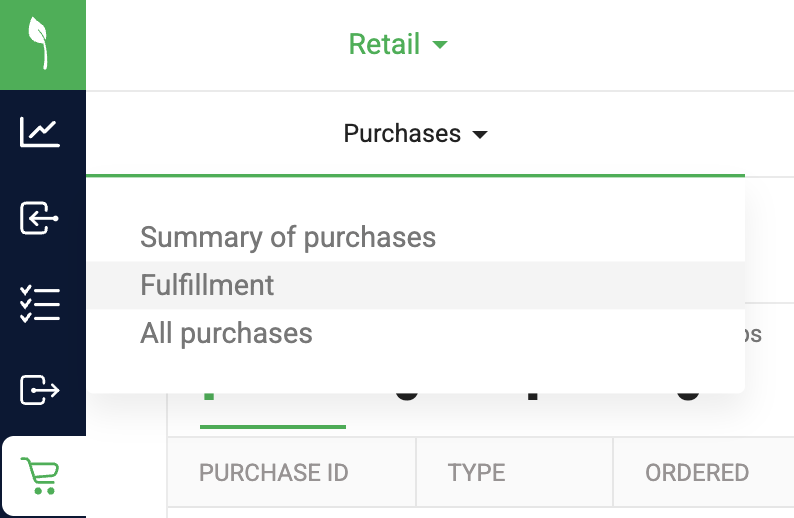
- In Flourish Web, select Retail > Purchases > Fulfillment.
- Click on the Purchase ID for the order.
- Confirm the customer, order type, store, order lines, and quantities.

Allocate Packages Manually
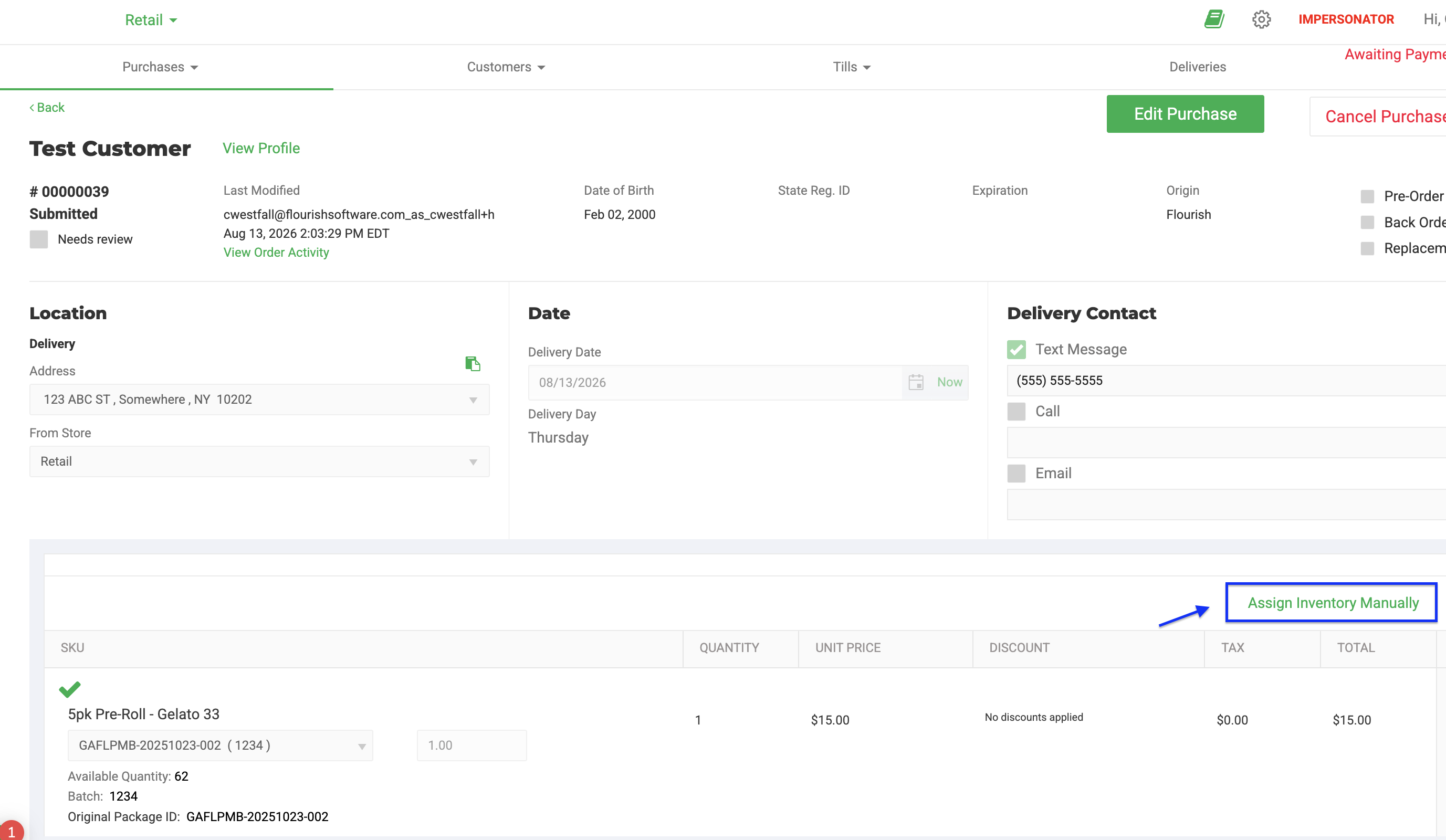
- Select Assign Inventory Manually.
- Under the first cannabis item, select Add Package.
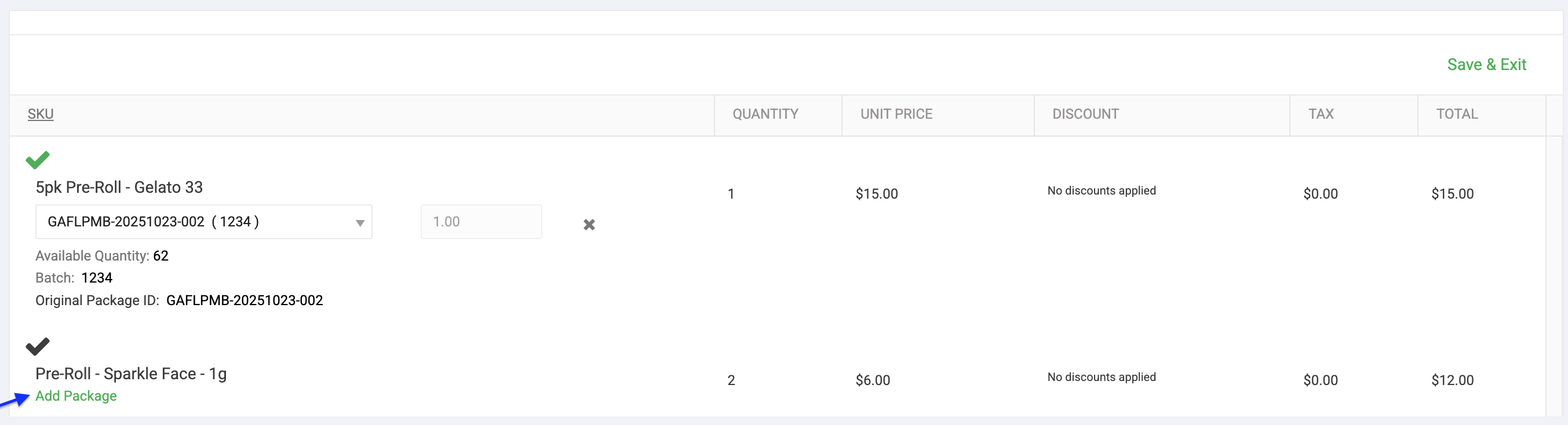
- Select the correct package and enter the quantity to allocate.
- Repeat until every cannabis order line is fully allocated.
- Click Save & Exit.
Allocate Packages by Scanning
- Open the Submitted order in the fulfillment screen.
- Scan the Package ID for the first order line.
- Scan once for each unit to allocate from that package.
- Continue until every order line is fully allocated.
Scanning an item that is not already on the order creates a new order line and allocates one unit. TODO(SME): confirm whether permissions, configuration, or order status can disable this behavior.
Finish Packing
- For an in-store order, select Send to Checkout.
- For a pickup order, select Complete Packing.
- For a delivery order, complete packing so the order reaches Packed status and can be added to a matching delivery route.
Expected Result
All required inventory is allocated. The order moves to the next queue for checkout, pickup, or delivery routing.
Common Issues
The Order Does Not Appear in Fulfillment
Confirm that the order was submitted and is in Submitted status.
The Package Cannot Be Allocated
Confirm the facility, package status, lock state, available quantity, and compliance sync state. See POS Item Scanning Rules for documented scan eligibility and messages.
The Order Is Only Partially Packed
Do not send the order onward until every required cannabis quantity is allocated, unless your documented exception workflow explicitly allows a partial allocation to remain open.
Related Articles
How did we do?
Adding Payment Terminals & Assigning to a Till
Retail - Customer State ID, Medical ID data and expiration
