How to order your Metrc Tags
Order physical Metrc tags and Retail ID tags through the Metrc application. Learn how to access tag orders, select your facility license, and place orders for plant and package tracking.
Follow the following steps to order tags from Metrc:
Metrc has three different logins: (1) Metrc Learn, (2) Metrc Support, (3) Metrc Application. You must log in to the Metrc application to order tags. Ex: ny.metrc.com
Steps to Access Metrc
- Designate your administrator
- Complete the training course within the Metrc Learn portal
- Get login information from Metrc via email to log in for the first time
- If your Metrc account is already set up, ask your Metrc administrator to add you and provide the correct access
Step to order Metrc tags
Physical tag orders are separate from Metrc Retail ID tag orders. Physical tags are used to tag plants and packages. These are mailed to you.
- Log in to Metrc. Example: ny.metrc.com
- Select the License that you are working within
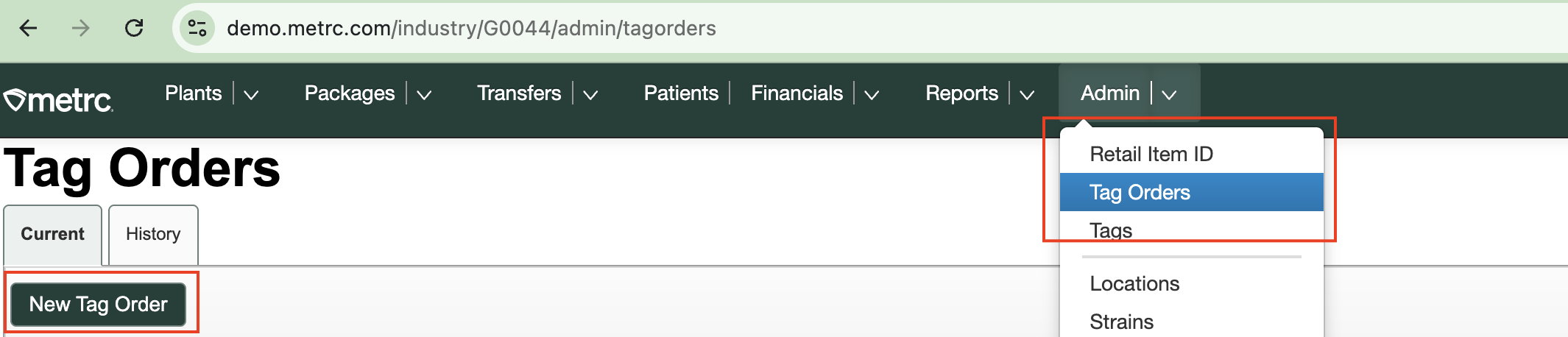
- Click on "Tag Orders" within the Admin drop-down
- Click "New Tag Order"
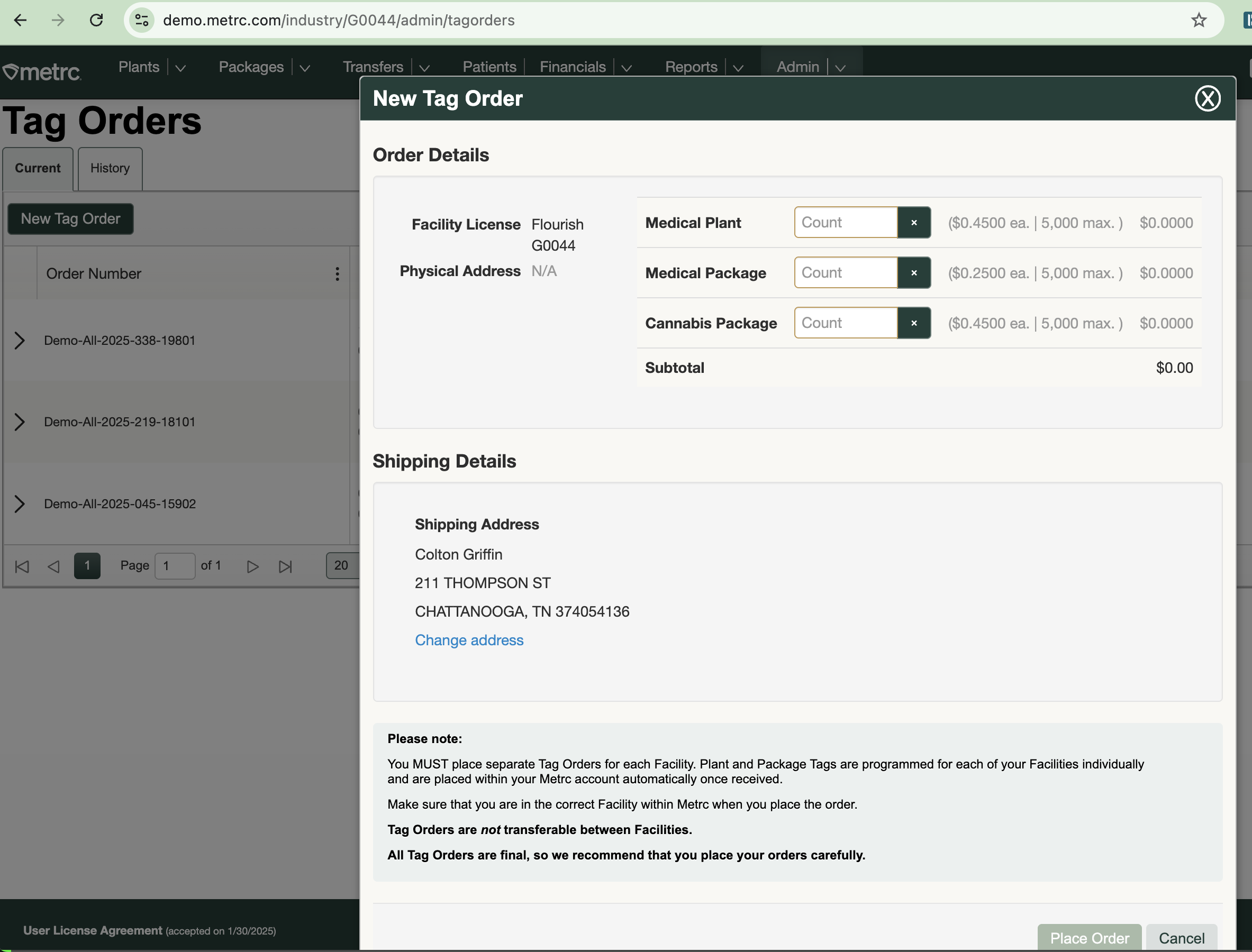
- Order the required tags
You must order tags for each license deployed in Metrc. If you are a micro with multiple "licenses" within Metrc associated with your Micro license, you must order tags for each Metrc License.
Note the Facility License on the order screen below. The tags are specific to each license!
Step to order Metrc Retail IDs
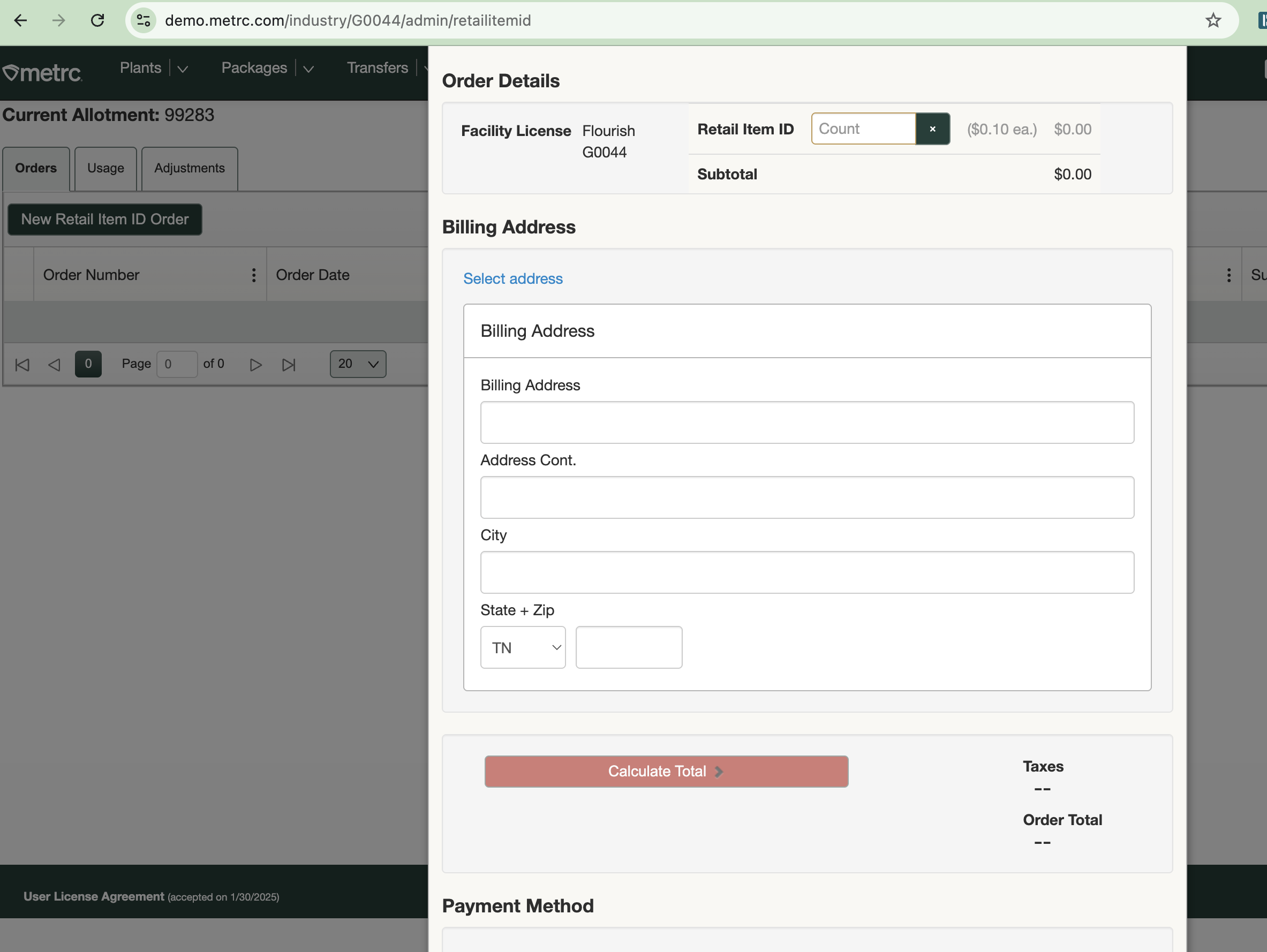
Metrc Retail IDs are digitially generated on demand. You are paying for an allotment to use when making products to send to retail. This is license-specific, and only certain licenses need to order Retail IDs.
- Log in to Metrc
- Select the License that you are working within
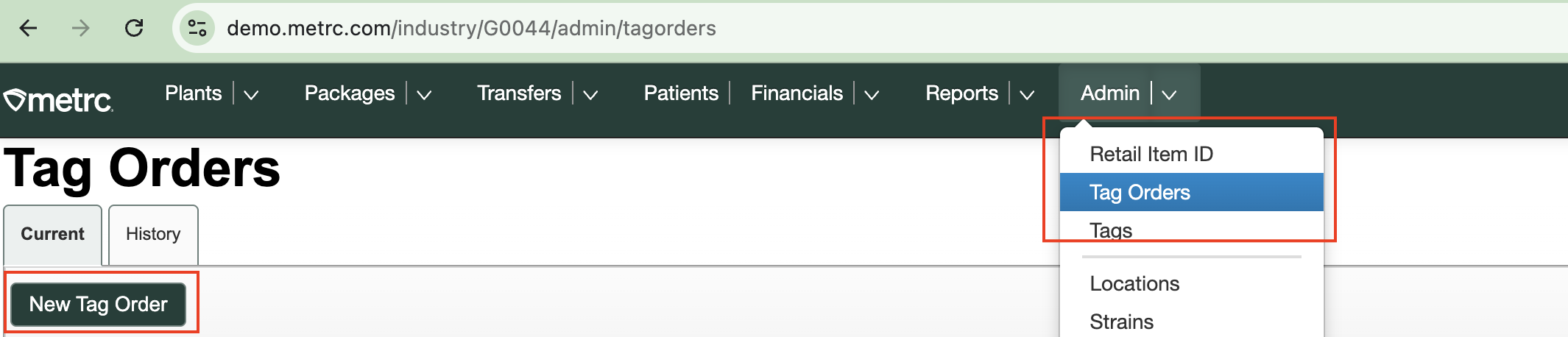
- Click on "Retail Item ID" within the Admin drop-down
- Click "New Retail Item ID Order"
- Order the required tags
How many Metrc tags should I order?
We recommend ordering enough Metrc tags to cover at least three months of activity, plus a 20% buffer—and if you can, go bigger.
Shipping and taxes are added on top, and shipping costs barely increase between small and large orders.
Buying more upfront means:
- Fewer reorders
- Lower shipping charges over time
- Less risk of running out while you wait for the next delivery
How did we do?
Retry sync - a case of invalid tag
Retry METRC Package Sync in Inventory
