Receive a Metrc External Transfer in NYS
Receive genetics via Metrc's External Transfer feature. Request activation, configure in Flourish, create transfer manifest in Metrc, sync packages for inventory conversion.
Use Metrc's "External Transfer" feature to receive genetics (seeds) from outside of Metrc. This feature is enabled by request. Please open a ticket with Metrc to initiate the process.
Reference: http://cannabis.ny.gov/sts-faqs
Please assign the tags and accept them. Then, click the “Sync from Metrc” button within Flourish to import the newly received packages. All of the on-hand inventory will be converted to Metrc tags.
Pre-Requsites
- We recommend setting the item up in Flourish first. Reference the New York Specifications. This includes setting the strain up.
- You must have an Area set up to locate the inventory.
- Metrc will turn on the External Transfer feature.
Step-by-step guide
- Log in to Metrc: https://ny.metrc.com/log-in/
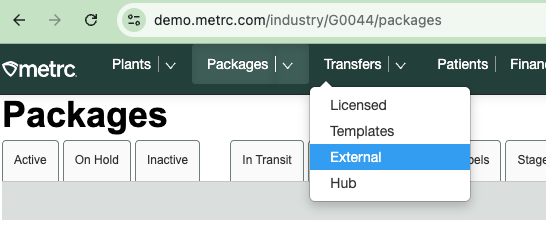
- Click “External” within the Transfers menu
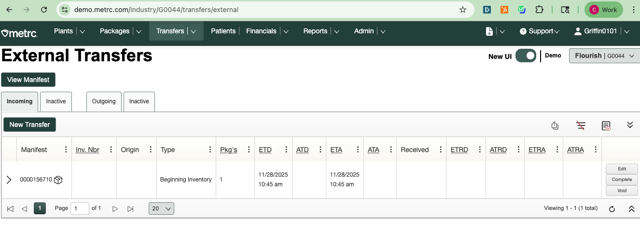
- Click “New Transfer” to make the manifest.
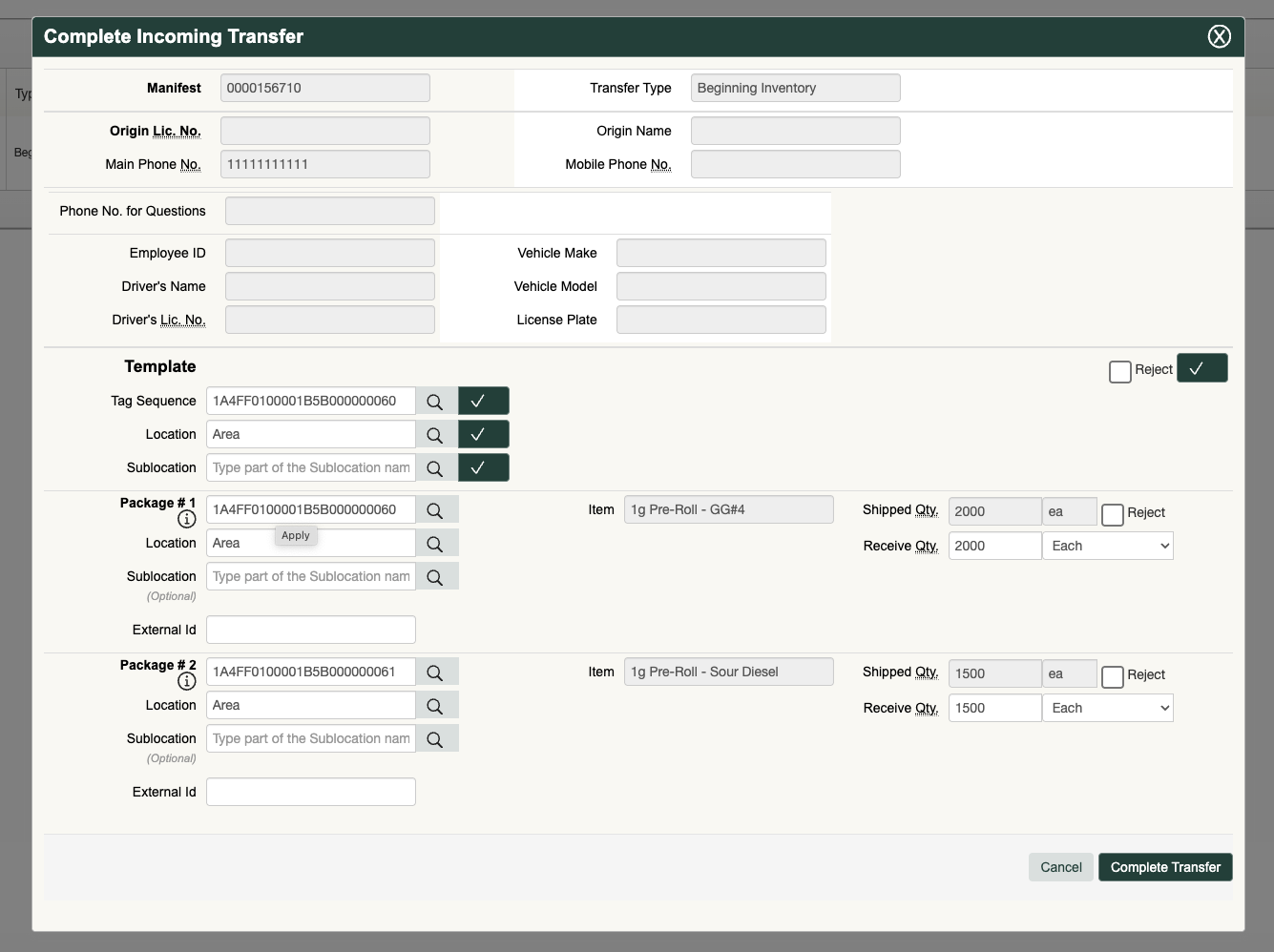
- Select the item, populate the Metrc tag, choose an area, and click "Complete Transfer" at the bottom of the screen to complete this process.
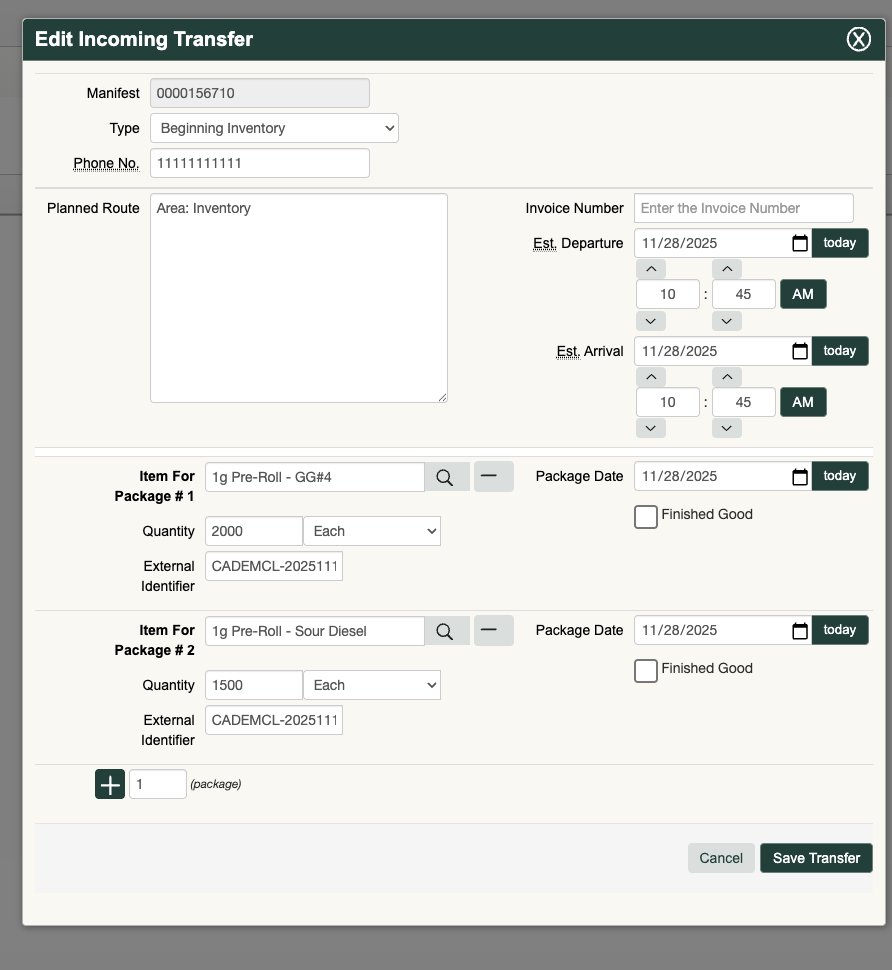
Note: Click “Edit” on the screen above to view the current Area for the transfer populated within the Planned Route if needed. The best practice is to enter the first tag into the Tag Sequence, which will assign them sequentially. Additionally, it’s best to enter the Location and click the checkbox to populate it for each row.
- In Flourish, click the Sync Metrc Packages from the All Packages grid.

- The inventory will appear in Flourish
Next Steps
- Plant seeds using this screen.
How did we do?
Item and Category Configuration for New York State Compliance
New York - Outbound - Manage Adult-Use Cannabis Products Tax
