BarTender Designer - RFID Encoder Setup
Configure RFID encoding in BarTender Cloud Designer to encode Flourish Package IDs or Plant IDs onto RFID tags and labels.
These instructions provide a step-by-step tutorial to add an RFID Encoder element to a BarTender Cloud label template for RFID Package Labels or RFID Plant Labels. This enables you to encode the Flourish Package ID or Plant ID direclty onto a RFID tag or label.
Prerequisites:
- You must have an RFID printer. The RFID Tags Encoder will only appear once you link BarTender with an RFID printer
Instructions
Choose RAIN RFID – GS1 EPC. ISO in BarTender Cloud tends to only expose UII/User Data, which won’t scan as EPC on the TC22R.
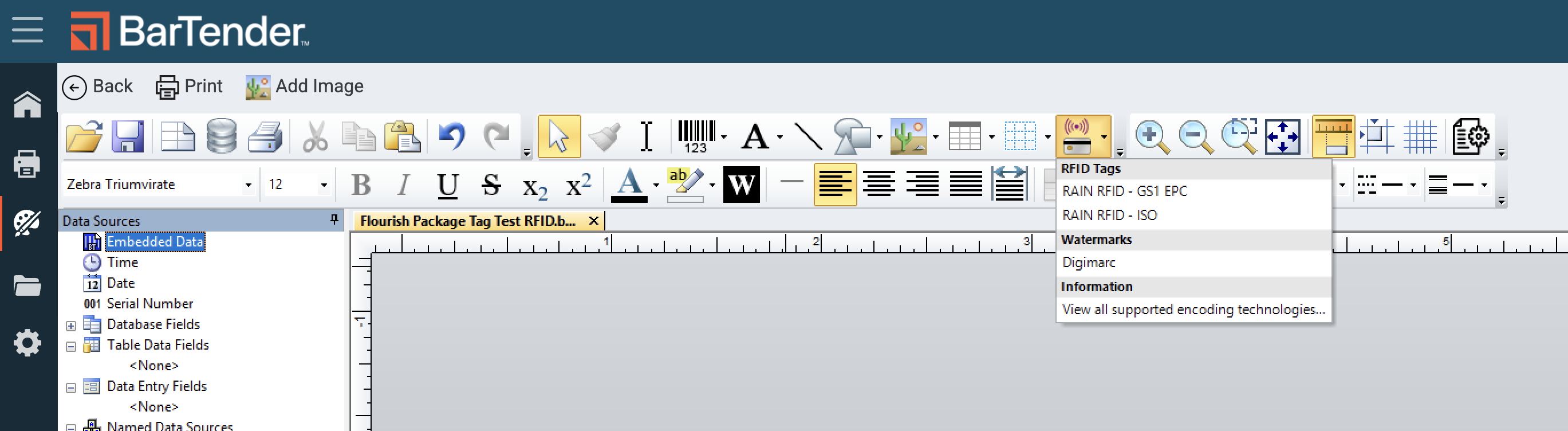
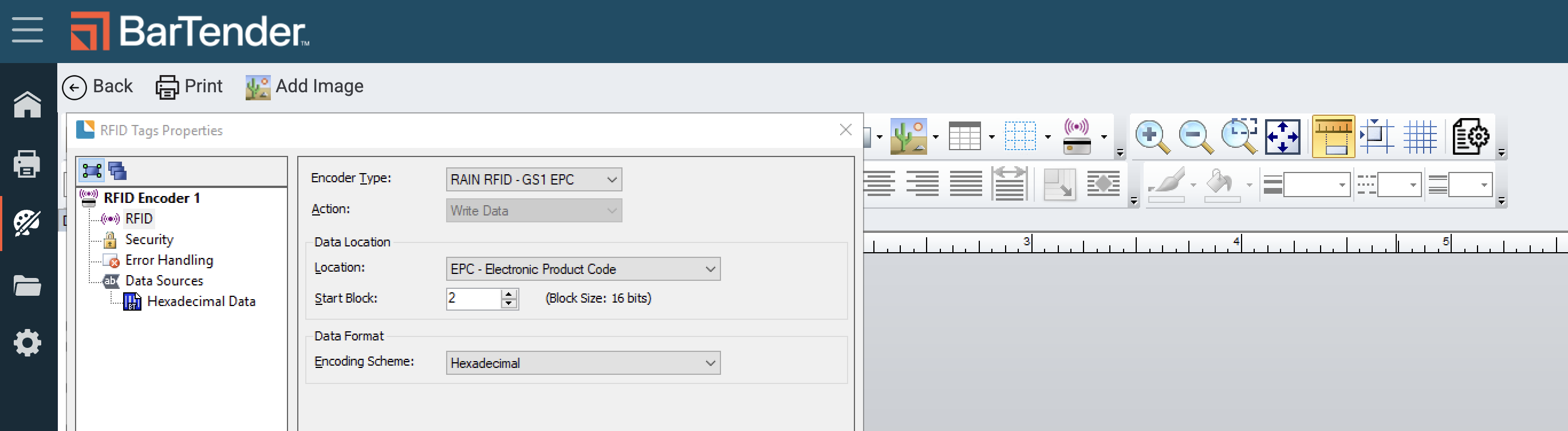
These RFID Settings are correct:
- RAIN RFID - GS1 EPC
- EPC - Electronic Product Code
- Start Block 2 (block size: 16 bits)
- Encoding Scheme: Hexadecimal
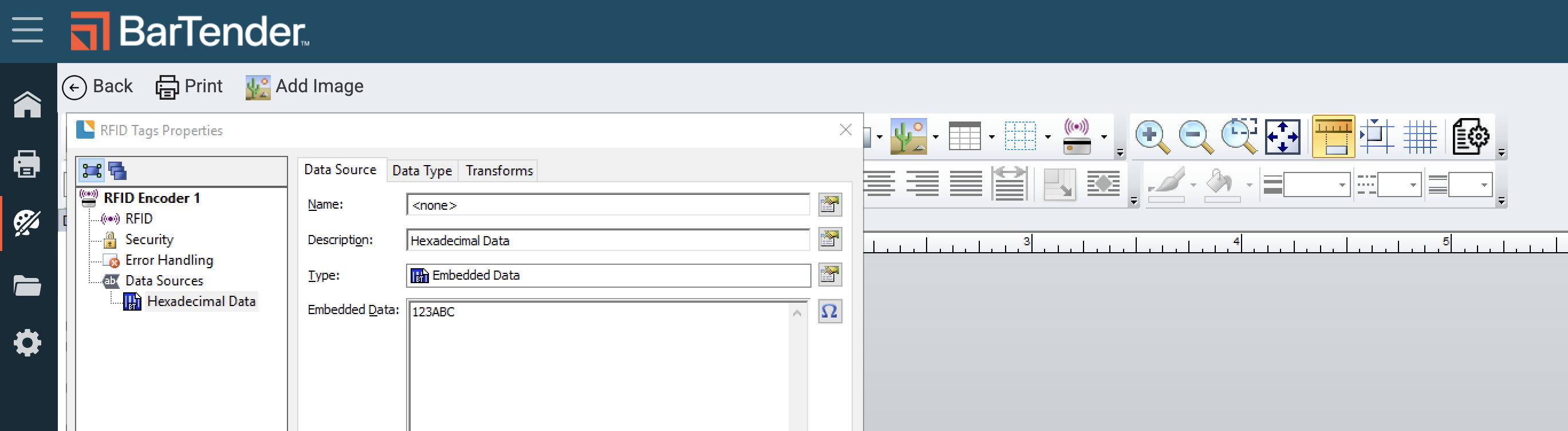
Click Hexadecimal Data to map this to the Flourish data source. Click the icon to the right of "Embedded data."
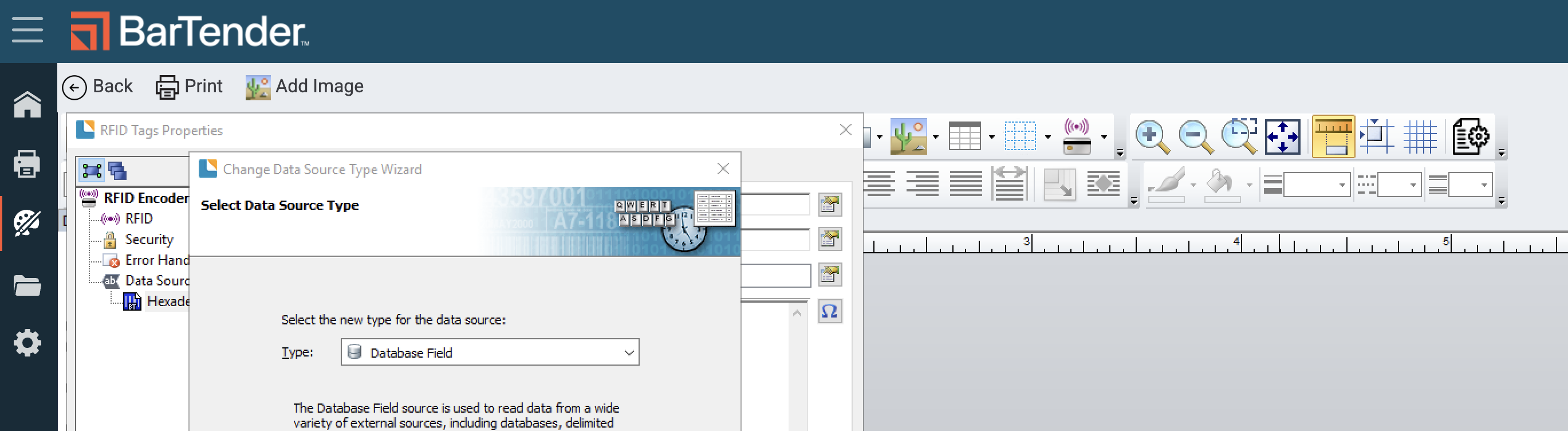
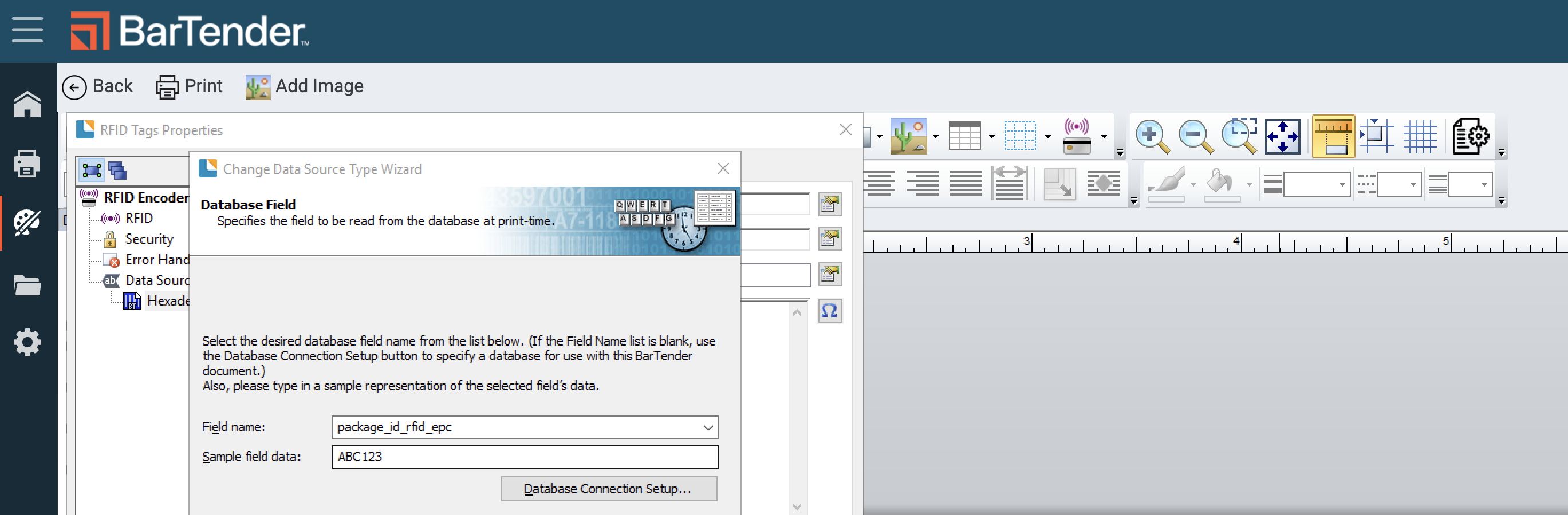
Choose Type: Database Field. This pulls dynamically from a data source. If the data source isn't set up, click "Database Connection Setup..." and follow the instructions to link to the template JSON file that represents the Flourish data passed to the template.
Choose package_id_rfid_epc or plant_id_rfid. These fields are coded to be 32-character hexadecimal values that map to a package or plant ID. Click Finish to save. Save the file!
Troubleshooting
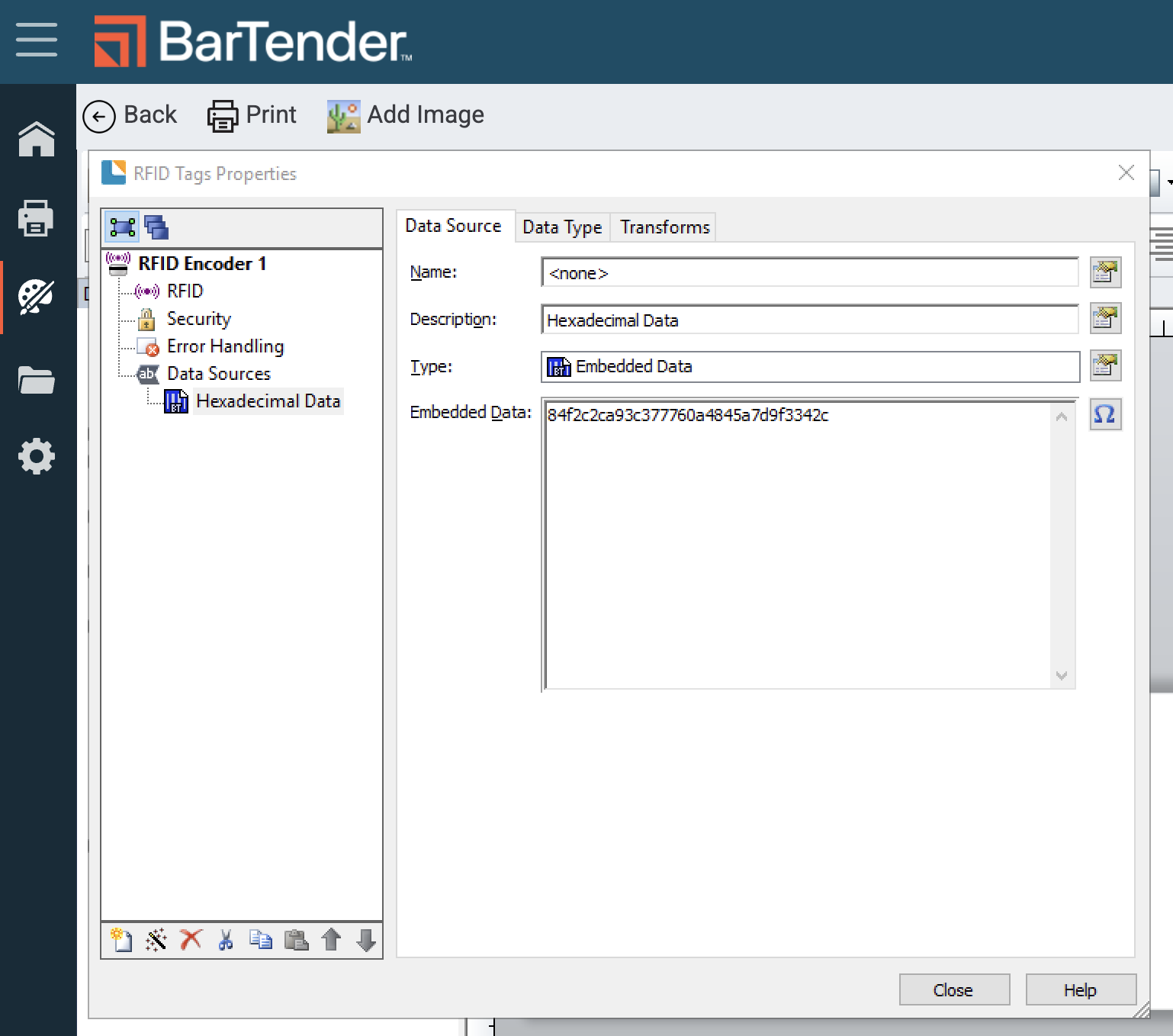
Test with an embedded data field to validate the RFID Encoding
Embedded data: 84f2c2ca93c377760a4845a7d9f3342c
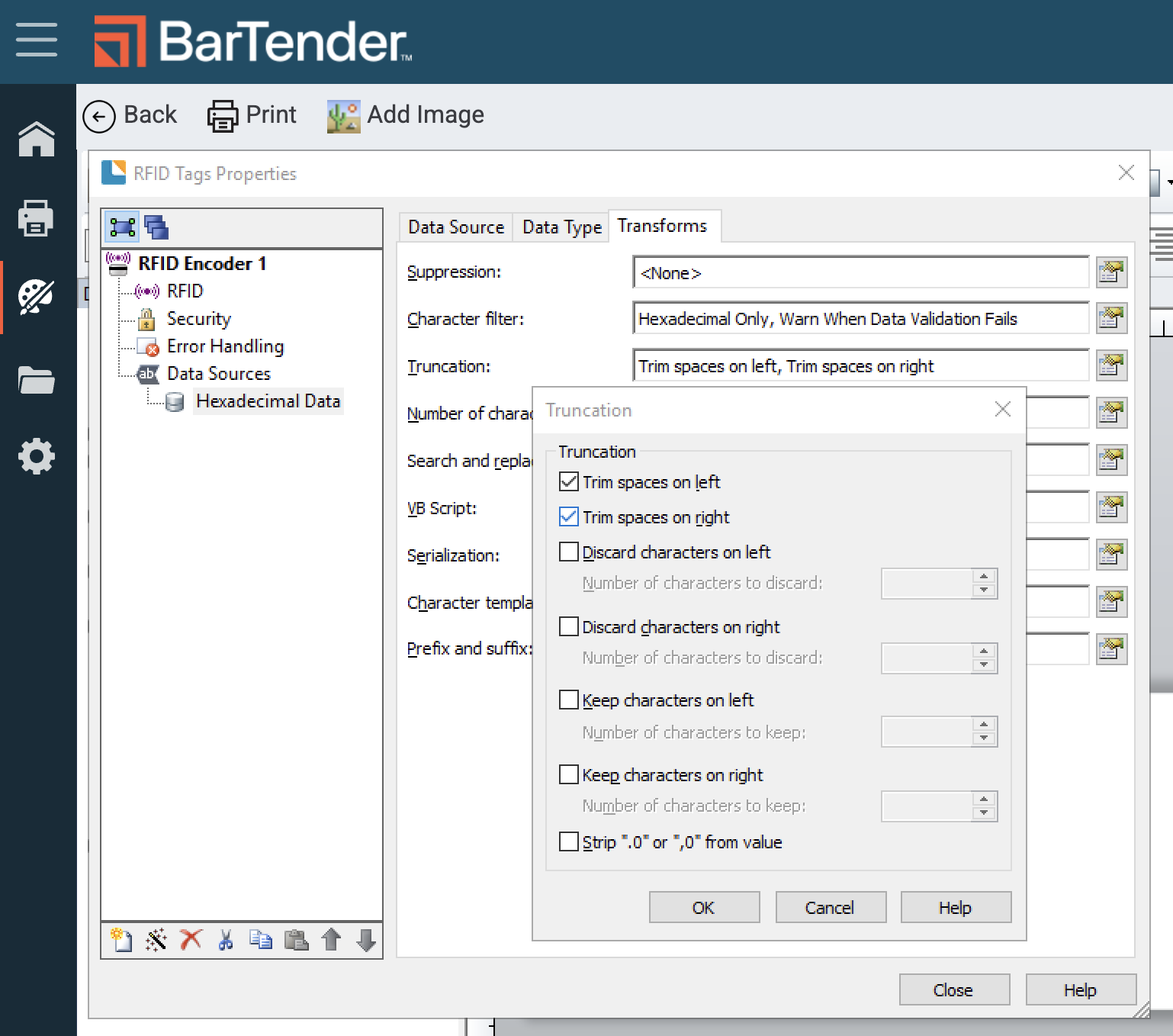
Add Truncation to trim any unexpected spaces from the start or end.
How did we do?
Connect Flourish to BarTender for Cannabis Label Printing
