Table of Contents
Connect Flourish to BarTender for Cannabis Label Printing
Flourish integrates with BarTender for dynamic label printing of packages, plants, and products using Flourish data sources.
Table of Contents
BarTender® software is trusted by organizations worldwide to improve safety, security, efficiency, and compliance by optimizing their labeling, marking, and printing processes.
Flourish Software offers seamless integration with BarTender® to enable efficient and accurate label printing for packages and plants.
Prerequisites
- Before you begin, ensure you have an active BarTender® account. This account is required to activate and manage the integration.
- Once you are signed into BarTender, you will need to connect your printer. You will be prompted to Install the BarTender Print Gateway.
Activate the BarTender® Integration
To integrate Flourish Software with BarTender™, you must register the Flourish application in BarTender™ to generate the necessary authentication codes, then input those codes into Flourish Software.
This is a two-step process:
Register Flourish in BarTender™
- Log in to your BarTender™ account.
- Click on API Keys under Administration in the side navigation.
- Click Register Application for OAuth Access.
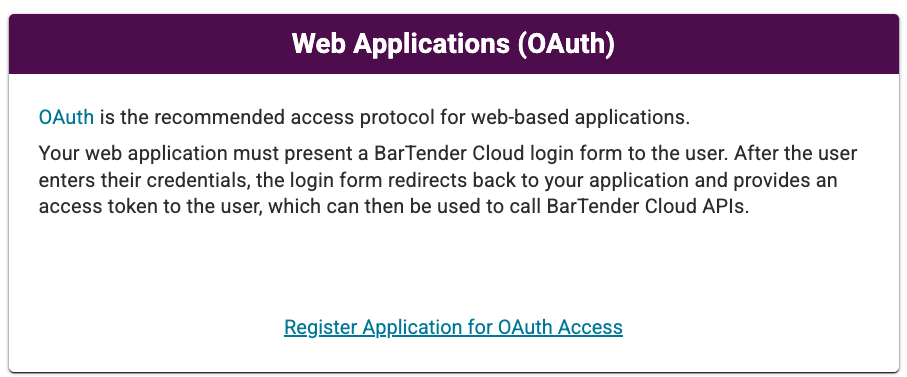
- Fill out the registration form with the required information (copy from here):
Field Name
Field Content (copy from here and paste in BarTender™ )
Name
Flourish Web App
Description
BarTender Cloud integration from Flourish Software web application
Login URL
https://app.flourishsoftware.com/admin/integrations/bartender/settings?auth=success
Callback List
https://app.flourishsoftware.com/v1/api/companies/integrations/bartender/callback
Logout URLs
https://app.flourishsoftware.com/admin/integrations/bartender/settings?auth=logout&error=&error_description=
Allowed Origins (CORS)
leave this field blank
Allowed Web Origins
leave this field blank
- Click Register. BarTender™ will show you the Application ID and Secret for the key you just created, and will add a new application entry at the bottom of the API Keys list.
- If you need to retrieve the Application ID and Secret again, you can click the three dots (⋮) on the far right of the new entry and choose View ID & Secret.
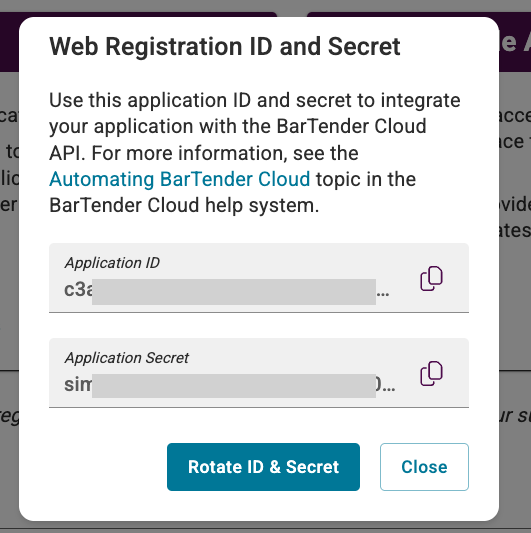
- Copy both the Application ID and Application Secret.
Connect to BarTender™ in Flourish Software
- Open Flourish Software.
- Navigate to Settings.
- Select Integrations from the menu.
- Locate the BarTender™ card.
- Click Configure.
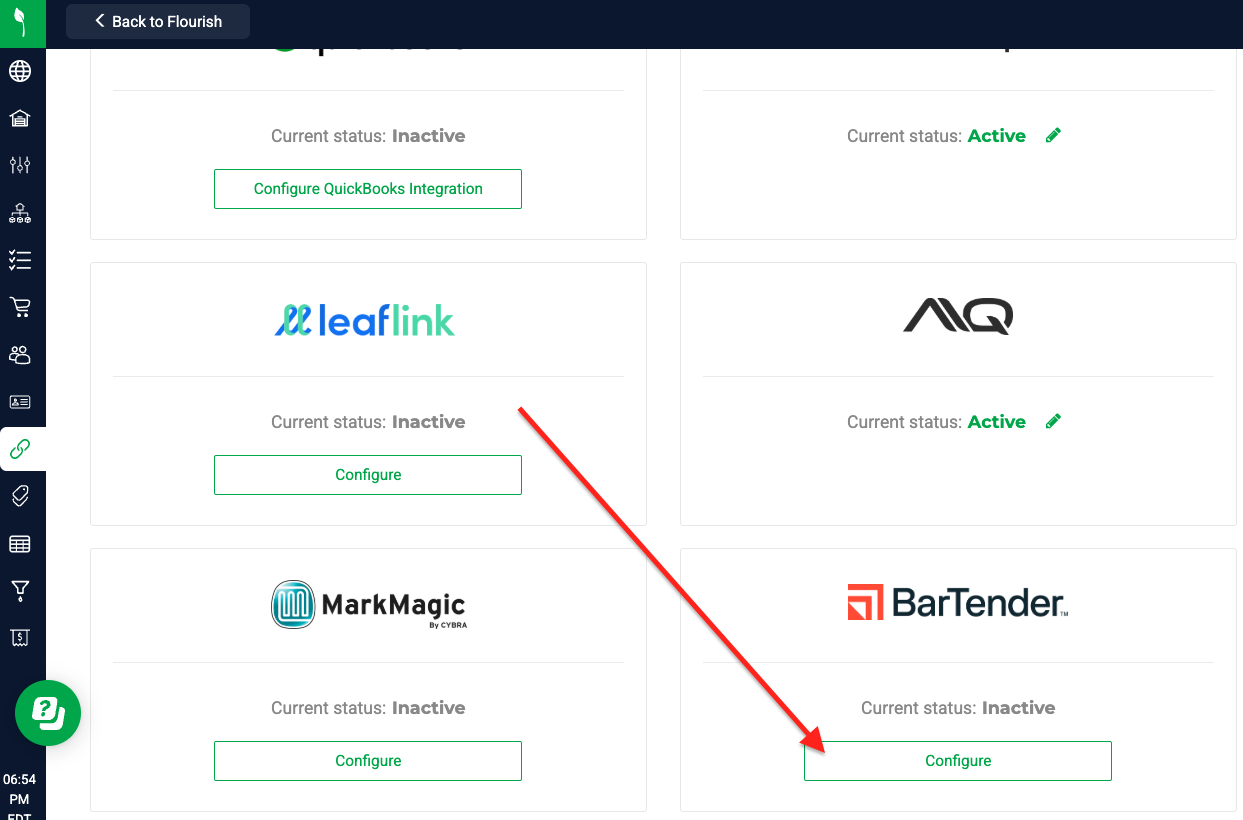
- Paste the copied credentials from BarTender™ into the corresponding fields.
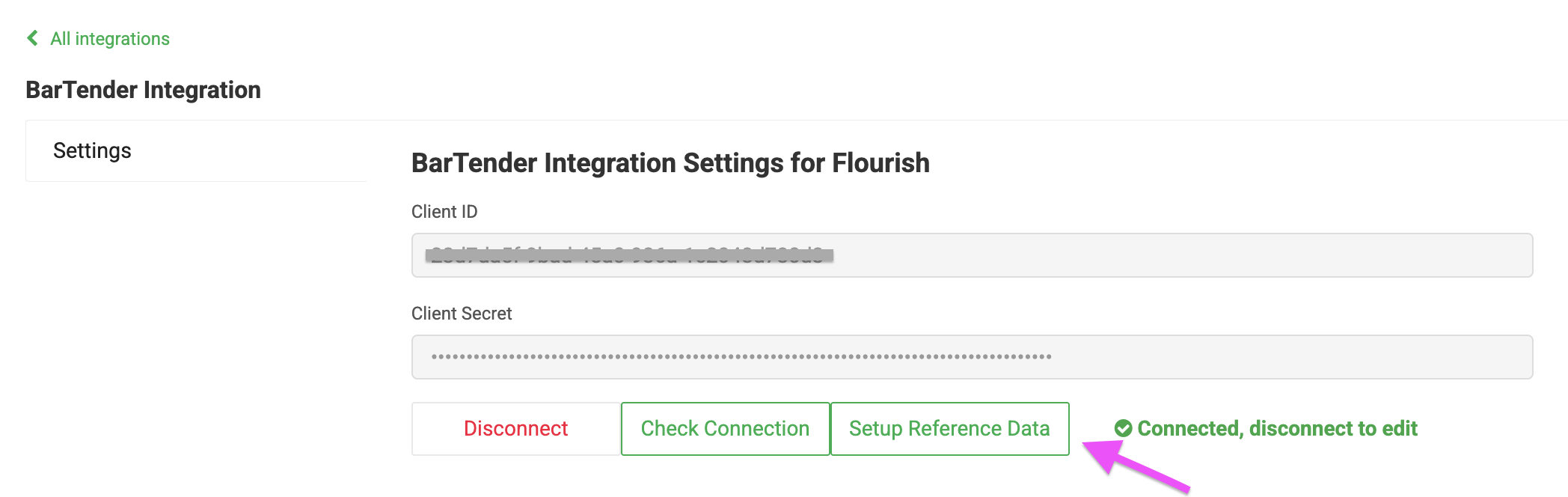
- Client ID → Paste the Application ID
- Client Secret → Paste the Application Secret
- Click Connect.
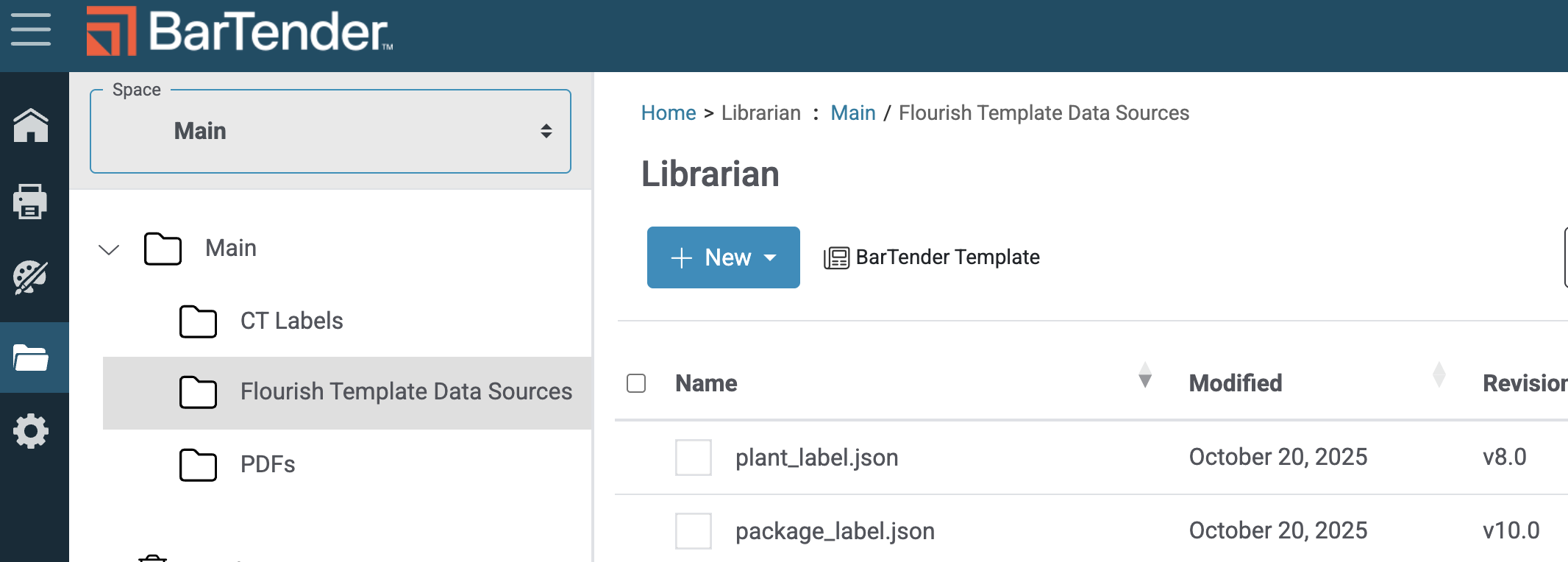
Flourish Software will then authenticate to your BarTender™ Cloud instance and complete the connection securely. - Click Setup Reference Data. This creates a folder named Flourish Template Data Sources with both package_label.json and plant_label.json files to BarTender for field mapping in the designer.
- Navigate to your BarTender Librarian to confirm the Reference Data has been populated. We will use this later for Database Connection Setup and configuring your label templates.
Using BarTender Template Designer
The template designer is what you will use to create and print labels from Flourish. We will first create the template file, then we will configure the label.
- Create the template File
- Connect the template file to the Flourish database File.
- Design the label
Creating the Template File
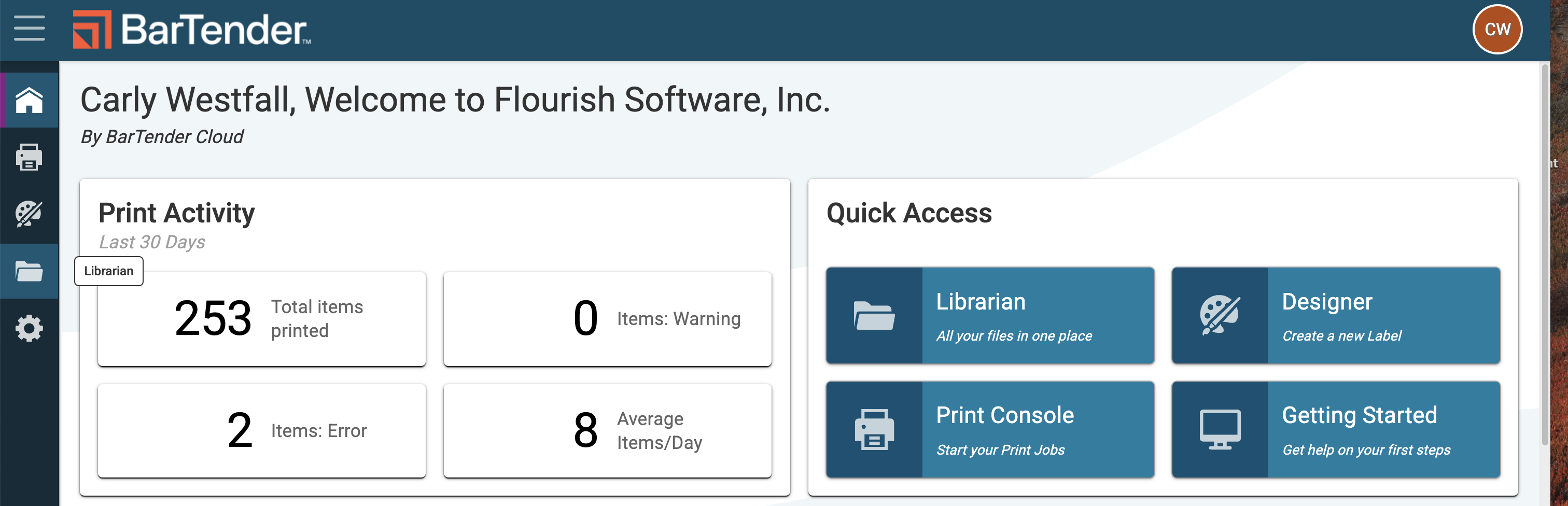
- To start with a new template, navigate to the BarTender Librarian. You can access from either the home screen's "quick access" page or on the left navigation menu (folder icon).
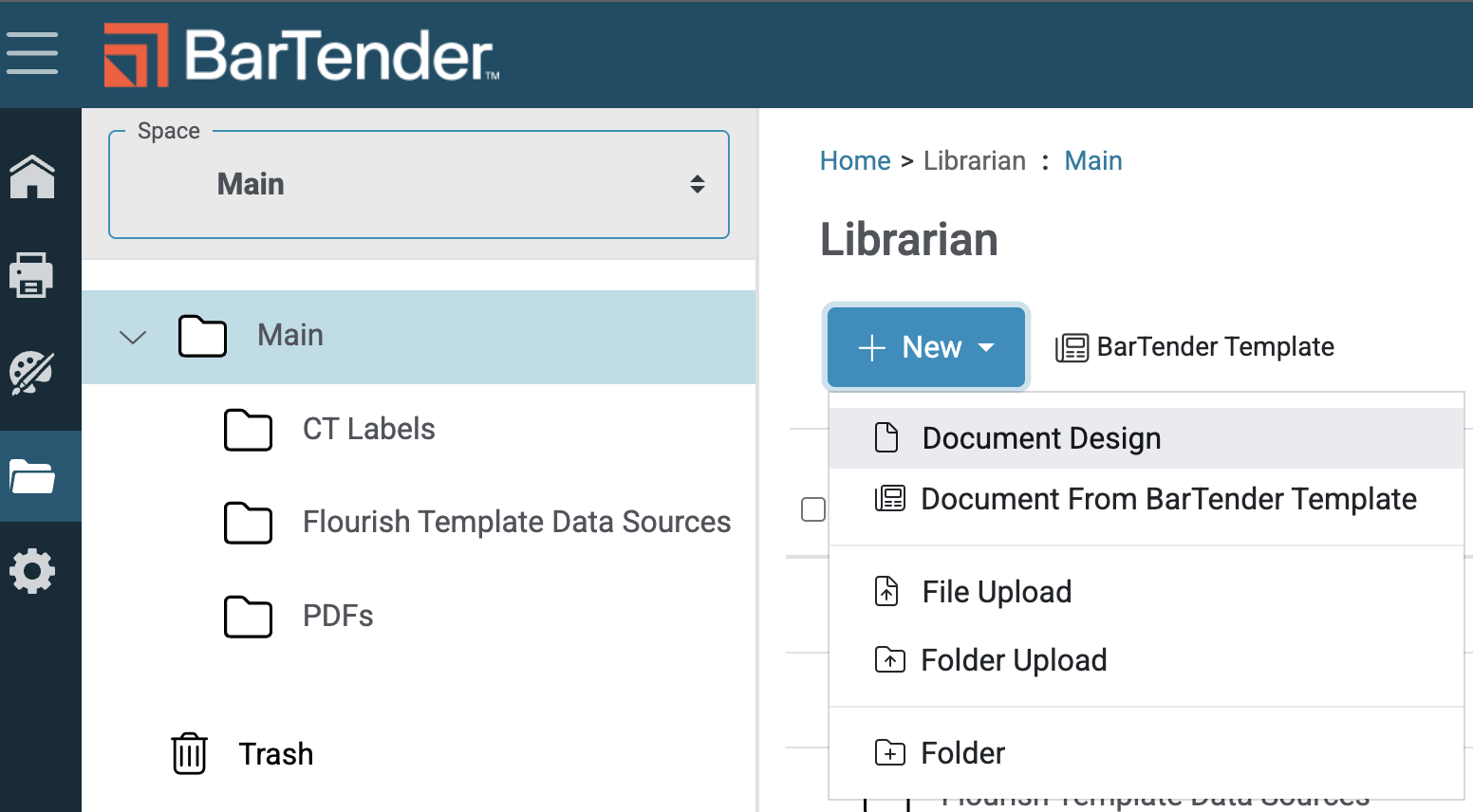
- Click +New (drop-down menu) and select Document Design.
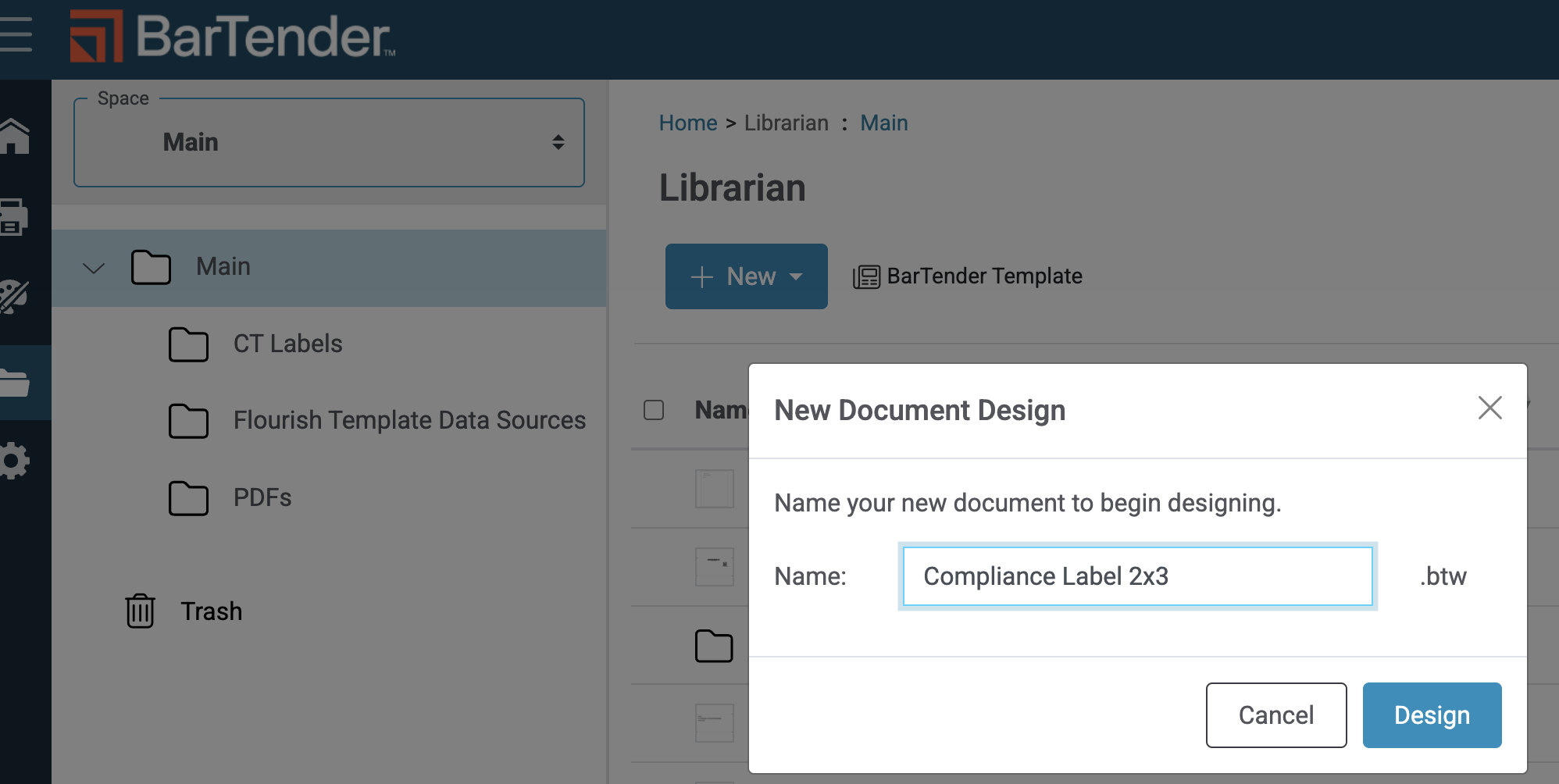
- Name your template, click Design.
- Find your template in the Librarian and click on the 3 dots to the right of the filename. Click Design.
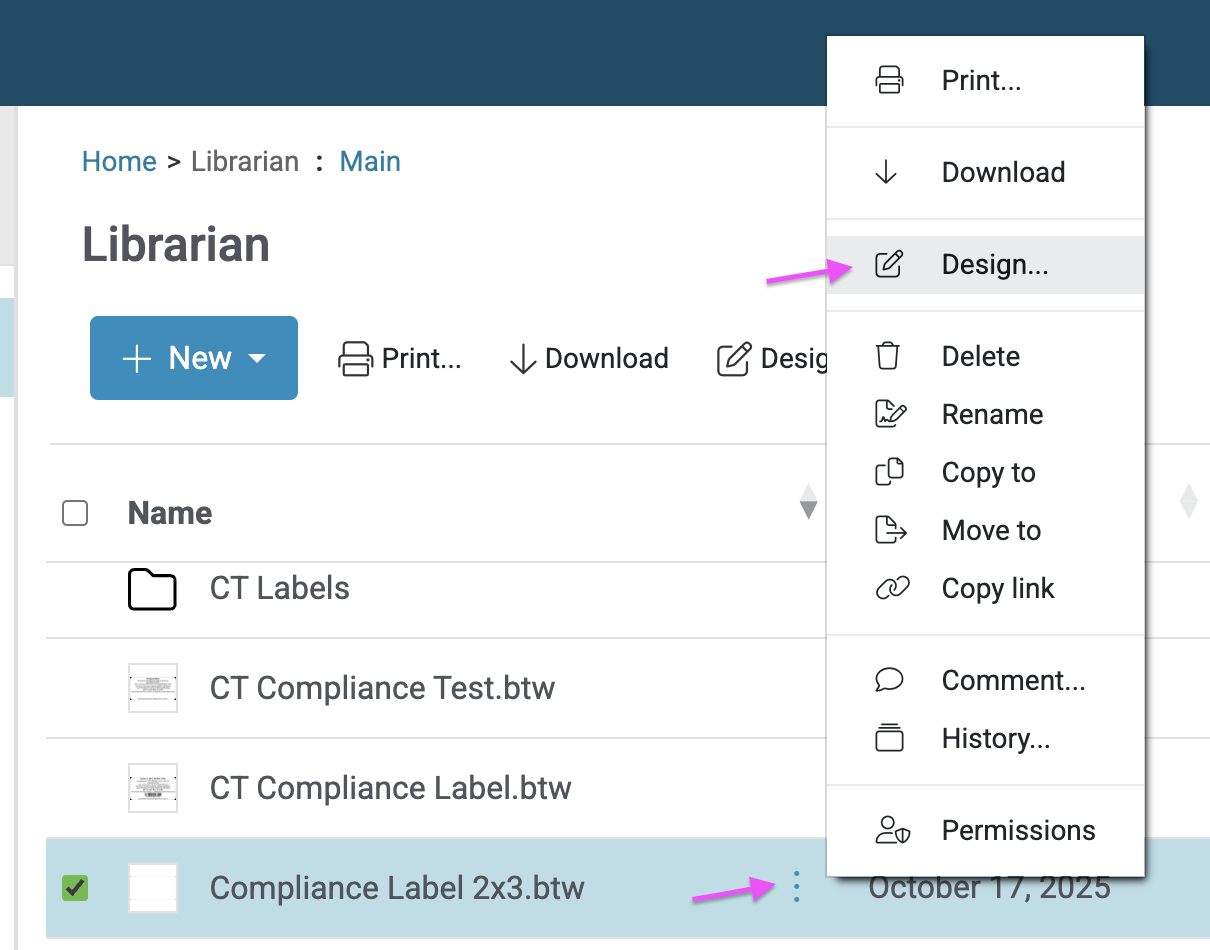
- A new tab on your browser will open and you will be prompted to set the printer to use and set the dimensions of your label. Follow the prompts in BarTender to define the settings. Please see example screenshots below.
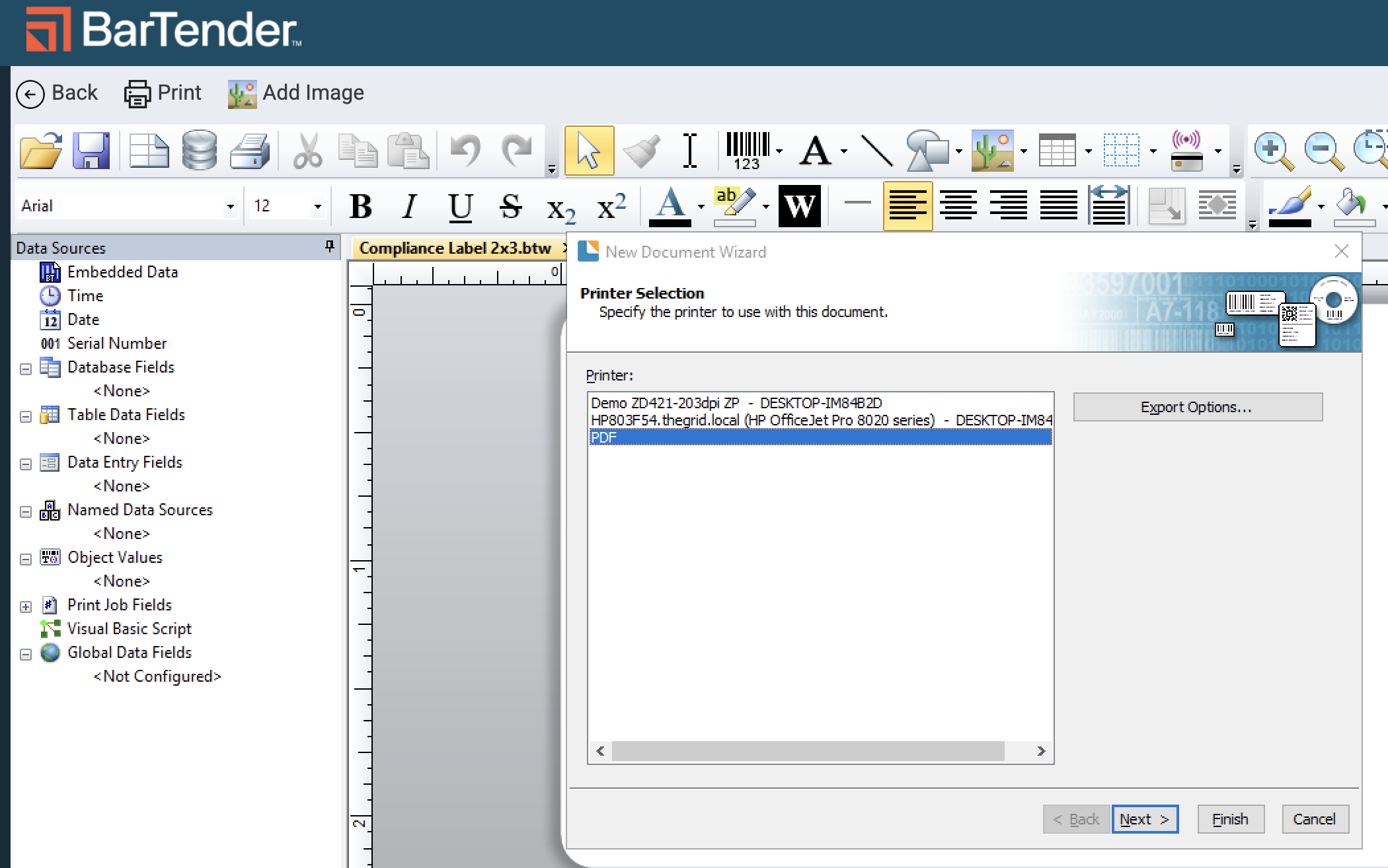
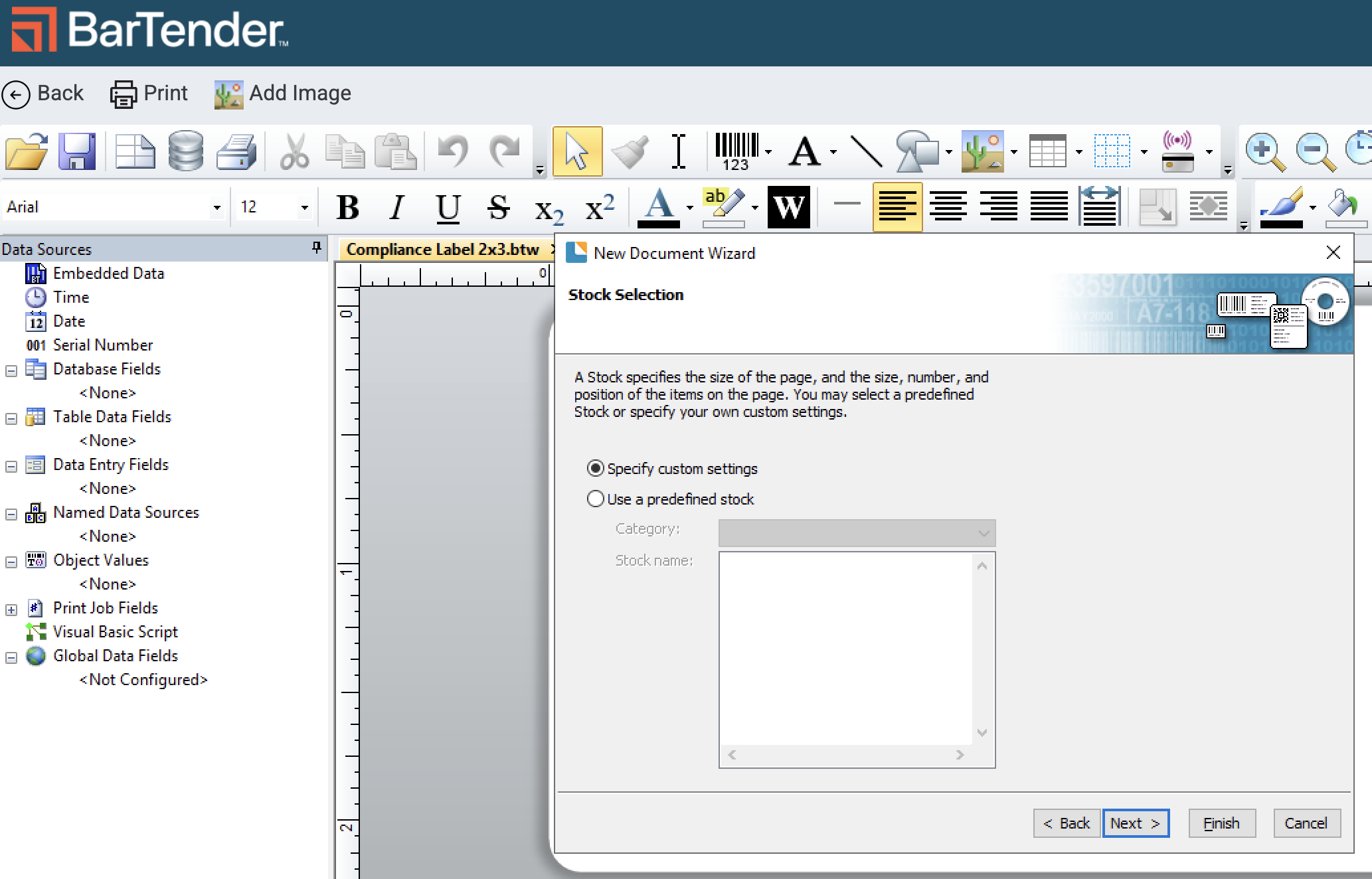
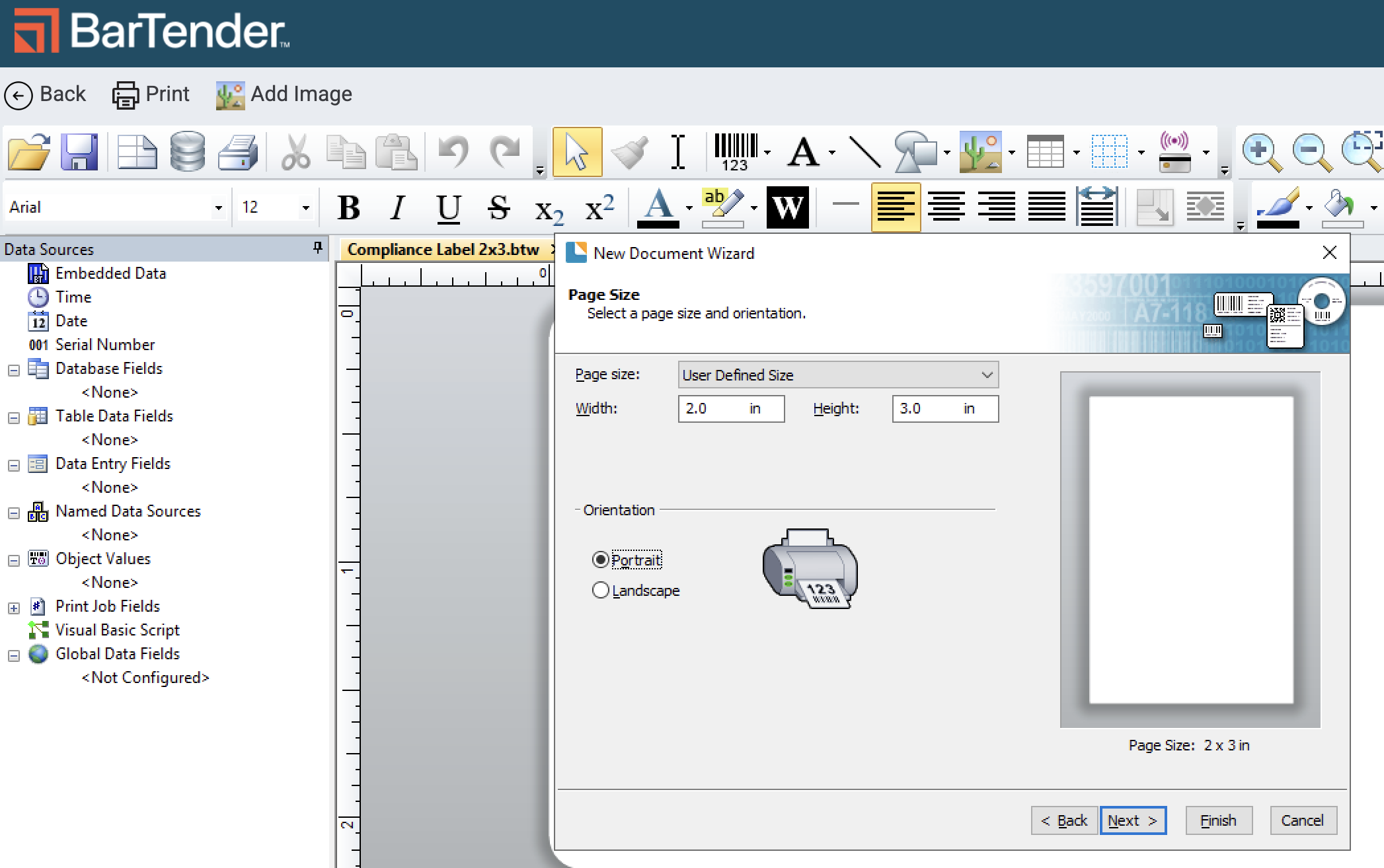
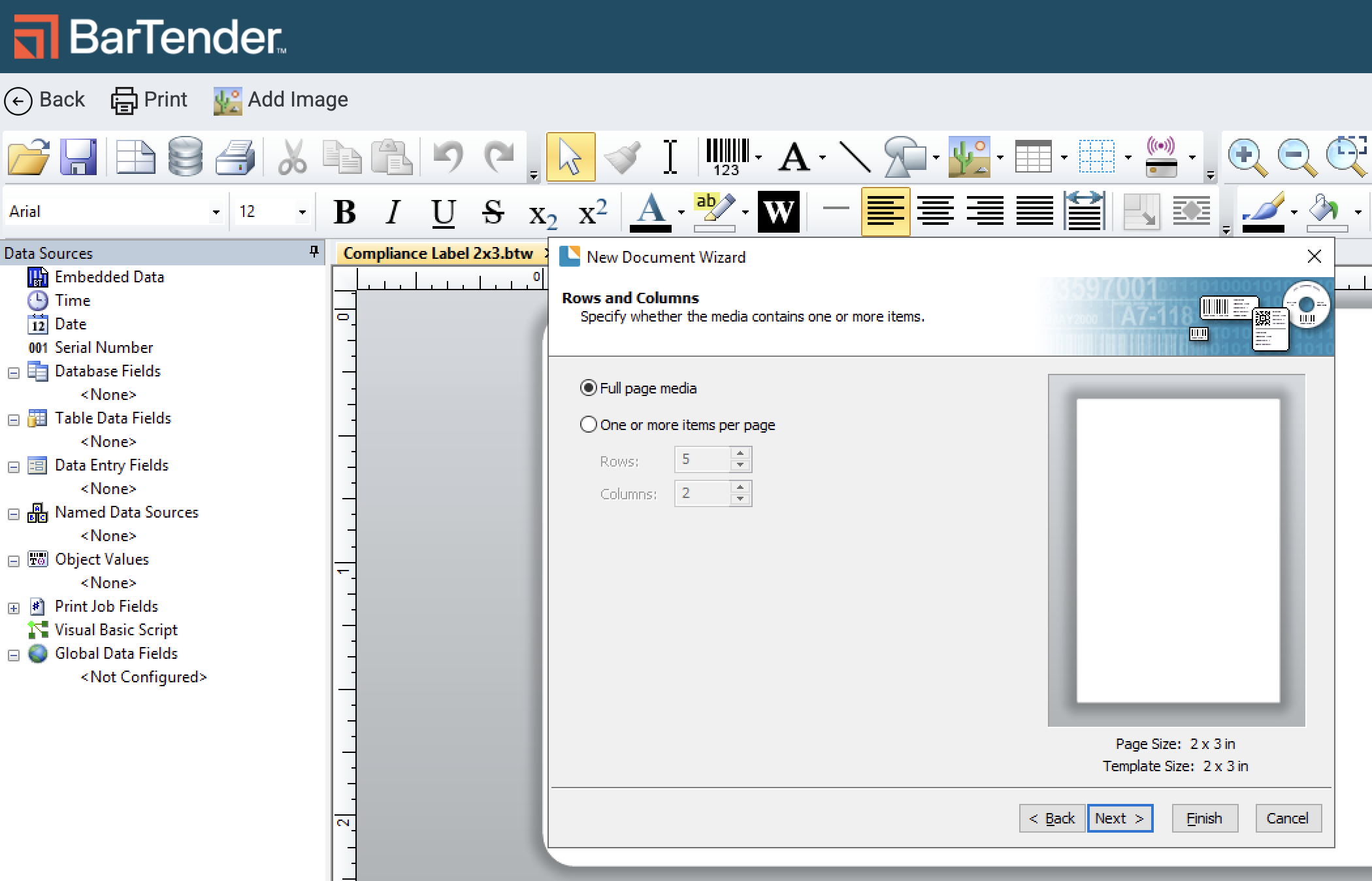
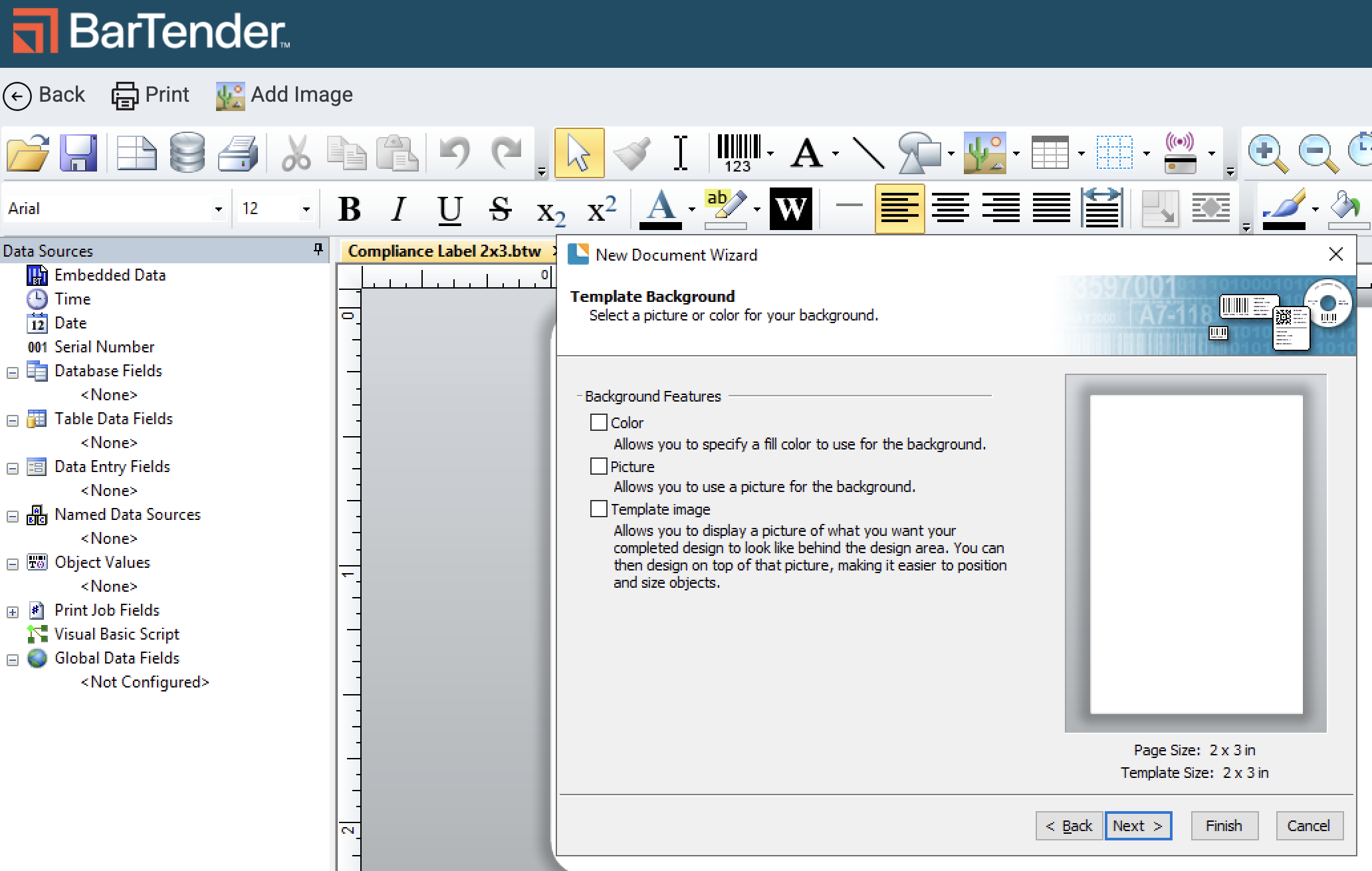
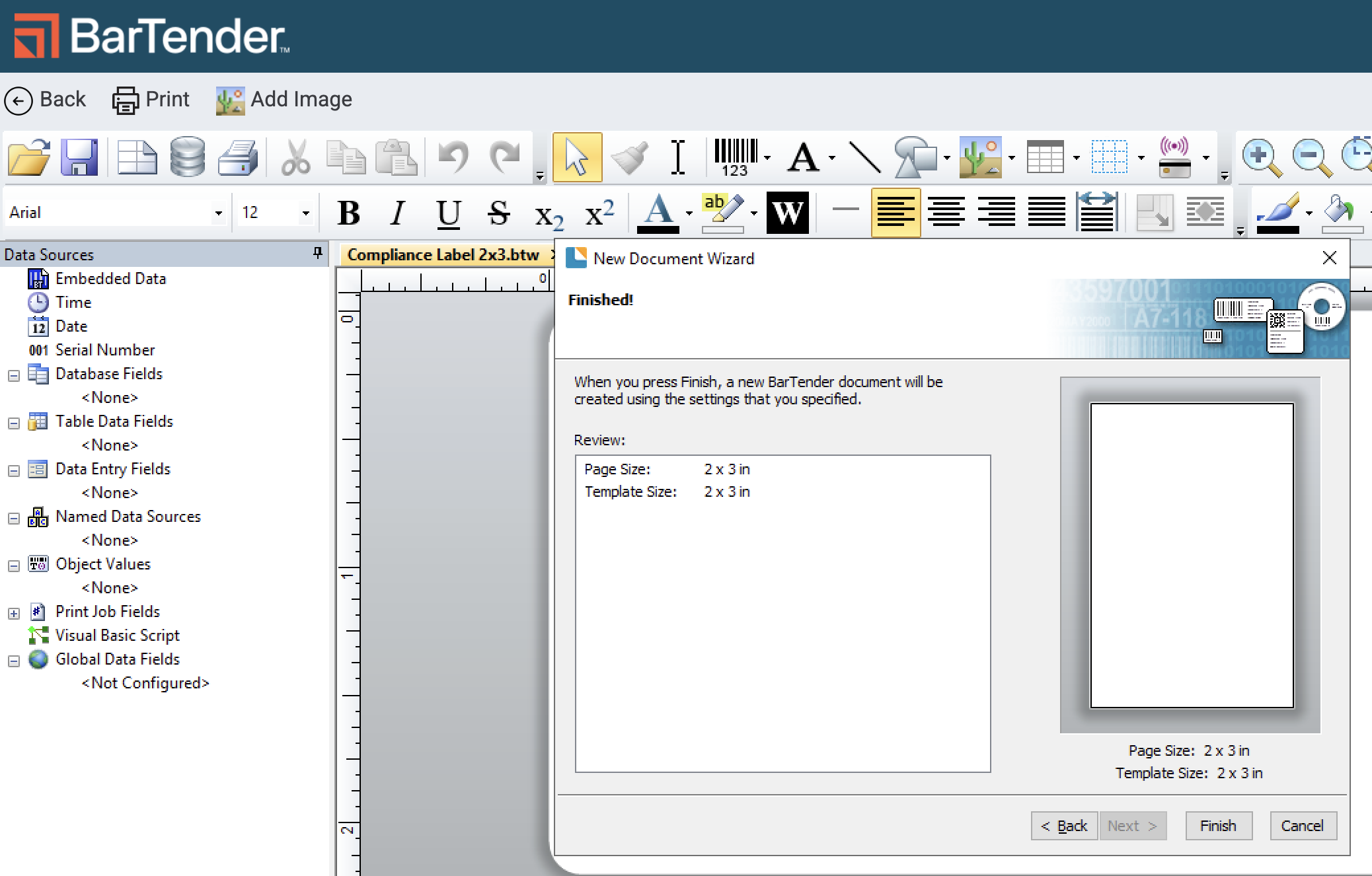
- Click Finish.
Connect Your Template to the Flourish Database File
Connect the Flourish database fields to the Template file in BarTender so you can configure your label with integrated Flourish data.
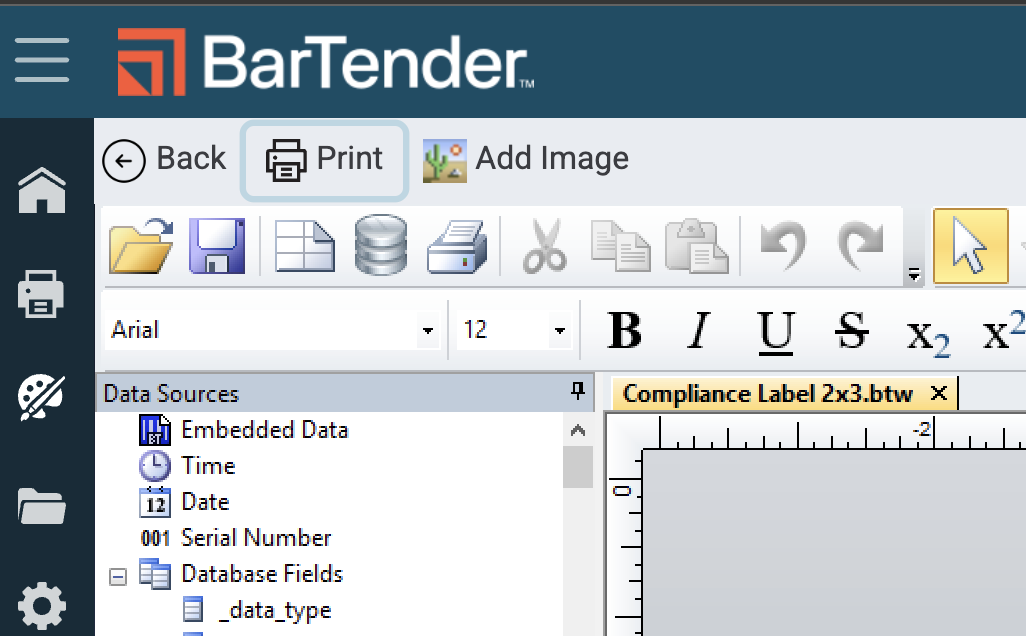
- Click on the Database Connection Setup icon at the top of screen.
- Follow the prompts to add the package_label.json file to the template from the file in your librarian.
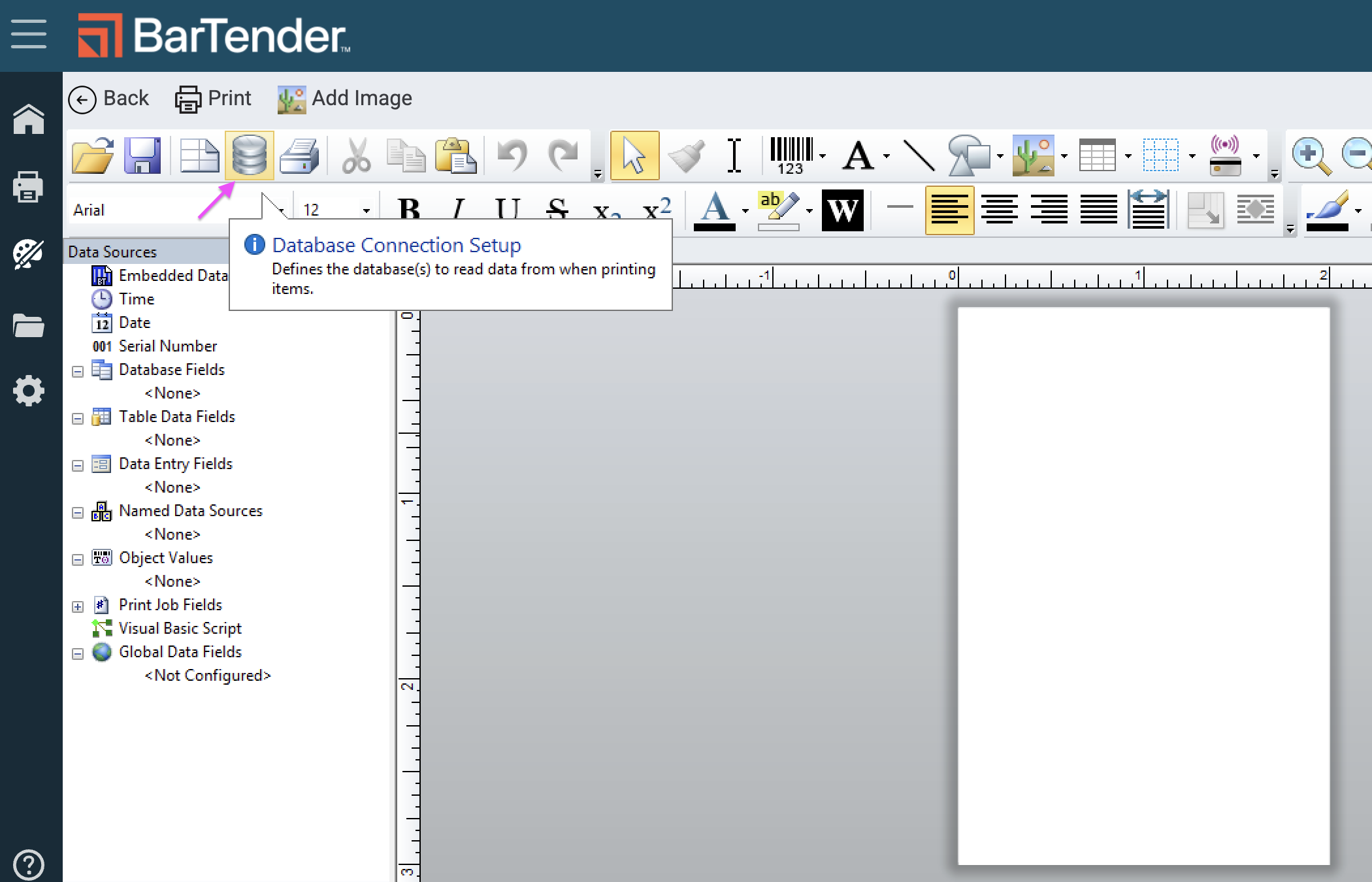
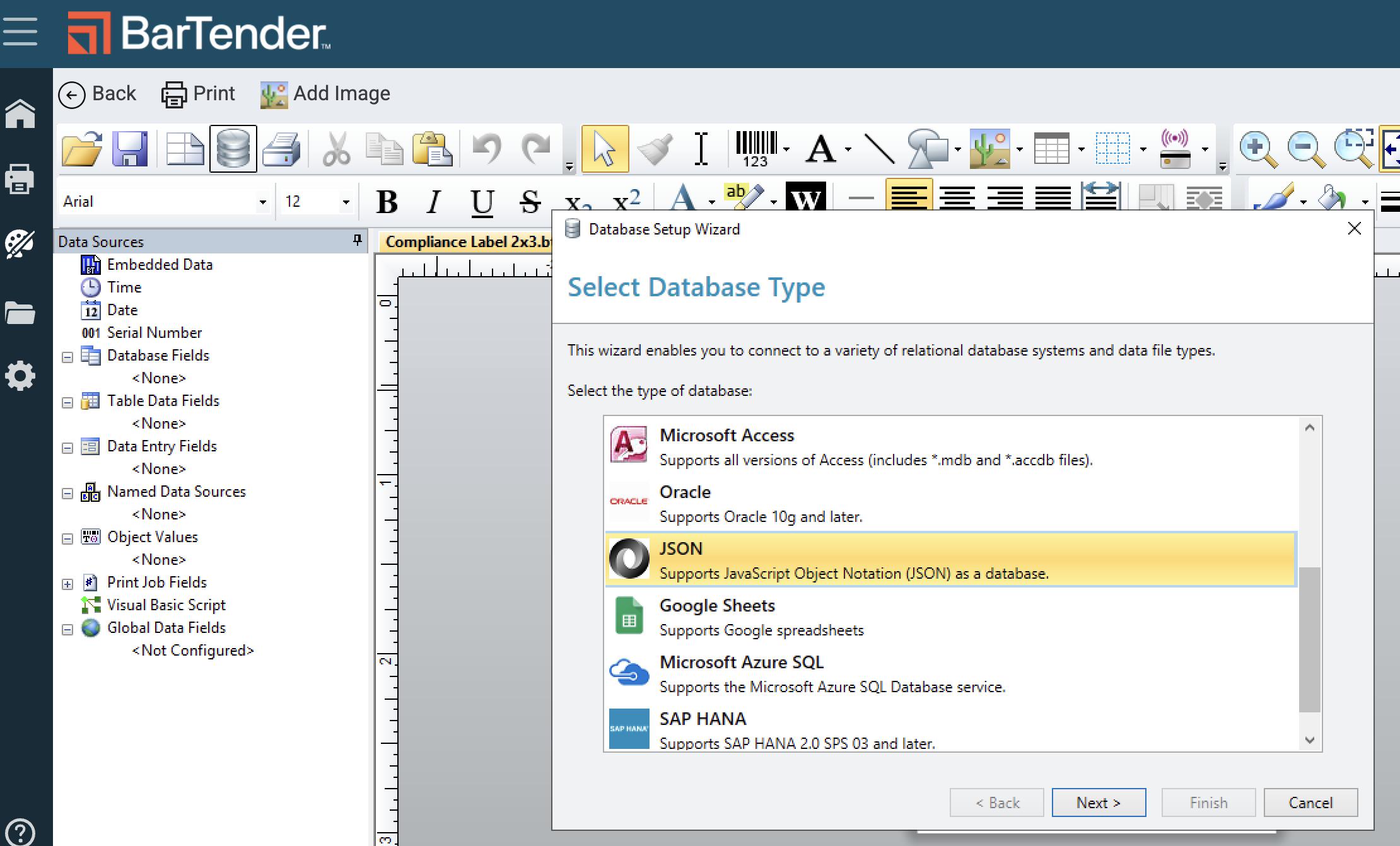
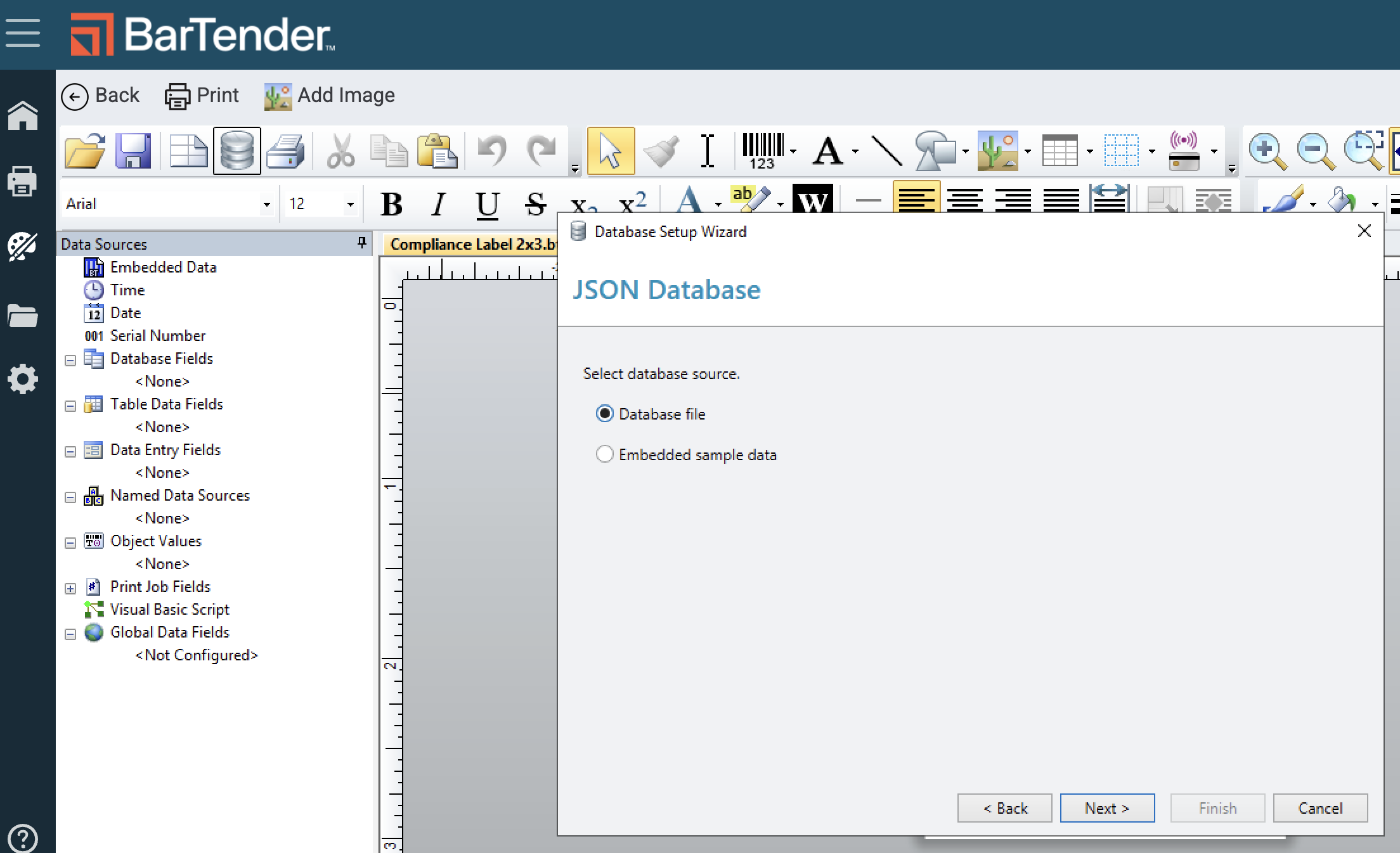
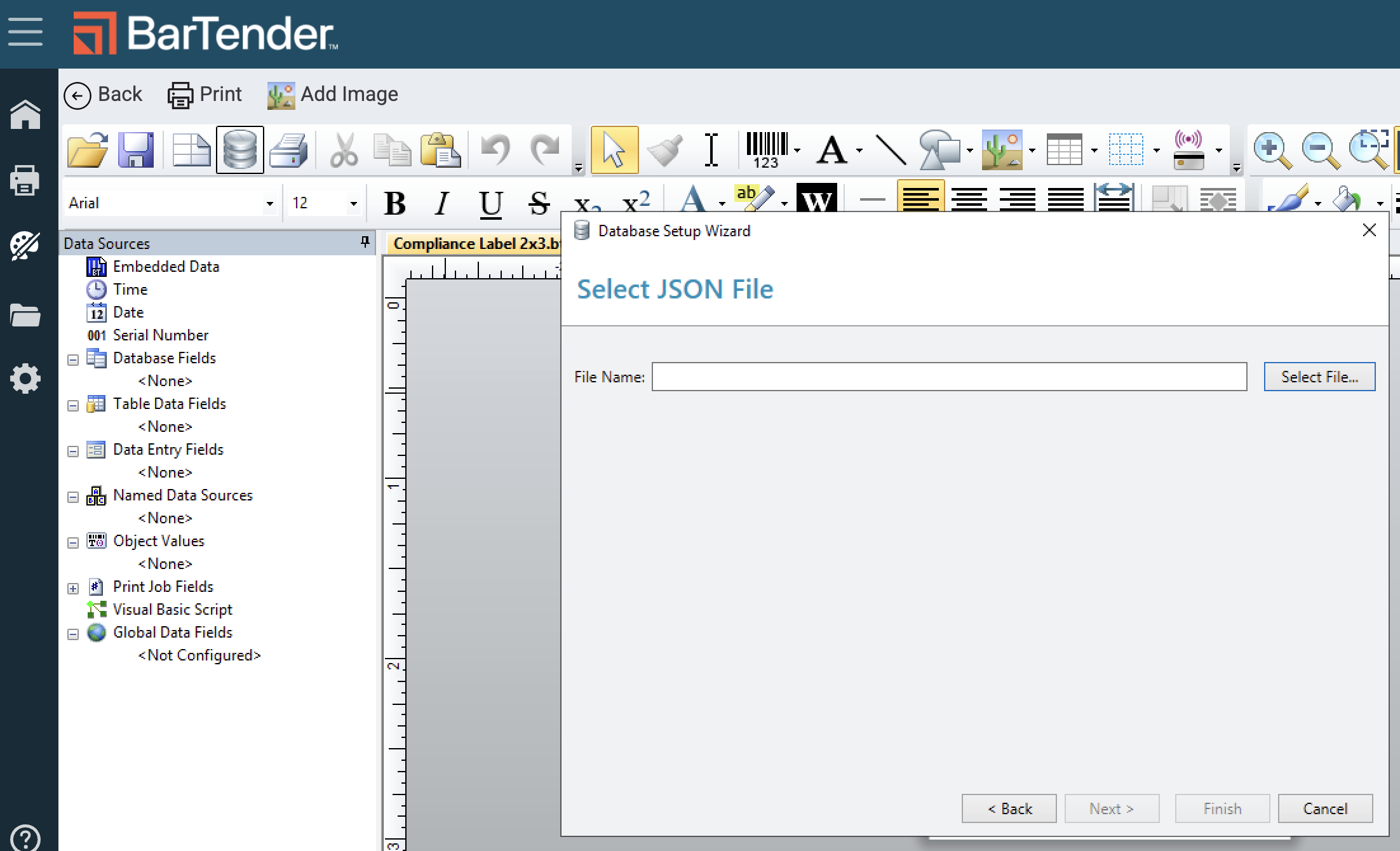
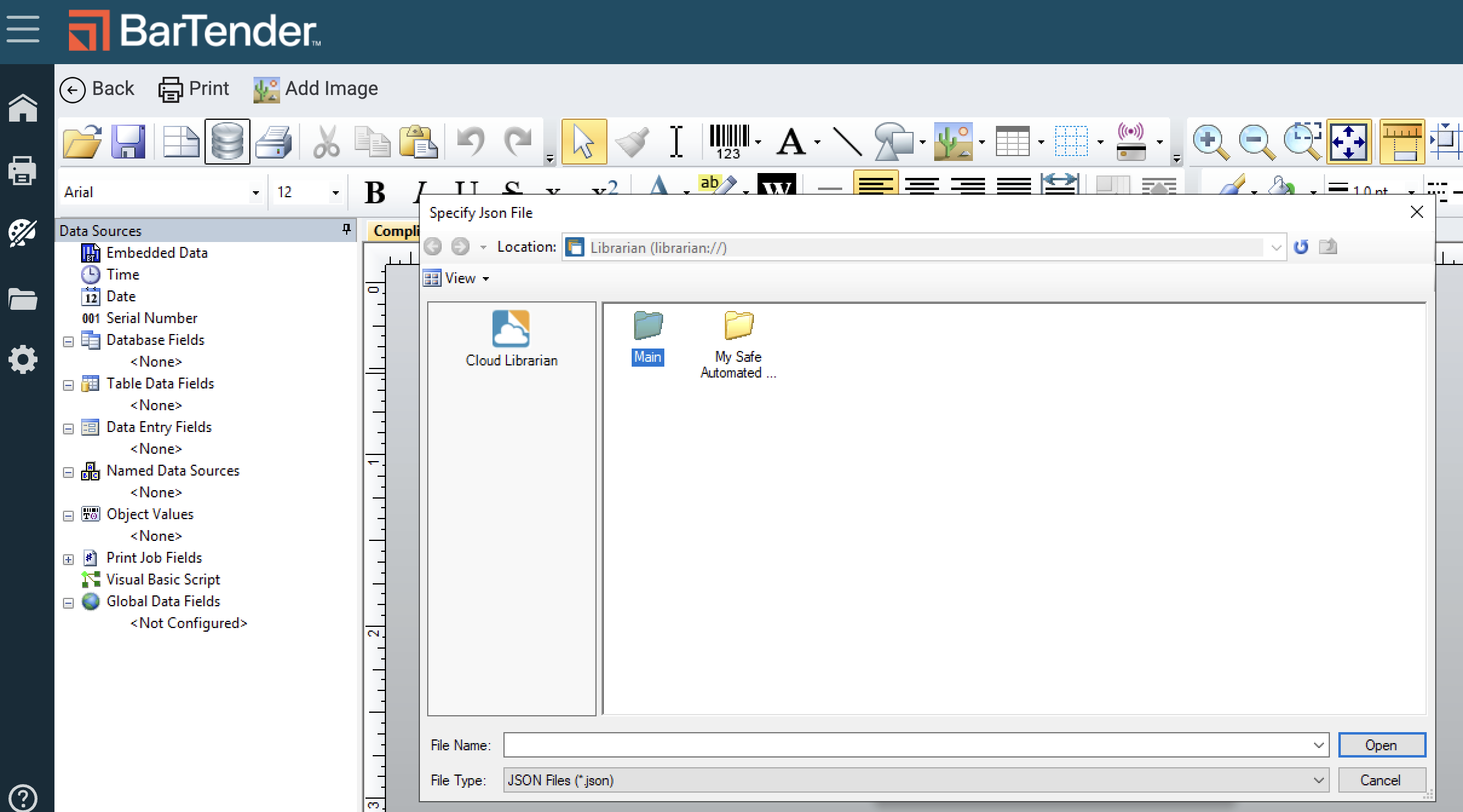
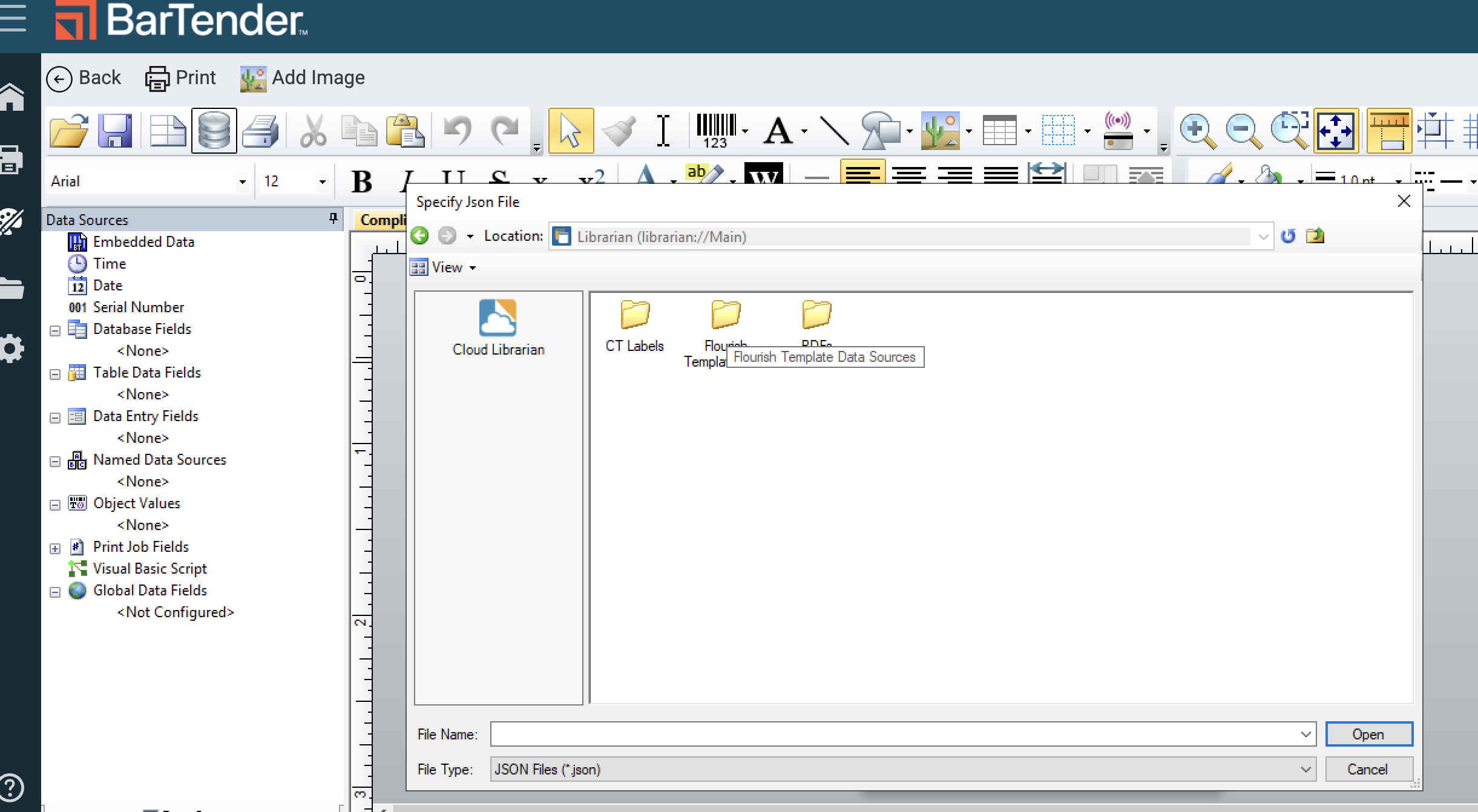
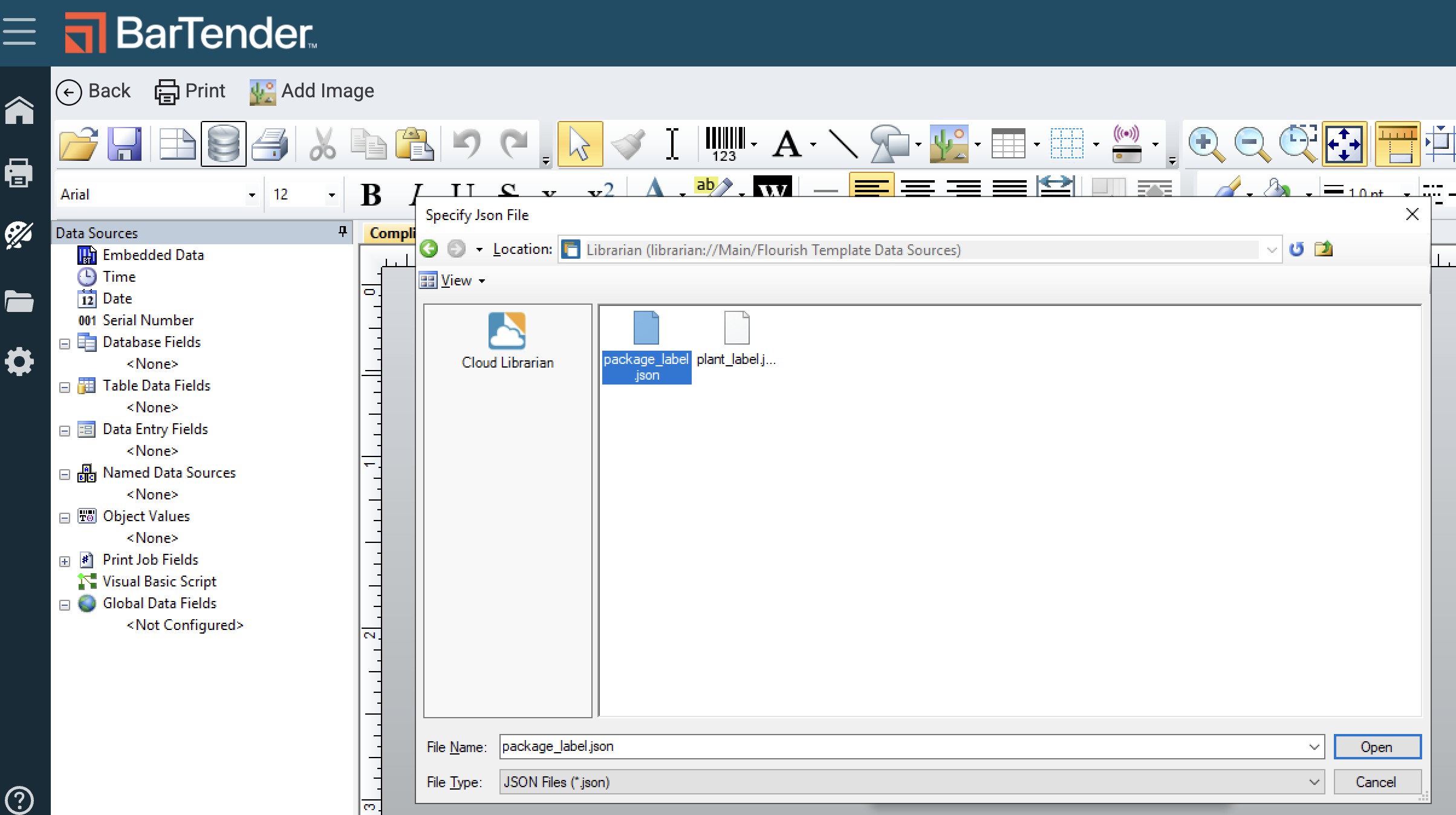
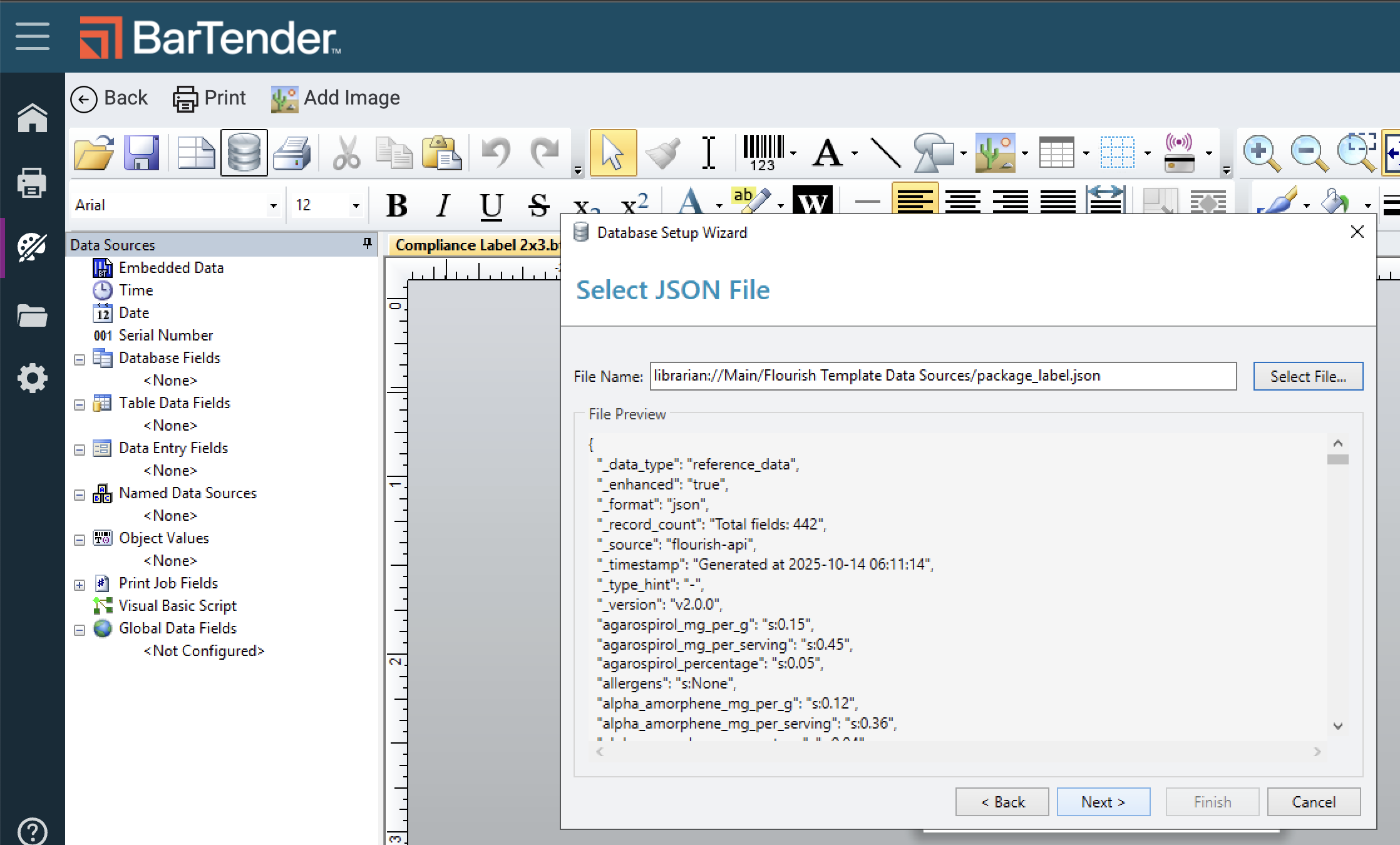
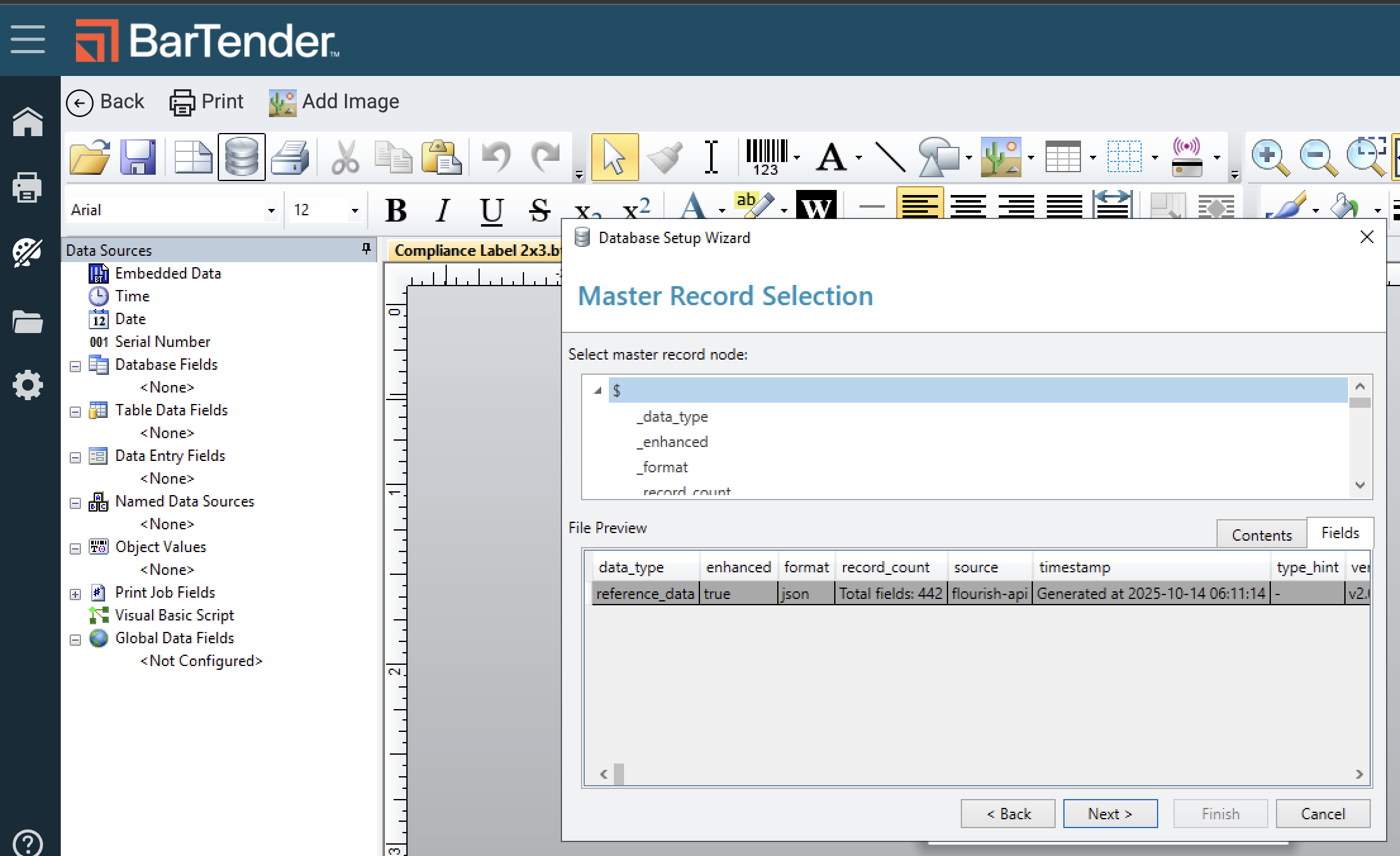
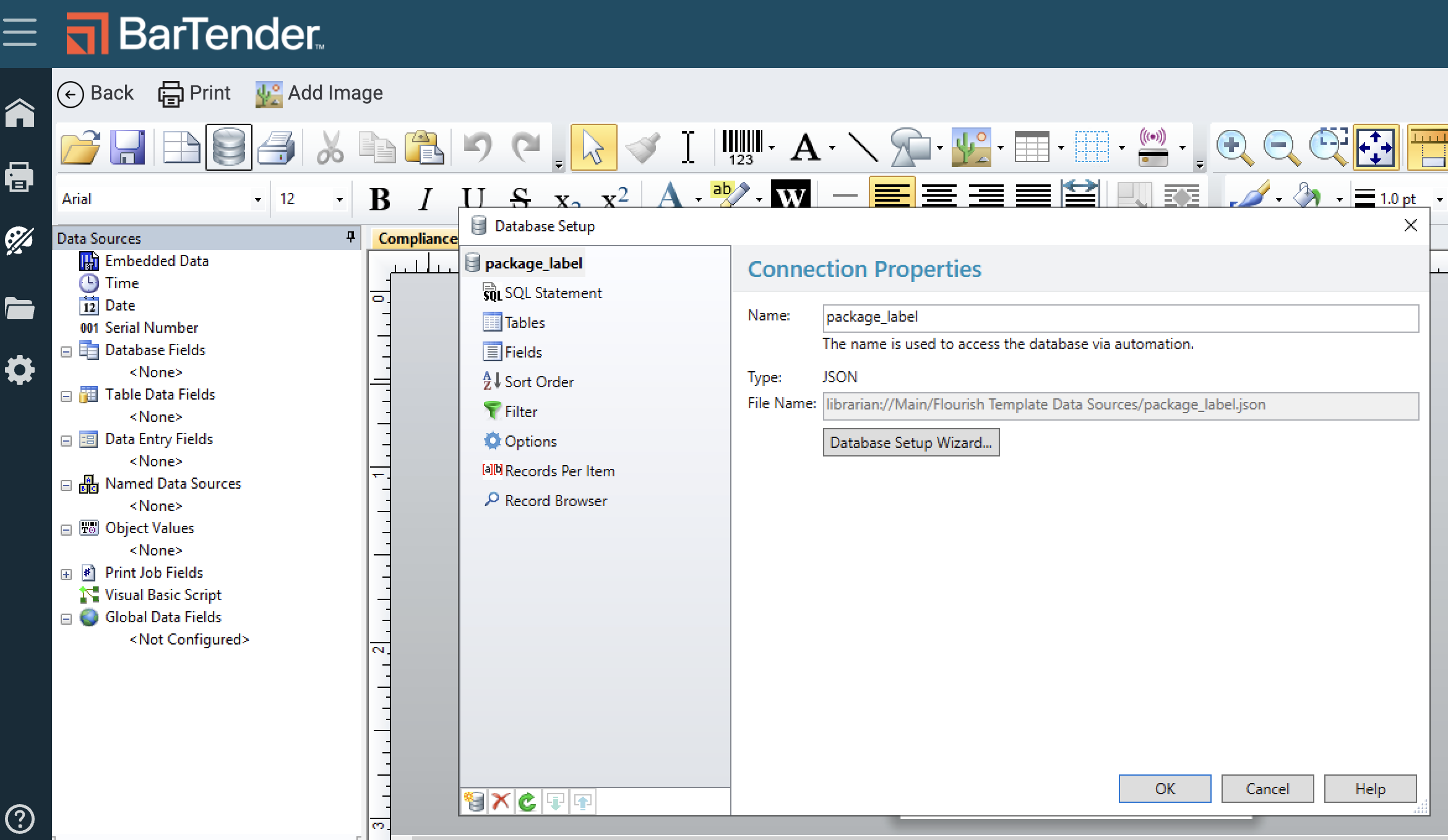
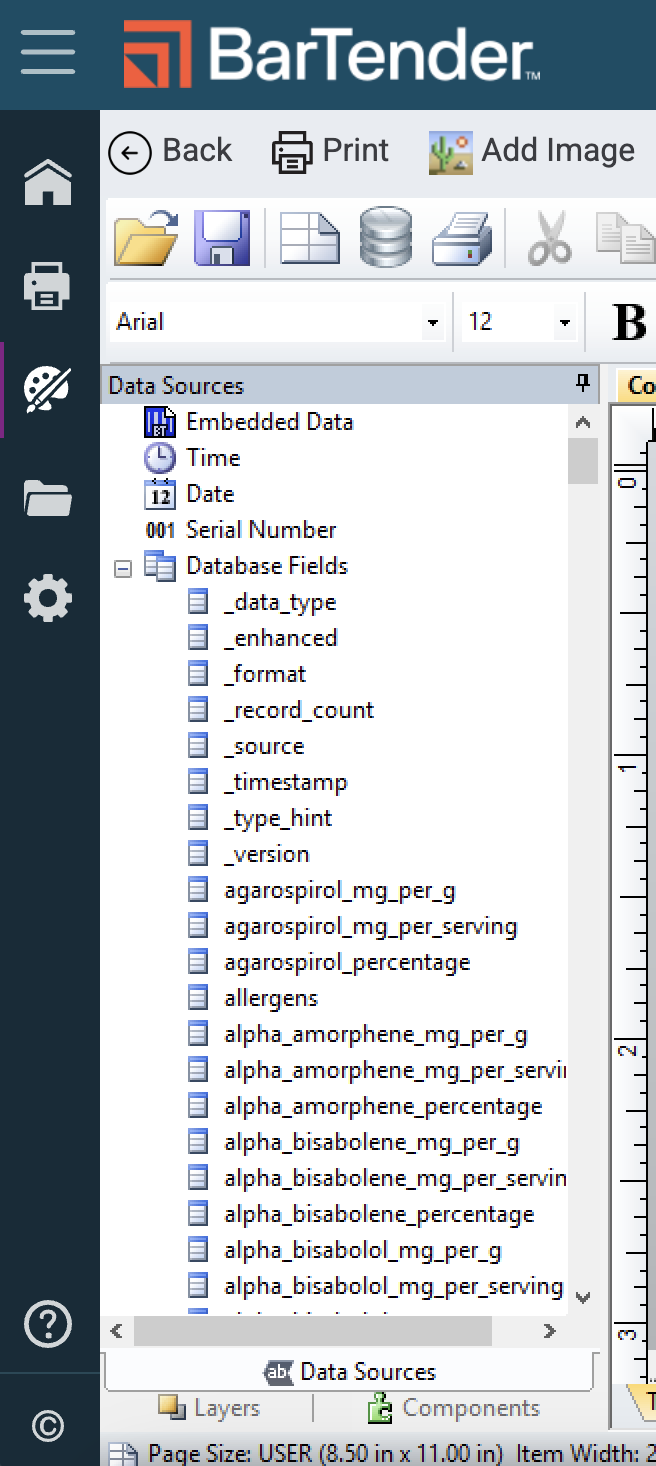
- Click OK and the Flourish database fields will populate on the left side panel for template design and mapping.
Designing the Label
- Click the text box (A icon in the toolbar) to create a text field. This will be used for element headers and field mappings. It is standard to use Normal or Normal Wrapped if word wrapping is needed for Ingredients or Warnings.
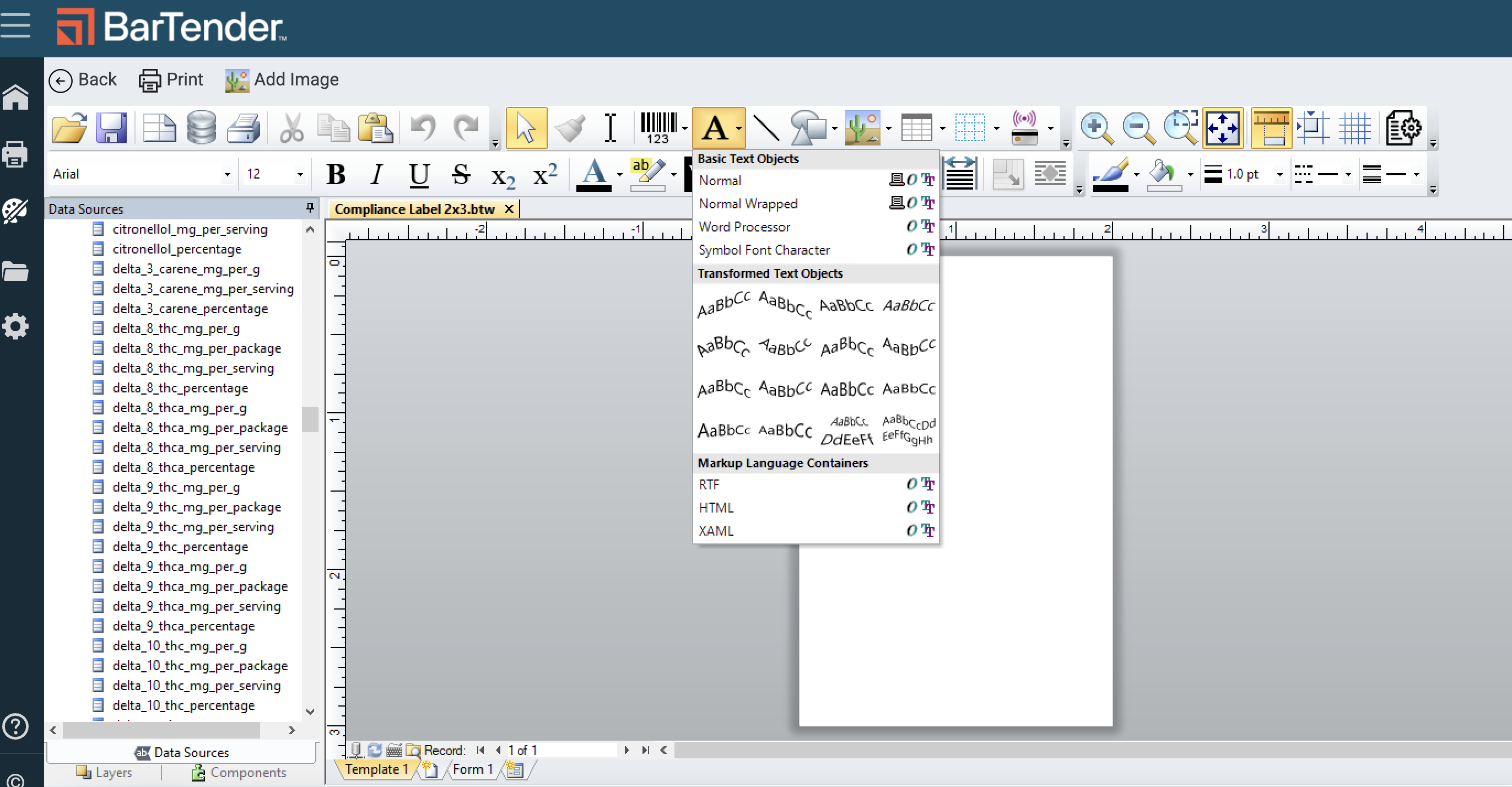
- You can configure the label in two different ways.
- Option 1: Find the field name on the left, click and drag into the desired area of the label. You can do this with or without a field name header.
- Option 2: Create the text box, right click to select Properties and follow the prompts.
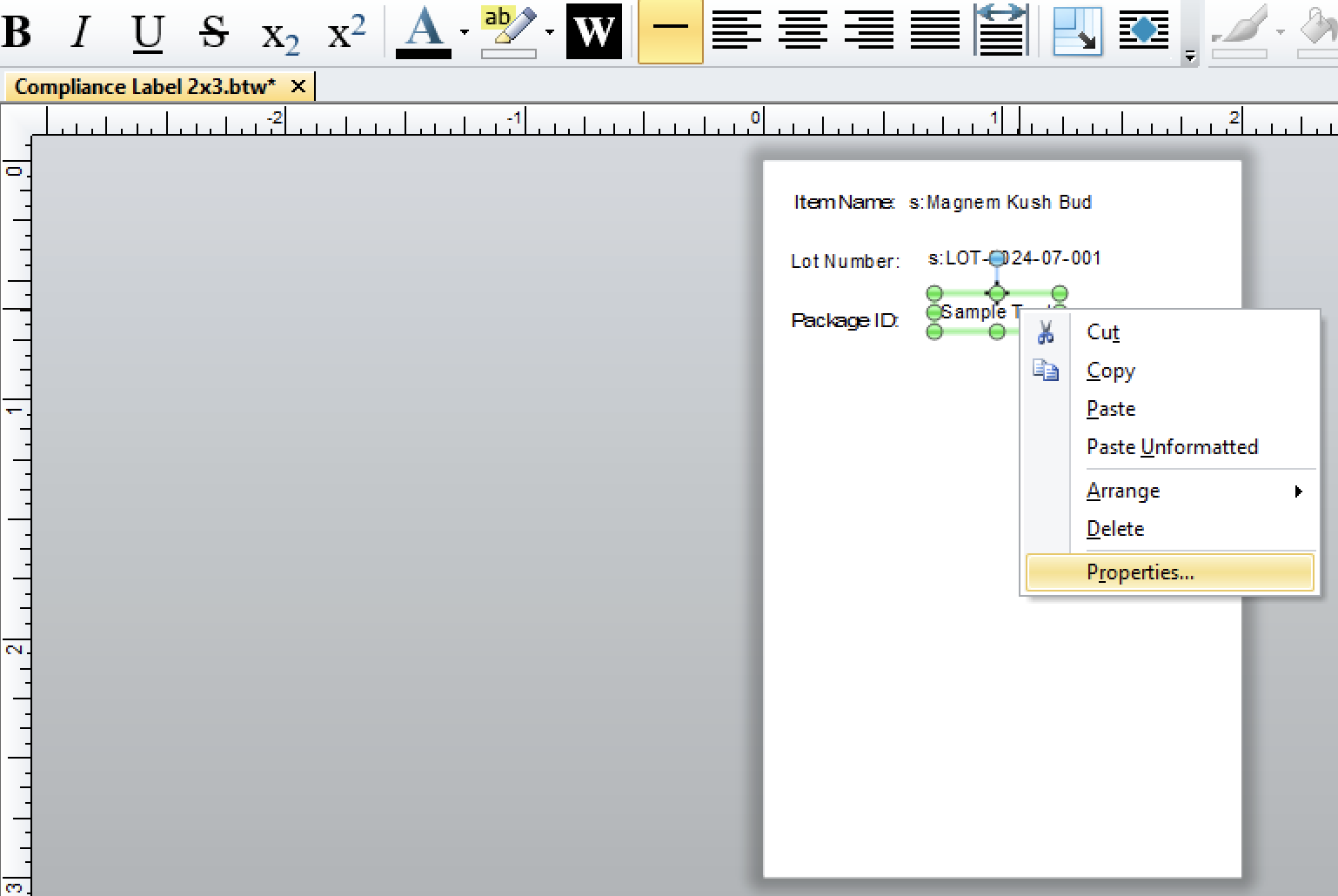
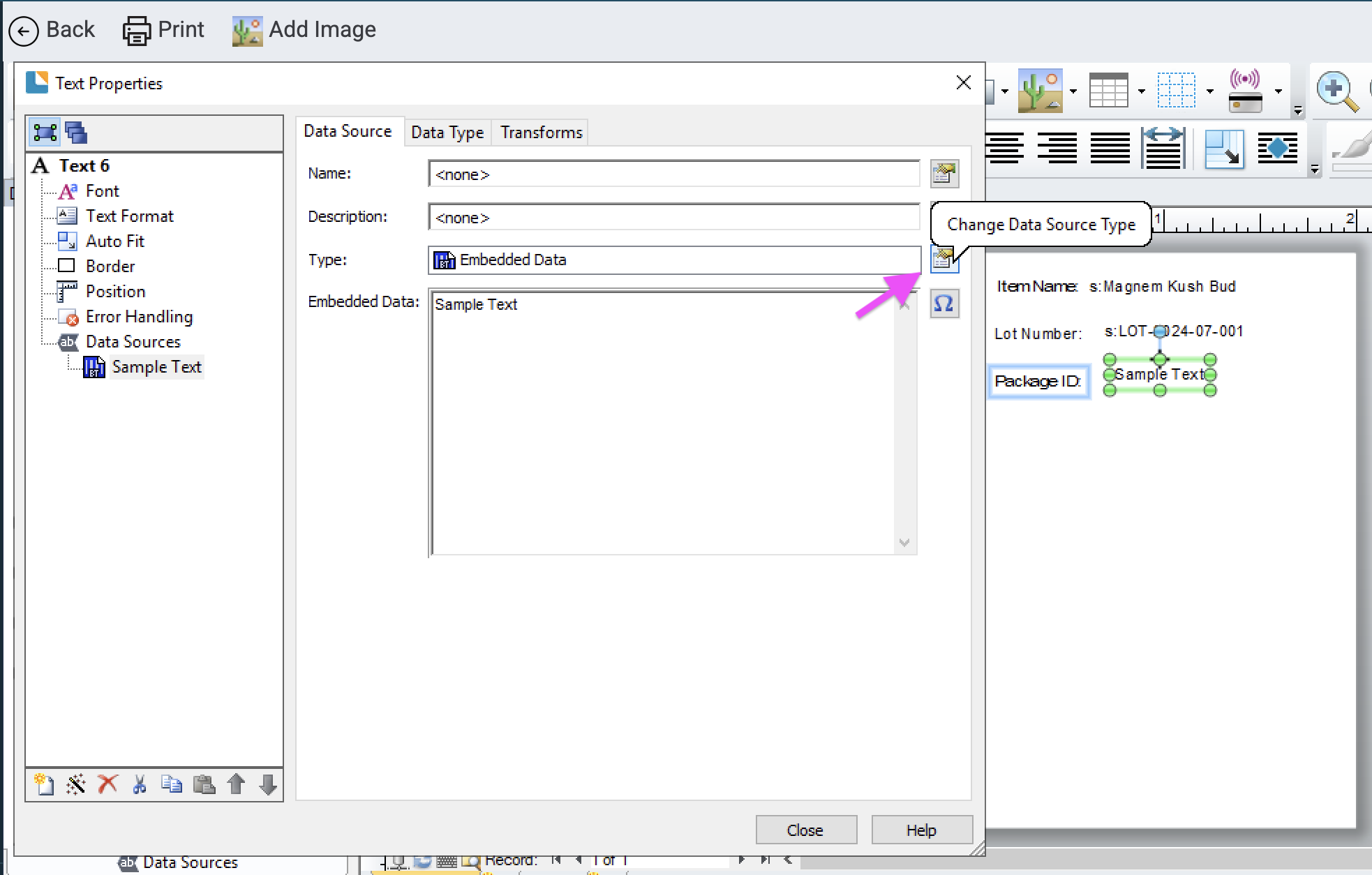
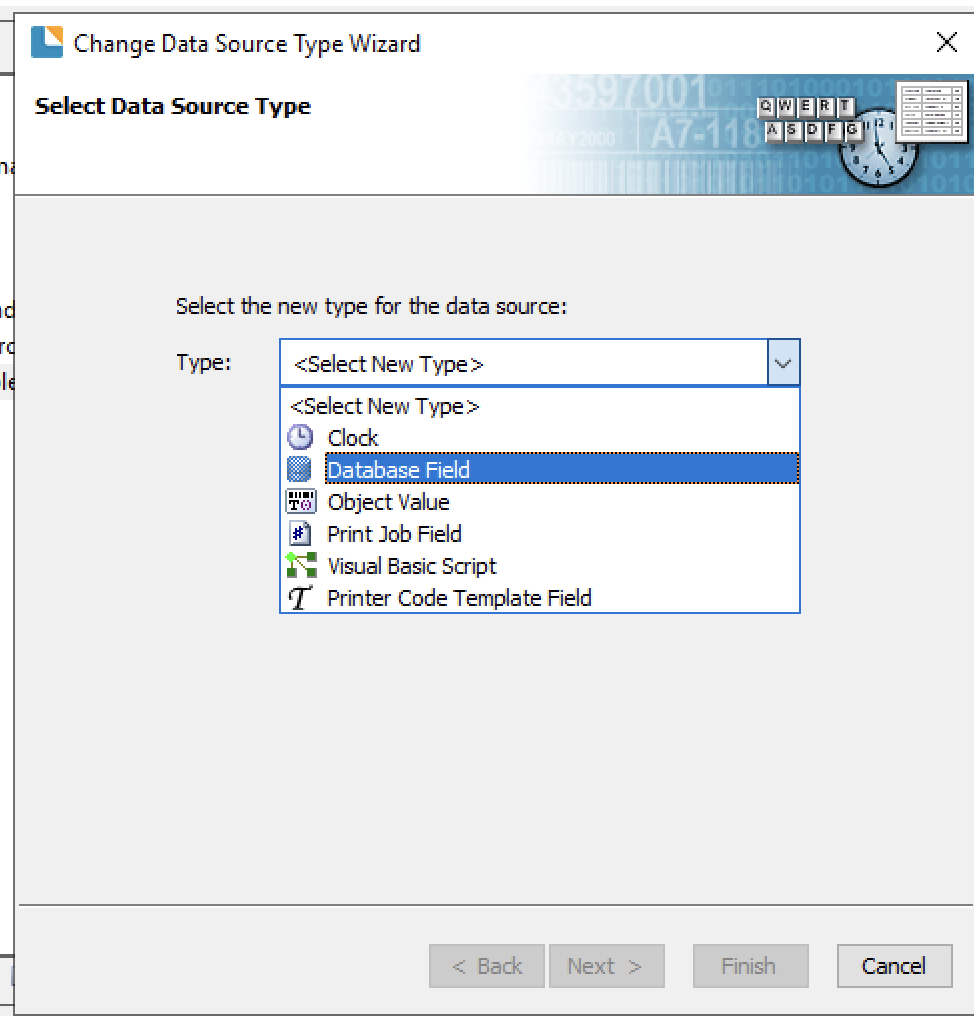
Select Database Field and Click Next.
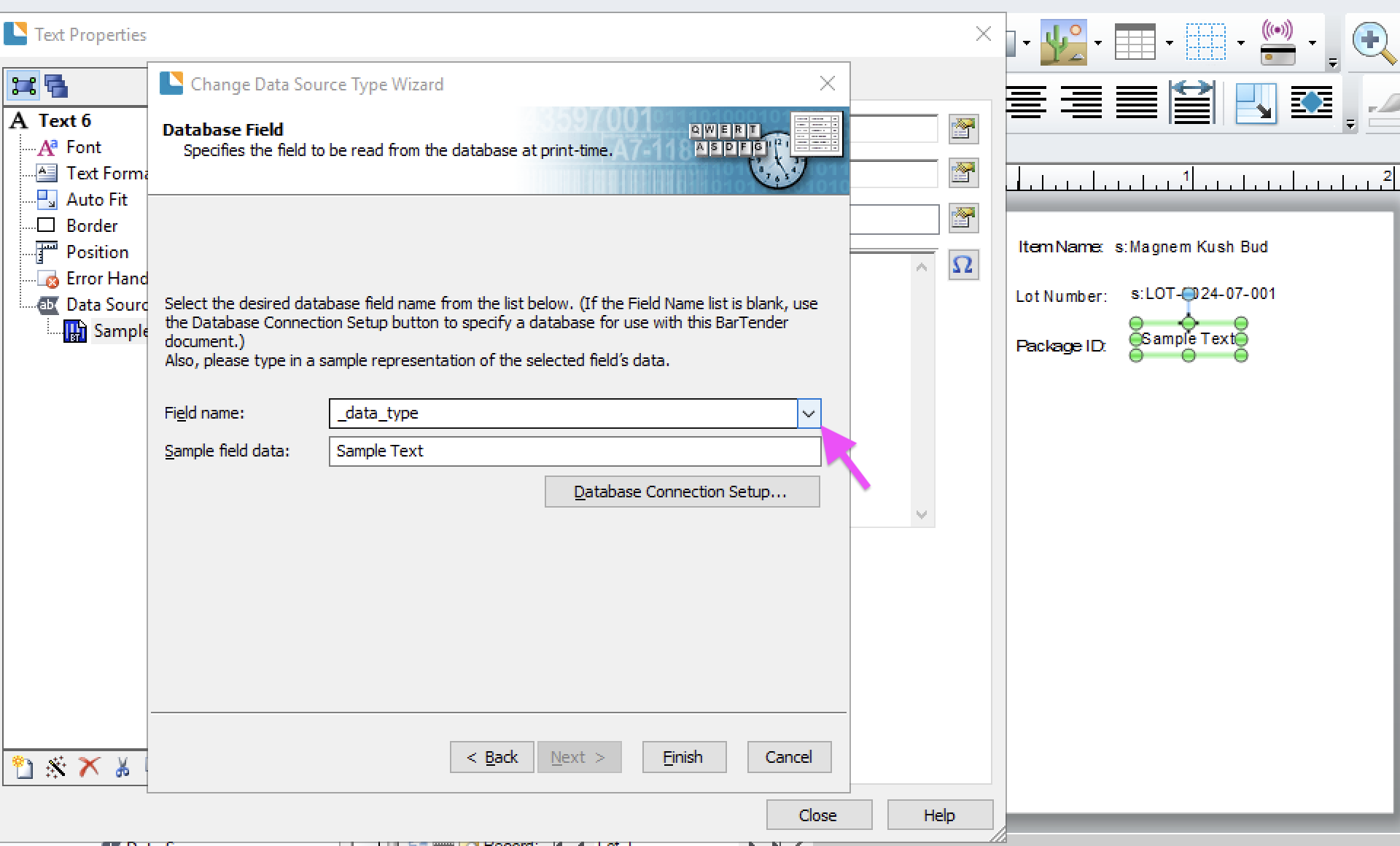
Click the drop-down menu to search and find the field name to add. Once selected, click Finish. The text box is now mapped to a Flourish field.
Here is a quick video to demonstrate both ways to handle this.
- Continue either process until all required fields are mapped. Click Save. Click Print to preview a test print of your label. To print labels, follow the instructions below for printing labels out of Flourish.
Print Labels Using BarTender®
You can use the BarTender® integration to print package, product, or plant labels directly within Flourish.
To print labels:
- Initiate a print action (individual or bulk).
- Toggle ON the Print with BarTender™ option.
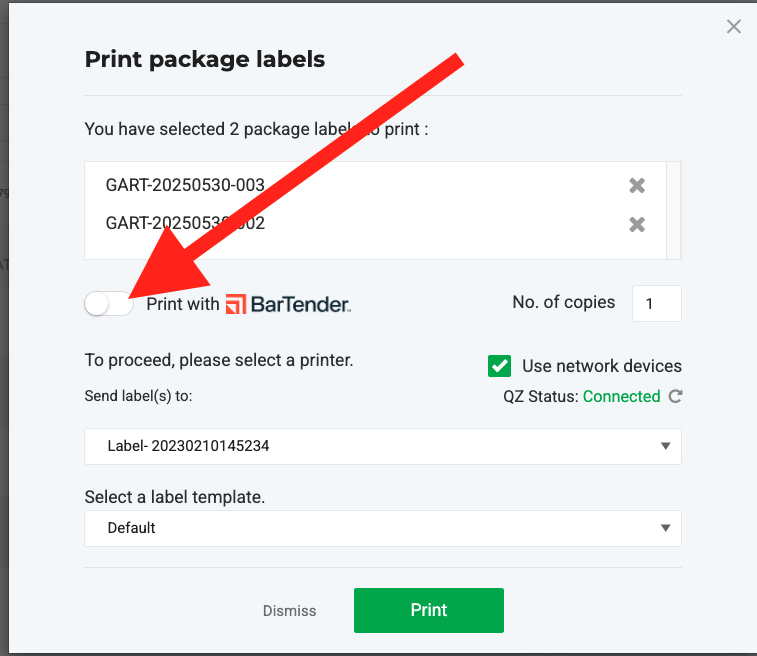
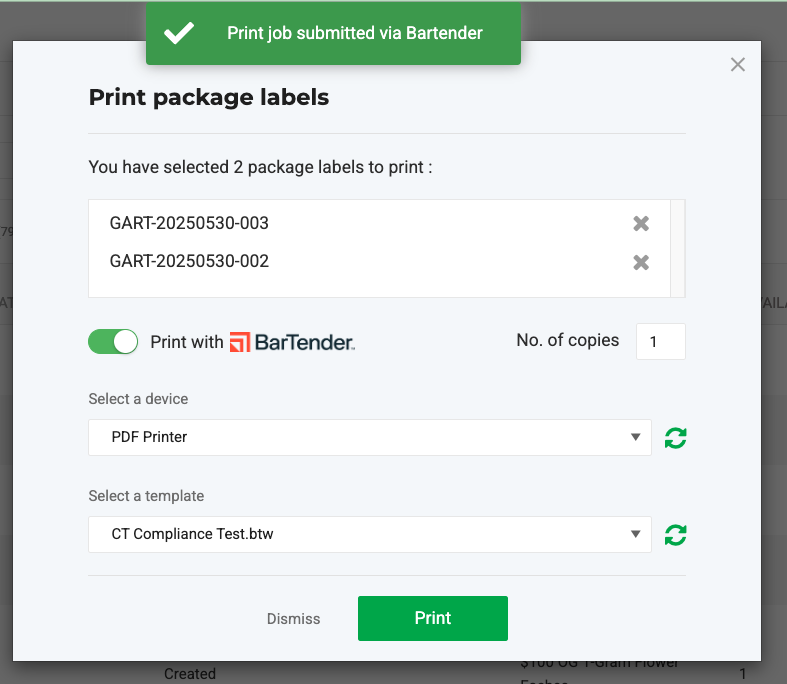
- Enter the number of copies (default is 1).
- Select a printing device from the dropdown.
- Choose a label template from the dropdown.
- Click Print.
- A success message will confirm your labels have been sent to the printer.
How did we do?
BarTender Designer - RFID Encoder Setup
