Mobile App - Retail Delivery Management
Create and view retail delivery routes in the Flourish mobile app. Set the delivery date and departure time, and assign drivers and a vehicle.
Purpose
Use the Flourish mobile app to create retail delivery routes, scan orders onto them, put the stops in order, and confirm deliveries from the field. The route list shows each route's drivers, vehicle, departure time, delivery date, order count, and status.
Prerequisites
- Your user role needs the Retail Ops permission, set in the web app under Manage Settings > User Roles.
- Set up drivers and vehicles in the web app before you assign them to a route.
Open Retail Ops
- Tap Retail on the app home screen.
- Tap the Retail Ops tab.
Create a Delivery Route
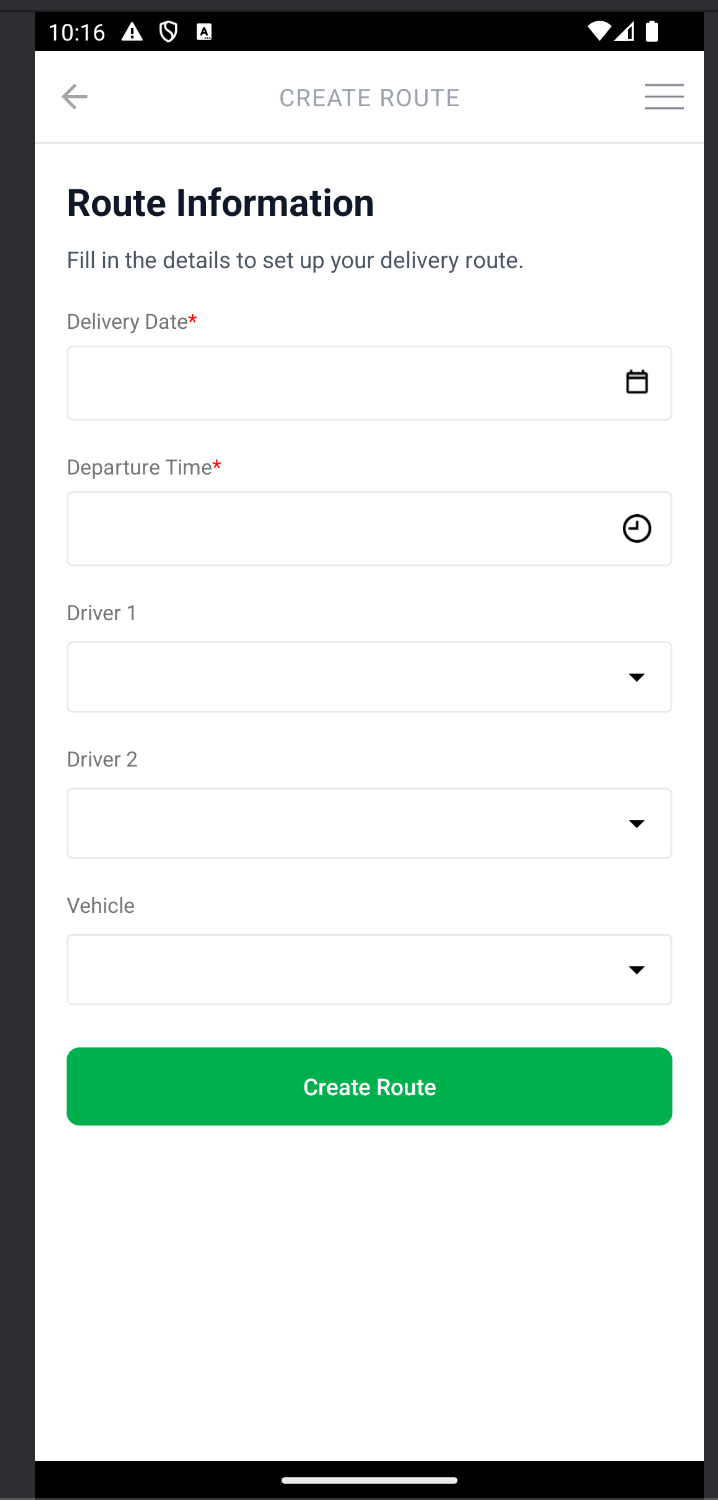
- Tap Create Delivery Route.
- Select the Delivery Date.
- Select the Departure Time.
- Select Driver 1.
- Select Driver 2.
- Select the Vehicle.
- Tap Create Route.
The app displays Route created successfully!
- The delivery date and departure time can't be in the past.
- Driver 1 and Driver 2 must be different people.
- Drivers and vehicle are optional, except in BioTrack facilities, where Driver 1, Driver 2, and Vehicle are required.
View Delivery Routes
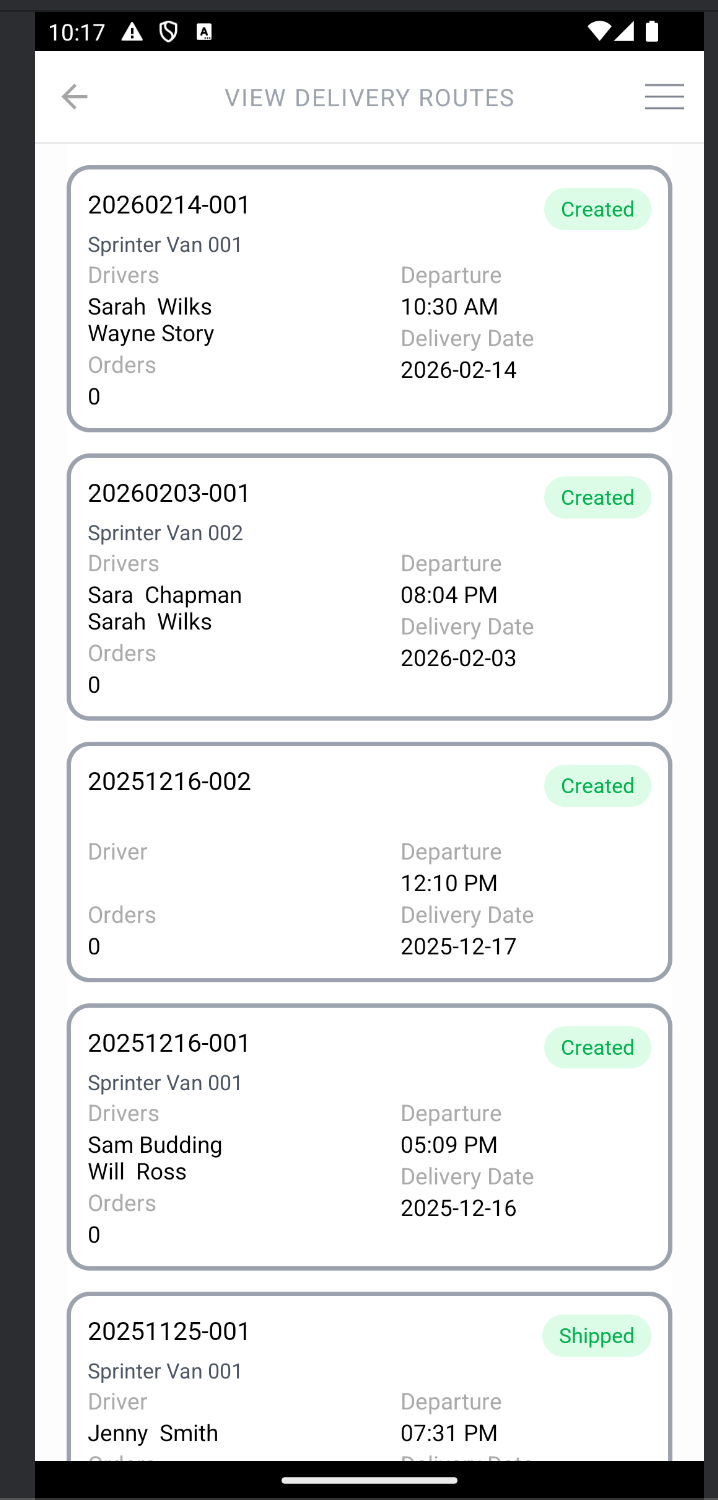
- Tap View Delivery Routes.
The list shows all open routes. Each route displays its route ID, vehicle, drivers, order count, departure time, delivery date, and status.
Add Orders to a Route
- Tap View Delivery Routes, then tap the pencil icon on the route to open it.
- Tap Scan to Add order and scan the order's barcode.
- Confirm the stop's Arrival Time and Departure Time, then tap Add order.
Repeat for each order going out on the route.
Manage the Stops
On the route's detail screen:
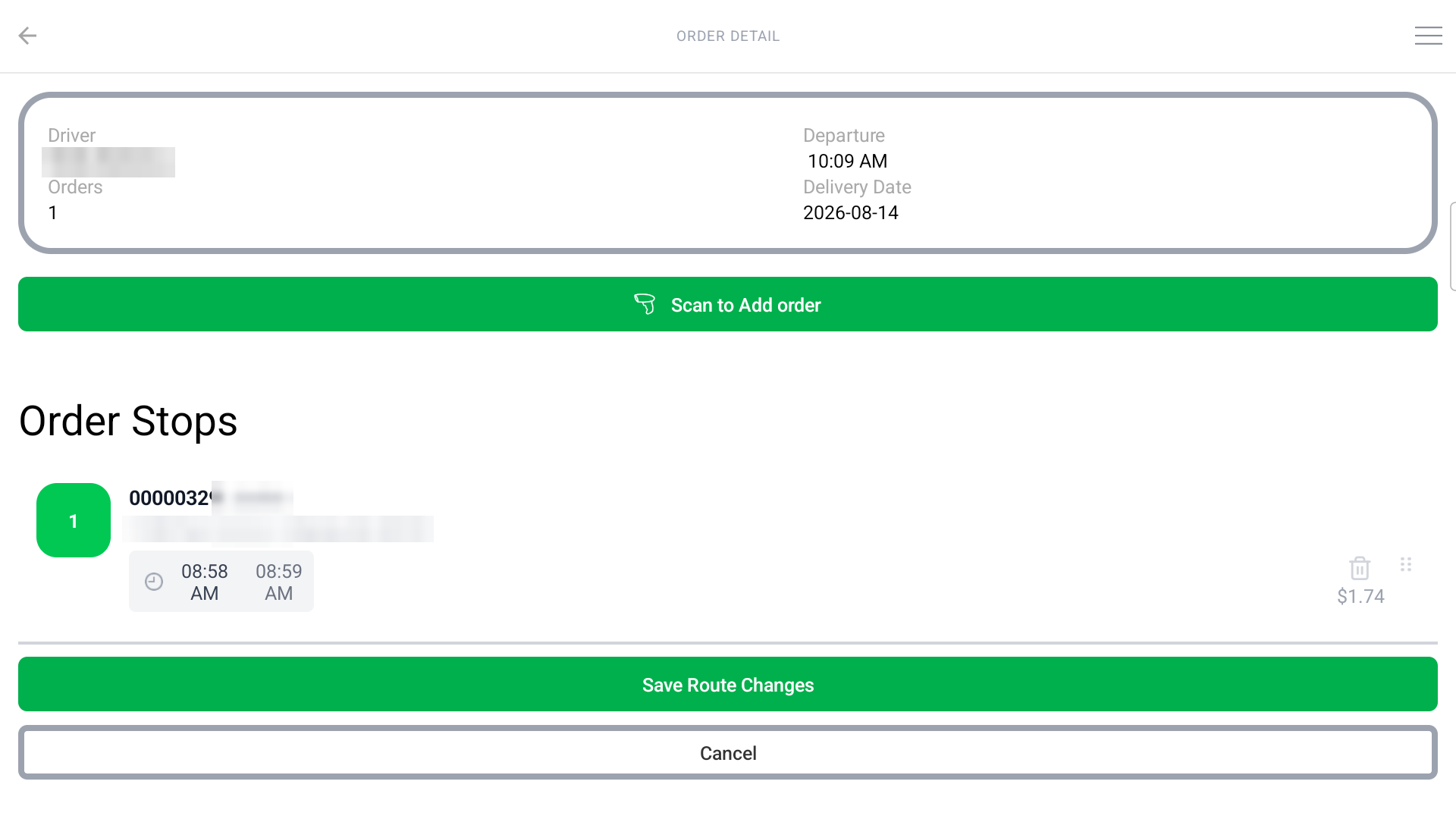
- Reorder: press and hold a stop's drag handle and move it. Stops for the same customer stay grouped, and the stop numbers update.
- Adjust times: tap the clock icon on a stop to update its arrival and departure time. The arrival time must be before the departure time.
- Remove an order: tap the trash icon on a packed order and confirm Remove Order.
Tap Save Route Changes when you are done.
Confirm Deliveries
Tap Confirm Deliveries on the Retail Ops tab to open the Delivery board on the Queue. For each order in the Out For Delivery lane, tap Delivered to capture who received it and their signature, or Undeliverable to record why it could not be delivered. See Complete a Delivery.
Related Articles
How did we do?
Mobile App - Manage Retail Deliveries & Orders with Flourish Mobile App
Mobile App - Retail Queue
