Mobile App - Retail Queue
Run the sales floor from the Retail Queue on the Flourish mobile app: start sales, send orders to be packed, and confirm deliveries.
Purpose: This guide is for dispensary staff using the Flourish Android app to run the sales floor from the Queue — see every customer and order in one place, start sales, send orders to be packed, and confirm deliveries.
Before you start:
- You need mobile access to the Retail module, set on the Mobile Application tab of your role.
- The Queue works on both phones and tablets. On a tablet, every lane shows side by side as columns; on a phone you see one lane at a time and swipe between them.
Open the Queue
- From the app home screen, tap Retail.
- The Queue tab opens first. The other tabs are Check-In and Retail Ops.
- The Queue refreshes itself about every 10 seconds while it's on screen. Pull down to refresh it right away.
The Three Boards
Use the switch at the top to pick a board — each shows how many cards it holds:
Board | Lanes |
In-Store | Checked In → Shopping → Fulfillment → Check Out |
Pickup | To Pack → Ready |
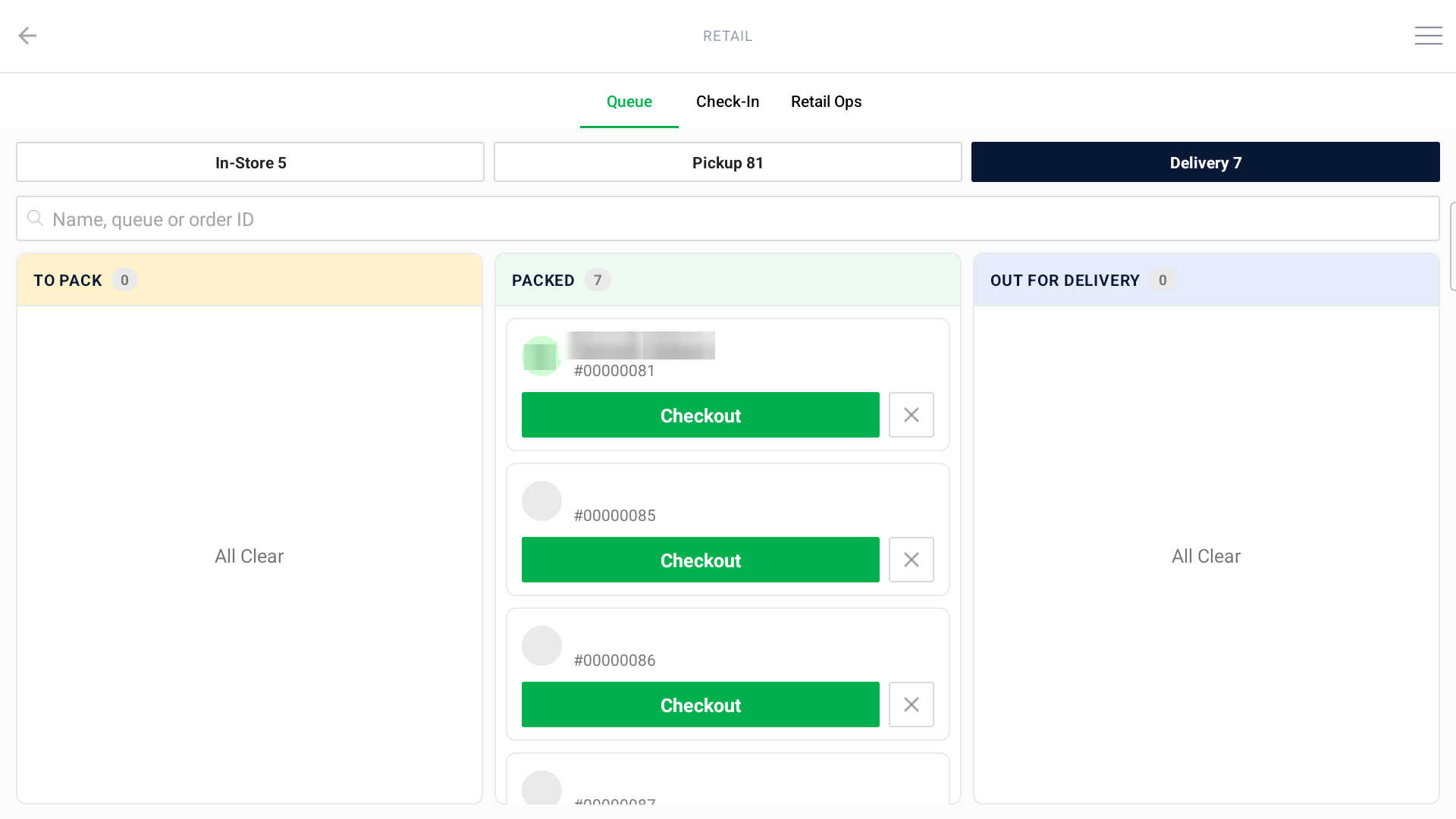
Delivery | To Pack → Packed → Out For Delivery |
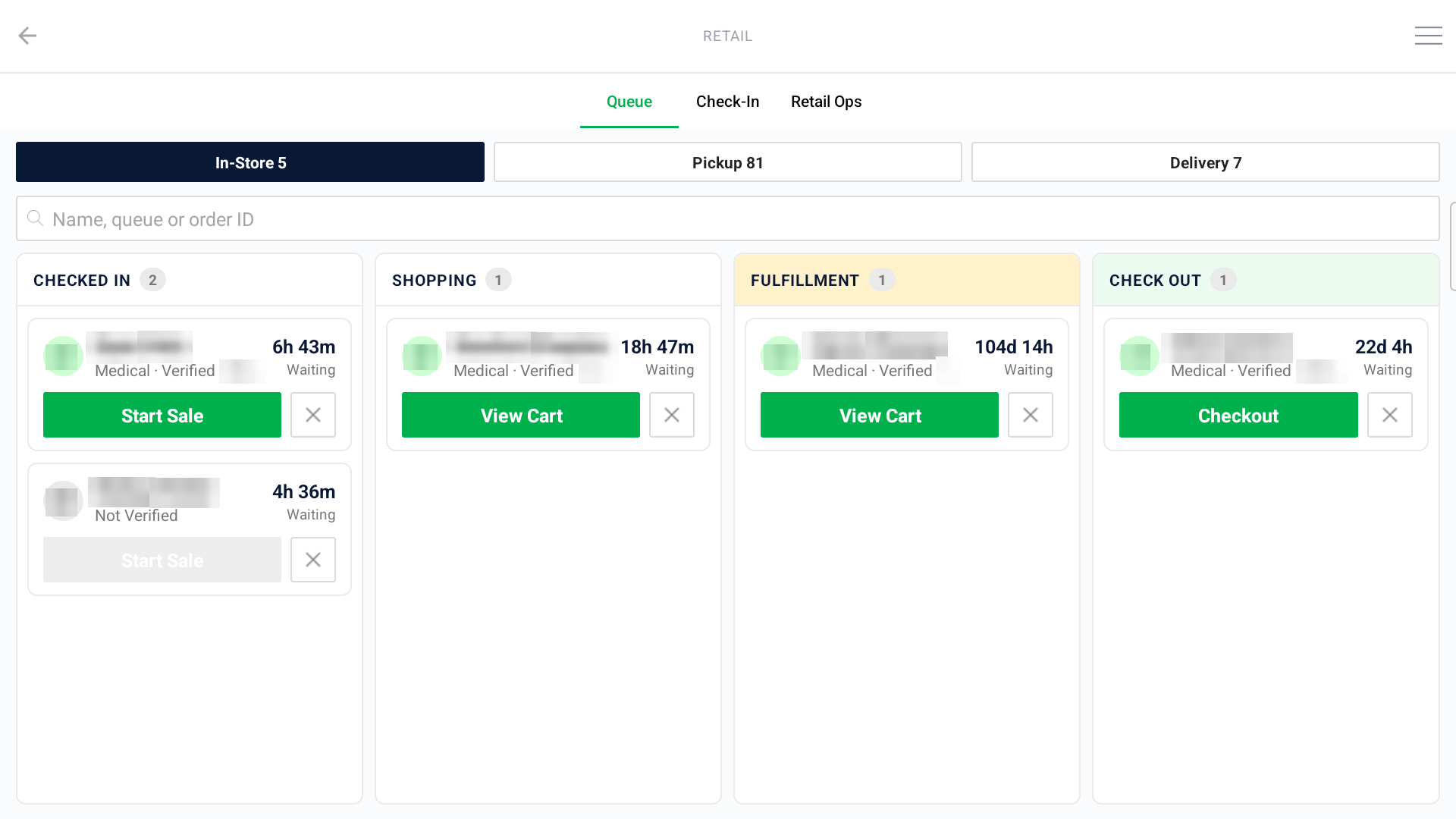
Search by name or order ID with the Name, queue or order ID bar — it filters every lane at once.
A lane with nothing in it shows All Clear.
Reading a Queue Card
Each card shows:
- The customer's initials (green for medical patients) and name.
- A disciplinary badge, if the customer has one.
- For customers: their medical or age-verification status. For orders: the order number.
- Waiting time (in-store), or the Due time for pickups and deliveries — it turns to a red Late once the time has passed. Late cards rise to the top of their lane, and the lane chip counts them (e.g. "Ready 4 · 1 Late").
Act on a Card
The button on each card depends on its lane:
Lane | Button | What happens |
Checked In | Start Sale (or Med Sale / Rec Sale where adult-use sales are allowed) | Creates the order, moves the card to Shopping, and opens the cart. If the customer already has an open order, that order opens instead. Start Sale is dimmed until the customer is verified or is a medical patient. |
Shopping, Fulfillment | View Cart | Opens the customer's cart. |
Check Out, Ready, Packed | Checkout | Opens the cart to take payment or complete the sale. |
To Pack | Fulfill | Opens the Fulfill Order screen to pack the order. |
Out For Delivery | Delivered / Undeliverable | Opens the delivery confirmation (below). |
Customers get onto the Queue from the Check-In tab. For how to build the order once the cart is open, see Mobile App - Point of Sale on an Android Tablet or TC22.
Remove a Customer or Cancel a Sale
Tap the ✕ on a card (every lane except Out For Delivery):
- Remove From Queue — the customer leaves the board; any open order stays open.
- Cancel Sale And Remove — cancels the order and removes the customer. This only appears when no payment has been taken. If payment has been taken, void the payment or process a return instead.
- Keep In Queue — closes without changing anything.
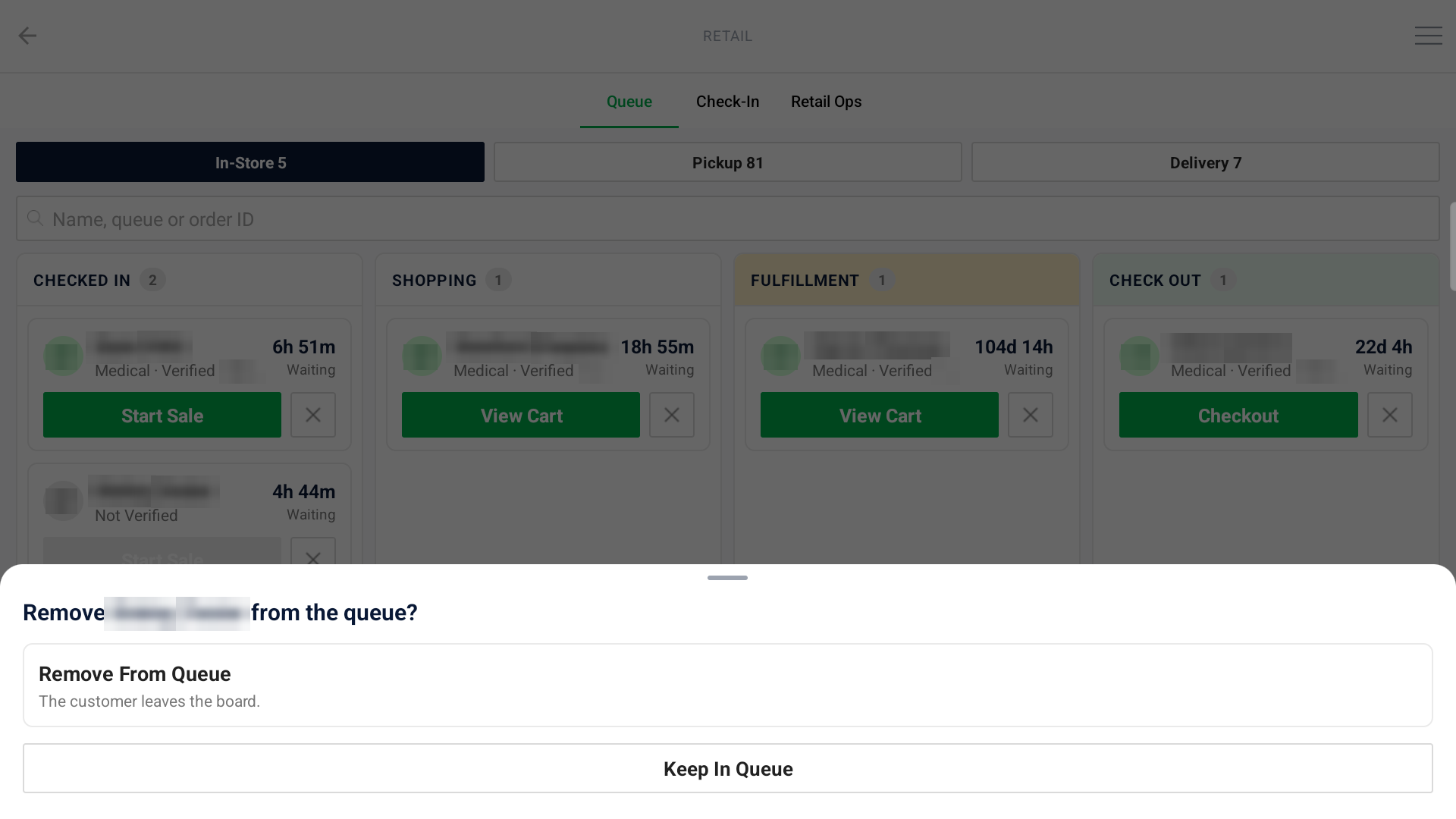
If your store requires a reason to cancel, you'll pick one before the sale is cancelled.
Confirm a Delivery
When a driver completes a run, confirm each order from the Delivery board's Out For Delivery lane (or tap Confirm Deliveries on the Retail Ops tab, which opens this board).
Delivered:
- Tap Delivered on the order's card.
- Confirm Received By — it's filled in with the customer's name; change it if someone else accepted the order.
- Tap Tap To Capture Signature, have the recipient sign, and tap Confirm.
- Add a Driver Note if needed, then tap Mark Delivered.
The signature is saved to the customer's Documents and a proof-of-delivery note is added to the order.
- If the order is already paid, it's completed on the spot and the receipt prints on your receipt printer.
- If payment is still due, the delivery is recorded and the cart opens so you can take payment and complete the order.
Could not deliver:
- Tap Undeliverable (or Could Not Deliver on the confirmation sheet).
- Enter why the order couldn't be delivered, and tap Mark Undeliverable. The order leaves the delivery board and keeps its lines and payments.
Troubleshooting
- "Couldn't load the queue. Pull to retry." — check the device's connection and pull down to refresh.
- Start Sale is dimmed — the customer isn't verified or a medical patient yet. Open their profile from Check-In to verify them.
- "The last Start Sale for this customer may already have made an order…" — check Find Order on the Retail Ops tab before starting another sale, so the customer doesn't end up with two orders.
- "…but the signature was not stored" — the delivery still went through, but the signature didn't save to the customer's Documents. Your role needs the Retail Check-In permission to store signatures.
How did we do?
Mobile App - Retail Delivery Management
