Table of Contents
Mobile App Inventory: Create Lab Samples
Quickly create and send lab samples with fewer steps. Scan a package, mark it as R&D or Final, and send directly to an approved lab — saving time, reducing errors, and staying compliant.
Table of Contents
Quickly create and send lab samples with fewer steps. Scan a package, mark it as R&D or Final, and send directly to an approved lab — saving time, reducing errors, and staying compliant.
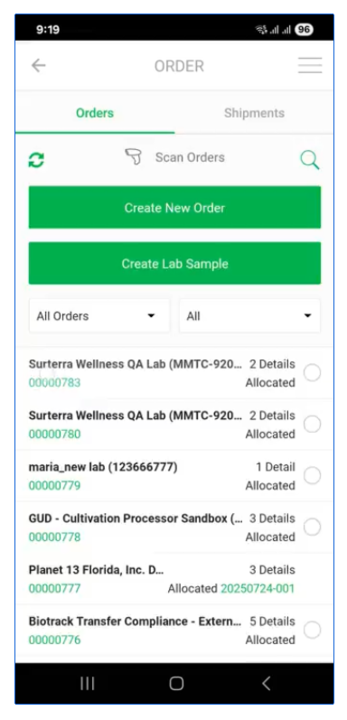
After you log in to the mobile app and tap Outbound, you have two options to create lab samples:
Create a New Order
- Click Create New Order. You’ll be redirected to the new order screen.
- Select a Testing Lab as the Destination. When the destination is a Testing Lab, every scanned or allocated package is treated as a lab sample.
- When a package that is not a lab sample is scanned without selecting the split package option, the mobile app creates a lab sample from the package. A new package ID is generated, and the entered quantity is allocated to the order line.
When a package that is not a lab sample is scanned with the split package option selected, the mobile app creates the package as a lab sample and allocates it to the order.
When a lab sample package is scanned, the mobile app continues with the existing order flow. No additional actions are performed.
Create Lab Sample
|  |
How did we do?
Mobile App Inventory: Lock Package
Mobile App Inventory: Adjust Package
