Set Up the Mosaic Loyalty Integration
Flourish Retail POS integrates with Mosaic loyalty platform to manage customer profiles, points, rewards, and discounts at checkout with automated point earning.
Flourish Retail POS integrates with Mosaic, a cannabis loyalty and e-commerce platform. With the integration, your team can:
- Look up a customer's Mosaic loyalty profile, points, and eligible rewards in the POS.
- Sign new customers up for Mosaic loyalty at check-in.
- Redeem rewards in the cart, tied to Flourish's discount engine.
- Earn points automatically from completed Flourish sales.
What You Need Before You Start
- An active Mosaic account for your brand.
- A Mosaic API key from your Mosaic representative.
- A Flourish user with permission to manage Integrations and API Keys.
- At least one reward configured in Mosaic that you want to appear in the POS.
Integration Setup
Setup has three parts. Complete them in this order.
- Connect Flourish to Mosaic.
- Give Mosaic access to your Flourish sales data.
- Map Mosaic rewards to Flourish discounts.
1. Connect Flourish to Mosaic
- Go to Settings > Integrations.
- On the Mosaic card, click Configure. For an existing integration, click the pencil icon next to the status.
- On the Settings tab, paste your Mosaic API Key.
- Click Connect. Flourish validates the key with Mosaic.
Mosaic card on Settings > Integrations
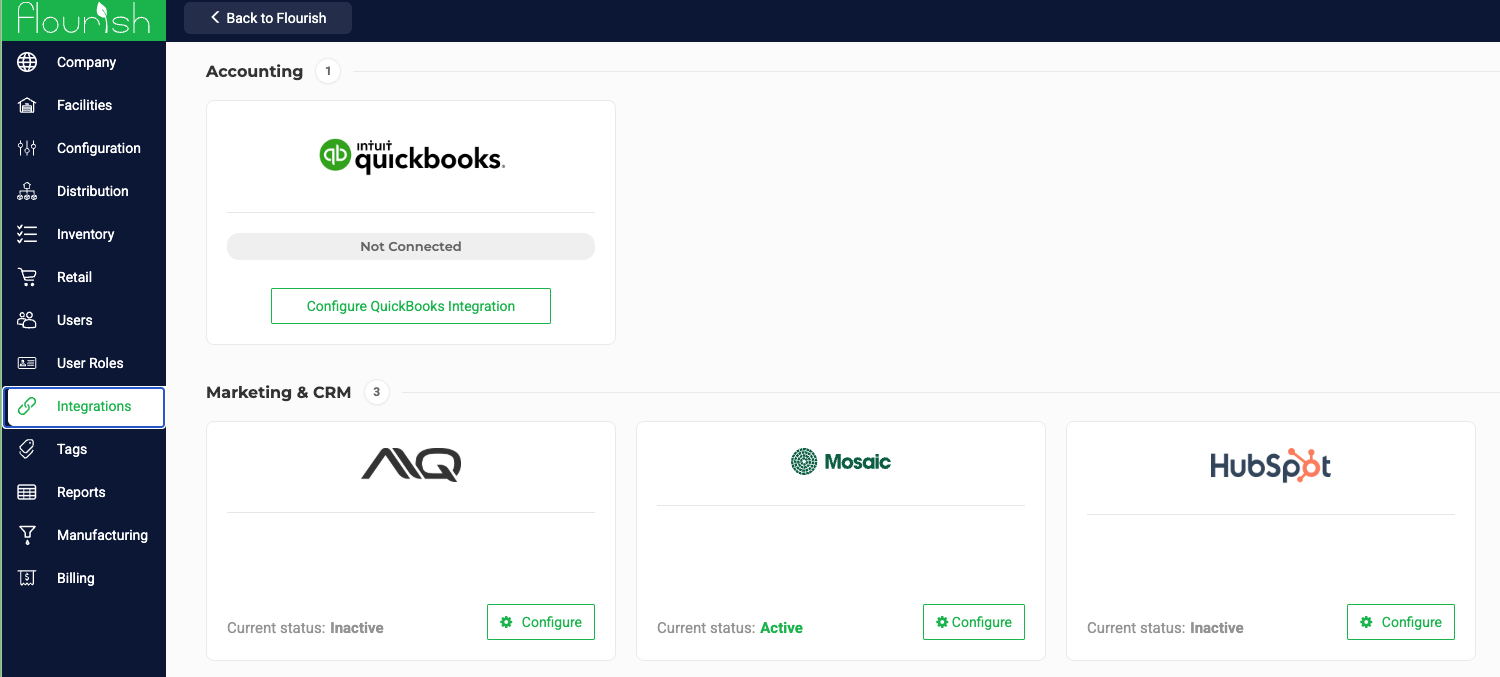
If the key is valid, the card shows Active and the Preferences tab unlocks. If the key is invalid, the integration stays Inactive and shows a connection error. Check the key with Mosaic and try again.
To disconnect, open the Mosaic Settings tab and click Disconnect. The stored key is removed and the status returns to Inactive.
2. Give Mosaic Access to Your Flourish Sales Data
Mosaic reads your completed orders from Flourish to award points. Generate an API key to share this data.
- Go to Settings > API Keys (the Mosaic Settings tab links there).
- Create an External API key
- Send the API Key to your Mosaic representative. Please keep this key secure. It exposes customer data from the point of sale.
3. Map Mosaic Rewards to Flourish Discounts
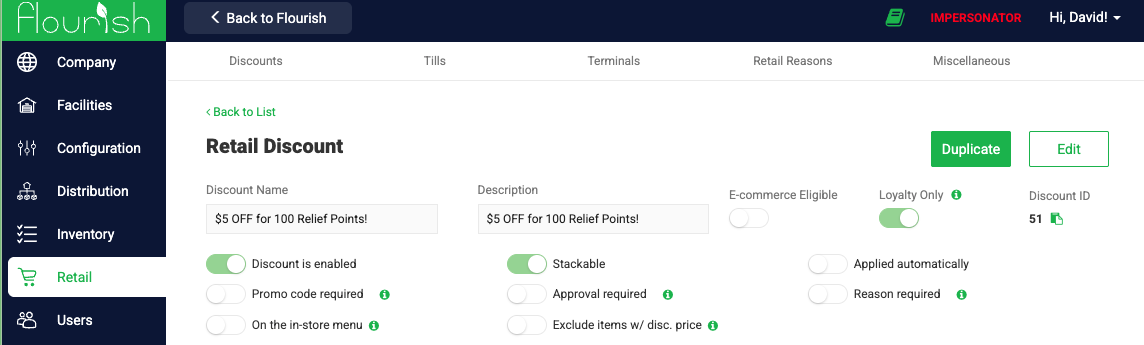
A Mosaic reward only appears as redeemable in the POS cart when it is mapped to a Flourish discount. Set the discount to Loyalty Only to scope it to the loyalty use.
- In Flourish, create the discount you want to use for the reward (for example, $5 off a purchase of $50 or more). Copy its Discount ID.
- In the Mosaic Admin Portal, open the reward and enter the Flourish Discount ID as the POS Discount ID. Your Mosaic representative can also set up mappings for you.
Integration Preferences
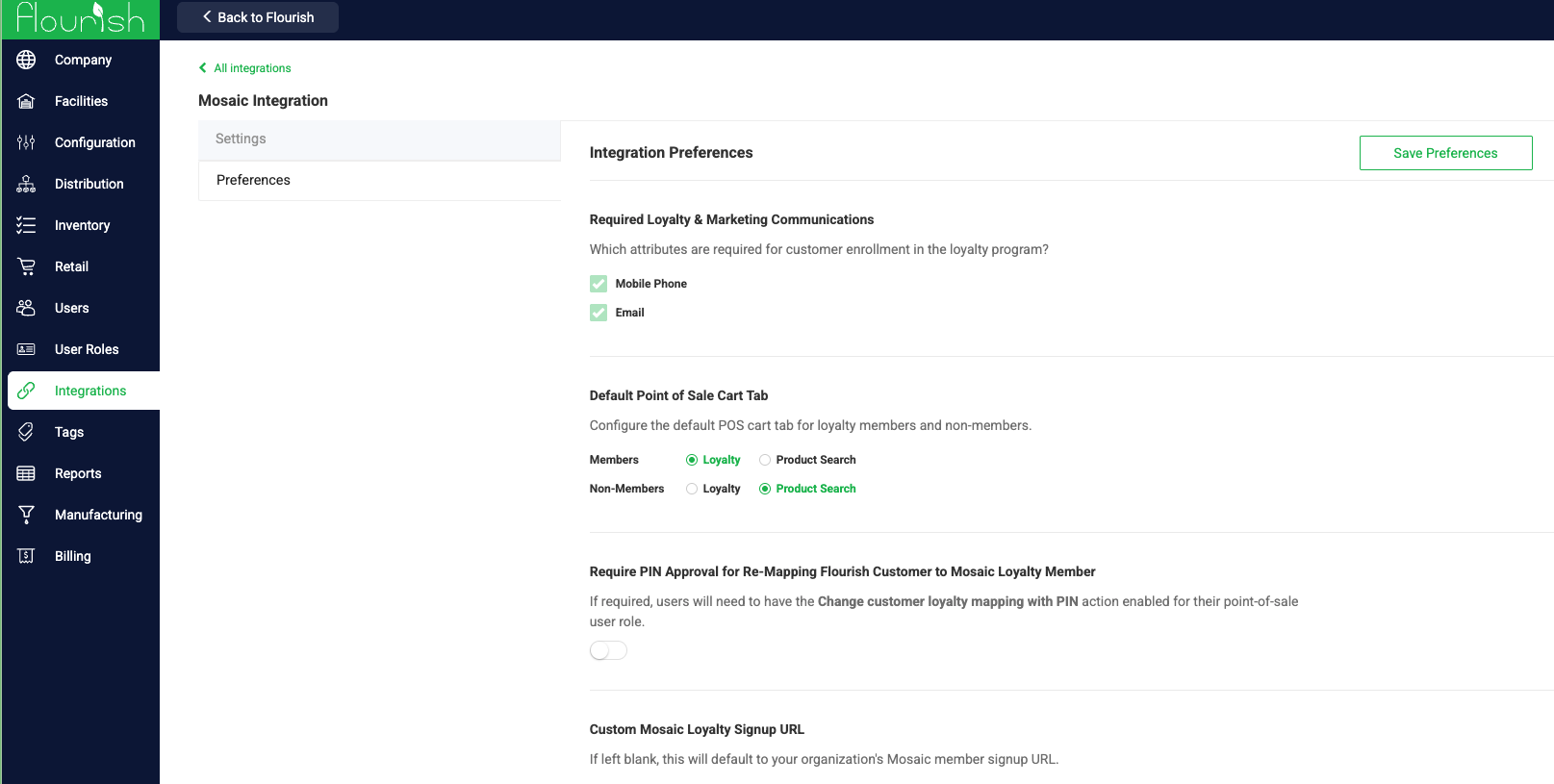
After connecting, open the Preferences tab to adjust POS behavior.
Preference | What it does |
Default Point of Sale Cart Tab | Sets whether the cart opens on the Loyalty tab or the Product Search tab. |
Require PIN Approval for Re-Mapping | Requires a user PIN to re-map a Flourish customer to a different Mosaic profile. Users also need the matching POS permission on their User Role. |
Loyalty Signup URL | Sets the link behind the loyalty QR code on customer receipts. |
Using Mosaic in the POS
Loyalty Status
Customers show one of two statuses next to their name on the Intake tab:
- View Loyalty: The customer is linked to a Mosaic profile.
- Loyalty Signup: The customer is not yet linked.
Selecting View Loyalty shows the customer's tier (if available), total points, and the rewards they currently qualify for.
Sign Up or Link a Customer
- Select Loyalty Signup on the customer.
- Confirm the customer's mobile phone and email. Both are required. Mosaic also needs a birth date, and Flourish sends the customer type (Medical or Recreational) from their profile.
- Click Submit. Flourish creates the Mosaic profile and links it to the Flourish customer.
If Mosaic is unavailable during signup, the sale is never blocked. Complete the sale and sign the customer up later.
Redeem Rewards
- Add the customer and items to the cart, then open the Loyalty tab.
- Eligible rewards show a green Redeem button. A grey button means the customer lacks points, the order is under the reward's minimum spend, or the cart does not meet the discount's rules.
- Click Redeem to apply the discount. The button changes to Remove, and Redeemed points update below the subtotal.
- Complete checkout as usual. The order summary shows the points redeemed.
When Points Update
Action | Timing |
Points redeemed | Deducted from the customer's Mosaic balance when the order is completed. |
Points earned | Added by Mosaic overnight. Mosaic runs a nightly job (Eastern time) that reads the previous day's completed orders from Flourish, so new points usually appear by the next day. |
Points are earned on the order subtotal after discounts and before taxes.
Key Notes
- Mosaic manages points. Flourish applies the discount and records the redemption on the order. Point balances are calculated and stored only in Mosaic.
- One redemption per reward per order. Flourish prevents the same reward from being applied twice to one order.
- Customers belong to your brand, not a single store. A customer's points are shared across all stores in the same Flourish company.
- If a Mosaic outage occurs, the POS shows loyalty as unavailable and you can still complete the sale.
- If redeemed points do not deduct, contact Flourish Support. The redemption posts to Mosaic in the background after the order completes, so the POS will not show an error.
- Phone numbers are formatted for Mosaic automatically. No special formatting is needed.
Troubleshooting
Issue | What to check |
Integration shows Inactive after clicking Connect | Confirm the API key with Mosaic, and confirm no other loyalty integration is active. |
No rewards appear in the Loyalty tab | Confirm each reward is mapped to a Flourish Discount ID in the Mosaic Admin Portal, the customer has enough points, and the order meets the minimum spend. |
Loyalty Signup fails | Confirm the customer has both a mobile phone and email. If they may already exist in Mosaic, see the warning above. |
Earned points have not appeared | Allow until the next day. If points are still missing, confirm Mosaic has your current Flourish API key. |
If you still need help, contact Flourish Support.
How did we do?
