Table of Contents
Apply Additives to Plants
Learn how to apply additives to plants using Flourish's Apply to Plants feature. Enable the Plant Additive attribute and apply items to groups, strains, or areas.
Table of Contents
Record the nutrients, soil, water treatments, and other inputs you apply to plants. Use this for routine actions or to capture exceptions. You can apply additives to a single group or to every plant in an area.
Before You Start
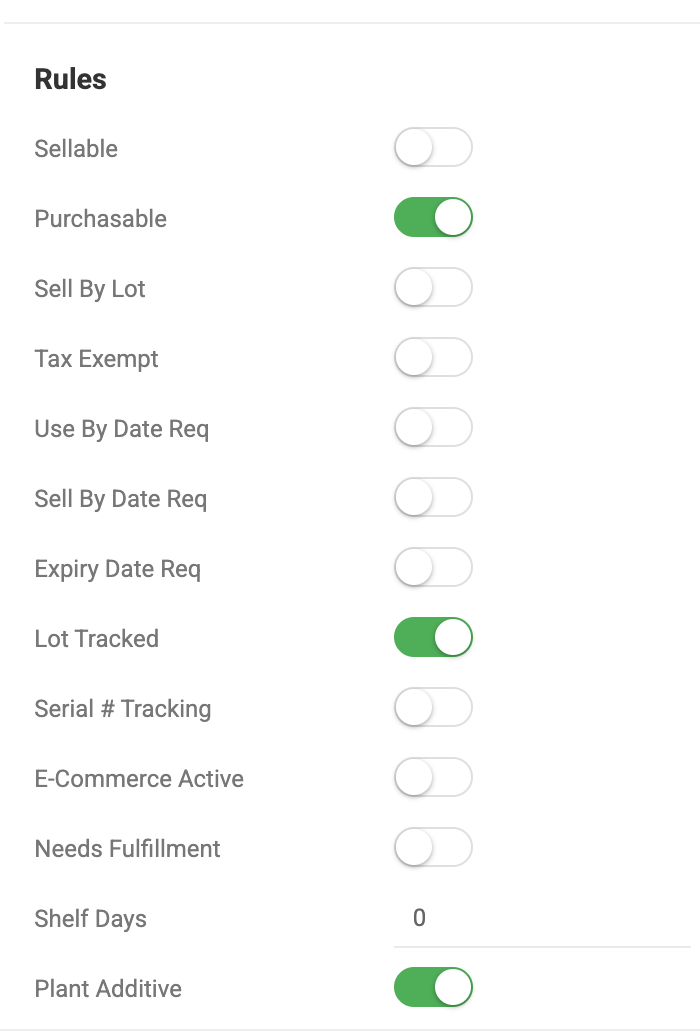
An item can be applied to plants only when the Plant Additive rule is turned on for it in the item master.
Apply Additives to a Group
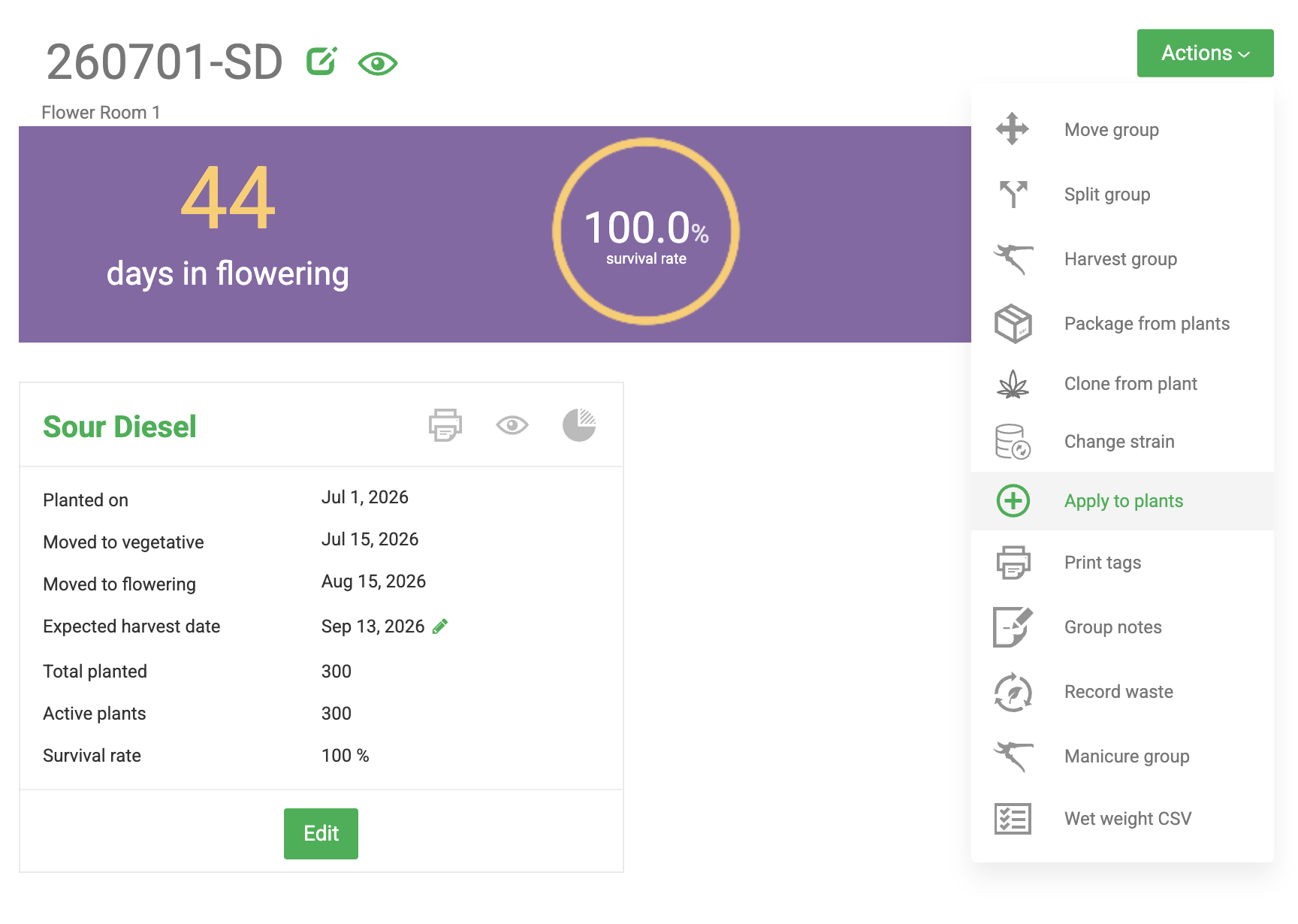
- Click Grow, then open the groups view for the stage.
- Select the group.
- Click Actions > Apply to Plants.
- Choose whether to apply to All Strains in Group or to one strain.
- Set the date and time, and add notes if needed.
- Select the item, enter the quantity, and click the checkmark to add it. Repeat for each item you're applying.
- Click Apply to save.
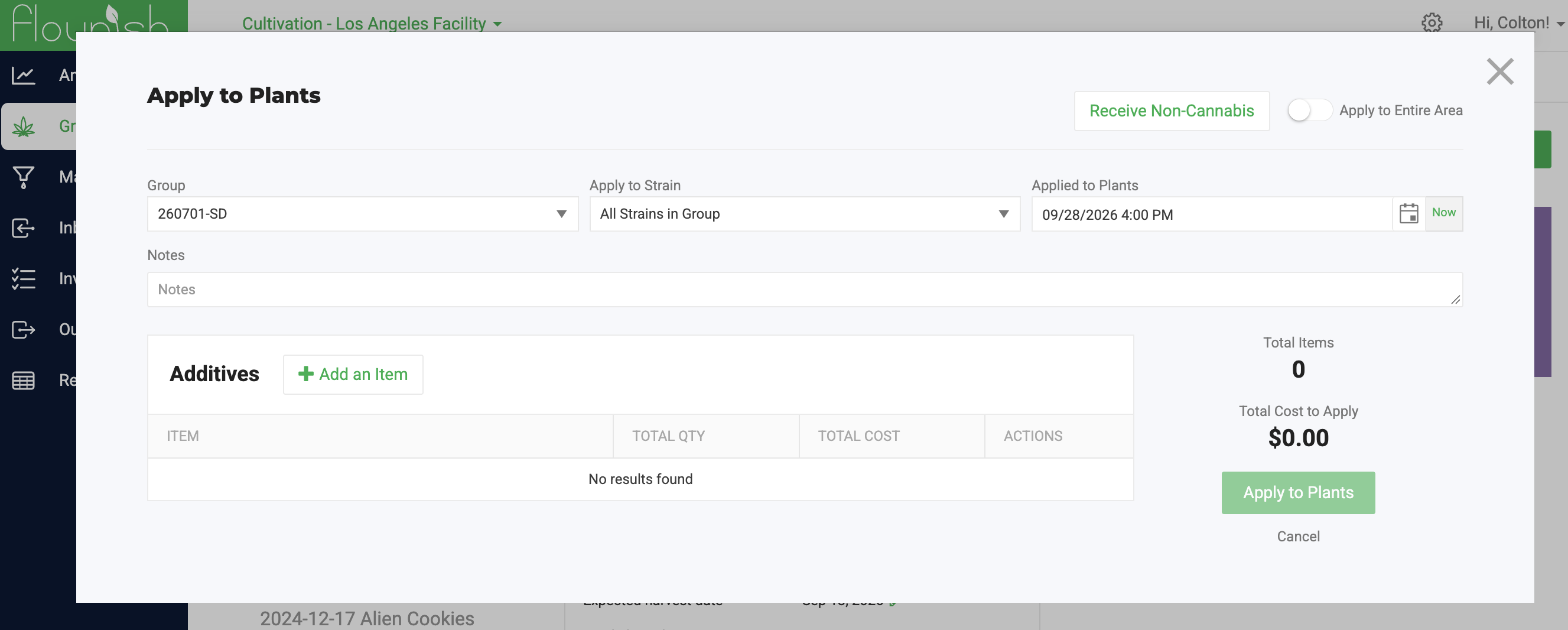
Click the checkmark after you enter each item's quantity. An item isn't added to the application until you do.
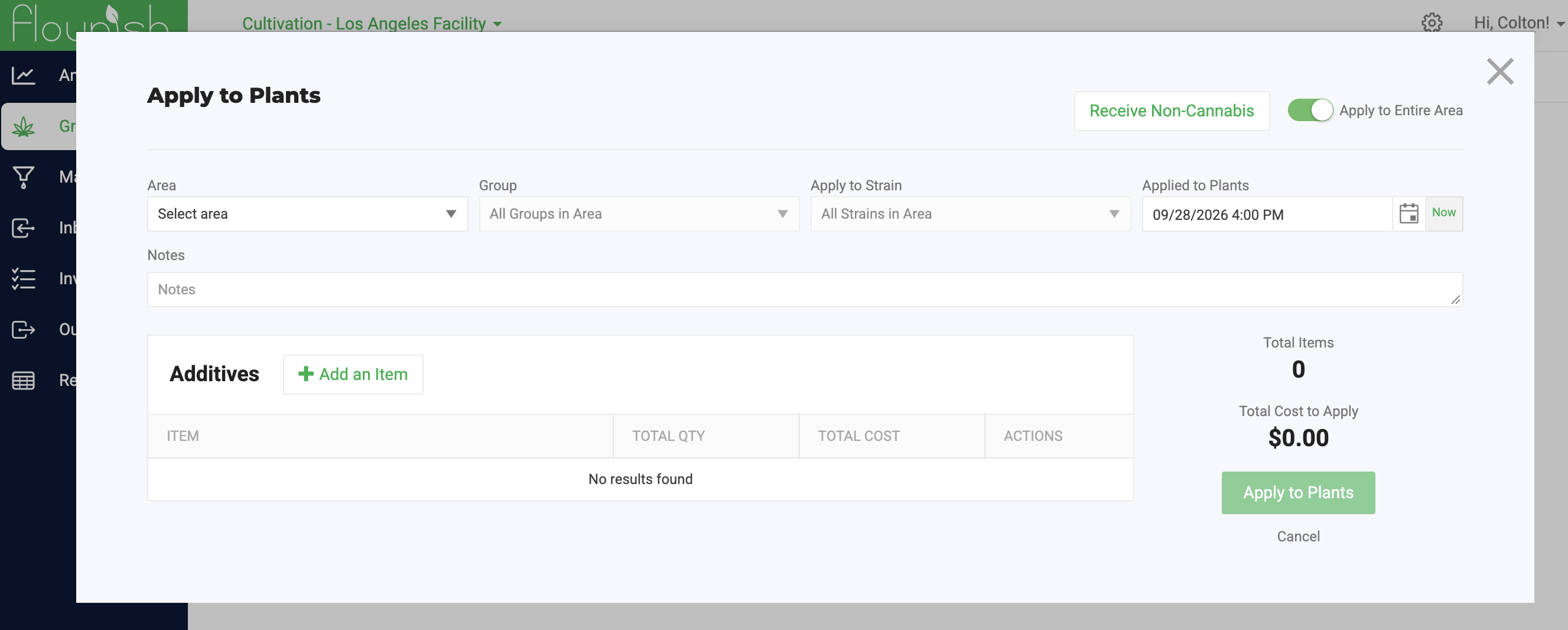
Apply Additives to an Area
Use this method to apply the same inputs to plants across an area.
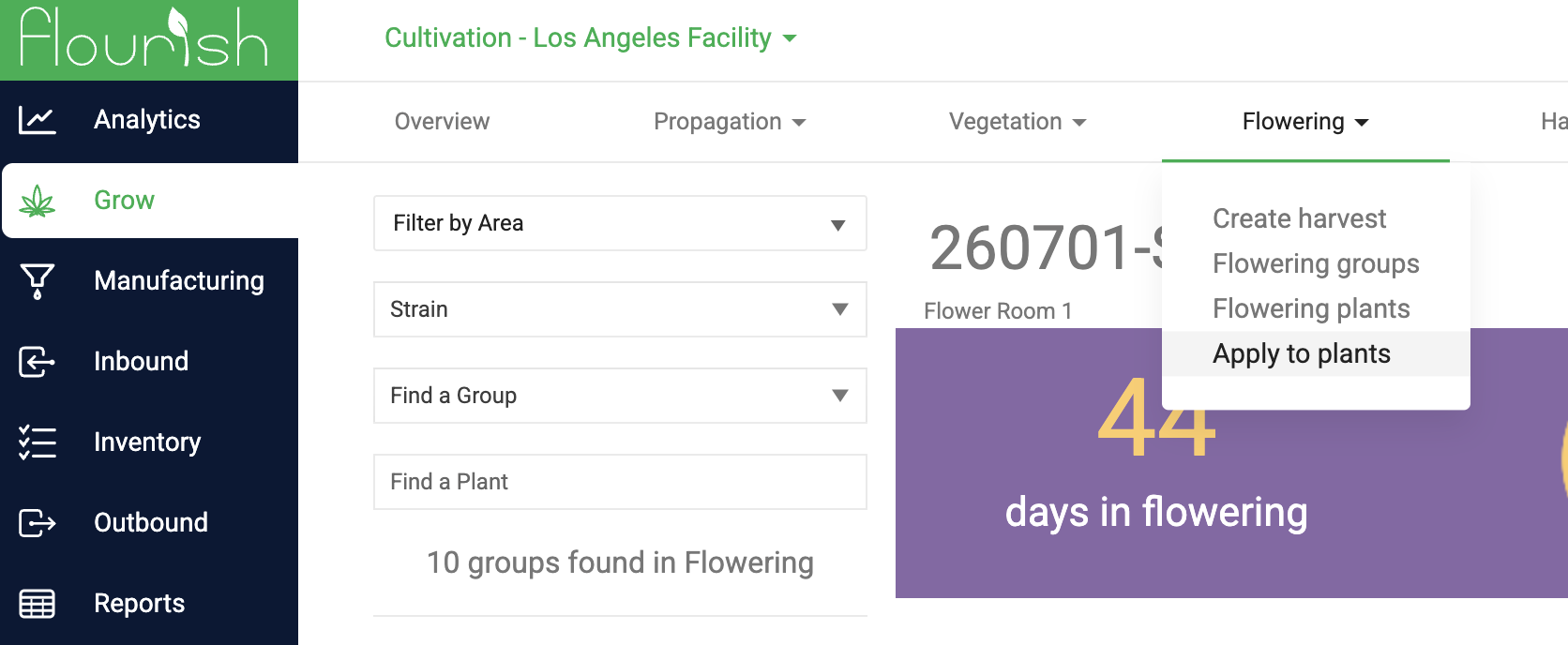
- Click Grow, then click the stage (for example, Vegetation).
- Select Apply to Plants from the stage menu.
- Select the Area. You can narrow the application to a group and strain.
- Set the date and time, and add notes if needed.
- Add each item and quantity, clicking the checkmark after each one.
- Click Apply to save.
View Applied Additives
- Click Analytics.
- Go to Facility Cultivation > Live Reporting.
- Open the Applied Inventory to Plants report.
How did we do?
Move Plants Between Areas in the Grow Module
Revive Destroyed Plants (Non-Integrated Facilities)
