Table of Contents
Move Plants Between Areas in the Grow Module
Use Grow module to move plants between areas as full groups or subsets. Move from Groups or Plants view, selecting destination area and move date.
Table of Contents
Move plants to a different area in the Grow module. The destination area's type sets the plants' stage, so you use the same steps to move plants within a stage (for example, from Veg Room 1 to Veg Room 2) or into the next stage (from a Vegetation area into a Flowering area).
Move a Whole Group
- Click Grow, then open the groups view for the group's current stage (for example, Vegetation > Veg Groups).
- Select the group you want to move.
- Click Actions > Move Group.

- On the Move group to a different area screen, select the Area Type.
- Select the Destination Area.
- Set the Move Date/Time.
- Click Confirm Move.
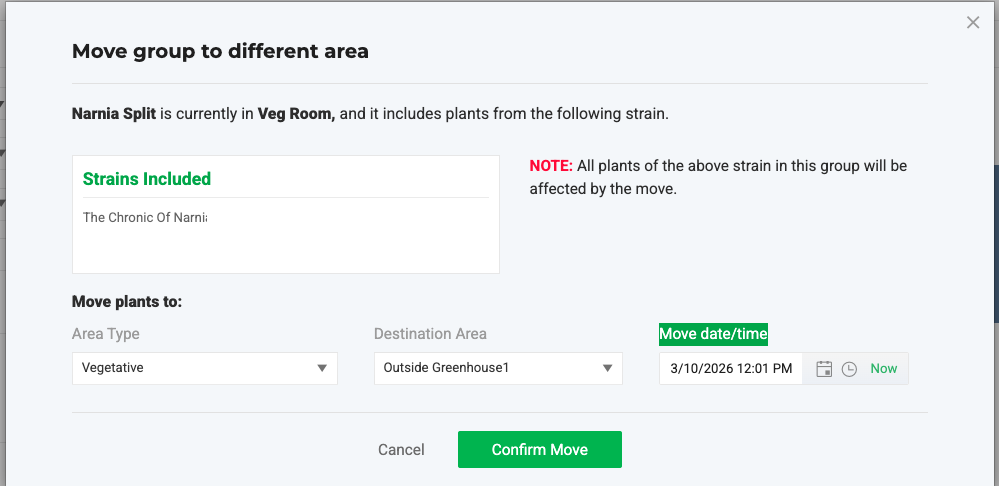
Flourish shows a success message when the move is complete.
Move Part of a Group
To move some plants and leave the rest, split the group. You can split out an entire strain or select individual plants and send them to a new or existing group in any area. See Split a Plant Group.
Move Selected Plants from the Plants View
Use this method to pick plants from the full plant list, including plants from more than one group.
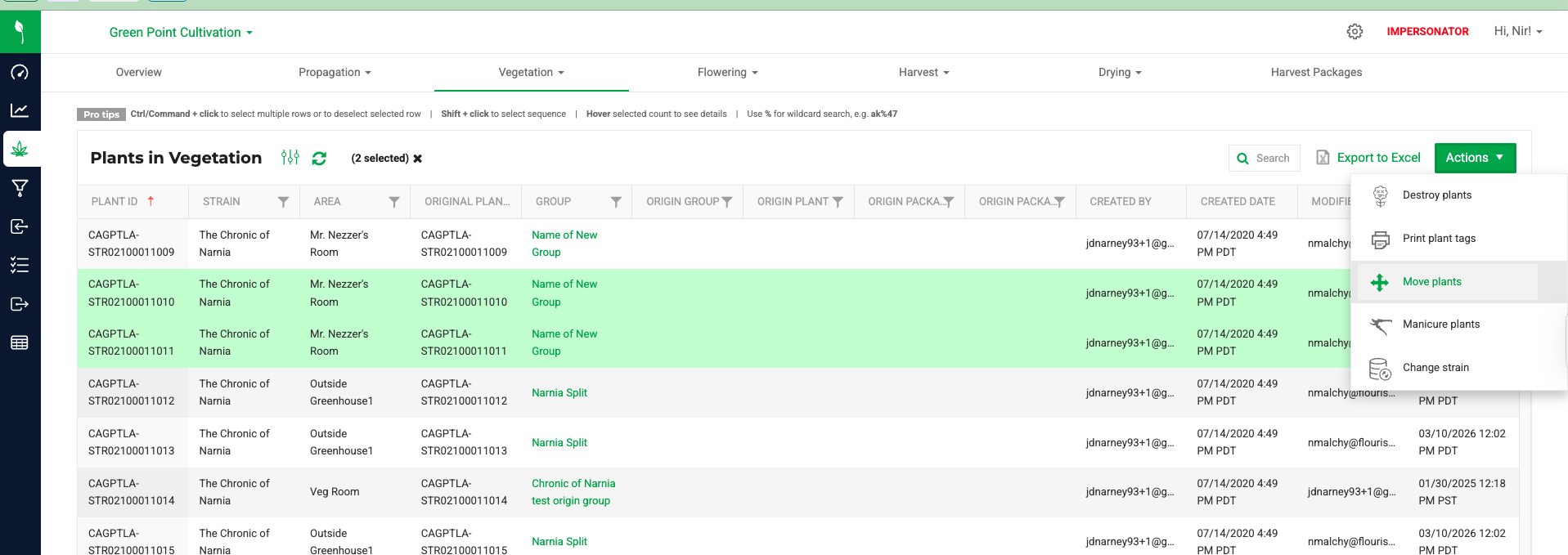
- Click Grow, then open the plants view for the stage (for example, Vegetation > Plants in Vegetation).
- Select the plants you want to move:
- Ctrl/Cmd + click selects or deselects individual rows.
- Shift + click selects a range of rows.
- Use % as a wildcard in search (for example, ak%47).
- Click Actions > Move Plants. The Split Group screen opens with your plants in the Plants to Split panel.
- Select New Group or Existing Group, then enter a name or select the group.
- Set the Move Date, Area Type, and Destination Area.
- Review the Plants to Split panel and deselect any plants you don't want to move.
- Click Split Group.
Flourish shows a success message when the move is complete.
How did we do?
Splitting Immature Plant Groups
Apply Additives to Plants
