Table of Contents
Retail - Postal Shipping Orders
Purpose. Use the Postal Shipping fulfillment type to create retail orders shipped to customers via carrier (USPS, UPS, FedEx, DHL, or similar). Postal Shipping orders appear alongside Delivery orders…
Table of Contents
Purpose
Use the Postal Shipping fulfillment type to create retail orders shipped to customers via carrier (USPS, UPS, FedEx, DHL, or similar). Postal Shipping orders appear alongside Delivery orders in the Deliveries queue in POS and in the Deliveries filter in the web app.
Postal Shipping is not available in METRC or BioTrack-integrated facilities.
Postal Shipping is currently supported in the Web App.
Prerequisites
Postal Shipping must be enabled for your facility before staff can select it as a fulfillment type. Hemp facilities have this setting enabled by default. To activate Postal Shipping for your facility, contact Flourish Support.
Create a Postal Shipping Order in the Web App
- Navigate to Retail.
- Select Purchases.
- Click New Purchase or open an existing order.
- In the Location section, select Postal Shipping.
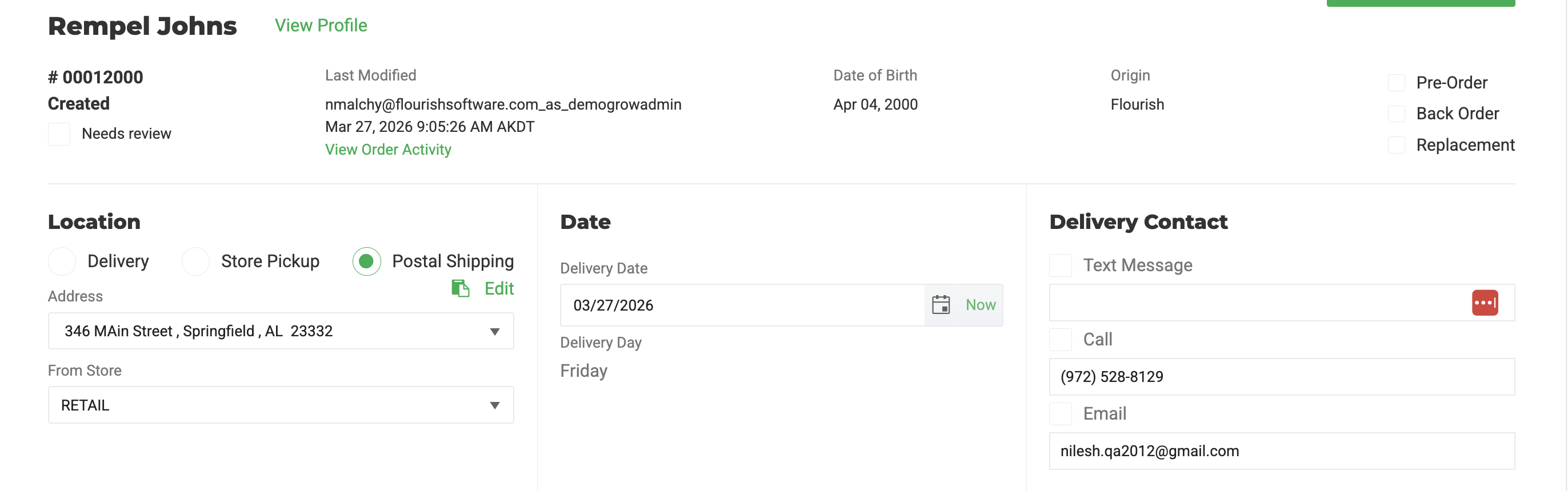
- Enter the customer's shipping address in the Address field.
- Add items to the order.
- Click Save Purchase.
Find Postal Shipping Orders
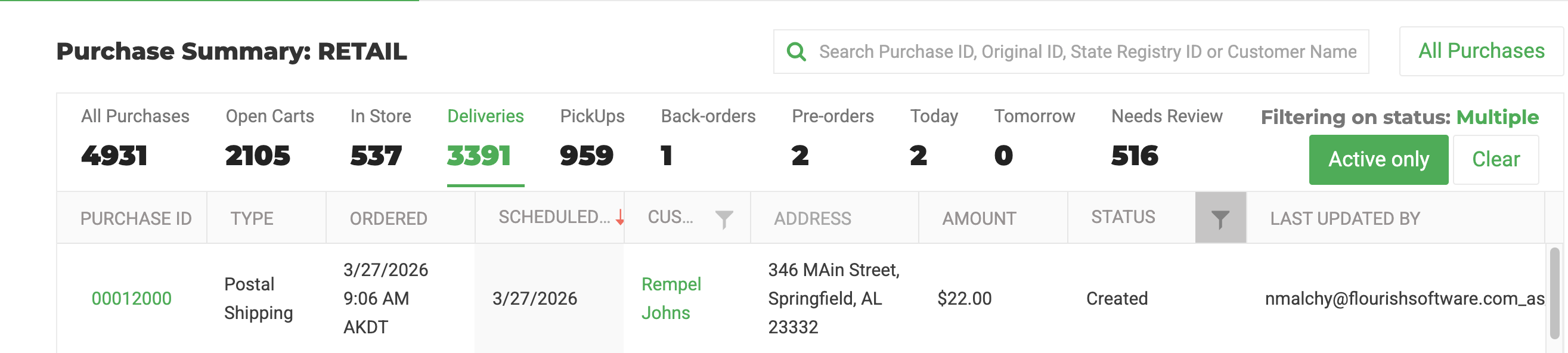
Postal Shipping orders appear under the Deliveries filter in both the web app and POS. They do not appear under Pickups or In-Store.
In the web app:
- Navigate to Retail.
- Select Purchases.
- Click Deliveries in the filter bar.
How did we do?
Retail Purchase Limit Enforcement
