Excise Tax Line Item Mapping for QuickBooks Online
Excise Tax Line Item Mapping for QuickBooks Online. Purpose. Map the excise tax on outbound B2B orders to a specific QuickBooks Online (QBO) Chart of Accounts by syncing it as its own invoice line it…
Excise Tax Line Item Mapping for QuickBooks Online
Purpose
Map the excise tax on outbound B2B orders to a specific QuickBooks Online (QBO) Chart of Accounts by syncing it as its own invoice line item, similar to order line discounts. Previously, Flourish could only send excise tax as QuickBooks' transaction-level tax data, which cannot be routed to a specific Chart of Accounts.
Prerequisites
- The QBO item you map to must already exist in QuickBooks Online and post to the Chart of Accounts you want to use. Flourish only references the item — it does not create or configure it.
- The user must have the permissions required to edit QuickBooks Sync Settings.
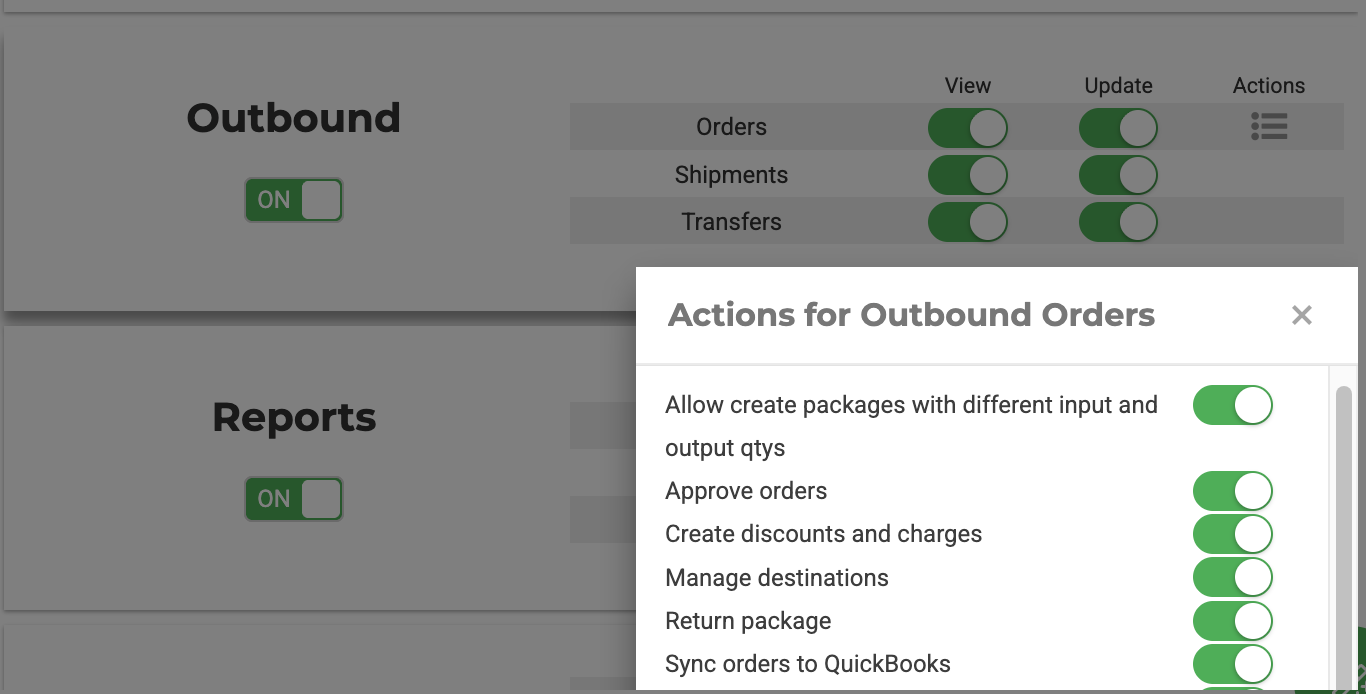
Map excise tax to a QBO item
- Click Settings.
- Select Integrations.
- Select QuickBooks.
- Select Sync Settings.
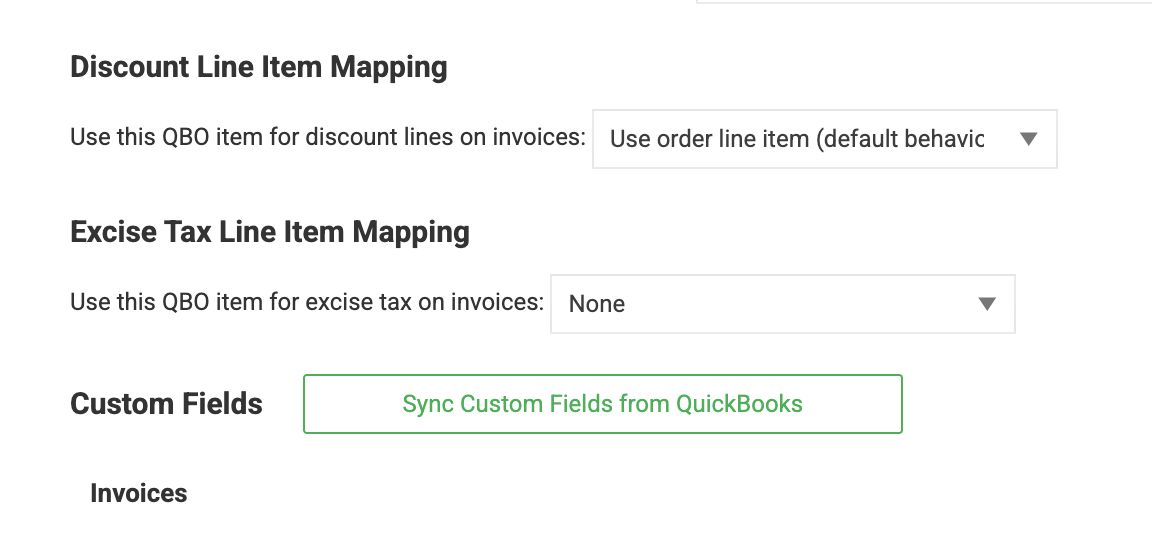
- Locate the Tax Line Item Mapping section, below Discount Line Item Mapping.
- From the Use this QBO item for tax lines on invoices dropdown, select the QBO item you want the excise tax amount to sync to.
- Click Save.
What happens next
- By default, this dropdown is set to None, which preserves prior behavior: Flourish sends the excise tax amount as QuickBooks' transaction-level tax detail, which cannot be routed to a specific Chart of Accounts.
- When you select a QBO item instead of None, Flourish sends the excise tax amount as a separate invoice line item referencing that item's Chart of Accounts, and no longer sends the transaction-level tax detail for that order.
Example
An outbound order with a $4,350.00 subtotal and $936.00 excise tax (24%) totals $5,286.00. With a tax item mapped, QuickBooks Online receives the $936.00 as its own invoice line item posted to the Chart of Accounts associated with the selected item, instead of as un-routed transaction-level tax data.
How did we do?
Enable Syncing of Outbound Orders to Quickbooks
Remap a QuickBooks Item from Inventory to Non-Inventory Type
