Table of Contents
Assign Item Brands for Metrc Compliance (New York & Michigan)
NY/MI METRC: assign required item Brands in Flourish. Auto-syncs with METRC—no portal setup. Create Brands, assign to items, bulk update existing ones.
Table of Contents
Purpose
If you're a Metrc client in New York or Michigan, certain items require a Brand before they'll sync. Once you assign a Brand to an item in Flourish, we handle registering and syncing that Brand with Metrc for you — no need to set anything up directly in the Metrc portal.
Only Michigan and New York currently use this automatic sync model.
For our Ohio clients, you'll still create Brands directly in Metrc, where they need to reach Paid status before use — see the Ohio METRC Item Brand guide for that workflow.
Before you start:
- This applies to facilities integrated with Metrc in New York or Michigan.
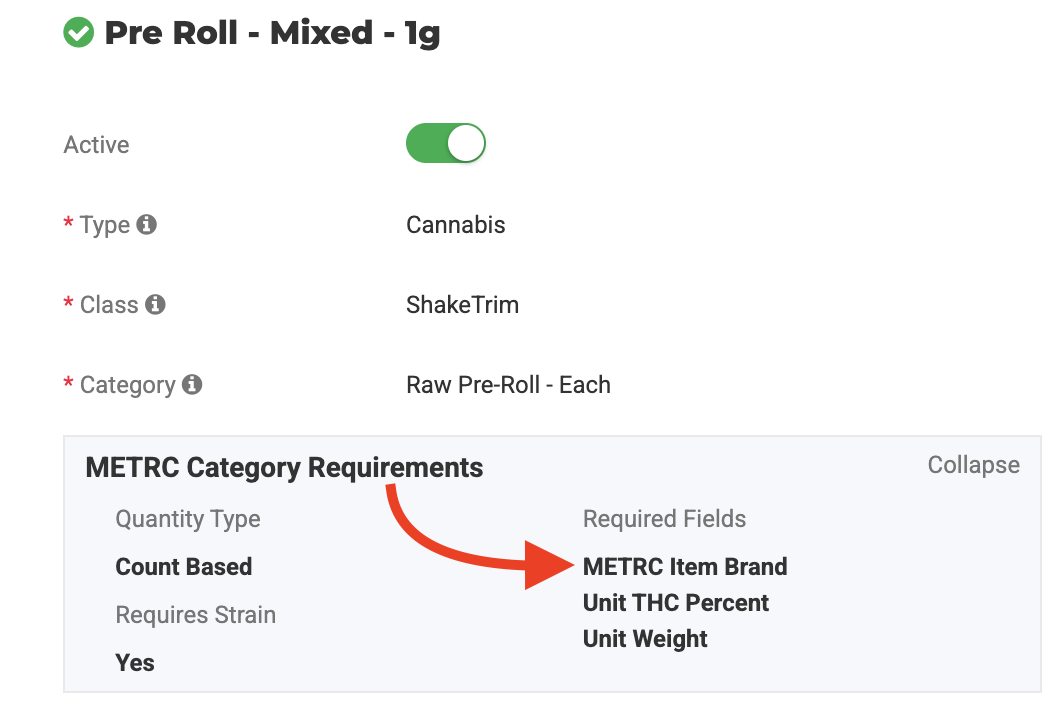
- Not every item category requires a Brand. Flourish will let you know it's required right on the item screen when your item's category needs one. For example:
Required Permissions
You must have permission to manage Items.
- Click Settings.
- Select User Roles.
- Select the facility you need.
- Click Configure next to the role.
- Locate the Admin > Inventory card.
- Check the boxes for both View and Update
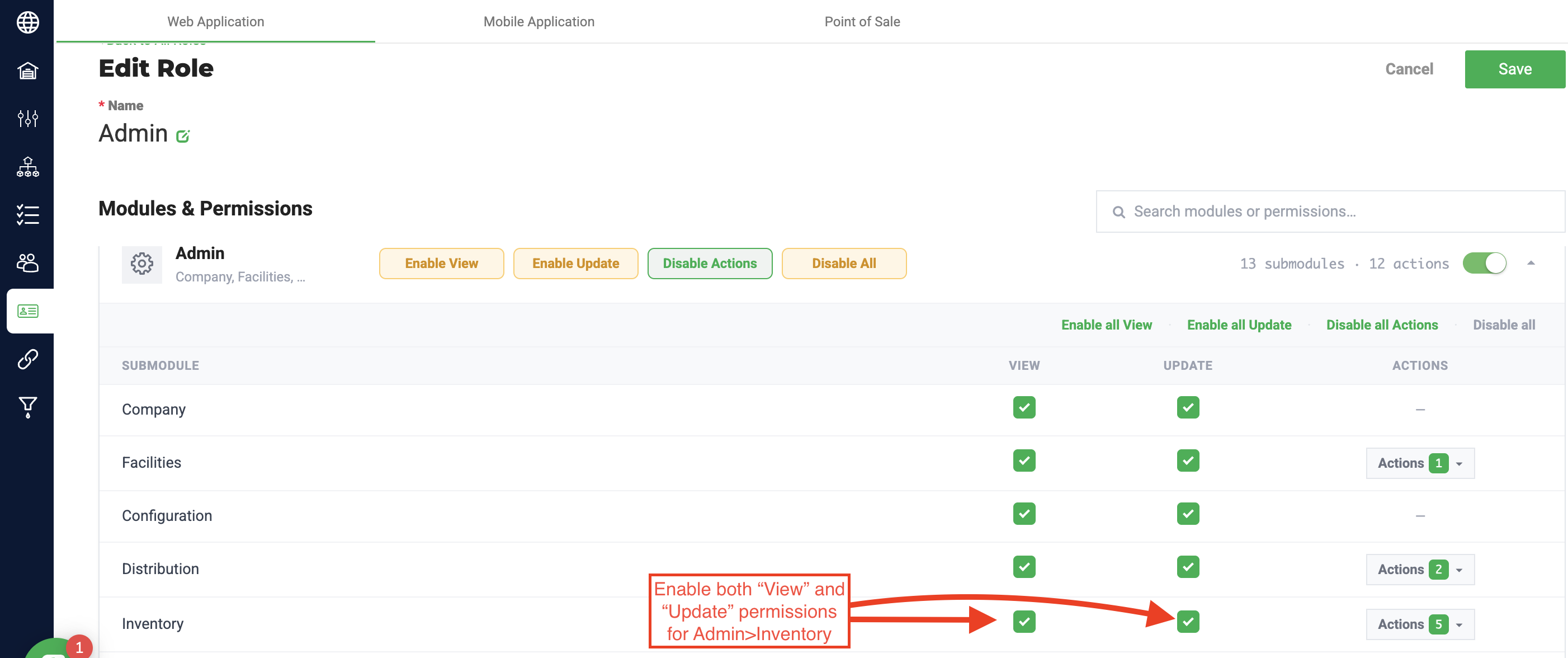
- Click Save to confirm your changes.
Setting Up and Assigning Item Brands:
Create a Brand in Flourish
- Go to Settings > Inventory > Items > Brands.
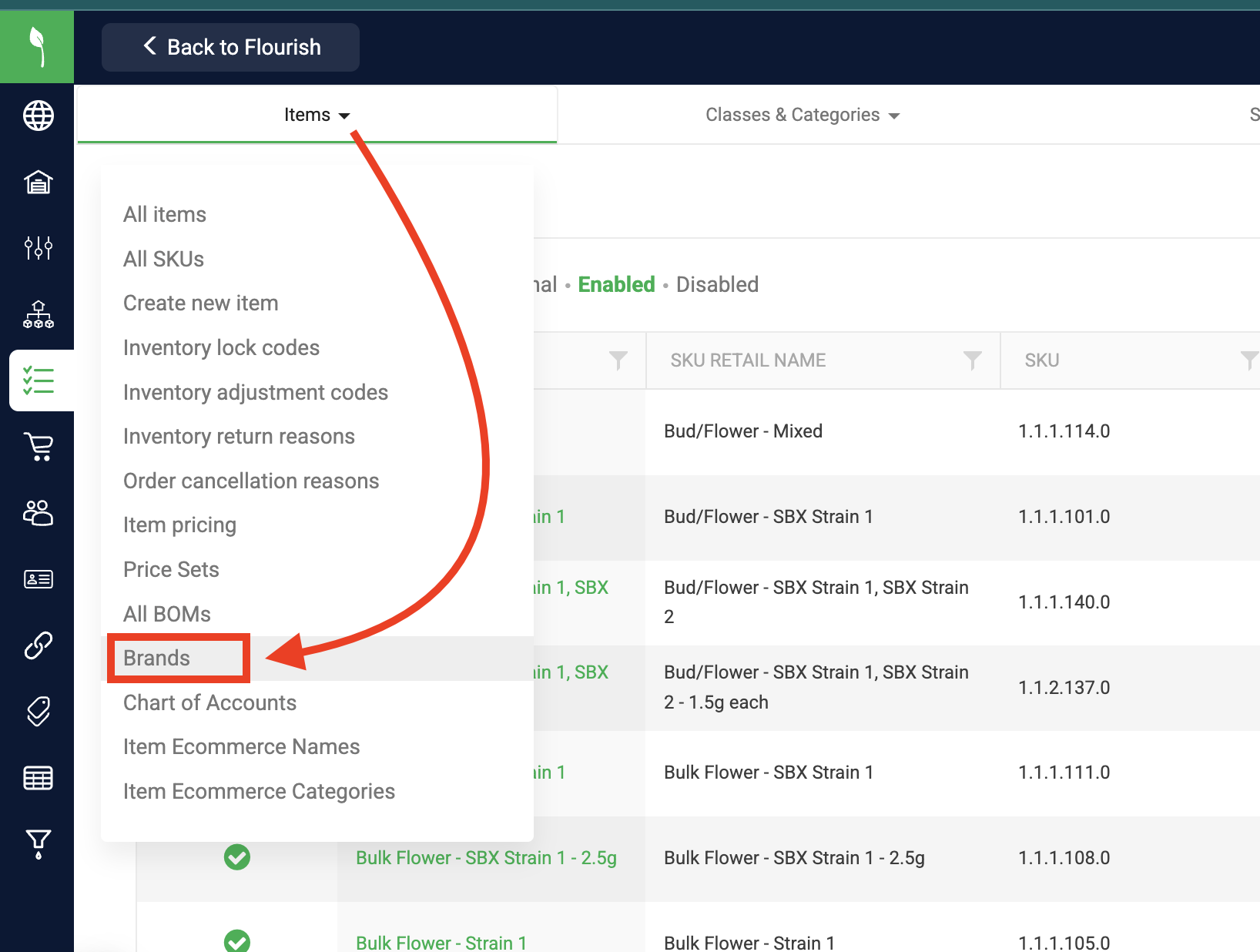
- Click New Brand.
- Type a name into the * Name field.
- Click Save.
- Flourish automatically registers this Brand with Metrc for every active facility you have in New York or Michigan — you don't need to do anything else in the Metrc portal.
Assign a Brand to an Item
- While creating or editing an item, click the Brand dropdown menu.
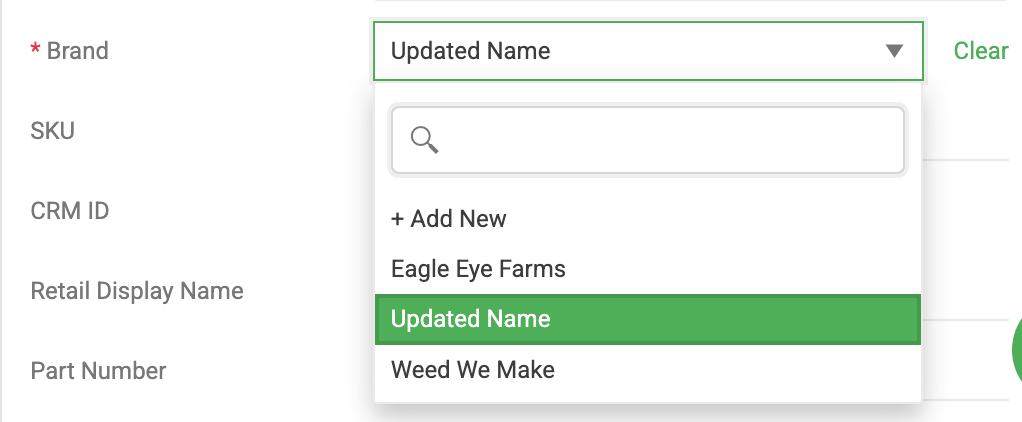
- Select the Brand you want from the dropdown.
- Click Save to confirm the changes.
Edit a Brand
- Navigate to Settings > Inventory > Items > Brands.
- Click on the text of the BRAND NAME from your Brands list to edit its name.
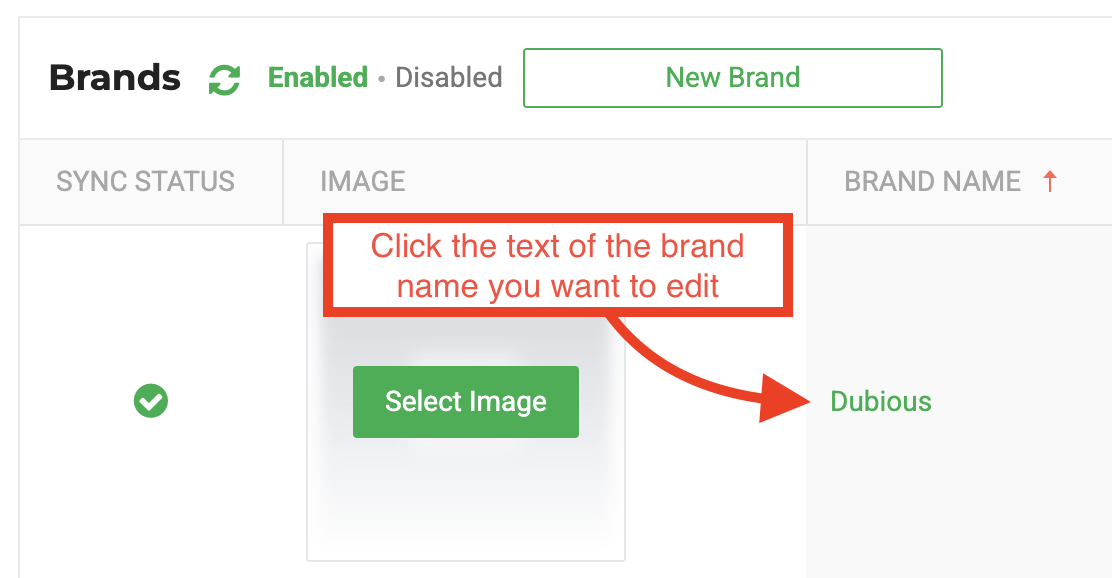
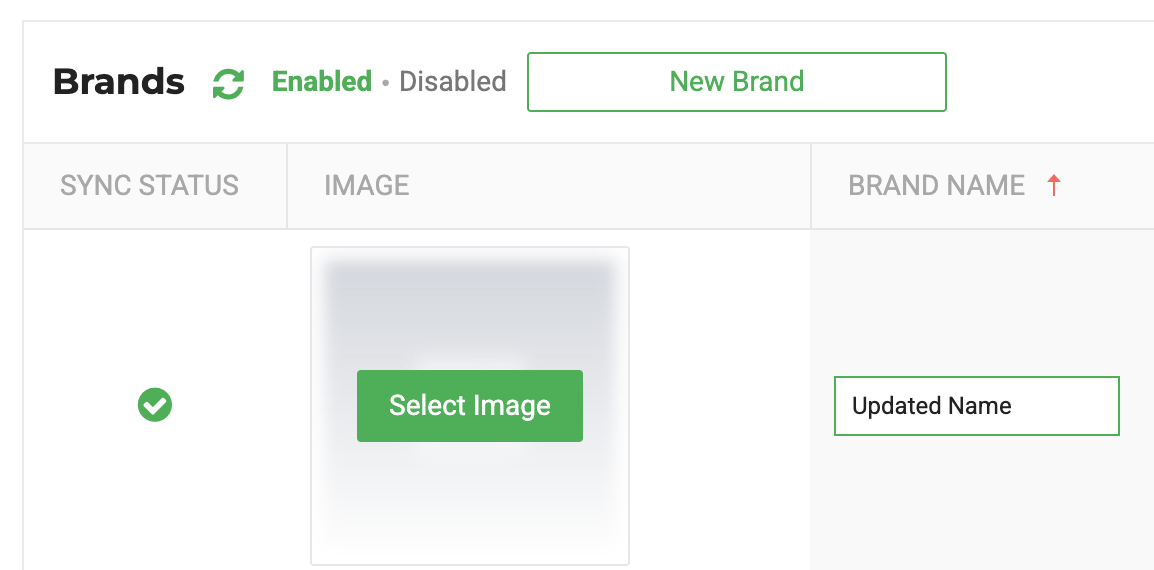
- Once you're finished with your edits, click out of the box to save the changes.
Deactivate a Brand
- Navigate to Settings > Inventory > Items > Brands.
- Click the ACTIVE toggle to deactivate it.
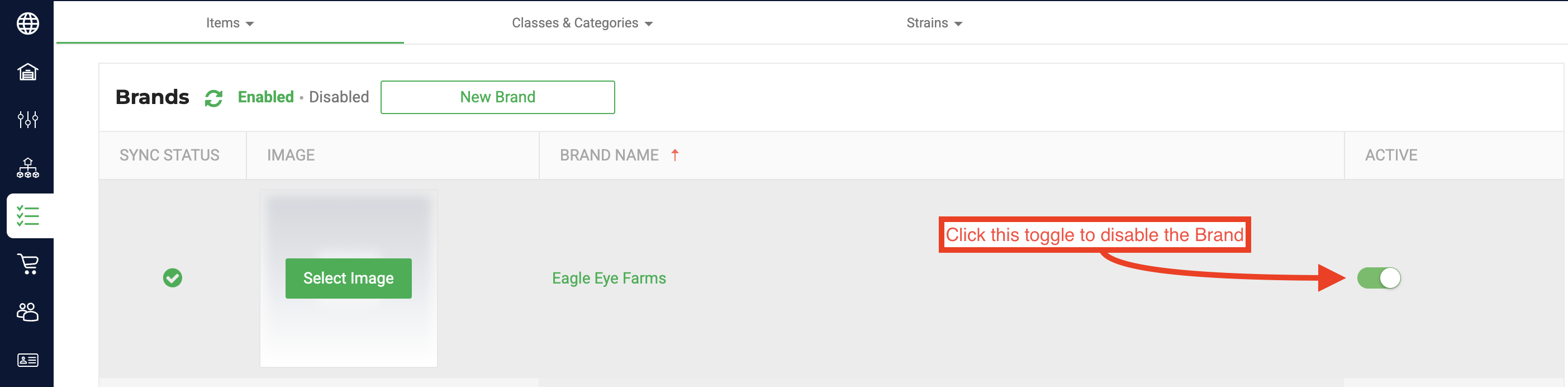
- The Brands grid will display a success message.

- The grid will automatically refresh after a few moments to remove the disabled brand from the list of active brands.
Best Practices
Troubleshooting
The Brand is out of sync on the Settings>Inventory>Items>Brands grid | 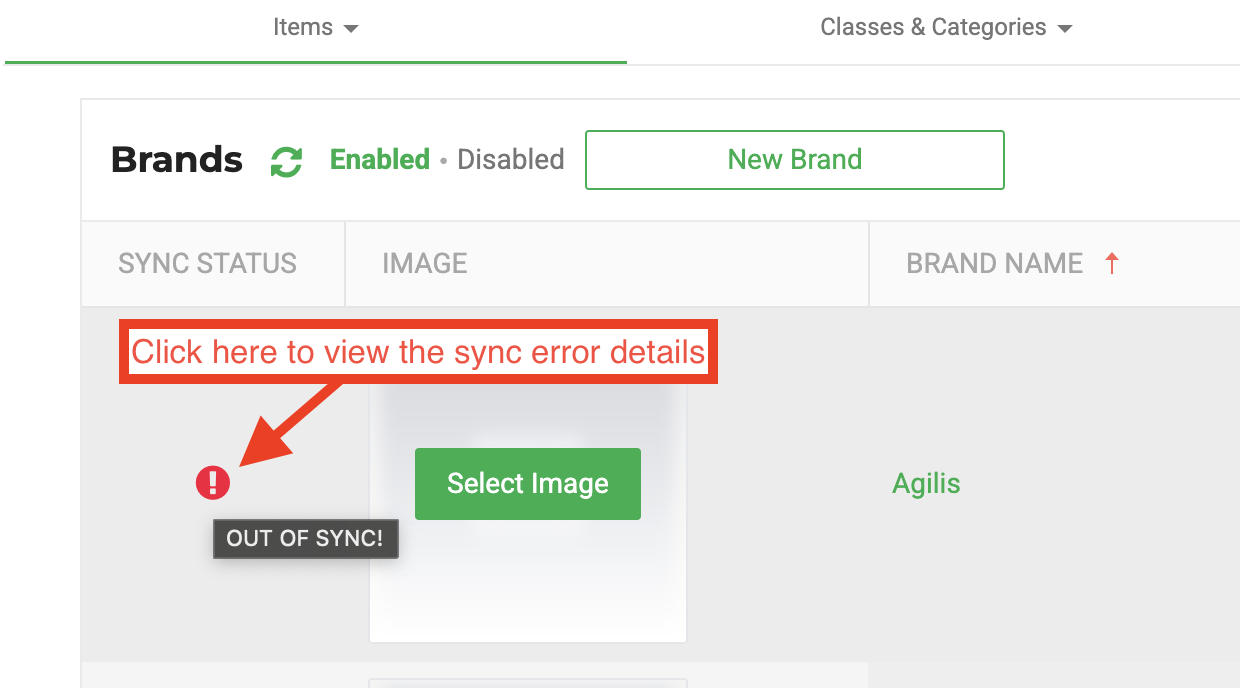 |
After creating the item, that item fails out of sync with error message "Item Brand is required but not specified." | This means that your item's Brand field is empty. Add a Brand and resync the item. |
You added a Brand but the item still shows out of sync in Metrc. | Try these two troubleshooting steps:
|
How did we do?
Sync Manufacturing Runs to METRC Processing Jobs
METRC Inbound Process
