Configuring Items for QuickBooks Online Sync
Set Sellable and Purchasable on each item and map the right accounts so items sync to QuickBooks Online correctly, including Non-Inventory purchases.
Use the Sellable and Purchasable toggles on each item to control how Flourish syncs that item to QuickBooks Online. Flourish sends only the fields that match the item's configuration, so QBO creates the item correctly and invoices sync without errors.
Set these toggles before syncing an item to QBO, or before syncing any transaction that includes the item.
Prerequisites
You must have permission to manage items.
Understand item configuration options
Each item can be configured as one of the following:
- Sellable only: products you sell to customers. Requires an Income Account.
- Purchasable only: materials you buy from vendors. Requires an Expense Account.
- Sellable and Purchasable: items you buy and resell. Requires both an Income Account and an Expense Account.
- Neither: intermediate or work-in-progress items not used on transactions.
Inventory type items require an Inventory Asset Account regardless of the Sellable or Purchasable setting. Because QuickBooks Online requires an income account and an expense account on every Inventory item, Flourish also requires an Income Account and an Expense Account for Inventory type items regardless of the Sellable or Purchasable setting.
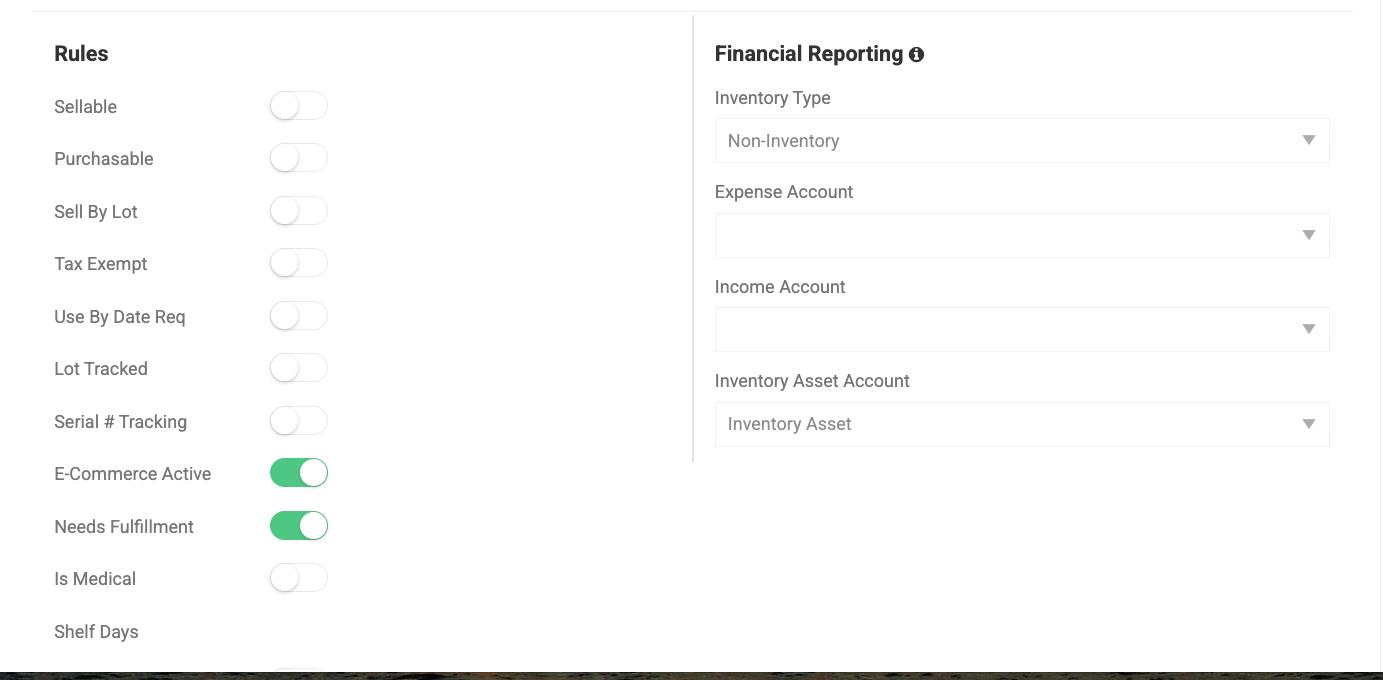
Configure an item
- Navigate to the item you want to configure.
- Locate the Rules section on the item detail page.
- Toggle Sellable on if you sell this item to customers.
- Toggle Purchasable on if you purchase this item from a vendor.
- Navigate to the Financial Reporting section.
- Select an Income Account if Sellable is on.
- Select an Expense Account if Purchasable is on. If the item is Non-Inventory and the Non-Inventory Item Purchases setting is on, select an Inventory Asset Account instead.
- Select an Inventory Asset Account if the item type is Inventory.
- Click Save.
Sync an item to QuickBooks Online
- Open the item you want to sync.
- Click Sync to QuickBooks.
Flourish sends the following fields to QBO based on the item's configuration:
- If Sellable is on: sales description, unit price, and income account.
- If Purchasable is on: purchase description, purchase cost, and expense account.
- If Purchasable is on, the item type is Non-Inventory, and the Non-Inventory Item Purchases setting is on: purchase description, purchase cost, and the inventory asset account as the purchase account. The expense account is not sent.
- If item type is Inventory: asset account, quantity on hand (set to 0) [VERIFY: the QuickBooks Online: Item Types & Accounts window says Flourish sends a placeholder quantity of 1 as of the inventory start date], inventory start date, income account, and expense account. The income and expense accounts are sent for Inventory items even if Sellable or Purchasable is off.
QBO checks I sell this product/service to my customers when Sellable is on, and I purchase this product/service from a vendor when Purchasable is on.
Account requirements by item type
The first four rows apply to Non-Inventory and Service items, and to Non-Inventory items when the Non-Inventory Item Purchases setting is off.
Configuration | Income Account | Expense Account | Inventory Asset Account |
Sellable only | Required | Not required | Not sent |
Purchasable only | Not required | Required | Not sent |
Sellable and Purchasable | Required | Required | Not sent |
Neither | Not required | Not required | Not sent |
Non-Inventory, Purchasable, with the Non-Inventory Item Purchases setting on | Required if Sellable | Not sent | Required (sent as the purchase account) |
Any Inventory type item | Required | Required | Required |
Service items follow the same rules as Non-Inventory items with the setting off. The setting does not affect Service or Inventory items.
If a required account is missing, Flourish blocks the sync and displays a validation error specific to the missing account type and the item's configuration (for example, a missing income account on a sellable item versus a missing asset account on an Inventory item). Assign the missing account and retry. Flourish never substitutes the Expense Account for a missing Inventory Asset Account.
Flourish also checks an Inventory item's accounts when you save it. If the check fails and the item has at least one account mapped, the gap shows on the item page.
Check item sync status on the Map Items page
Go to Manage Settings > Integrations, click the pencil icon in the QuickBooks card, and select Map Items. The QB SYNC INFO column shows the QB ID and Last Synced for items that are synced. Items that are not synced do not show a Last Synced date. Item sync errors also show in the grid.
Click How QuickBooks accounts work at the top of the page to open QuickBooks Online: Item Types & Accounts. It explains the QuickBooks item types, what each Flourish account field is used for, and what Flourish sends for each item type. You can also open it from the item page.
Re-sync an updated item
If you change the Sellable or Purchasable setting on an item that is already synced to QBO, sync the item again to update it in QuickBooks.
- Open the item.
- Update the Sellable or Purchasable toggle as needed.
- Update account assignments in the Financial Reporting section if required.
- Click Save.
- Click Sync to QuickBooks.
Flourish fetches the current item from QBO and sends a full update with the new field configuration.
Turning the Non-Inventory Item Purchases setting on or off follows the same rule: each item updates in QuickBooks the next time it syncs. Bills already in QuickBooks keep the account they were posted to.
How did we do?
Switch your QuickBooks Online Account to work with Categories
Enable Syncing of Outbound Orders to Quickbooks
