Table of Contents
Set Default Printers in POS
Set default label and receipt printers in Flourish Point of Sale, change the label printer when printing customer labels, and set defaults in the web app.
Table of Contents
Purpose
Set default label and receipt printers in Point of Sale so labels and receipts print to the correct device without selecting a printer each time. You can also change the label printer when you print customer labels, or set default printers in the Flourish web app.
Set the Default Printers
- In Point of Sale, click the printer icon in the top-right corner.

- For the label printer, check Use network devices to list network printers, or leave it unchecked to list local system printers.
- Select a printer from Select Label Printer.
- For the receipt printer, check Use network devices to list network printers, or leave it unchecked to list local system printers.
- Select a printer from Select Receipt Printer.
- Click Close.
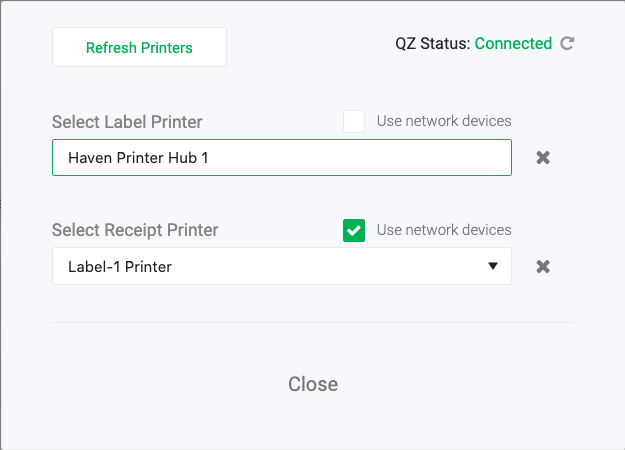
To clear a selected printer, click  in its dropdown.
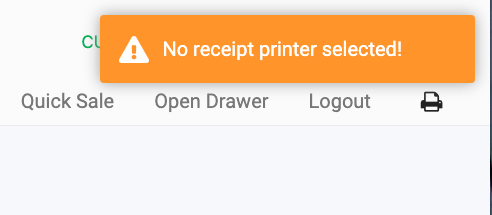
If you reach the payment screen without a receipt printer selected, Point of Sale displays a warning. Select a receipt printer before you complete the sale.
Change the Label Printer When You Print
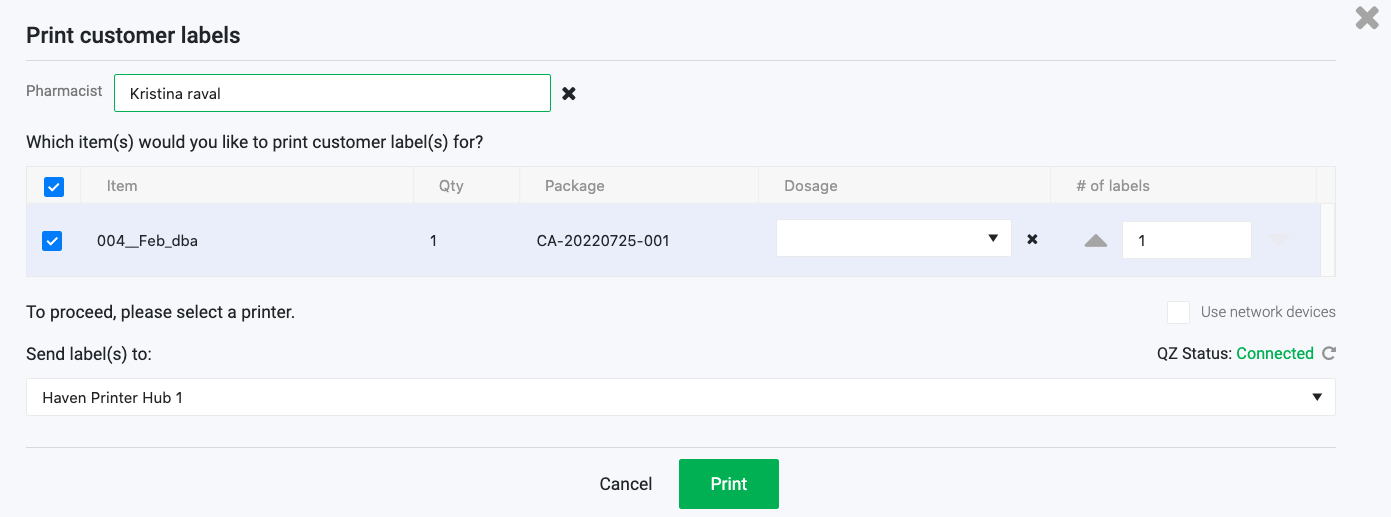
- Click Print Customer labels in the shopping cart.
- Review the selected label printer.
- Select a different label printer, if needed.
Flourish preselects your default label printer. If you select a different printer, it becomes the new default.
Set Default Printers in the Web App
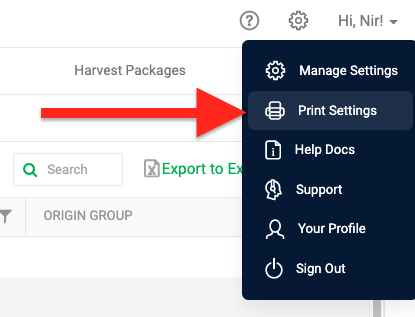
- Click your name in the top-right corner.
- Select Print Settings.
- Select your default printers.
If a Printer Is Missing
- Confirm Use network devices matches the printer type: checked for network printers, unchecked for local printers.
- For local printers, confirm QZ Status shows Connected.
- For network printers, confirm the printer is set up in Manage Settings > Facilities > Printers.
- Click Refresh Printers.
For hardware and network setup, see Printer Setup and Connectivity Guide.
Related Articles
How did we do?
How Retail Returns Sync to METRC
Troubleshooting Retail Discounts
