Table of Contents
Configure METRC and BioTrack API Credentials
Purpose. This guide helps ensure your actions in Flourish sync correctly with state compliance systems and that changes made in those compliance systems sync back into Flourish. To maintain proper co…
Table of Contents
Purpose
This guide helps ensure your actions in Flourish sync correctly with state compliance systems and that changes made in those compliance systems sync back into Flourish.
To maintain proper communication and compliance, you must keep correct and valid credentials on file for your compliance system, including METRC and BioTrack. Invalid, expired, or missing credentials can prevent data from syncing and may impact compliance reporting.
Prerequisites
Ensure you have the required permissions in Flourish to add or update METRC or BioTrack credentials.
Steps
- Click
 Settings.
 - Select User Roles.
- Make sure to select the facility you need.
- Click the
 icon to CONFIGURE.
 - Locate the Admin Card.
- In Users - make sure that both View and Update checkboxes are checked.
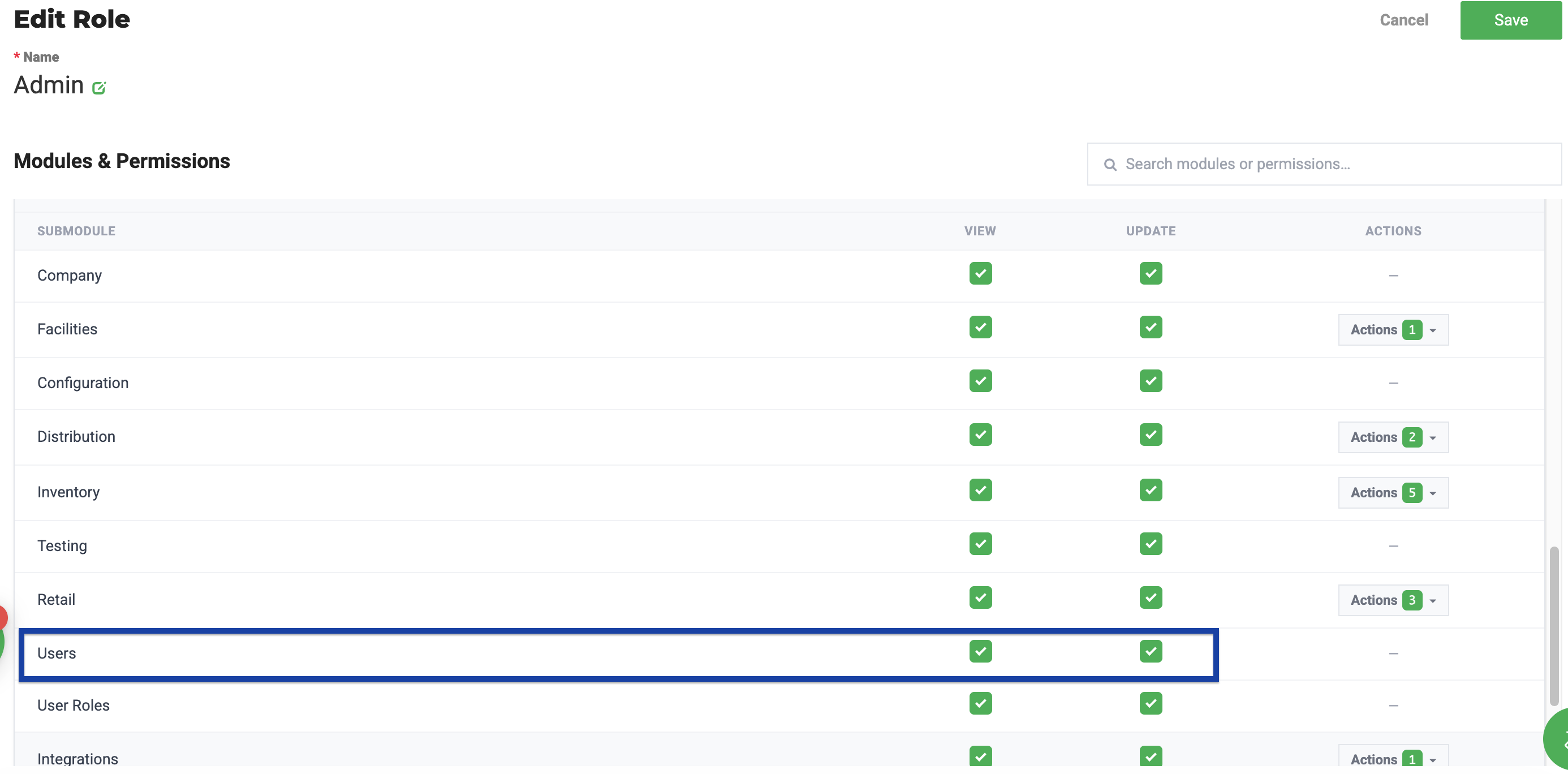
- Click Save.
🔐 METRC User Guide
Purpose
For individual users, update their METRC API key in Flourish so that data syncs correctly.
Best Practices
- Ensure your METRC user has permissions for Packages, Inventory, Transfers, Plants, and Harvests
- Each Flourish user must use their own METRC API key
- Do not share API keys between users
- Update the key if METRC permissions change
- Your METRC API key must be valid. If you’ve generated a new API Key in METRC, or your API key is no longer valid, you must update it in Flourish.
- Your METRC profile must have the correct METRC permissions so Flourish Software can sync with METRC accurately.
Steps
1. Get your METRC API Key
- Log in to METRC
- Go to API Keys
- Copy an existing active key or generate a new one.Learn more about How to Find or Generate your METRC API Key
2. Enter your Key in Flourish
- Click Settings.
- Select Users.
- Use the filters to locate the user you need to update, then click Actions > Edit User.
- Click the
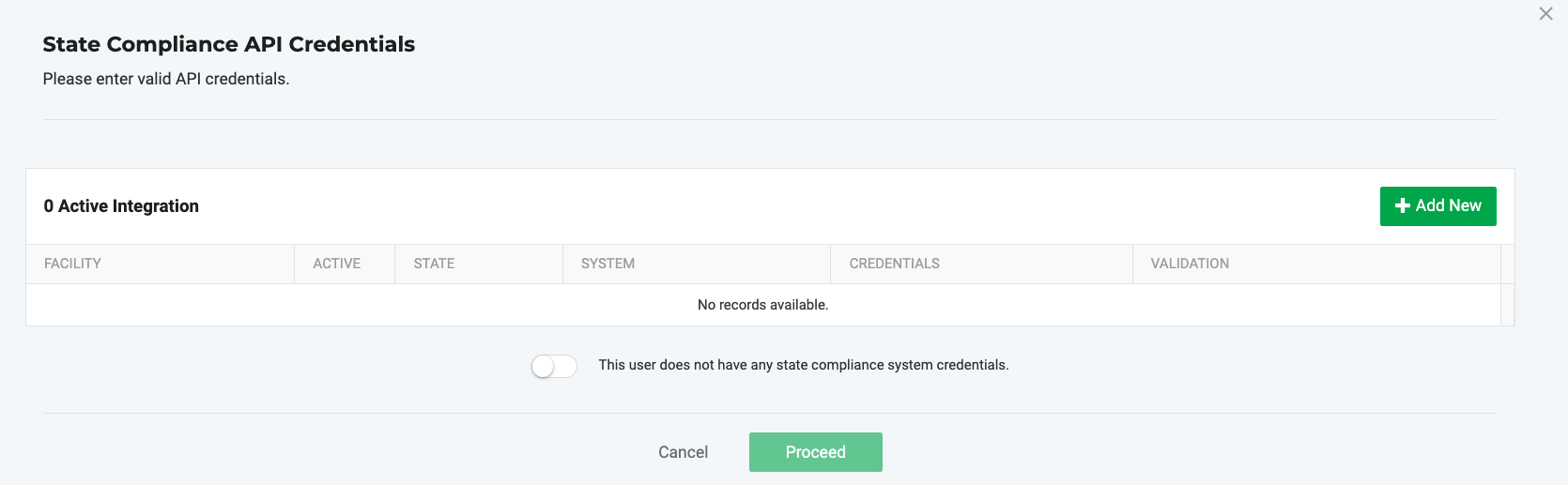
 pencil icon in the State Registry API Auth Info card to access the "State Compliance API Credentials" screen.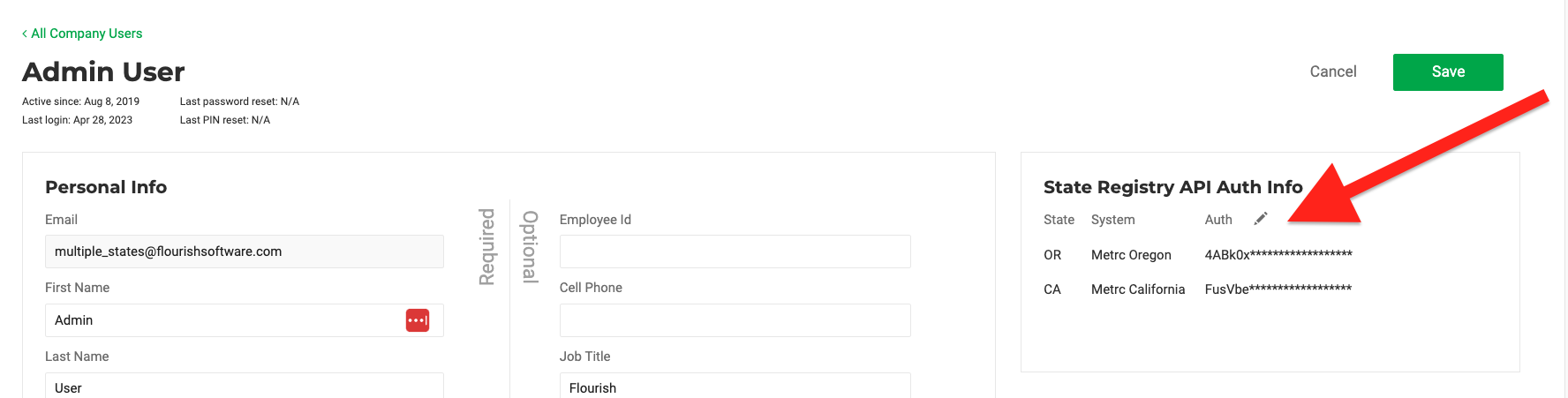
- On the "State Compliance API Credentials" screen, click
 .
.
- Select and fill in the data:
- Select the FACILITY.
- Select the STATE.
- Select the SYSTEM.
- Copy and paste your METRC API Key into the CREDENTIALS field.
- Under VALIDATION, click
 . Flourish Software attempts to validate your API key with METRC.
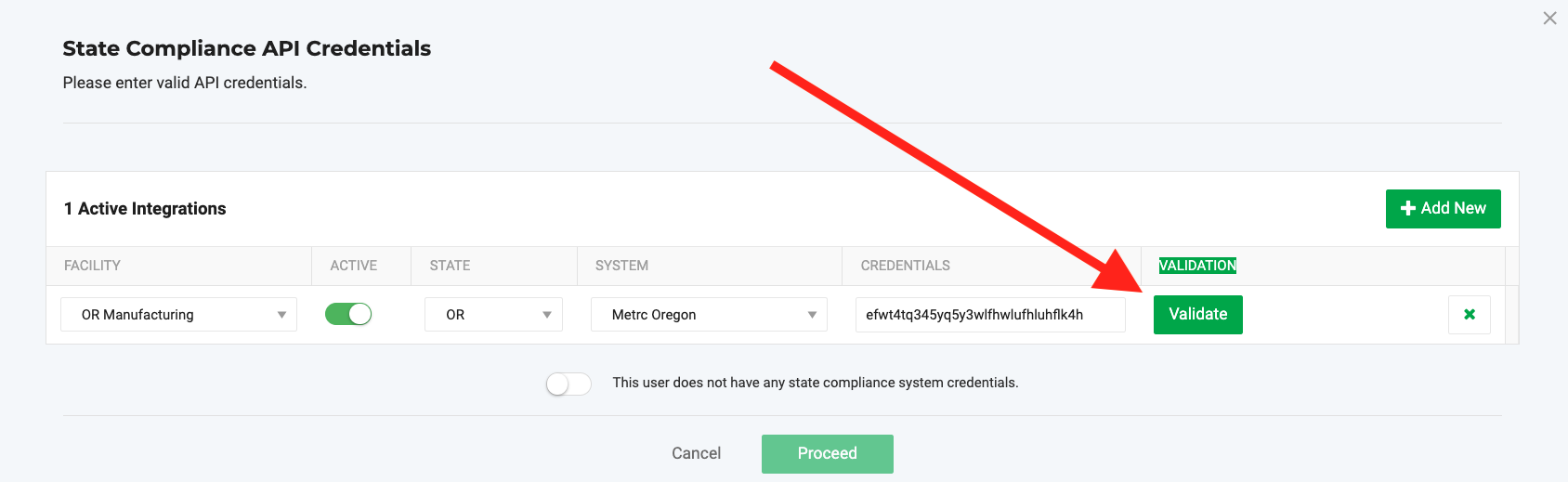
- If the METRC API Key is Valid:
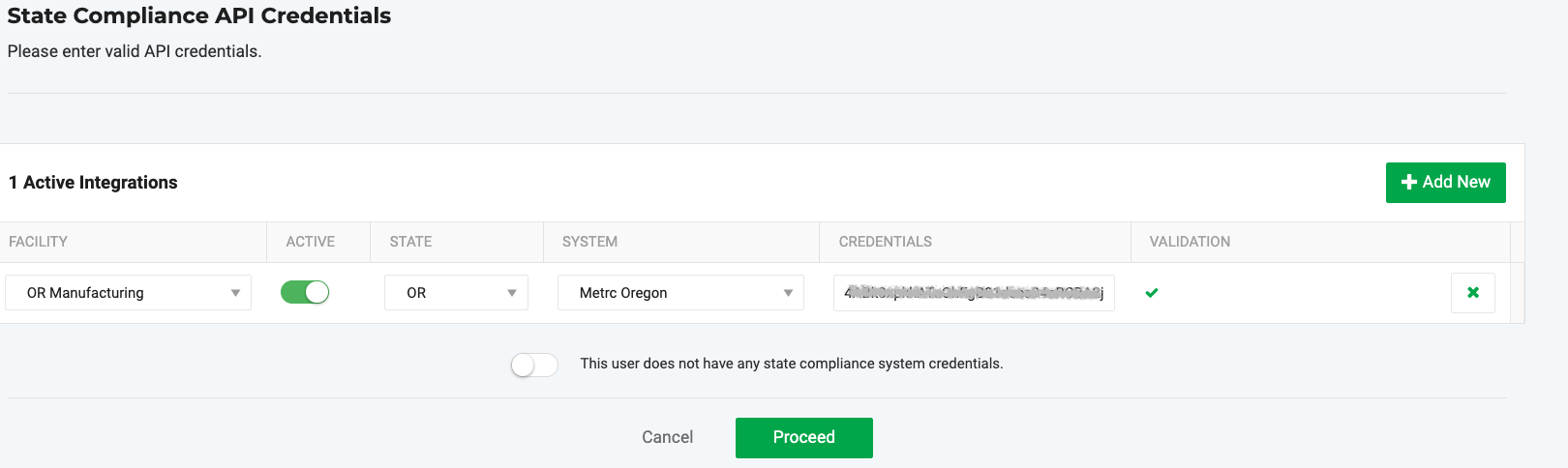
- Note the
 sign under VALIDATION.
 - You can click to
 add another facility access.
 - You can click the
 to remove this record.
- Note the
- If the METRC API Key is Invalid:
- Note the
 sign under VALIDATION.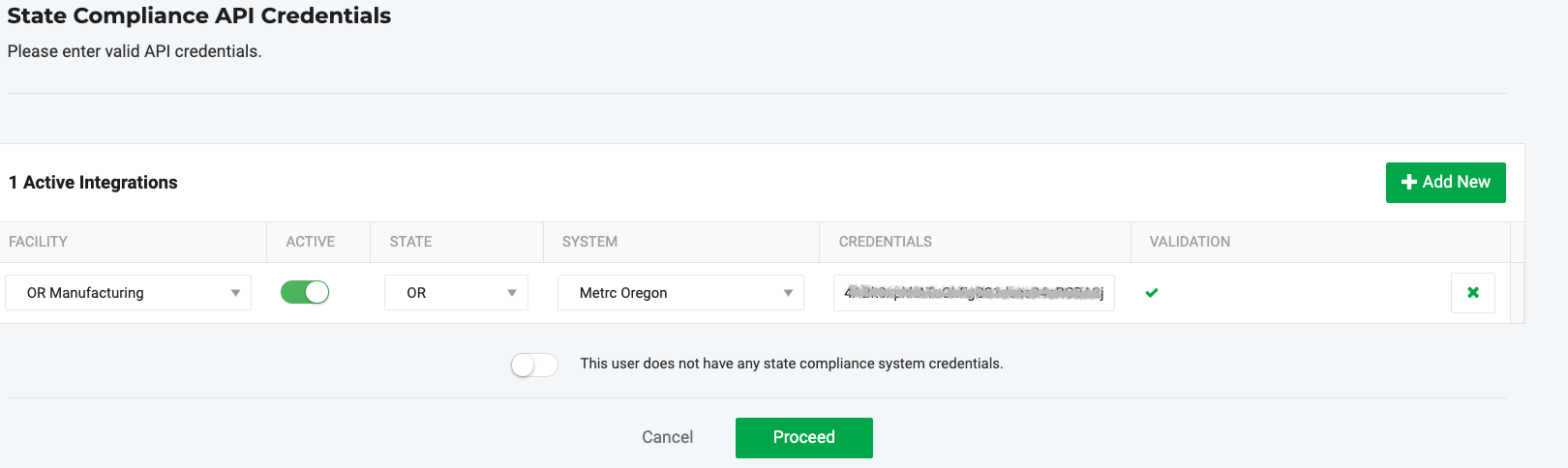
- You can click the to remove this record.
- Without a valid API Key, the only way to proceed is to click Cancel or to toggle ON the
 .
.
- Note the
- When your update is done, click
 to save the record.
 - Click on
 the user profile.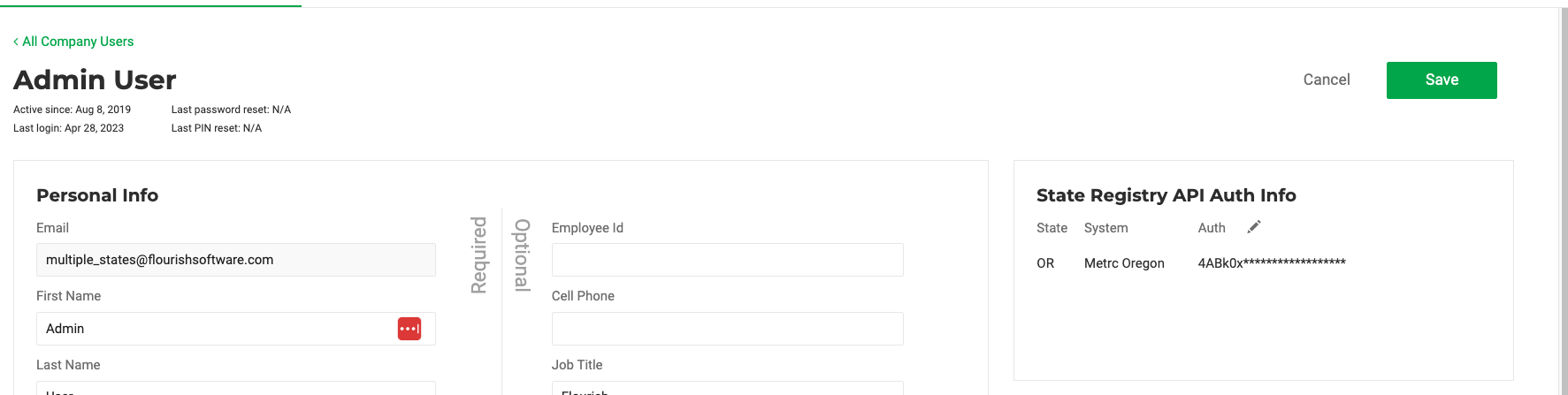
3. Confirm It Works
- Flourish validates the API key automatically
- A green check confirms the key is valid
- If validation fails, confirm the key is active and that permissions are correct.
📄 METRC Admin Guide
Purpose
For administrators managing METRC API access across users or facilities.
Best Practices
- Ensure your METRC user has permissions for Packages, Inventory, Transfers, Plants, and Harvests
- Each Flourish user must use their own METRC API key
- Do not share API keys between users
- Update the key if METRC permissions change
- Your METRC API key must be valid. If you’ve generated a new API Key in METRC, or your API key is no longer valid, you must update it in Flourish.
- Your METRC profile must have the correct METRC permissions so Flourish Software can sync with METRC accurately.
Steps
- Check/Set User Permissions in METRC
- Create/Assign a Reverse Sync User (if used)
- Enter Keys in Flourish
- Manage by Facility
1. Check or set user permissions in METRC
- Confirm the METRC user has access to Packages, Inventory, Transfers, Plants and Harvests, Tags, and Sales (if applicable)
2. Create or assign a Reverse Sync user (if used)
- Create a dedicated METRC user with full permissions. Ideally, this is the owner of the genral administrator, with the most access to METRC.
- Generate an API key from this account
3. Enter keys in Flourish For The Revers Sync User Profile
- Go to Settings > Users
- Edit the appropriate user
- Add the METRC API key for each facility or license
- Validate and save
4. Manage by facility
- Repeat credential entry for each licensed facility
- Confirm each facility shows a valid integration
- Best Practices
- Use a dedicated admin or Reverse Sync METRC user with full read/write access
- Update API keys when permissions or users change
Select the Reverse Sync User for the Facility
- Go to Settings
- Select Facilities to enter the Facilities List
- For each facility that is integrated with METRC:
- Click on the Name of the facility
- Locate the Compliance systems for this facility
- Click the pencil Icon to access the drop-down
- Select the email of the user
- Click the green √ sign to save.
🤖 BioTrack User Guide
Purpose
For users entering or updating their BioTrack credentials in Flourish.
Steps
1. Get Your BioTrack Credentials
- Get your BioTrack credentials
- Obtain your BioTrack username and password
- Confirm your license number and facility ID
2. Enter in Flourish
- Log in to Flourish
- Go to Settings > Users
- Click Actions > Edit User
- Click the pencil icon in State Compliance API Credentials
- On the "State Compliance API Credentials" screen, click .
- Select and fill in the data:
- Select the FACILITY.
- Select the STATE.
- Select the SYSTEM.
- Copy and paste your BioTrack login Credentials into the CREDENTIALS field.
Under VALIDATION, click . Flourish Software attempts to validate your login credentials with BioTrack.
- If the login credentials are Valid:
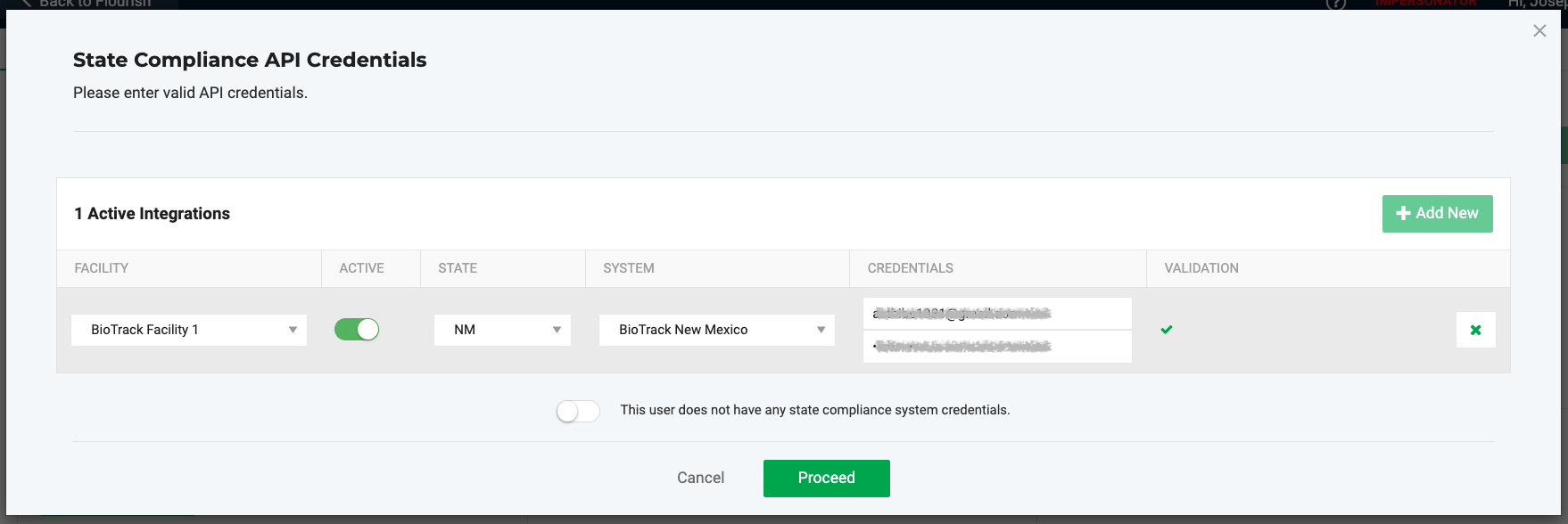
- Note the sign under VALIDATION.
- You can click to add another facility access.
- You can click the to remove this record.
- Note the
- If the login credentials Invalid:
- Note the sign under VALIDATION.
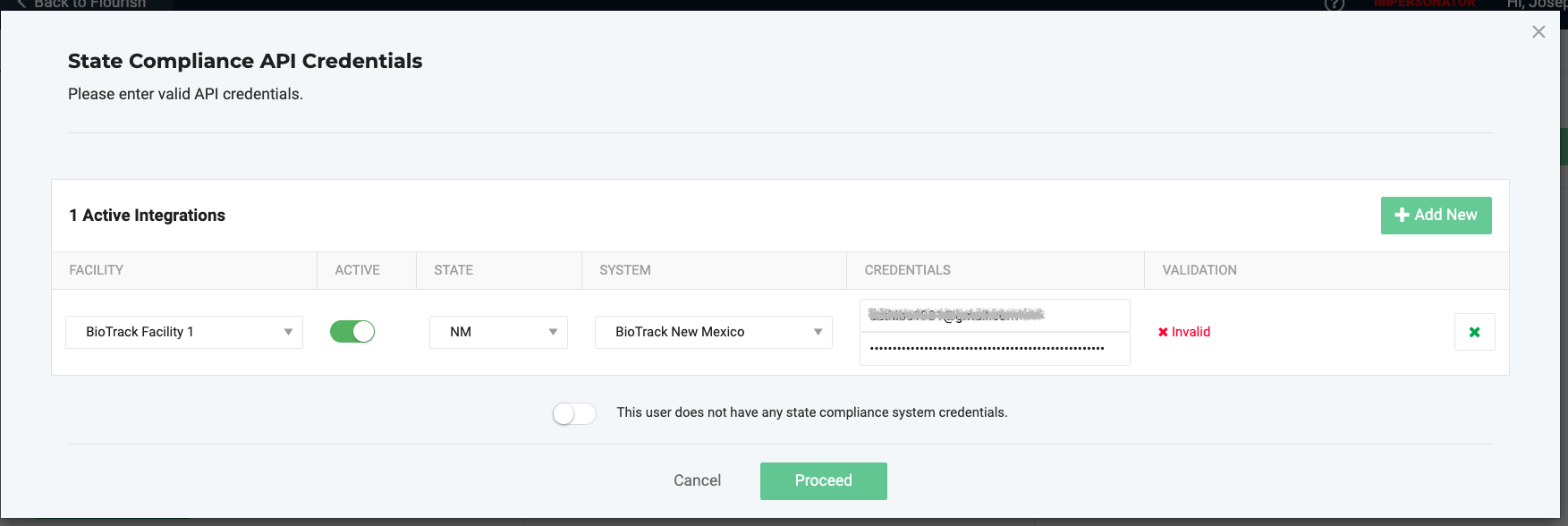
- You can click the to remove this record.
- Without a valid API Key, the only way to proceed is to click Cancel or to toggle ON the .
- Note the
- When you update is done, click to save the record.
- Click on the user profile.
3. Verify Sync
- Flourish validates credentials with BioTrack
- A green check confirms success
- Inventory and packages begin syncing automatically
Best Practices
- Keep BioTrack credentials secure and unique per user
- Do not share login credentials
- Update credentials if your BioTrack password changes
📄 BioTrack Admin Guide
Purpose
For administrators managing BioTrack access across facilities and users.
Steps
1. Set Up API Access in BioTrack
- Set up API access in BioTrack
- Ensure each user has active BioTrack login credentials
- Assign roles that allow access to inventory, transfers, and reporting
2. Enter credentials in Flourish
- Go to Settings > Users
- Edit each user profile
- Enter BioTrack credentials per facility or license
- Validate and save
3. Validate by license
- Confirm each facility shows a valid BioTrack integration
- If validation fails, check for expired passwords or incorrect facility IDs
Best Practices
- Do not reuse BioTrack credentials across users
- Review credentials after staff or role changes
How did we do?
Retail POS - Allow to Allocate Inventory to a Purchase Order Manually
Prevent Users from Exporting All Grid Data
