Table of Contents
Split a Plant Group
Split a plant group in Flourish by entire strain or by selected plants to move part of a group, separate a strain, or combine plants with another group.
Table of Contents
Split a group when you need to move only some of its plants to another area or stage, separate a strain into its own group, or combine plants with an existing group. You can split by an entire strain or by selecting individual plants.
Before You Start
- Splitting must be turned on for your facility. If you don't see Split Group in the group's Actions menu, go to Manage Settings > Configuration and confirm that Disallow splitting/combining plant groups is turned off.
- To move a whole group without splitting it, see Move Plants Between Areas in the Grow Module.
Open the Split Group Screen
- Click Grow.
- Select the stage, then the groups view for that stage (for example, Vegetation > Veg Groups).
- Select the group you want to split.
- Click Actions > Split Group.
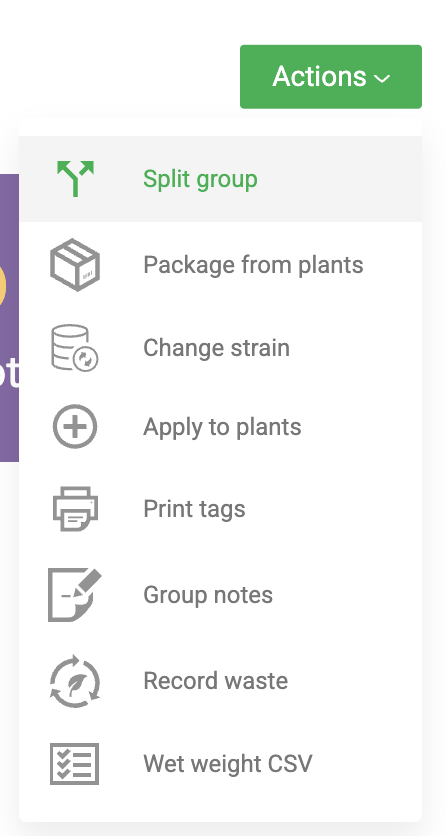
You can also start from the Plants view. Select the plants, then click Actions > Move Plants. The Split Group screen opens with those plants already selected.
Choose Where the Plants Go
Both split methods ask where to put the plants:
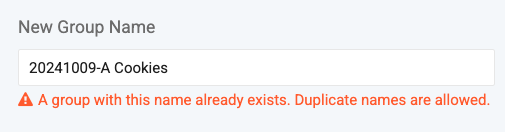
- New Group: enter a name for the new group. You can reuse the current group's name. Flourish warns you that a group with that name already exists, but duplicates are allowed.
- Existing Group: select a group to add the plants to. Use this option to combine groups.
Split by Entire Strain
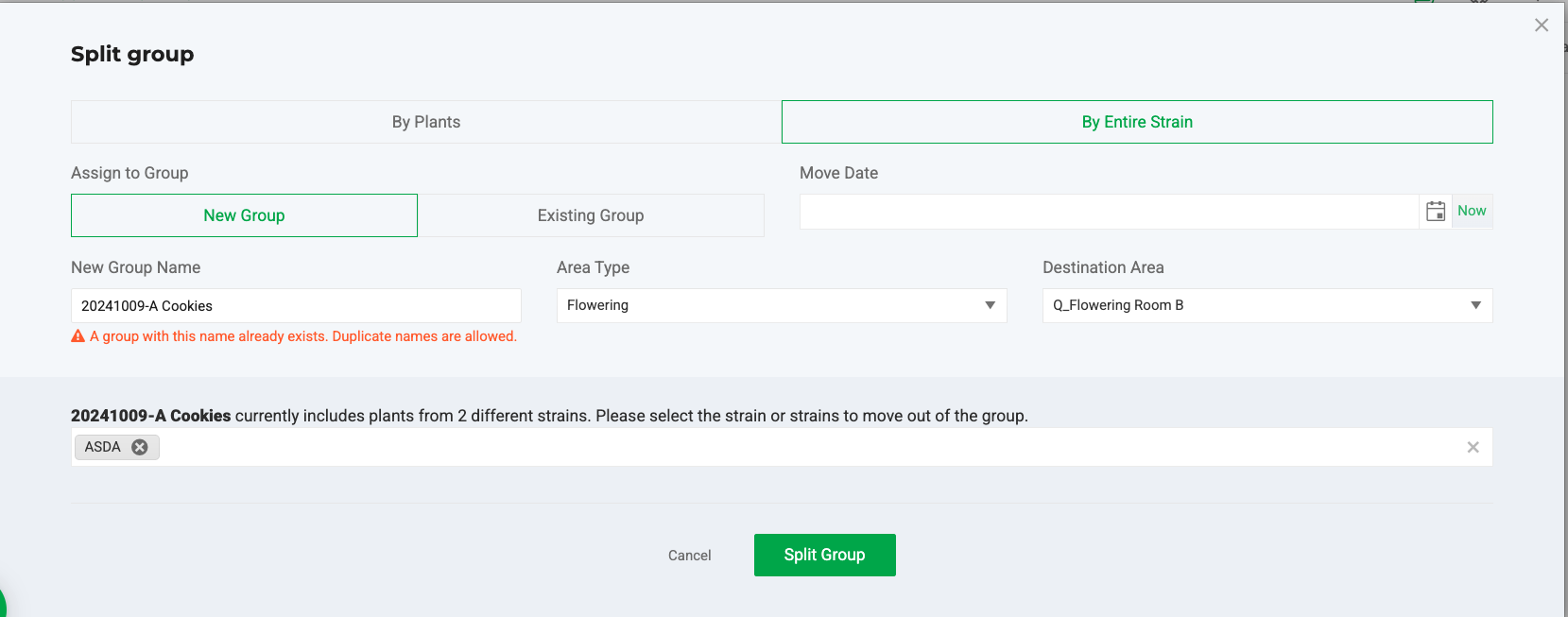
Use this method to move every plant of one strain out of a mixed-strain group.
- On the Split Group screen, select By Entire Strain.
- Select New Group or Existing Group, then enter a name or select the group.
- Set the Move Date.
- Select the Area Type and Destination Area.
- Select the Strain to split out.
- Click Split Group.
Split by Selected Plants
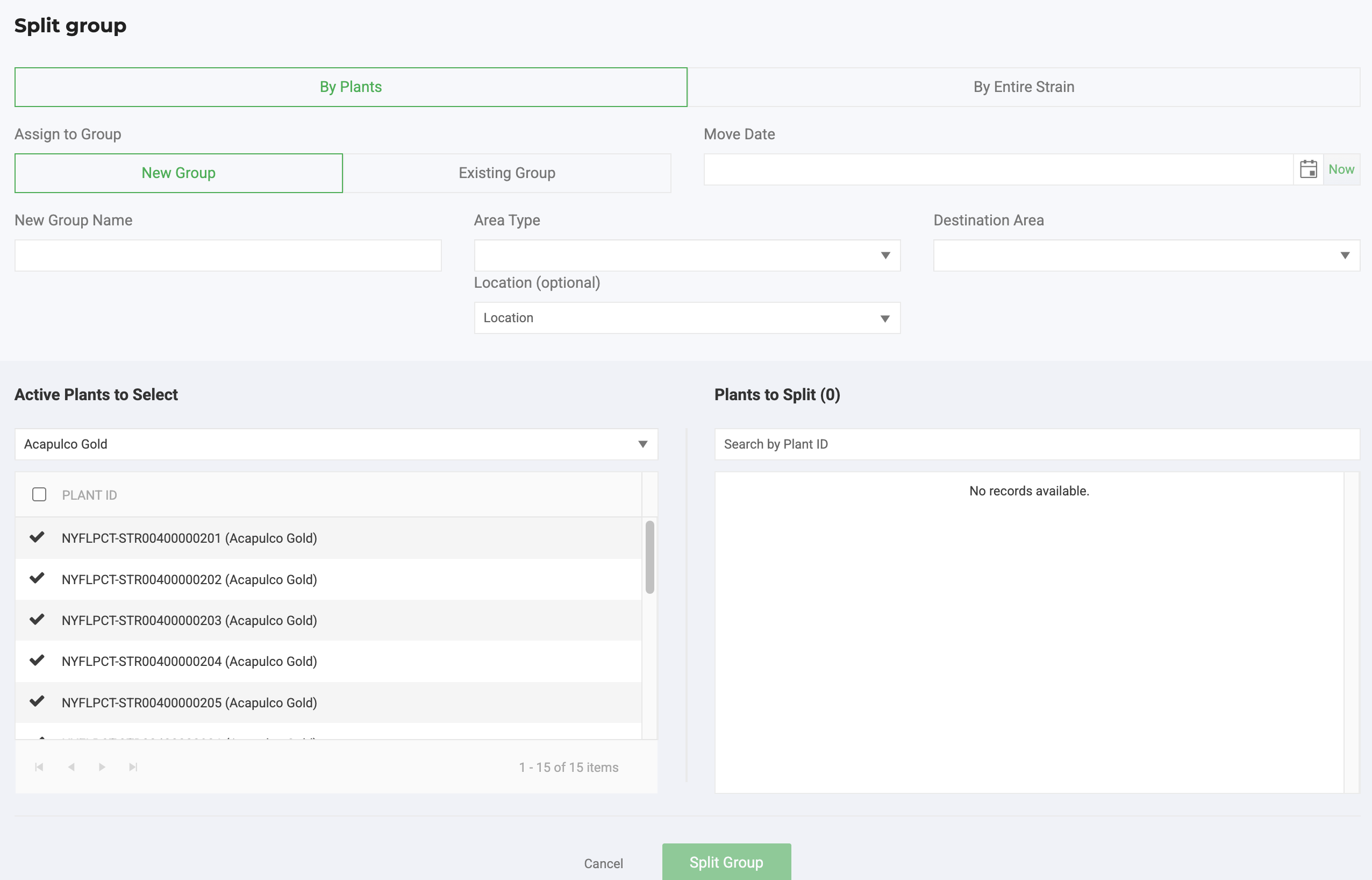
Use this method to choose specific plants.
- On the Split Group screen, select By Plants.
- Select New Group or Existing Group, then enter a name or select the group.
- Set the Move Date.
- Select the Area Type and Destination Area.
- Select plants from the Active Plants list. The plants you select appear in the Plants to Split panel.
- Click Split Group.
Flourish shows a success message when the split is complete.
Metrc facilities: splits and moves sync to Metrc. If a split doesn't sync, see Retry Syncing Out-of-Sync Plants to Metrc.
How did we do?
Change the Strain on Plants or a Group
Splitting Immature Plant Groups
