Print or Reprint Plant Tags
Print or reprint plant tags for groups at any development phase. Configure your plant label first, ensure QZ Tray is connected, then select your group or plants and click Print.
Print tags for a group of plants, or reprint tags to replace damaged or missing ones. You can print from a group or from a list of selected plants in the Vegetation or Flowering stage.
Before You Start
- Your plant label template must be set up. Contact your Flourish administrator if it isn't.
- QZ Tray must be installed and connected. See Install QZ Tray.
Metrc facilities: printing in Flourish creates a label for the plant. To replace the Metrc tag assigned to a plant, see Metrc: Replace Tag for Plants and Plant Batches.
Print Tags for a Group
- Click Grow.
- Click Vegetation > Veg Groups or Flowering > Flowering Groups.
- Select the group.
- Click the printer icon.
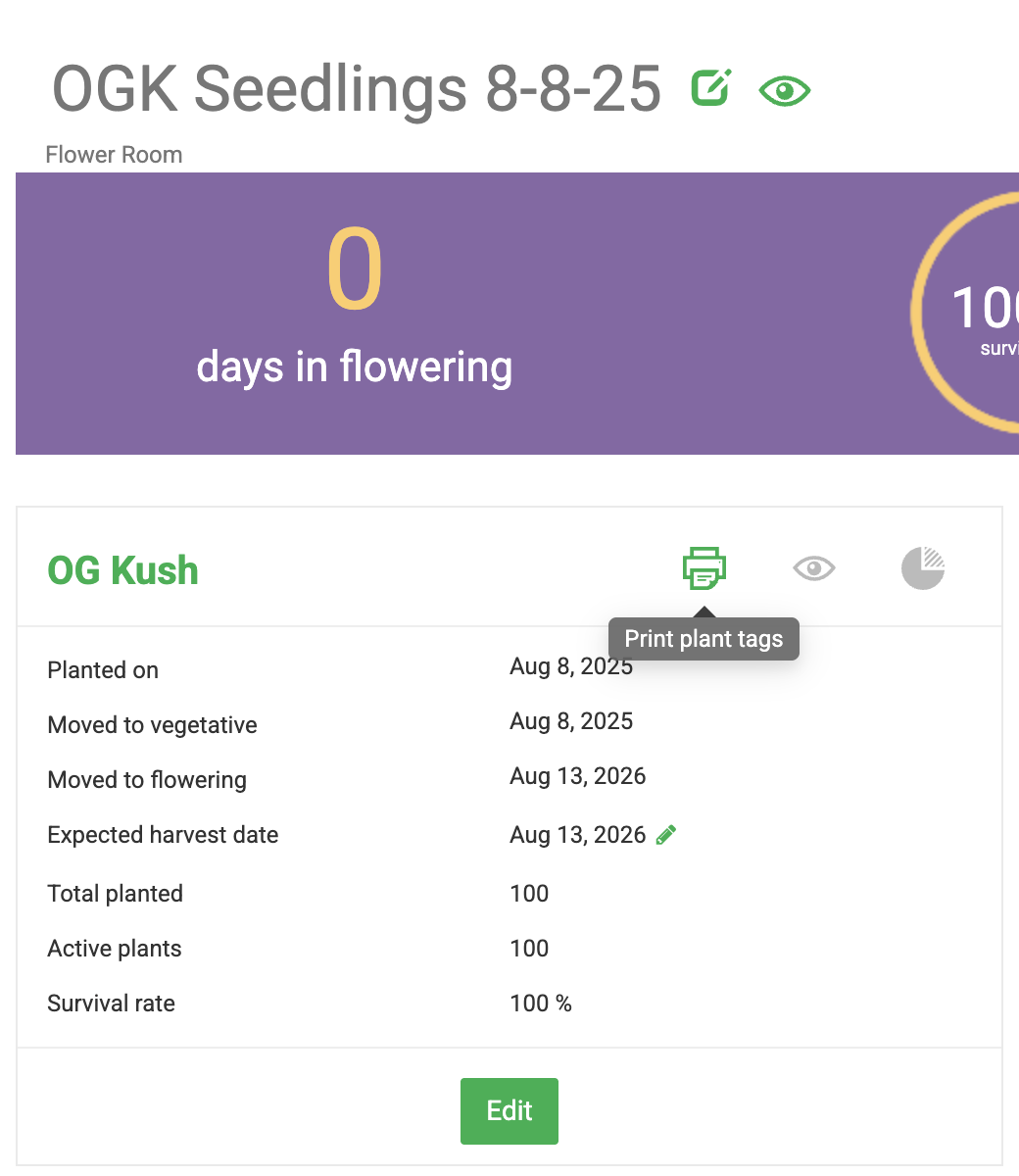
- Review the Plant IDs. Click the x next to a Plant ID to leave it out of the print job.
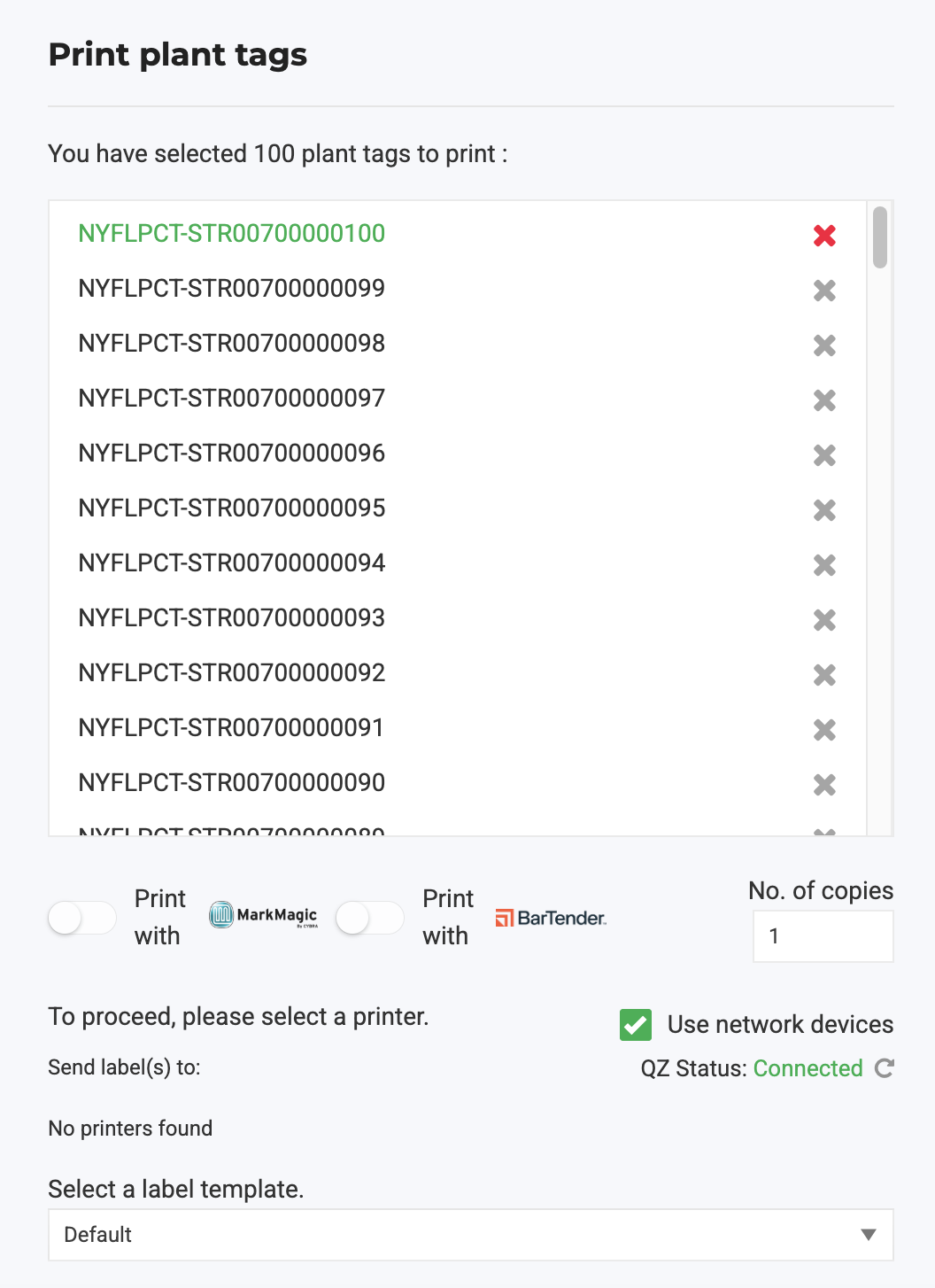
- Choose your print option (MarkMagic or BarTender), if shown.
- Click Print.
Print Tags for Selected Plants
- Click Grow.
- Click Vegetation > Plants in Vegetation or Flowering > Flowering Plants.
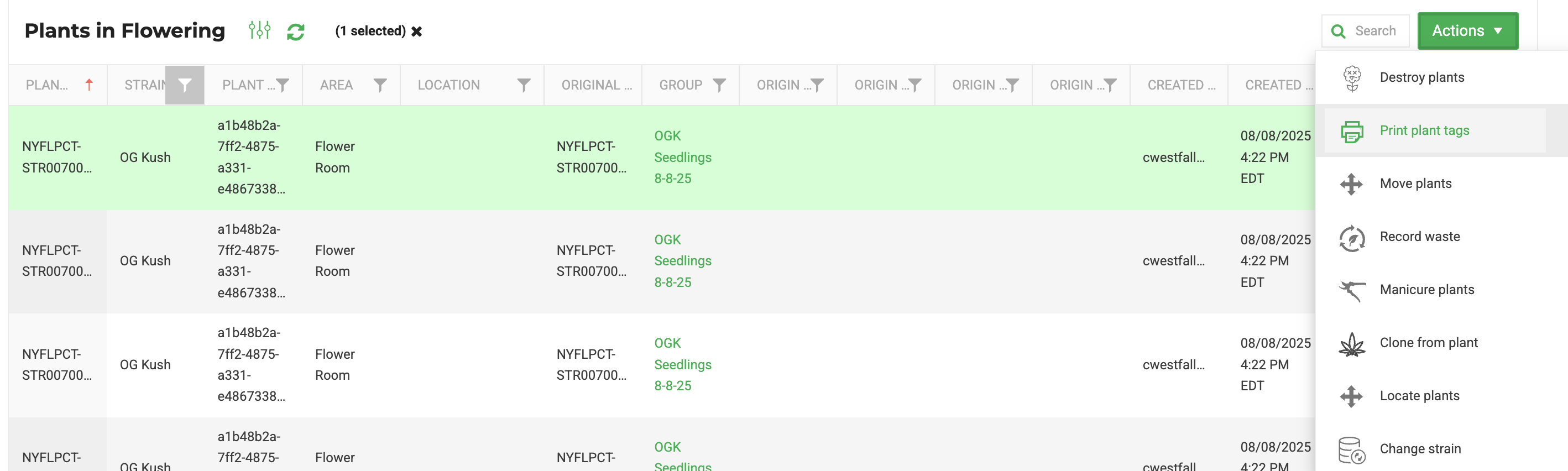
- Select the plants you want to print tags for.
- Click Actions > Print Plant Tags.
- Review the Plant IDs.
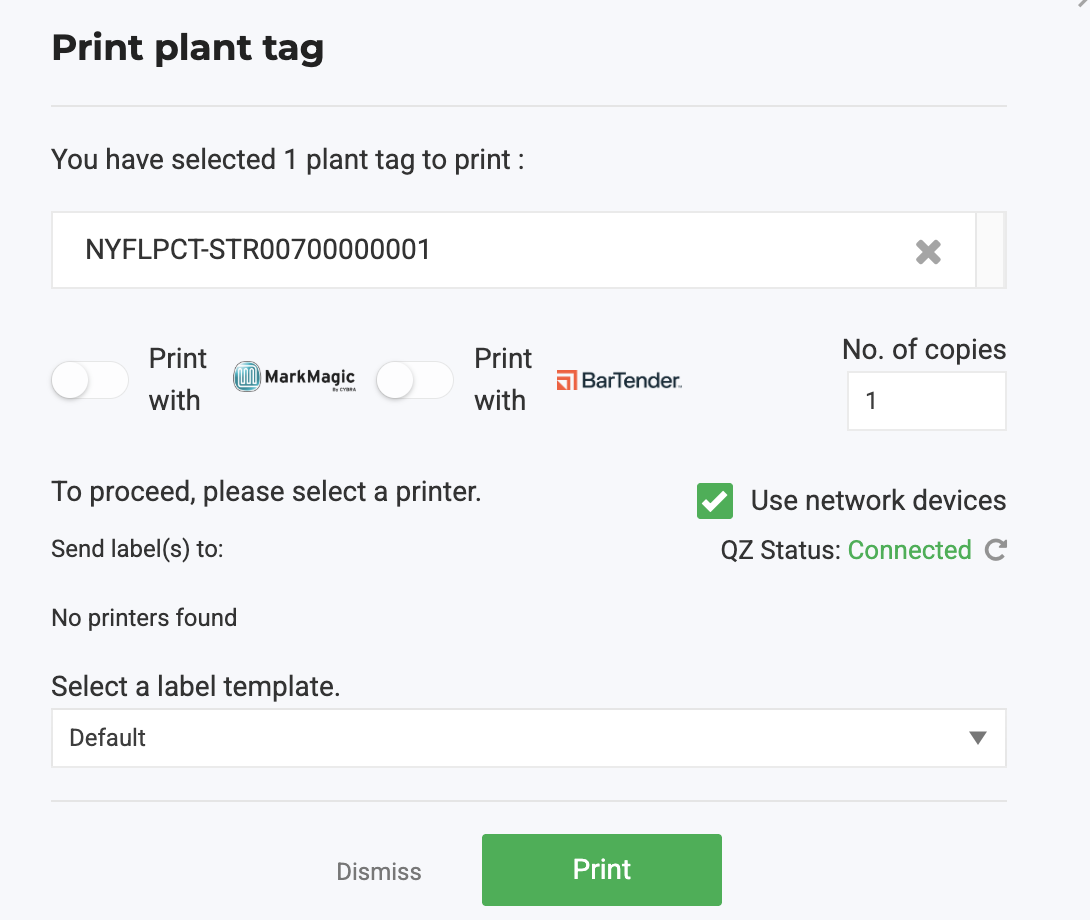
- Choose your print option (MarkMagic or BarTender), if shown.
- Click Print.
How did we do?
Revive Destroyed Plants (Non-Integrated Facilities)
Edit Expected Flower/Harvest Date on the Group View
