Enter Beginning Float and Open a Till in Flourish
Before you can accept payment at a register, you will need to open its corresponding Flourish till. In the Flourish web app, click Retail > Tills > Manage Tills. Locate the till you need to open. In…
Enter a Beginning Float and Open a Till
Purpose
Opening a till records the starting cash amount for a shift and makes the till available for checkout in Retail POS. Entering an accurate beginning float lets Flourish track cash accurately throughout the shift and flag variances early.
Before You Open a Till
Count the physical cash that will start the shift. Do not rely on the expected amount alone.
Open a Till
- In Flourish Web, go to Retail > Tills > Manage Tills.
- Find the till you want to open.
- On the till card, select Closed > Open Till.
- Enter the counted amount in Beginning Float.
- Review the expected amount and any variance message that appears.
- Select Open Till.
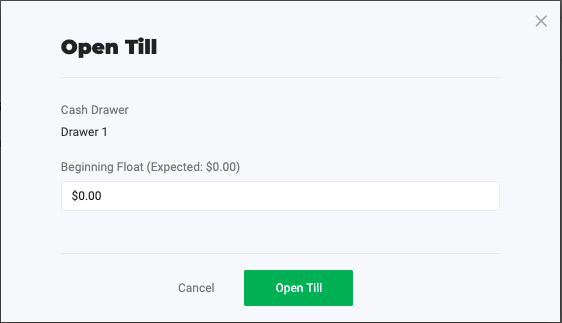
The till now appears in the till selector during Retail POS checkout.
Resolve a Float Variance
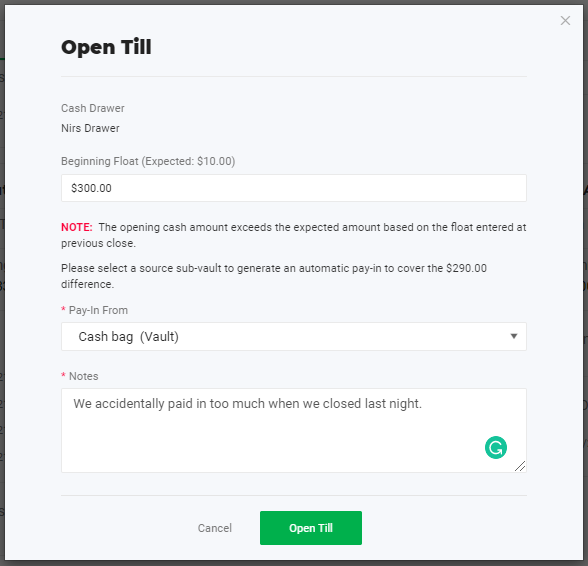
If the beginning float doesn't match the expected amount, recount the physical cash first.
- If the beginning float is greater than expected, Flourish may prompt you to select a source sub-vault for a pay-in.
- If the beginning float is less than expected, Flourish may require a variance reason and note.
Choose the source or reason that reflects what actually happened. A variance reason records the difference but does not identify its cause.
Troubleshoot a Till That Won't Open
Confirm the following:
- The till is enabled.
- The till is currently closed.
- The till is assigned to the correct facility.
- The till is available to your role.
- Any required retail reasons and sub-vaults are configured.
Related Articles
How did we do?
Counting a Vault
Reconciling E-Payments
