Manage Customer Documents
Add, review, edit, and delete customer ID and medical card documents from the Documents card on a retail customer profile, and see document status in Retail POS.
Purpose
Store a customer's ID, medical card, and supporting documents on their retail profile. The Documents card summarizes the status of every document so staff can spot an expired or missing document at a glance. Document expiration is informational. It does not block a sale.
Prerequisites
- The user role has Update permission for Customer Profiles. Adding, editing, removing, and deleting documents all use this permission. See Creating a Customer Profile.
- A saved customer profile. Documents are added after the profile exists.
- Files in PNG, JPG, JPEG, or PDF format, 10 MB maximum each. [VERIFY: confirm file types and size limit still apply to the new upload flow]
Document Types and Required Fields
Flourish requires different fields depending on the document type. A required field is marked with an asterisk in the Add Document window.
Document Type | State required | Expiration required |
Driver's License | Yes | Yes |
Passport | No | Yes |
Permanent Resident | No | Yes |
Medical Card | Yes | Yes |
Veteran Documentation | No | No |
SNAP Documentation | No | No |
Other | No | No |
State is not required for a passport or permanent resident card because they are federal documents. You can still enter State and Expiration on any document that does not require them.
Read the Documents Card
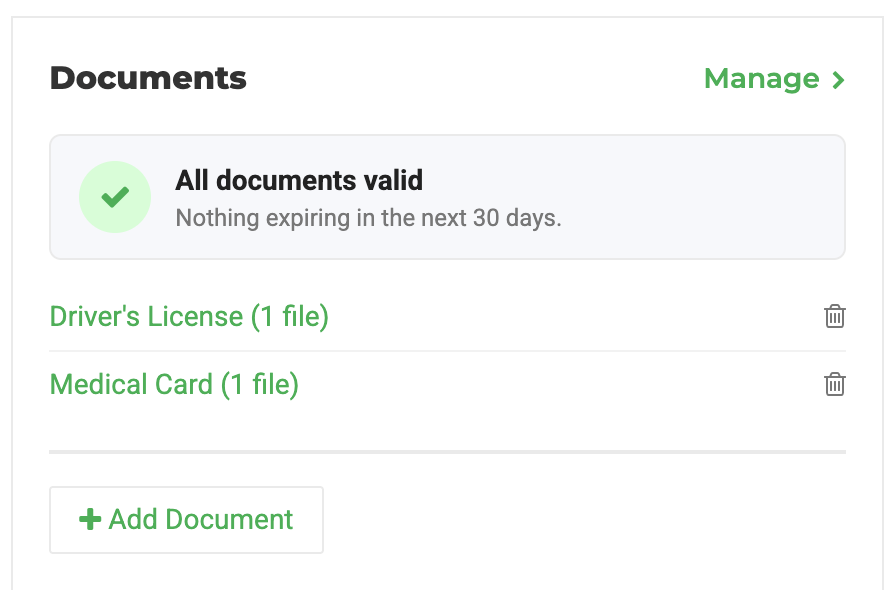
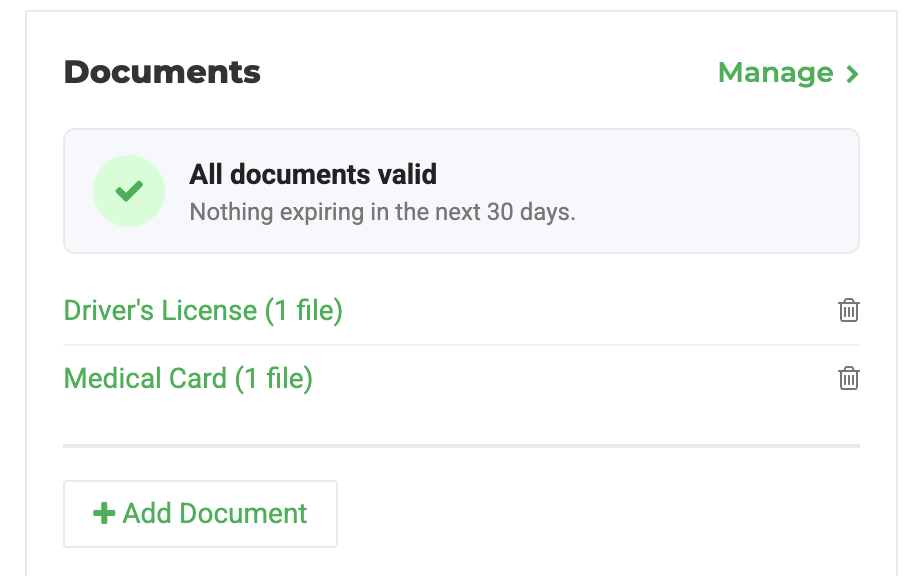
The Documents card on the customer profile starts with a summary line:
- No documents yet
- Document(s) expired
- Document(s) need attention
- All documents valid
Below the summary, each row shows the document type and the number of files. A status chip appears only when the document is not Valid or On file.
Each document has one of these statuses:
Status | Meaning |
Expired | The expiration date is before today. A document that expires today is still valid. |
Expires in 30 days | The expiration date is within the next 30 days. |
Valid | The expiration date is more than 30 days away. |
On file | The document has no expiration date. |
Add a Document
- Open the customer profile.
- On the Documents card, click Add Document.
- Select the Document Type.
- Enter the State and Expiration Date. Fields marked with an asterisk are required for that type.
- Add the file. Click the + icon to choose a file from your device.
- Click Save.
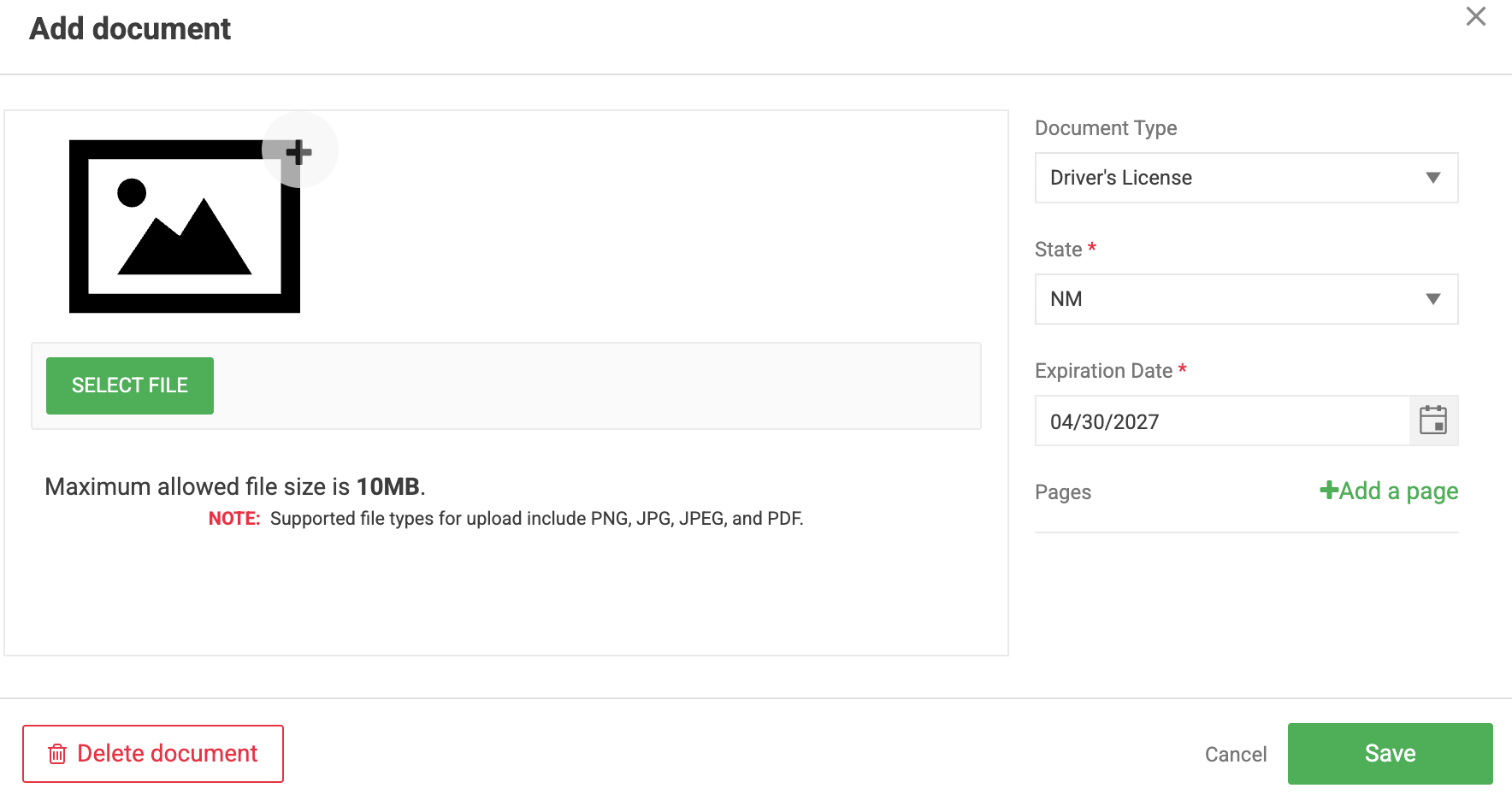
You can also click Manage on the card, then use Add document in the header or drop a file into the drop zone under the list. Both open the same window. Flourish asks for the type, state, and expiration first, then the file.
Review or Edit a Document
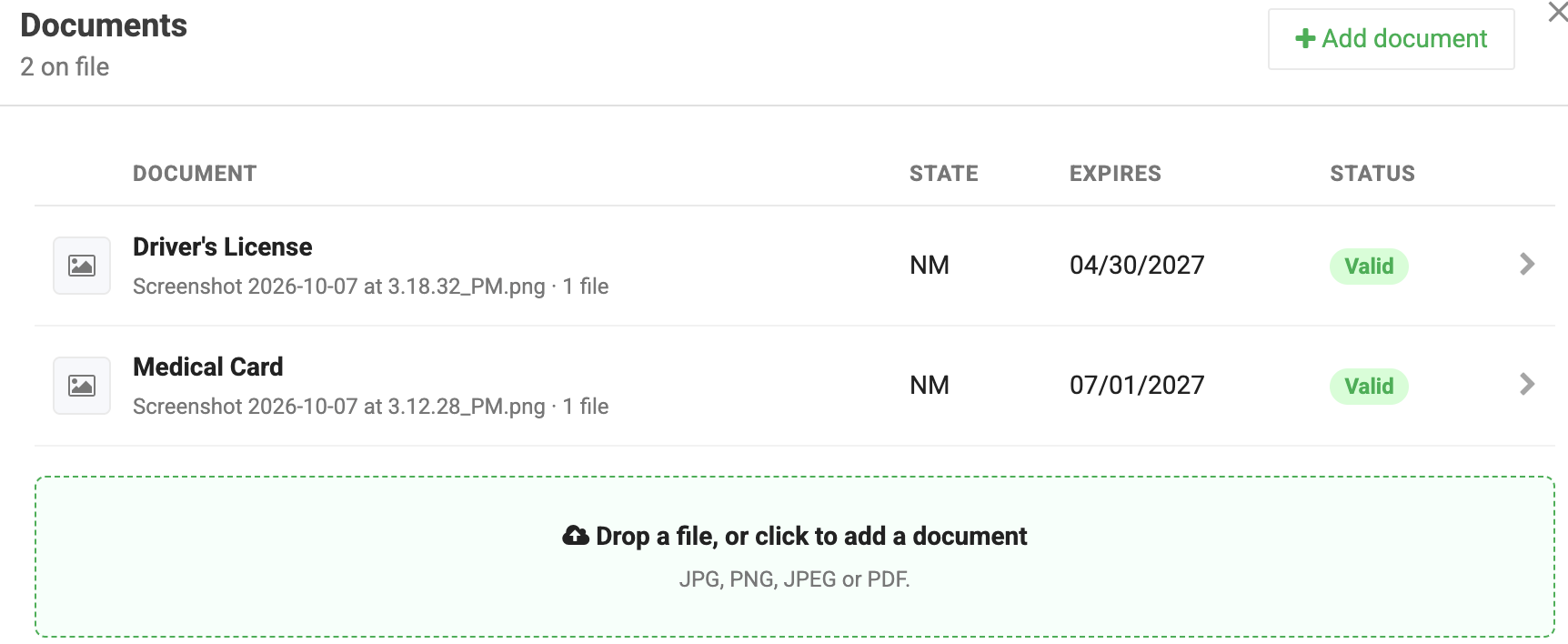
- On the Documents card, click Manage.
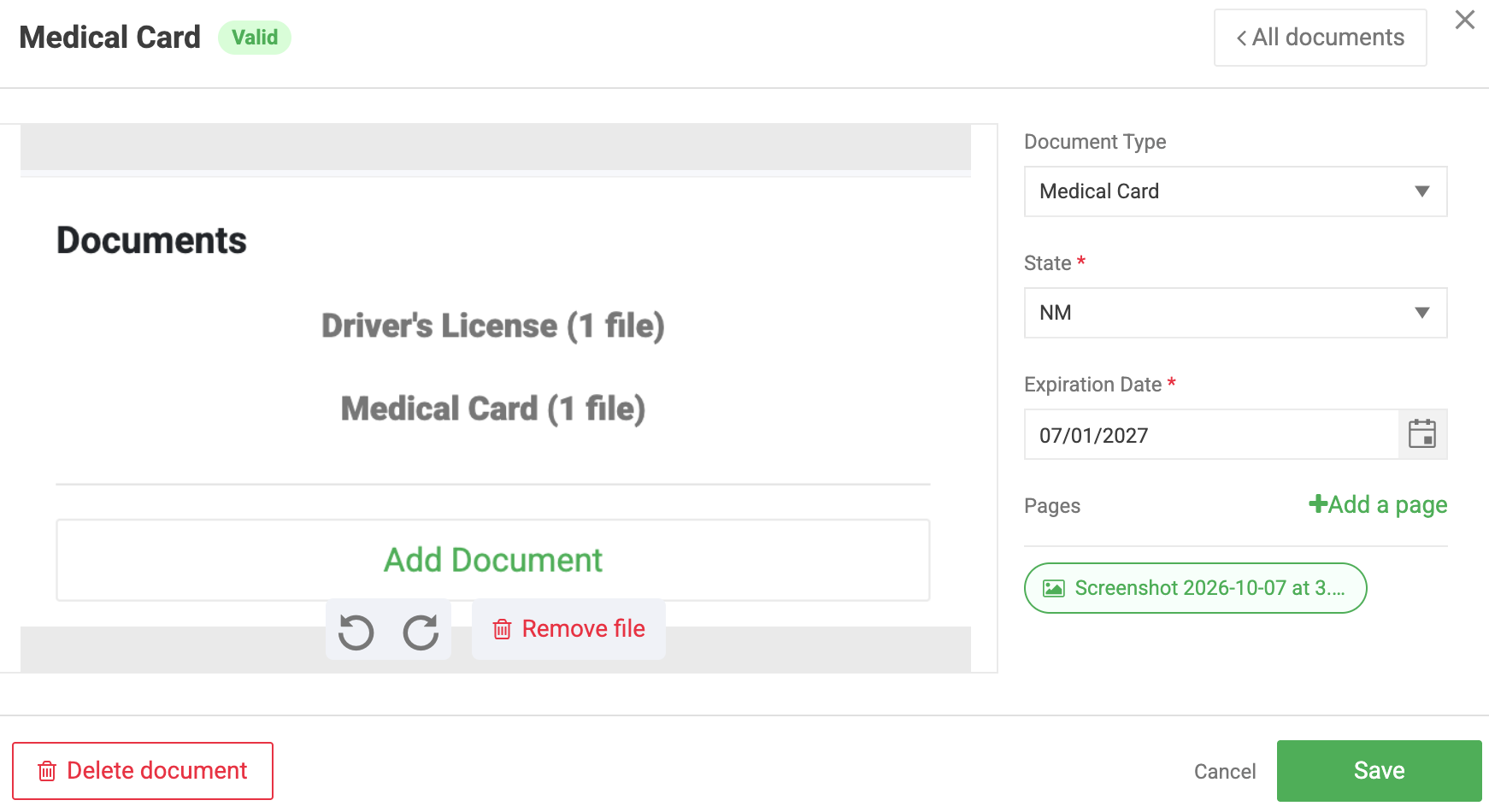
- Review the list. Each row shows the Document (type, file name, and page count), State, Expires, and Status.
- Click a row to open the document.
- Update the type, state, or expiration date, or add or remove files. PDF files preview inline.
- Click Save.
- Click All documents to return to the list.
Remove a File From a Document
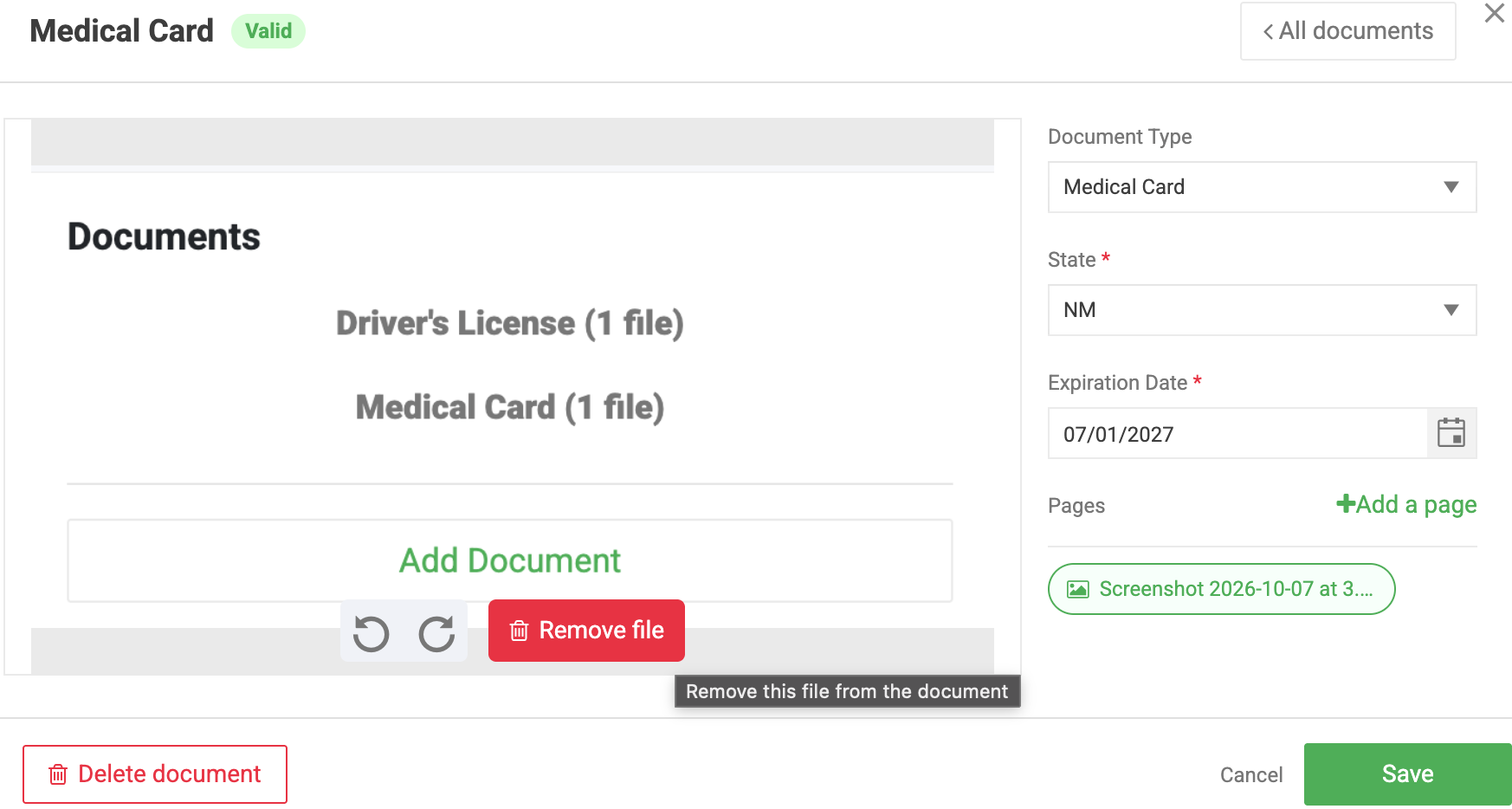
Use this when a photo is wrong or unreadable but the document record should stay.
- Open the document from Manage.
- Select the file, then click Remove file.
- Confirm the removal.
Delete a Document
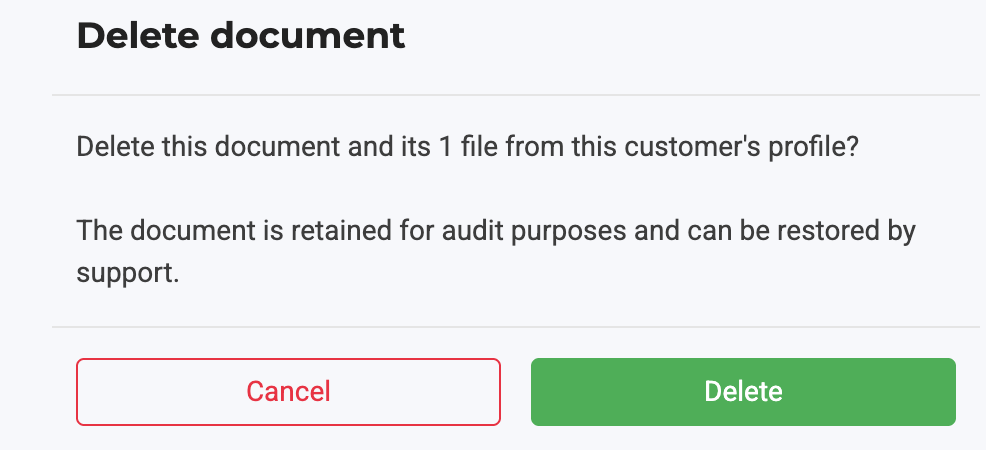
Delete a document to remove it and all of its files from the customer's profile.
- On the Documents card, click the trash icon on the document's row. Or open the document from Manage and click Delete document in the lower left.
- Confirm the deletion.
Cancel an Upload
Click Cancel while adding a document. Flourish asks you to confirm. If you confirm, the document and everything you entered are discarded and nothing is added to the profile.
See Document Status in Retail POS
In Retail POS, Intake > Search Customers shows each customer's State ID number and expiration date, plus a document badge:
- DL covers Driver's License, Passport, and Permanent Resident documents.
- MED covers Medical Card documents.
An expired date shows in red. Veteran Documentation, SNAP Documentation, and Other do not show a badge, because they are not identity documents. Click a badge to open the customer's document. See Checking In a Customer.
Troubleshooting
If you see | Do this |
The Save button won't enable | Check the required fields for the document type in the table above. |
You can't delete a document or remove a file | Ask an administrator to turn on Update permission for Customer Profiles in your user role. |
A customer shows no DL badge after you added their passport or ID | Search for the customer again. If it still shows none on file, confirm the document type is Driver's License, Passport, or Permanent Resident. |
You deleted a document by mistake | Contact Flourish Support. Deleted documents are retained and can be restored. |
How did we do?
Adding a Physician
