Correct a Customer Record
Correct a Customer Record. Purpose. Choose the correction that matches the problem. Editing, merging, deleting, and replacing a customer on an order affect different records, so picking the right act…
Correct a Customer Record
Purpose
Choose the correction that matches the problem. Editing, merging, deleting, and replacing a customer on an order affect different records, so picking the right action keeps purchase history and compliance data accurate.
Choose an Action
Situation | Action |
The profile belongs to the correct person, but a field is wrong | Edit the existing profile |
Two profiles represent the same person and purchase history should be combined | Merge the profiles |
An open order is assigned to the wrong existing customer | Replace the customer on the order |
A profile should be permanently removed under your approved process | Flag and delete the profile |
Edit the Profile
- Open the customer's profile.
- Click the pencil icon to Edit the card that contains the incorrect information (Contact, Identity, Medical Card Info, Physician, Address, Documents or another supported card).
- Update the field.
- Save your changes by clicking the floppy disk icon.
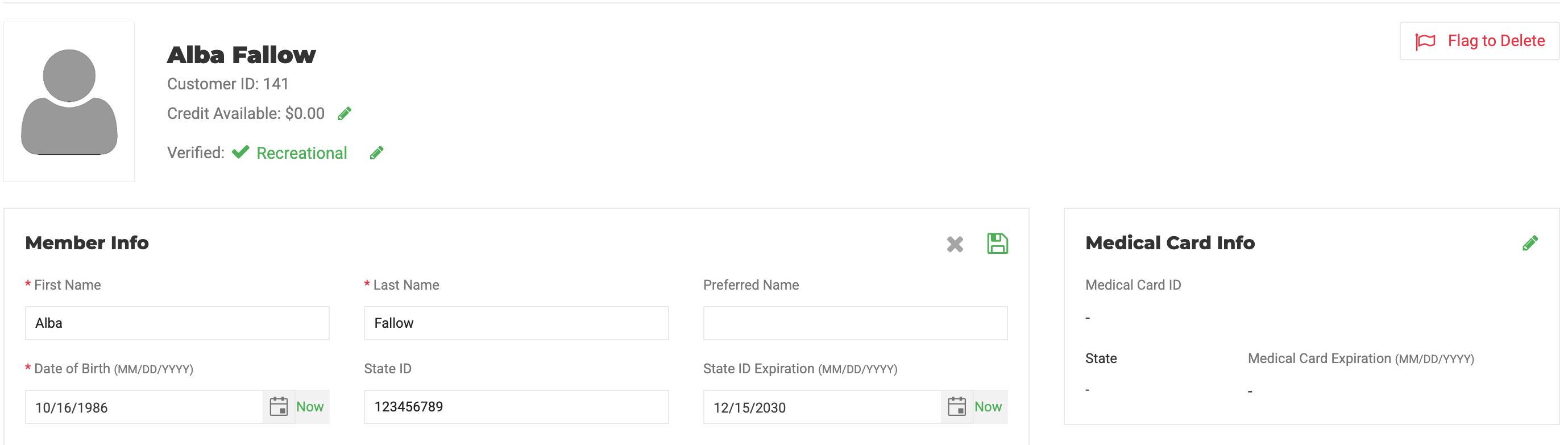
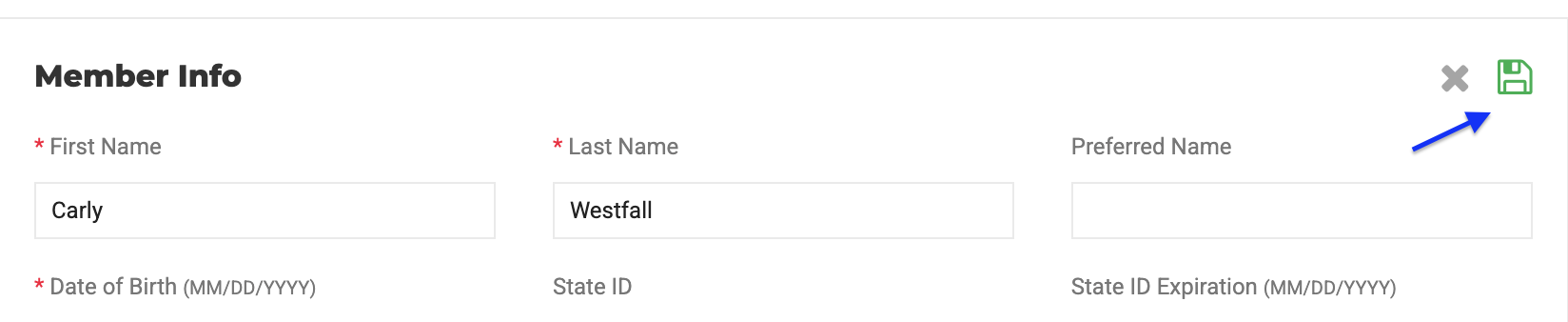
Check for duplicate profiles before changing unique identifiers such as Email or Registry ID.
Merge Duplicate Profiles
Merge when both profiles belong to the same person.
- Navigate to Retail > Customers > All Customers.
- Open the profile you want to keep.
- Click Merge Profiles.
- Select the duplicate profile from the dropdown.
- Click Merge.
Merging cannot be undone. Orders from the retired profile reassociate to the profile you kept. This action requires the Merge Customer Profiles permission under Retail > Customers in User Roles.
Replace the Customer on an Order
Use Replace Customer when the order is wrong but both customer profiles are valid.
- Navigate to Retail and open the purchase.
- Click Edit Purchase.
- Click Replace Customer.
- Search for the correct customer by name, email, or phone number.
- Confirm the replacement.
This workflow supports orders in Created or Submitted status, not Packed orders. It requires the Change the customer associated with an order permission in Retail Purchases (Web App) or Shop Cart (POS) action settings. Cannabis purchases still require customer verification after the replacement.
Change the customer on a retail purchase
Delete a Profile
Deletion is a two-stage process.
- Confirm you have the required permission in User Roles.
- Open the customer's profile in Flourish Web or the POS.
- Click Flag to Delete.
- In Flourish Web, open the flagged profile.
- Click Confirm.
Do not delete a duplicate when the purchase history should be preserved through a merge instead.
Before You Confirm
Review the following before you finalize any correction:
- Legal name
- Date of birth
- Customer ID
- Contact details
- State ID
- State Registry ID
- Purchase history
- Loyalty ID
- Open orders
Related Articles
How did we do?
Point of Sale Cash Drawer Configuration
Retail - Show Tax Breakdown by Type on Retail Sales Receipt
