Share Marketing Assets with Your Buyers (Sellers)
Upload price lists, sell sheets, brand kits, and product photos to your Buyer Portal so wholesale buyers can download them from the Resources page.
Marketing assets let you share files with your Buyer Portal buyers: price lists, sell sheets, brand kits, product photos, and display materials. Buyers download them from a Resources page in the portal, so they always get your current version rather than an outdated email attachment or a stale drive link.
Prerequisites
- The Ecommerce permission on your Flourish role.
- A published menu with invited buyers. See Set Up Your Flourish Buyer Portal.
Asset types and file rules
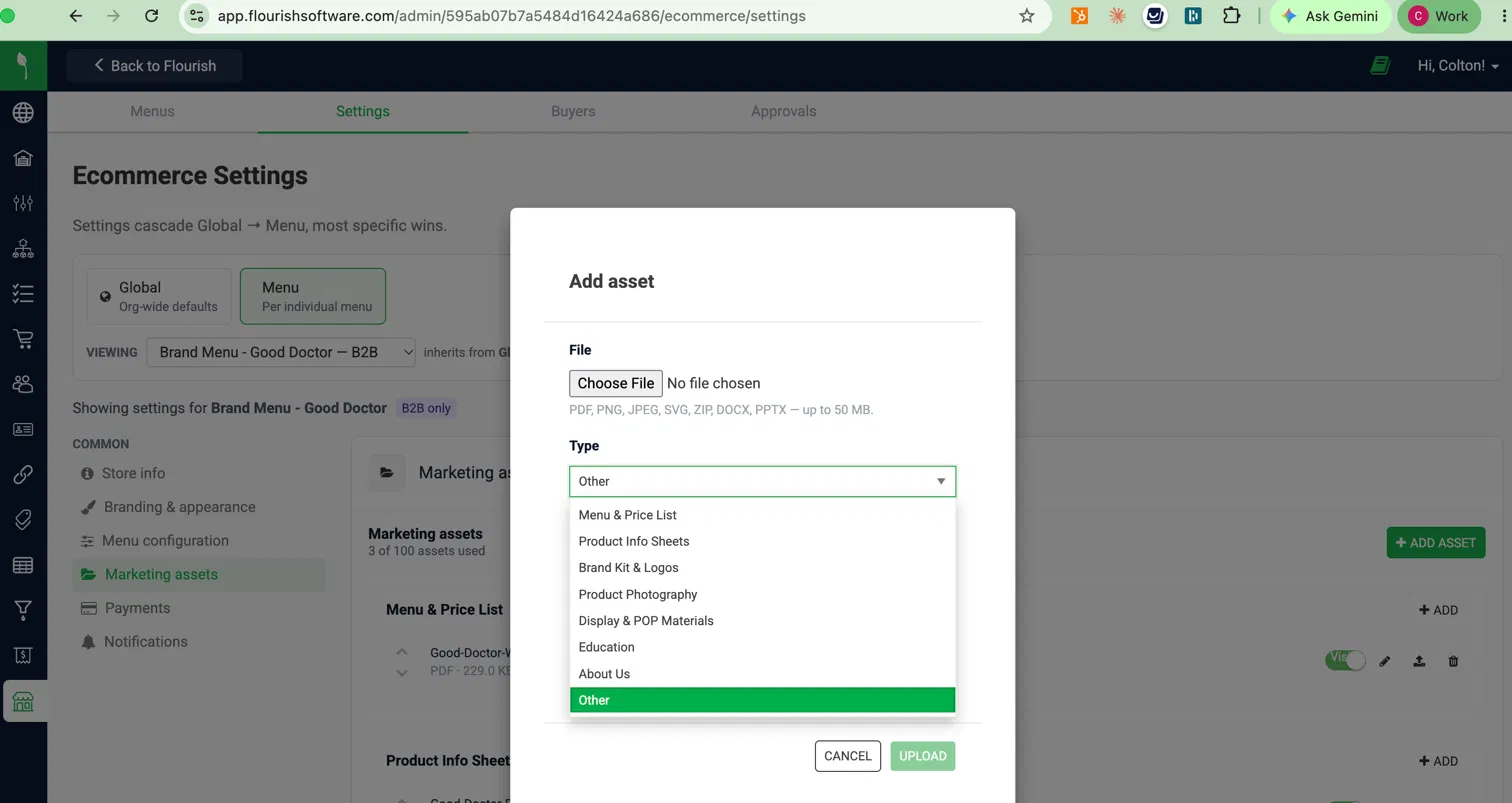
Every asset needs a type. Buyers see assets grouped by type, in this order:
Type | Use it for |
Menu & Price List | Your current wholesale menu or price sheet |
Product Info Sheets | Sell sheets and product one-pagers |
Brand Kit & Logos | Logos and brand guidelines for retailer use |
Product Photography | Product images for menus and websites |
Display & POP Materials | Shelf talkers, posters, and in-store displays |
Education | Budtender training and product education |
About Us | Company story and brand background |
Other | Anything that doesn't fit above |
- File types: PDF, PNG, JPEG, SVG, ZIP, DOCX, and PPTX.
- Size: up to 50 MB per file.
- Limit: 100 active assets. The counter at the top of the page shows how many you've used.
- Password-protected or encrypted files (including encrypted ZIPs) can't be scanned. Upload them without a password.
Add an asset
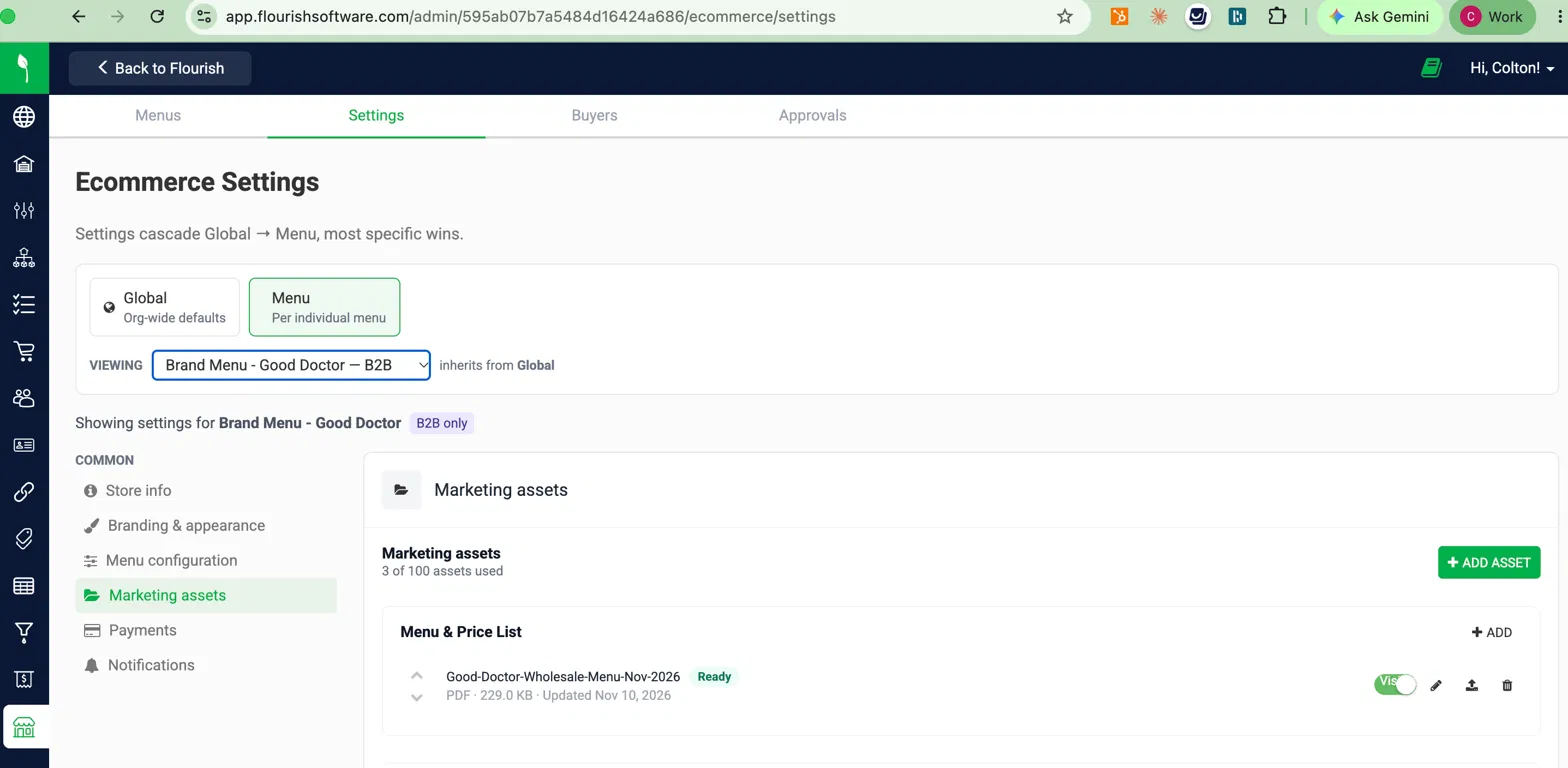
- Go to Settings > Ecommerce > Settings.
- Select the Menu scope and choose your menu from the Viewing dropdown.
- Select Marketing assets.
- Click Add Asset. To add straight into a type, click Add in that type's section instead.
- Click Choose File and select your file.
- Select a Type.
- Enter a display name and an optional description. Buyers see both.
- Click Upload.
The asset shows Scanning…, then Ready, usually within a few minutes. Once it's Ready and visible, buyers can download it.
Manage your assets
To | Do this |
Change the order | Use the up and down arrows next to the asset. Assets reorder within their type. |
Hide or show | Turn the Visible toggle off or on. A hidden asset disappears from buyers right away. |
Rename or edit the description | Click the pencil icon. |
Replace the file | Click the upload icon and choose the new file. Buyers keep getting the previous version until the new one is Ready. |
Delete | Click the trash icon and confirm. The asset disappears from buyers right away. |
Asset statuses
Status | What it means |
Scanning… | The file is being checked for malware. Buyers can't see it yet. |
Ready | The file passed the scan. Buyers can see it if it's visible. |
Blocked: failed security scan | The scan found a threat. The file is never shown to buyers. Delete it and upload a clean copy. |
Couldn't be scanned — re-upload without a password | The file is password-protected or encrypted. Remove the password and upload it again. |
Hidden | You turned off Visible. Buyers can't see it. |
What your buyers see
Once at least one asset is visible and Ready, a Resources link appears in the Buyer Portal navigation. The page groups your assets by type, in your order, and shows each one's name, description, file type, size, and updated date.
Buyers click Download to save a file. PDFs and images can also be previewed in the browser. Each download link is valid for only a few minutes, so buyers should return to Resources rather than share the link.
Troubleshooting
If you see | Do this |
Buyers don't see Resources | Check that at least one asset is Ready and its Visible toggle is on. |
An asset has shown Scanning… for more than 15 minutes | Contact Flourish Support. Buyers won't see the file until the scan finishes. |
Your file is rejected at upload | Check the file type and size against Asset types and file rules, and that you're under 100 active assets. |
Buyers say a download link stopped working | Links expire after a few minutes. Have them click Download again on the Resources page. |
How did we do?
Manage Your Buyer Portal Team and Locations (Buyers)
