List Items on Your Buyer Portal Menu (Sellers)
Make items eligible for your Buyer Portal menu, list or hide them, choose live, declared, or always-available quantities, add product photos, and set case ordering and pricing.
Control which items buyers see, how much they can order, and how a buyer orders each item.
Item status
Every item on your menu's Items tab has one of three statuses. The status answers one question: can buyers see this item on this menu?
Status | What it means |
Listed | Buyers can see and order the item. |
Unlisted | The item is on your grid, but buyers can't see it. New items start here. |
Hidden | You've set the item aside. It's out of your default view but you can still filter to it. Buyers can't see it. |
Make an item eligible
An item appears on the Items tab only when all of these are true:
- The item is active.
- The item is sellable.
- The item is E-Commerce Active.
- The item's unit of measure is Each. Weight-based items, such as bulk flower sold by the gram, are not displayed on the Order by Case/Each menu.
An item that appears on the grid can be listed only when:
- It has an Ecommerce Category and Ecommerce Sub-Category.
- It has an active price.
- It isn't excluded by the facility's item tag rules.
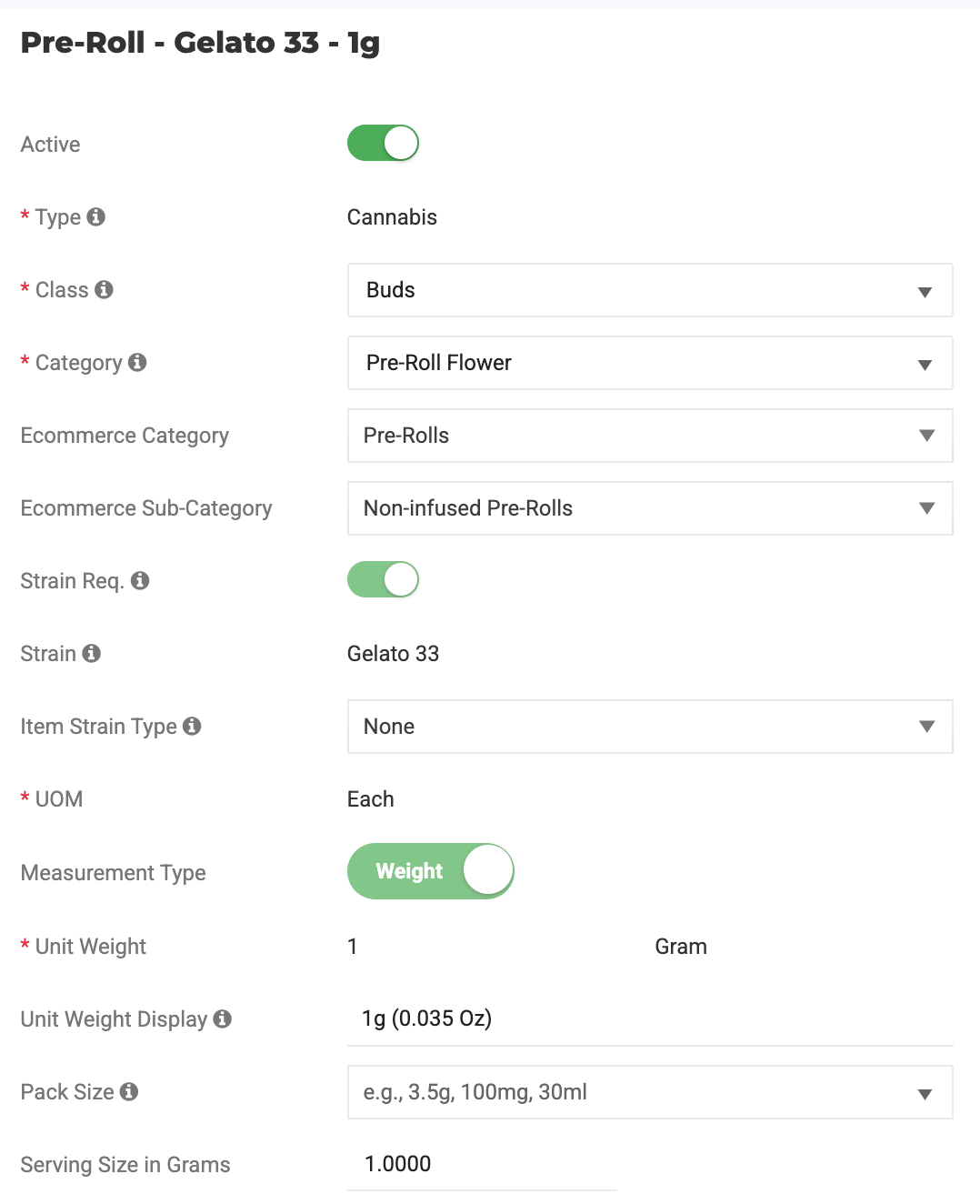
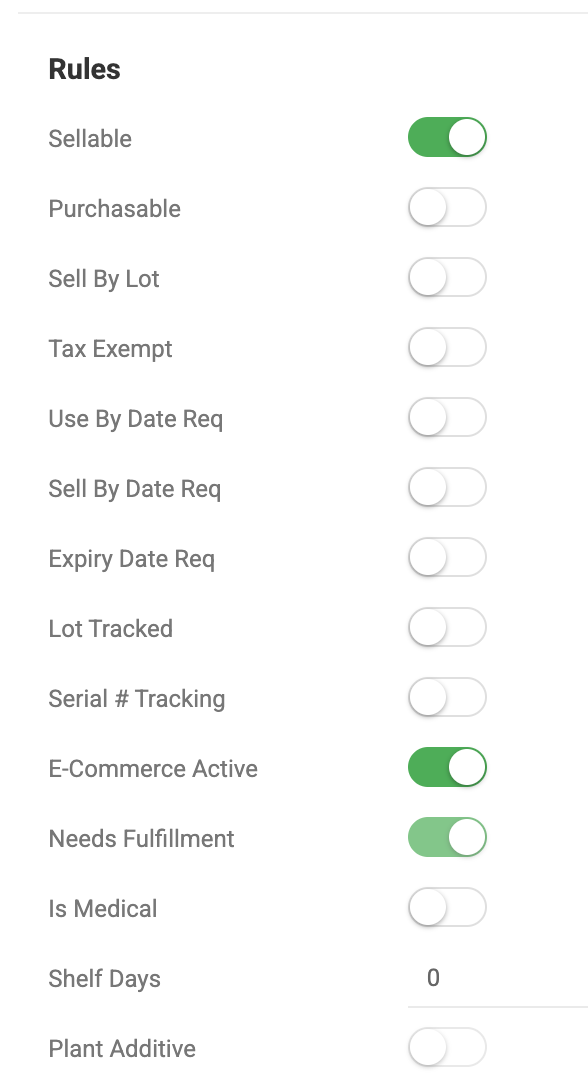
Items that can't be listed are greyed out. Hover over the warning icon to see why, for example a missing e-commerce category or no active price.
Being out of stock doesn't stop an item from being listed. A listed item with nothing available follows the menu's Hide out-of-stock items setting and returns to the storefront on its own when stock comes back. See Configure Buyer Portal Menu Settings.
Non-cannabis items, such as accessories and supplies, follow the same rules. If a non-cannabis item doesn't show up, check its e-commerce category and sub-category first.
To edit these fields, go to Settings > Inventory > All items and open the item. Buyers see the item's Ecommerce Item name if one is set. Otherwise, they see the item name.
List items on the menu
- Go to Settings > Ecommerce and open your menu.
- Select the Items tab. It opens on Listed + Unlisted.
- Use the filters to narrow the grid. Brand, E-com category, E-com sub-category, Class, and Category each let you check several values.
- Select the items you want. The header checkbox selects every eligible item in the current view and skips greyed-out items.
- Click List.
Within one filter, an item matching any checked value is shown. Across filters, an item must match all of them. For example, checking two brands and one category shows items from either brand in that category.
Bulk actions
Action | Result |
List | Buyers can see and order the item. |
Unlist | Removes the item from the storefront. It stays on your grid. |
Hide | Moves the item out of your default view. Works on items that have never been listed. |
Unhide | Returns a hidden item to Unlisted. List it again to show it to buyers. |
Feature / Remove featured | Featured items show first when buyers sort by Featured. |
To see a different set of items, use the status chips: Listed + Unlisted, Listed, Unlisted, Hidden, or All, including hidden. Turn on Featured only to narrow any of them to featured items. The count on the Items tab excludes hidden items.
To refresh the menu from Flourish right away, click Force resync.
What happens when items change in Flourish
Your menu syncs with Flourish automatically. Sync never lists, hides, or unhides an item. Only you do that.
- A new eligible item appears on the grid as Unlisted.
- If a listed item is made inactive, turned off for e-commerce, marked not sellable, or deleted, it leaves the grid and the storefront.
- If that item comes back, it returns as Unlisted. List it again when you're ready for buyers to see it.
Choose how availability is shown
Set the Availability column for each item:
Option | What buyers see | Use it when |
Live on-hand (default) | Your current available quantity in Flourish | You sell from finished inventory on the shelf. |
Declared quantity | The quantity you enter | You want to offer a set amount, such as an upcoming harvest or a limited allocation. The grid shows how much is committed and how much is left. |
Always available | An Available badge with no quantity | Supply is never the constraint, for example, items you can always produce. |
Buyers can't add more to their cart than the quantity shown. Quantities are held for a buyer while the item is in their cart.
Case and each ordering
Buyers order by the case using the item's default case configuration. To set it, go to Settings > Inventory > All items, open the item, and use the case configuration grid on Product Info. The Case Configs column on your menu shows what buyers can order, for example Each, Case of 12.
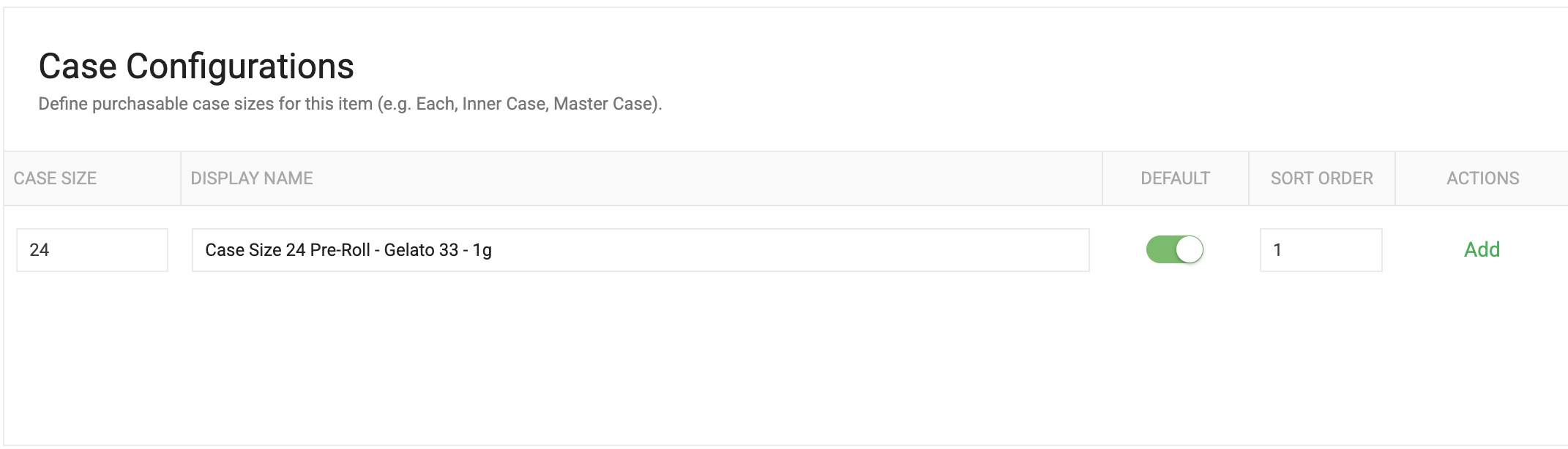
To show only items with a case configuration, turn on Case-only purchasing in the menu settings.
Add product photos
Photos are optional. Your menu works without them, and buyers see a placeholder instead. To show a photo, add it on the item's E-commerce tab.
- Go to Settings > Inventory > All items and open the item.
- Select the E-commerce tab and click Edit. [VERIFY: label of the edit button on the E-commerce tab]
- Scroll to Images and click an empty image slot.
- Click Select File, choose a PNG, JPG, or JPEG up to 10 MB, and click Upload.
- Click Save.
- On your menu, click Force resync to show the photo right away.
Each item holds up to three photos. Buyers see them in the order of the slots.
Pricing
Buyers see a price per unit. Case totals are the unit price multiplied by the case size.
Use outbound Price Sets to configure customer-specific pricing. Flourish uses the first of these that applies:
- The highest-priority active outbound price set mapped to that buyer location.
- Your universal outbound price set.
- The item's default wholesale price.
An active discount price replaces the base price. To give a buyer custom pricing, map a price set to their destination in Flourish.
Buyers see an estimated excise tax per location in their cart. Excise is calculated from your Flourish tax setup and each destination's excise settings.
How did we do?
Configure Buyer Portal Menu Settings (Sellers)
Sell Bulk by the Lot and Pack to Order (Sellers)
