Configure Buyer Portal Menu Settings (Sellers)
Set order minimums, cart hold times, out-of-stock display, grid columns, and inventory source facilities for your Buyer Portal menu.
Menu settings control the order rules and the display buyers get when they shop your menu.
Open menu settings
- Go to Settings > Ecommerce > Settings.
- Set the scope to Menu and select your menu. You can also open the menu and click Open in Ecommerce Settings.
- Open Menu configuration.
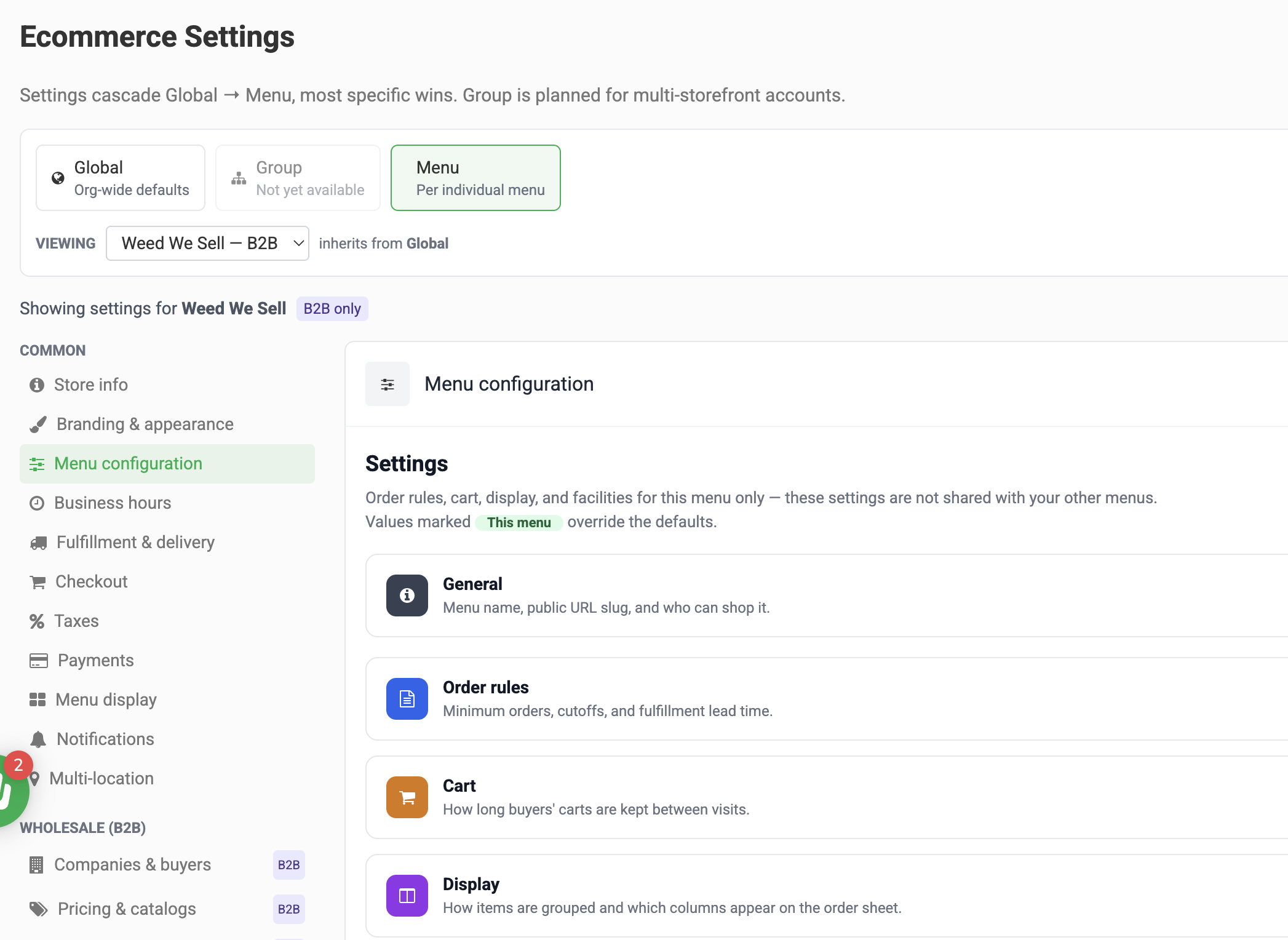
Settings cascade from Global to Menu, and the most specific one wins. Use Global for company-wide defaults and Menu for anything that applies to a single menu. The example above applies to a single menu.
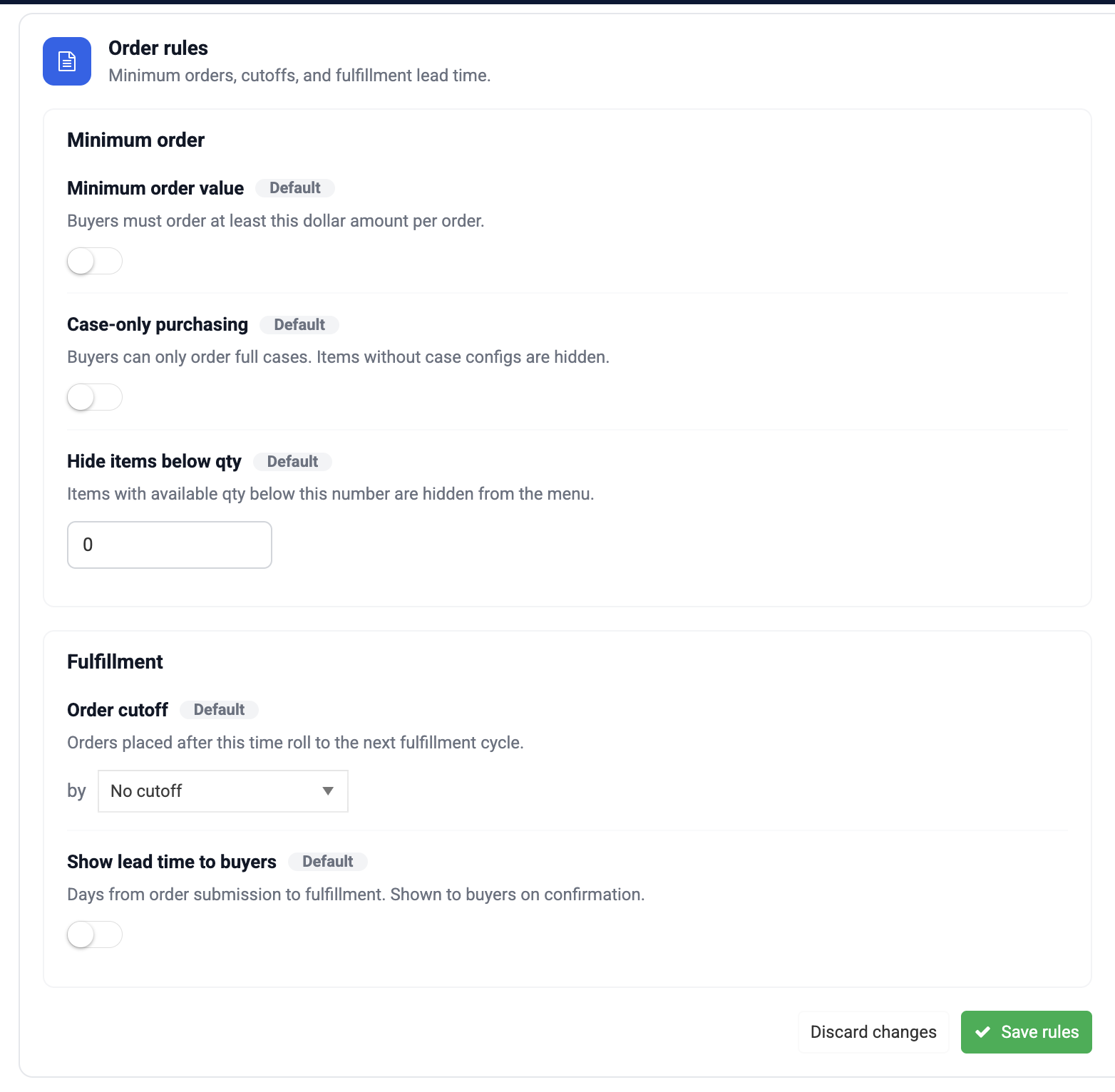
Order rules
Setting | What it does |
Minimum order value | Buyers can't submit an order below this amount. Their cart shows a warning until they meet the minimum. |
Case-only purchasing | Hides items without a case configuration. Removes "Each" as an order-by option. |
Hide items below qty | Hides items whose available quantity falls below the number you enter. |
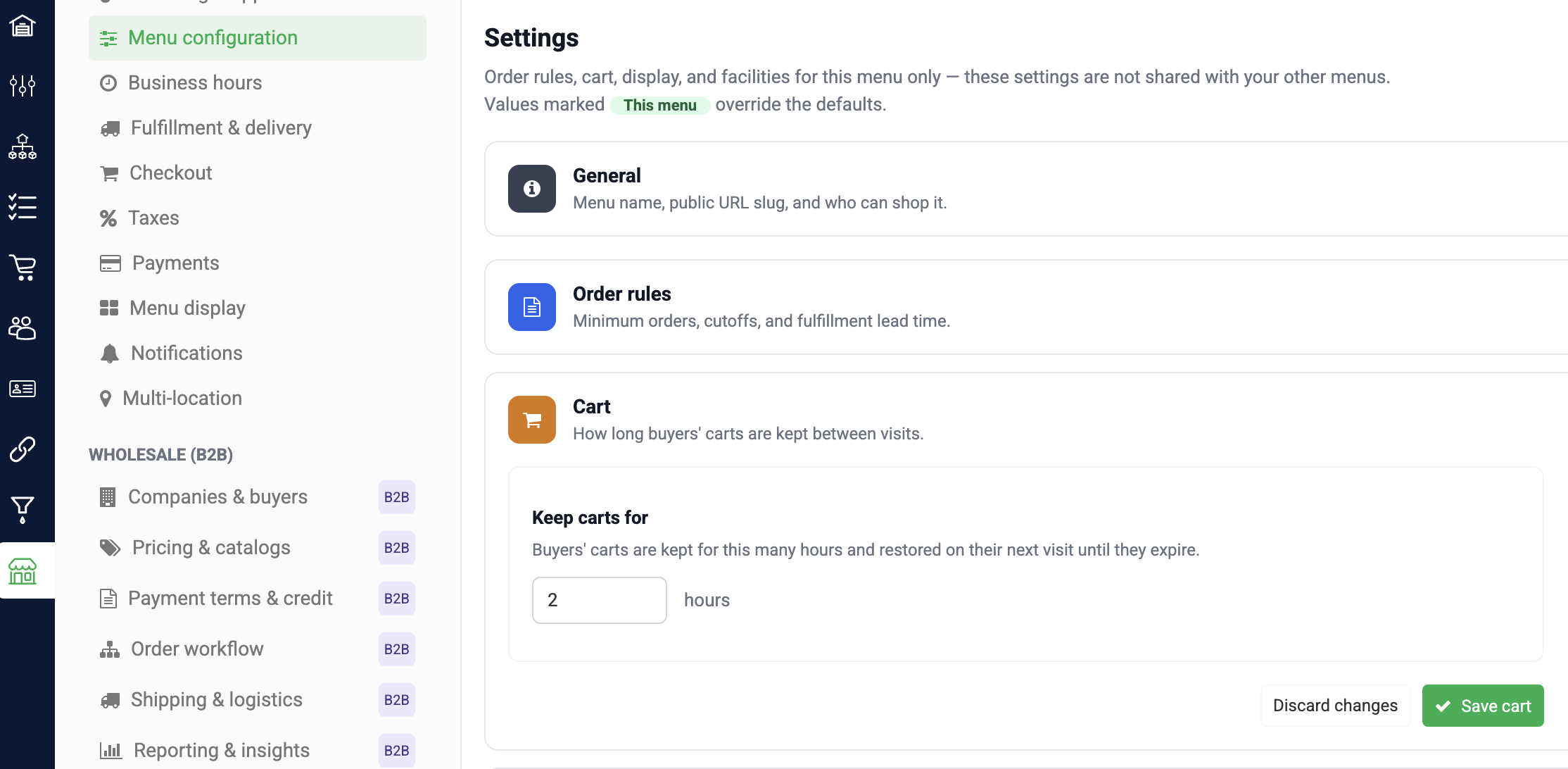
Cart
Save cart between visits sets how many hours a cart and the inventory it holds are kept after the buyer stops working on it. The default is 2 hours. Buyers get a warning before the cart expires. After it expires, the held inventory is released to other buyers.
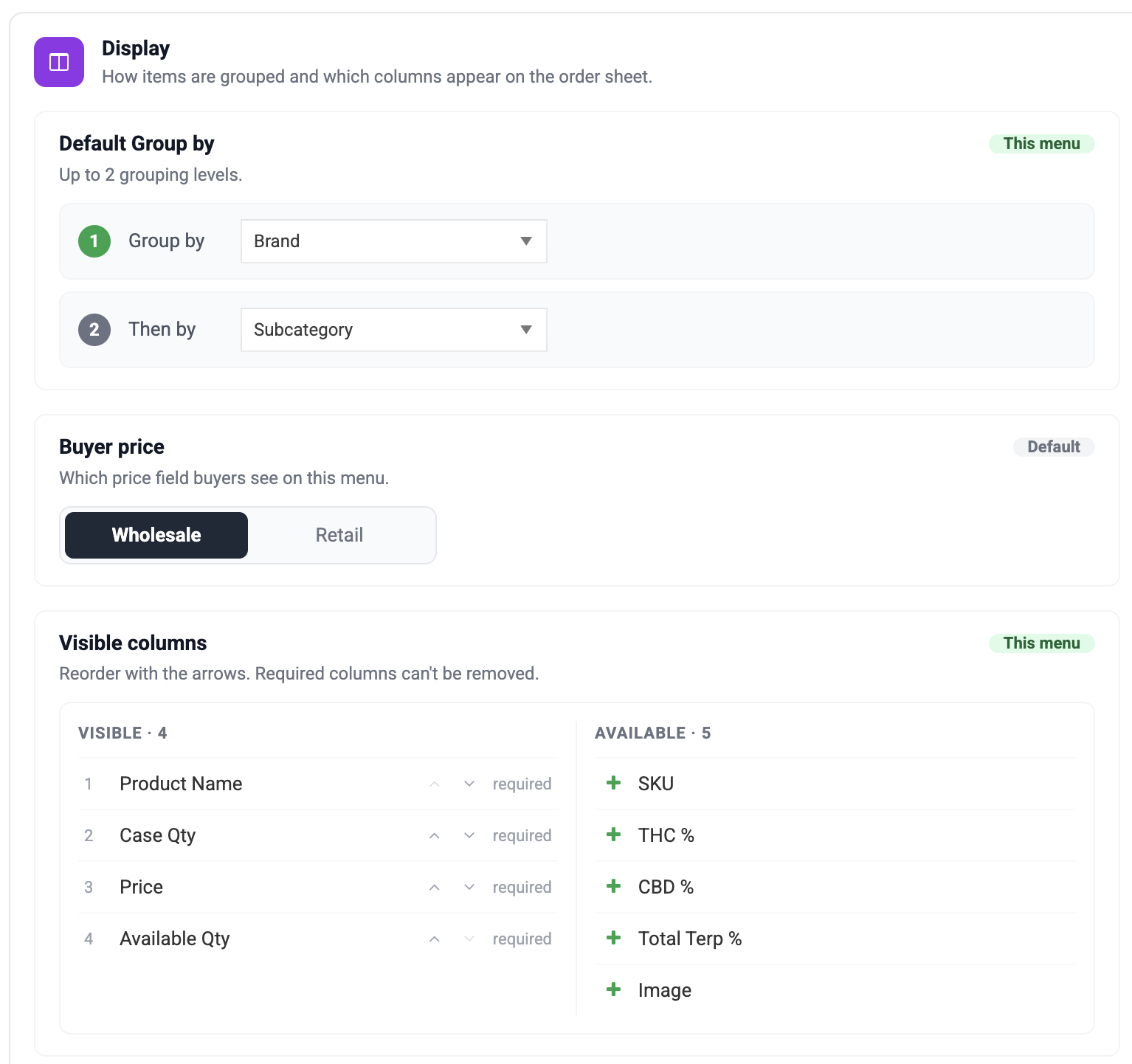
Display
Setting | What it does |
Default Group by / Then by | How the order grid is grouped when a buyer opens it, for example, by Brand and then by Category. Buyers can change the grouping. |
Visible columns | Columns on the order grid. |
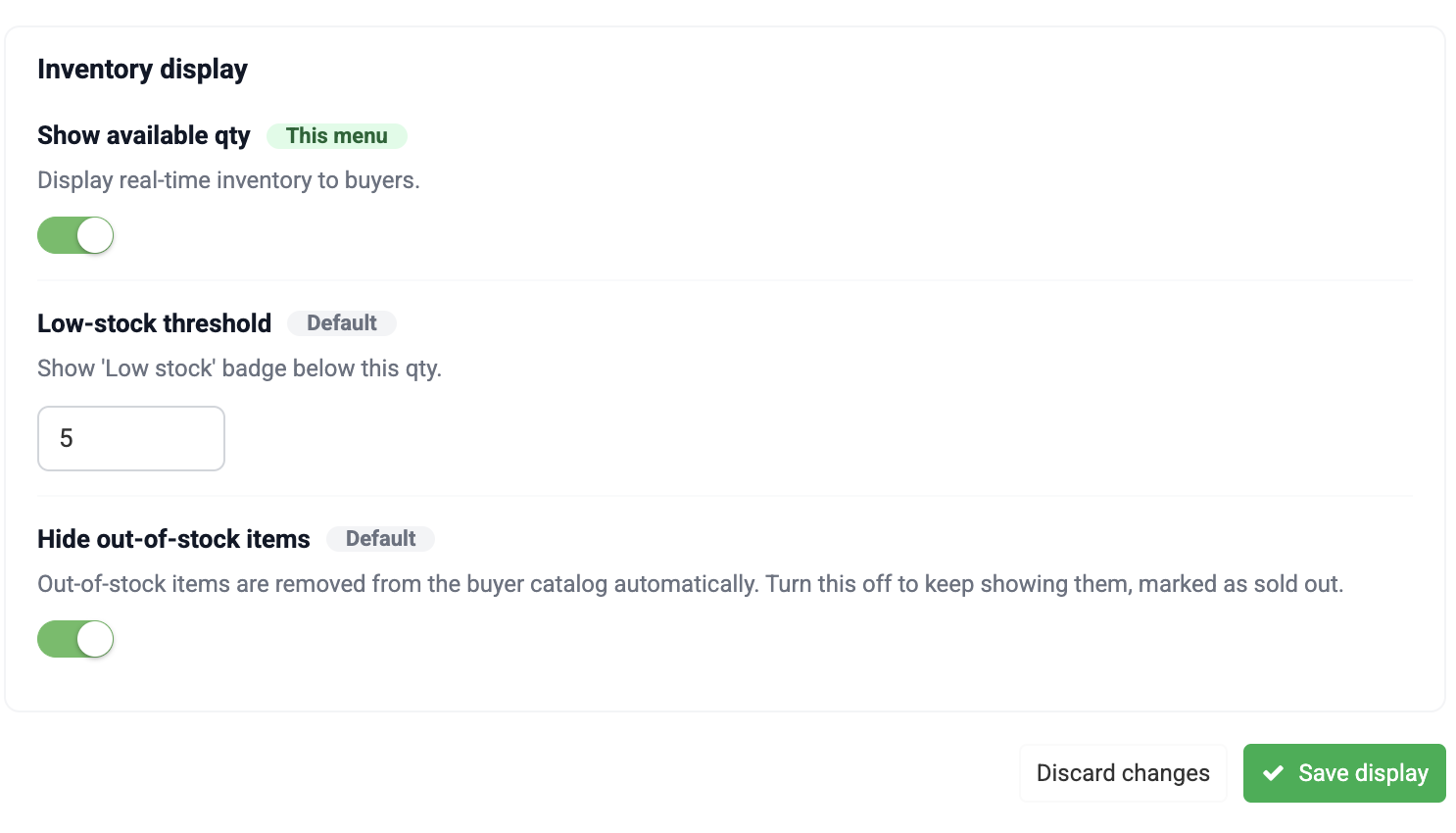
Show available qty | Shows or hides the available quantity column. |
Low-stock threshold | Items below this quantity show a Low stock label. |
Hide out-of-stock items | On by default. Listed items with nothing available are hidden from buyers until stock returns. Turn it off to keep showing them, marked as out of stock. Items set to Always available are never treated as out of stock. |
Facilities
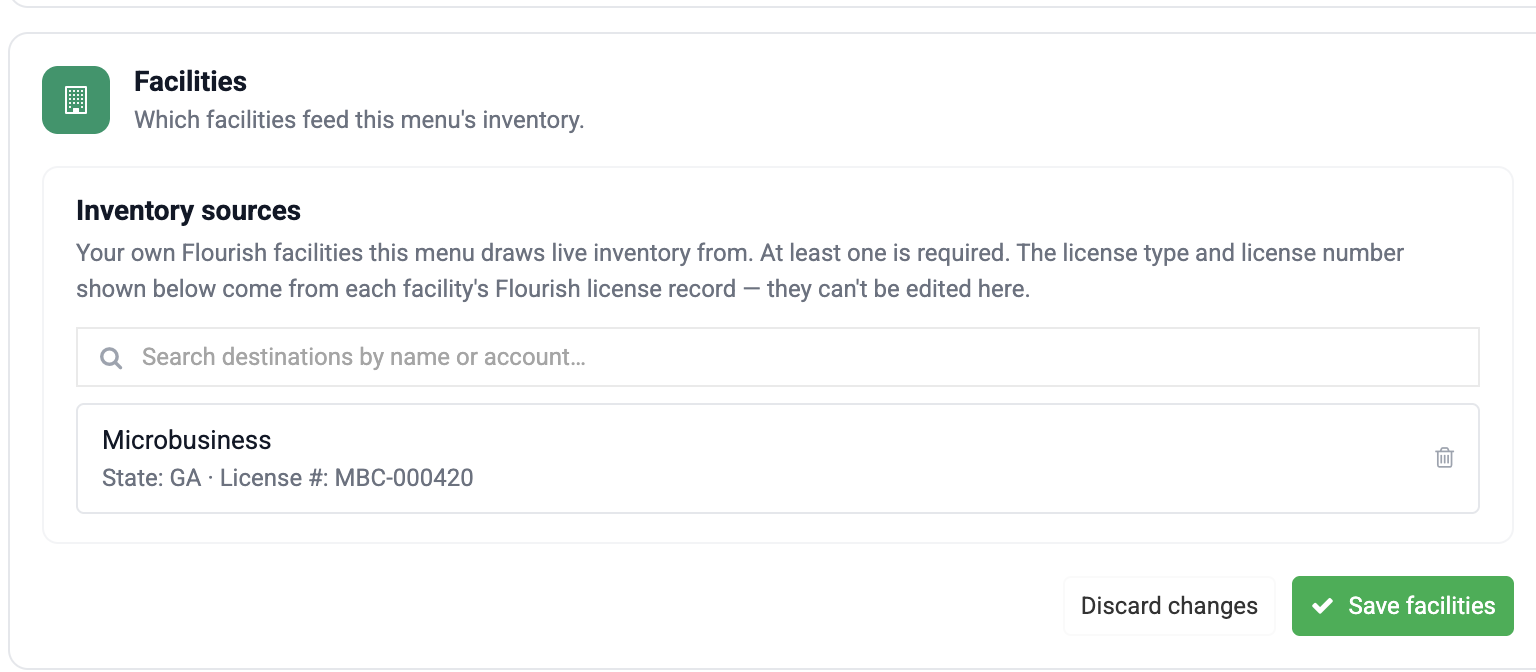
Inventory sources are the facilities whose inventory this menu sells.
Which buyer locations can receive orders is set per buyer, not per menu. Set each buyer destination to Shipping here or Not shipping here. See Invite and Manage Buyer Portal Buyers.
Click Save when you're done.
Changing the URL slug under General changes your menu's web address. Links you've already shared will stop working.
How did we do?
Set Up Your Flourish Buyer Portal (Sellers)
List Items on Your Buyer Portal Menu (Sellers)
