Create Packages and Auto-Prompt Label Printing
Creating Packages and Auto-Prompting Label Printing. Purpose. Use Create Package to generate a new package from an existing item's available inventory, typically to split off a smaller quantity. Enab…
Creating Packages and Auto-Prompting Label Printing
Purpose
Use Create Package to generate a new package from an existing item's available inventory, typically to split off a smaller quantity. Enable Auto-Prompt on Create Packages so Flourish automatically opens the label print dialog for the new package as soon as you confirm it, removing the extra step of printing separately afterward.
Prerequisites
- Required permissions: permission to update Configuration settings, and permission to create packages in Inventory.
- Applies to: Flourish web app, Inventory module.
- If your company has more than one facility, enable Auto-Prompt on Create Packages separately for each facility.
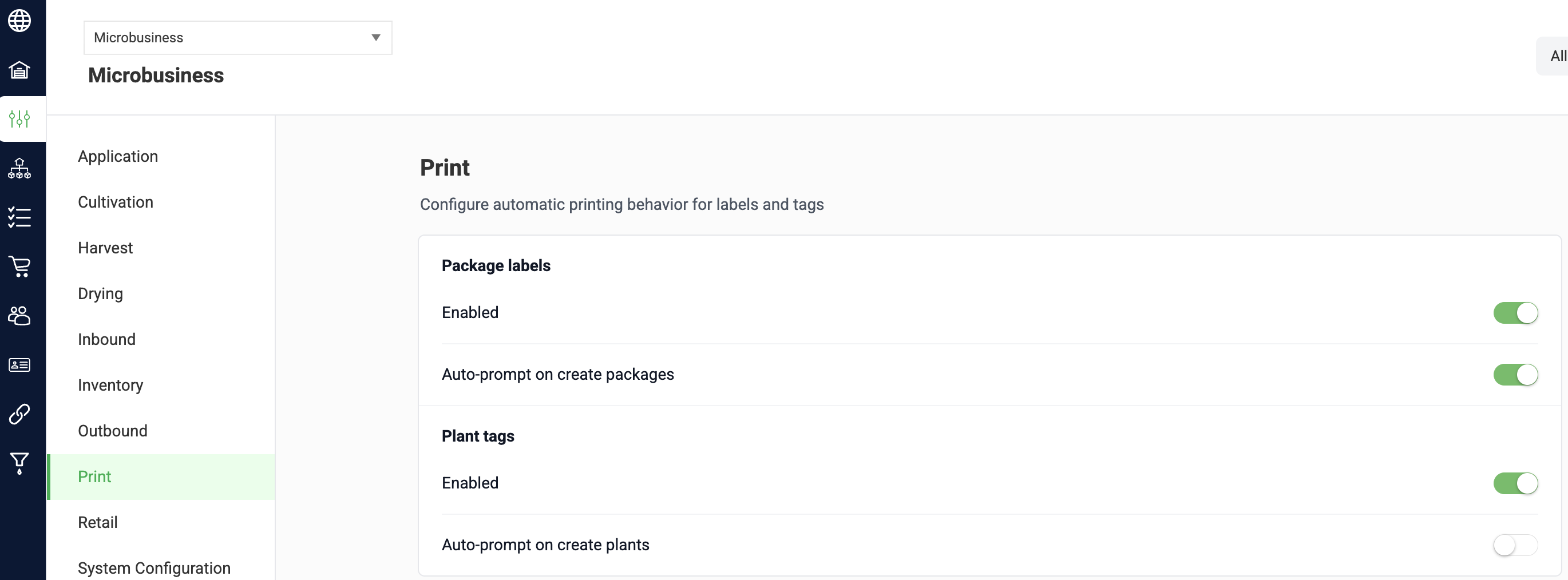
Enable auto-prompt label printing
- Open the Settings drop-down menu and click Manage Settings.
- Click Configuration from the left side menu.
- Scroll to Print
- Toggle on Auto-Prompt on Create Packages. If you have multiple facilities, repeat this step for each facility.
- All changes are now Auto-Saved.
- Click Back to Flourish.
Create a package and print its label
- Click Inventory from the left side menu.
- Locate the item you want to create a package from.
- Click Create Package on that item's line.
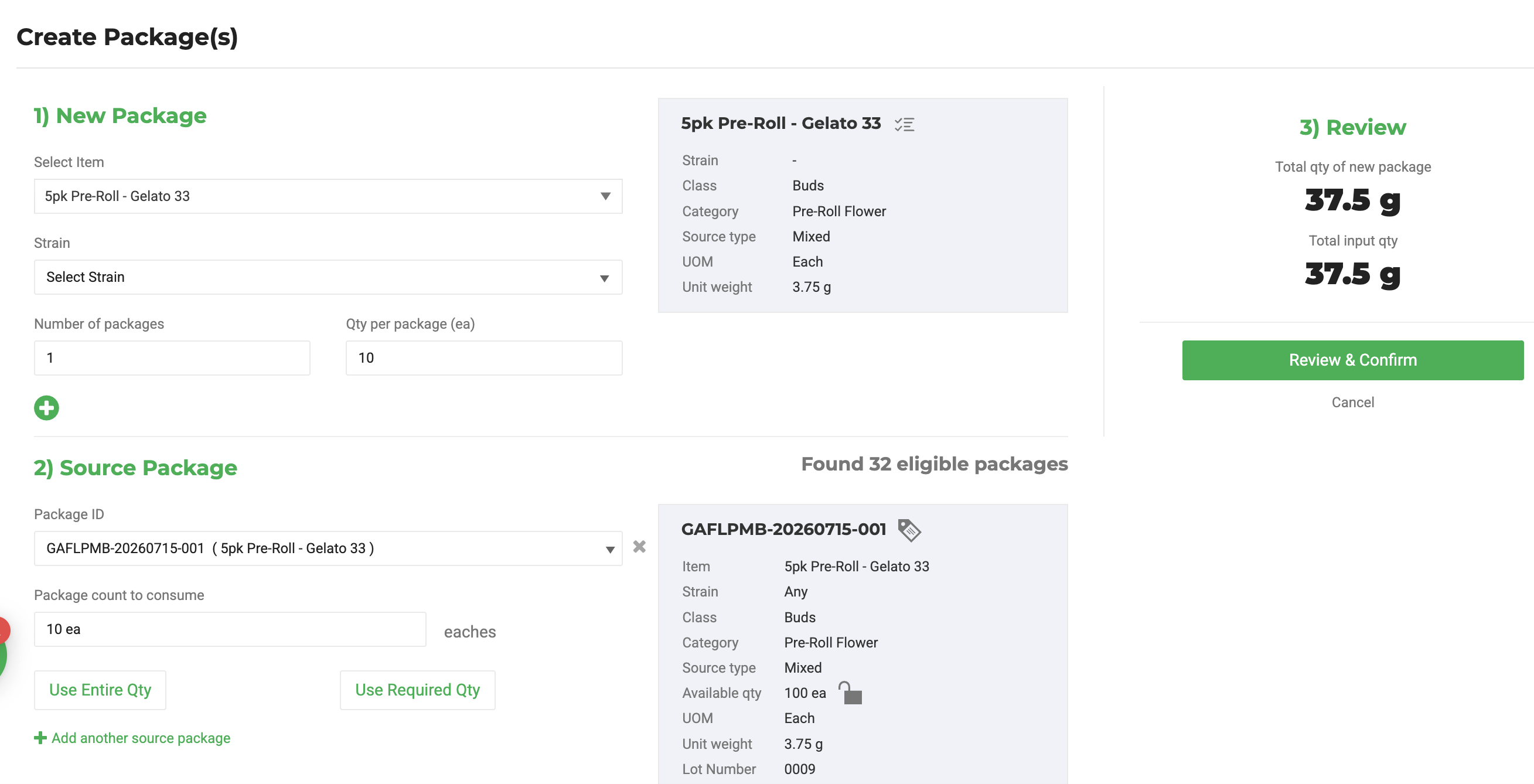
- Enter the package details.
- Review the quantity calculated for the new package.
- Click Use Required Qty if the quantity is correct.
- Confirm that Total Qty of New Packages matches Total Input Qty, then click Review & Confirm.
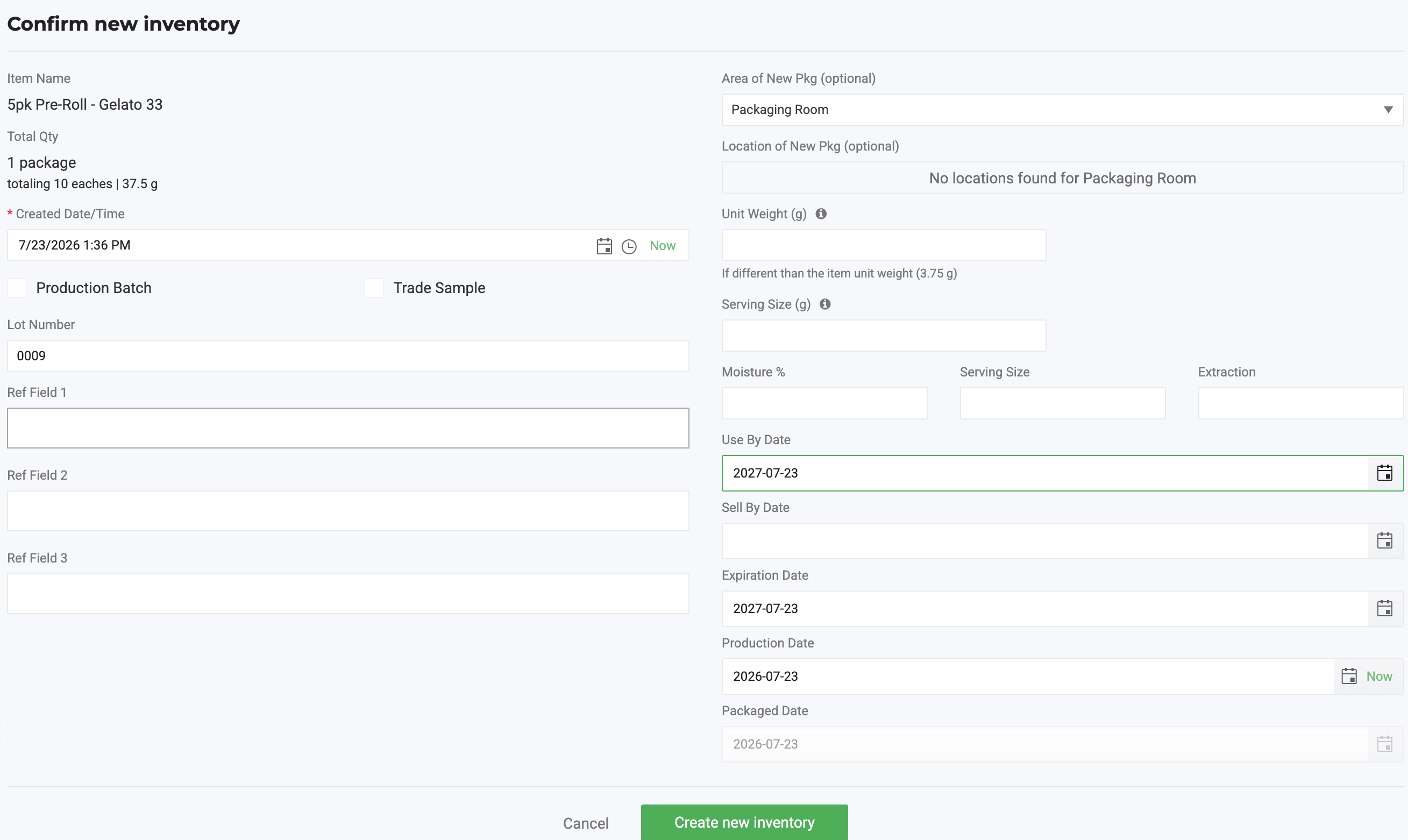
- Review the package details.
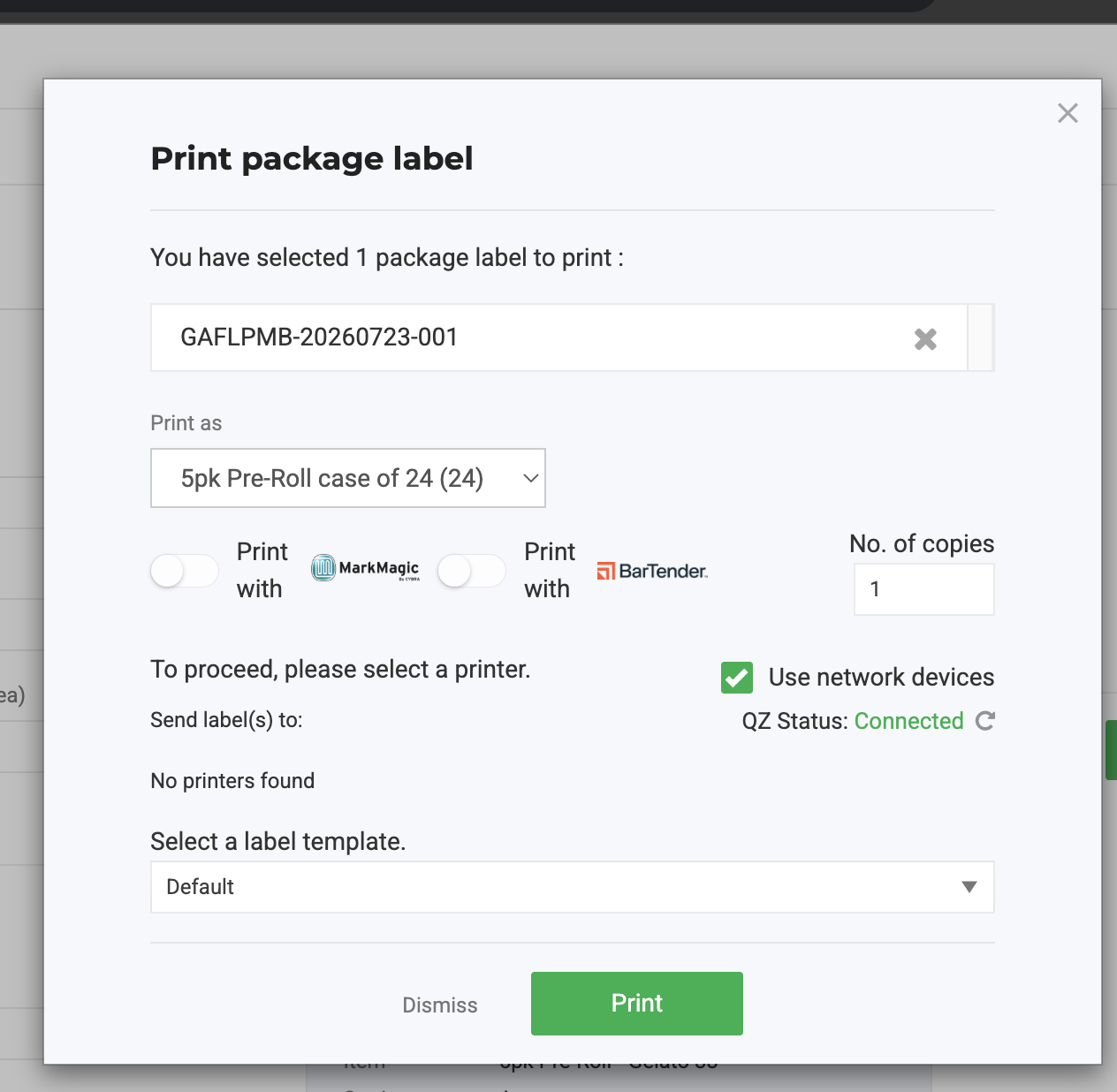
- Click Create New Inventory. If Auto-Prompt on Create Packages is enabled, Flourish automatically opens the label print dialog for the new package.
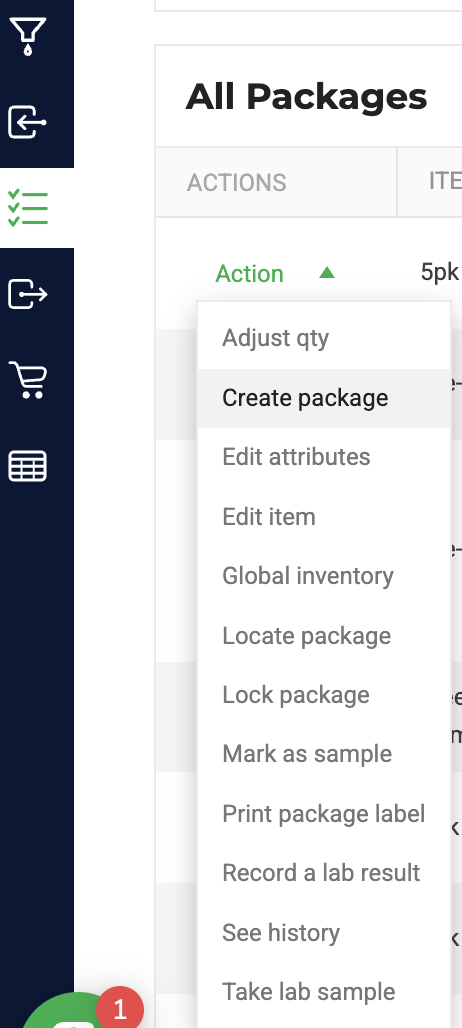
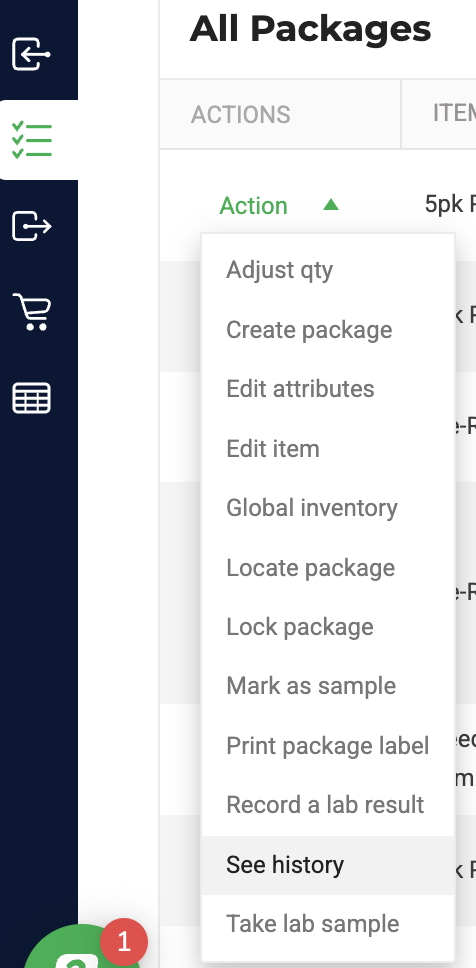
To trace the new package back to its source, see Package History.
Expected result
The new package appears in the Inventory grid with the specified quantity. Its source package's available quantity decreases by the same amount. If Auto-Prompt on Create Packages is enabled, the label print dialog opens automatically once you click Create New Packages.
Common issues
- The label print dialog doesn't open automatically: Confirm Auto-Prompt on Create Packages is enabled for the facility you're working in.
- The setting doesn't apply to all locations: Companies with multiple facilities must enable Auto-Prompt on Create Packages separately for each facility configuration.
- Total Qty of New Packages and Total Input Qty don't match: Adjust the entered quantity until the two totals match before clicking Review & Confirm.
Related articles
How did we do?
Export, Cancel, or Dispose of Package Waste
Inventory: Upload PDF To Record Lab Test Results
