Accept Your Buyer Portal Invite and Sign In (Buyers)
Create your Flourish Buyer Portal account from a seller's invite, confirm your store locations, sign in, change your password, and fix common sign-in issues.
This article covers how to create your account and sign in after a seller invites you to their Flourish Buyer Portal via email. You will receive an email to accept the invitation. If you already have a buyer account, you can simply accept access to the buyer's menu. If your company already has a buyer's account, your admin will need to approve you. If you don't have an account yet, follow these steps to create an account.
Create your account
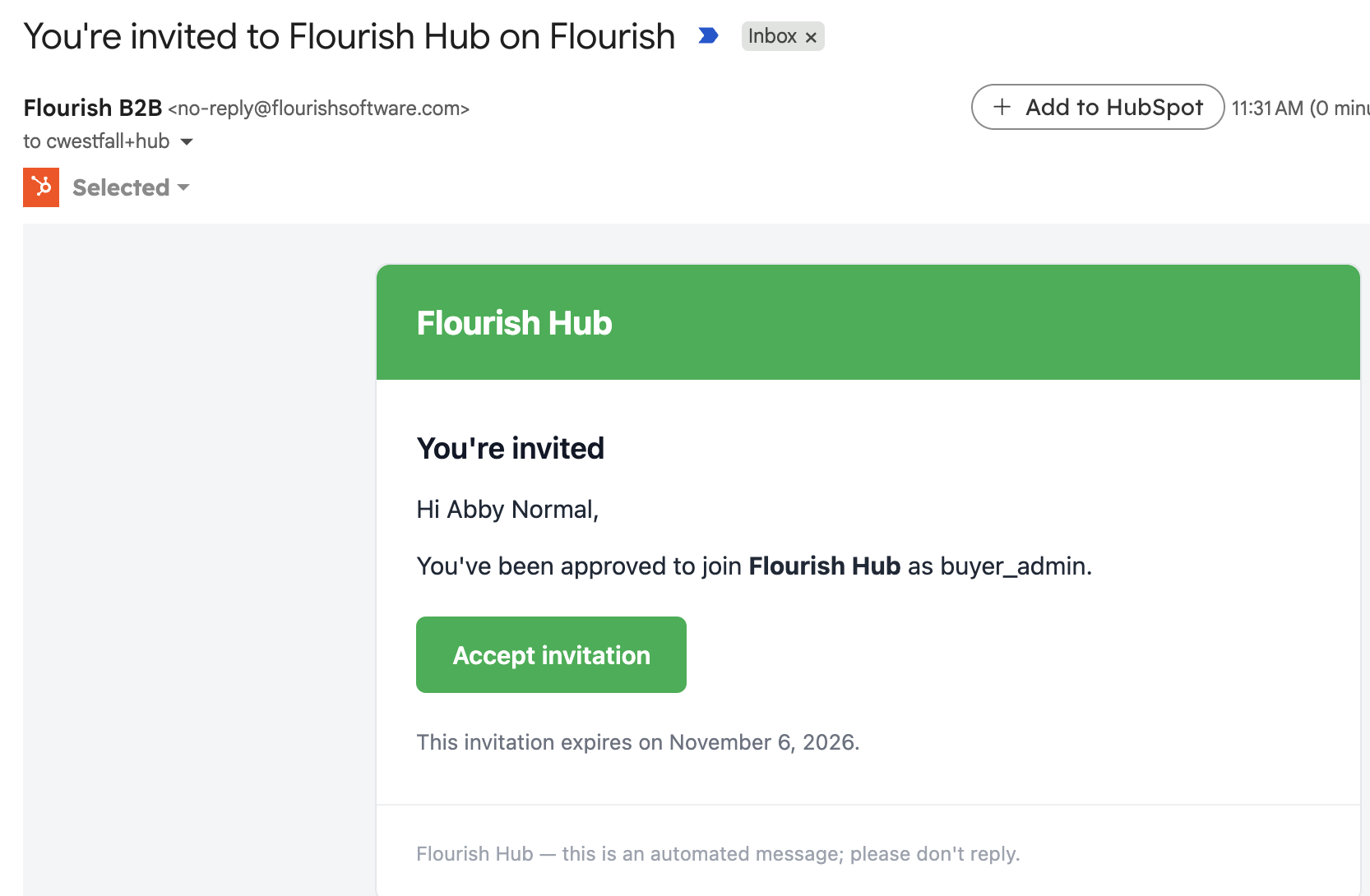
- Open the email titled "You're invited to [Seller] on Flourish", then click the invite link.
 On Create your account, enter your Full name and a Password, then enter the password again in Confirm password. Passwords need at least 12 characters, with uppercase and lowercase letters, a number, and a symbol.
- Click Create account.
- Read the Terms of Use and Privacy Notice, check I have read and agree, and click Create account.
You're signed in and taken to your Home page.
Does your company already have a Flourish buyer account set up?
If a seller invites you to an existing company account, the admin on that account must approve your access after you accept the invite and set your password.
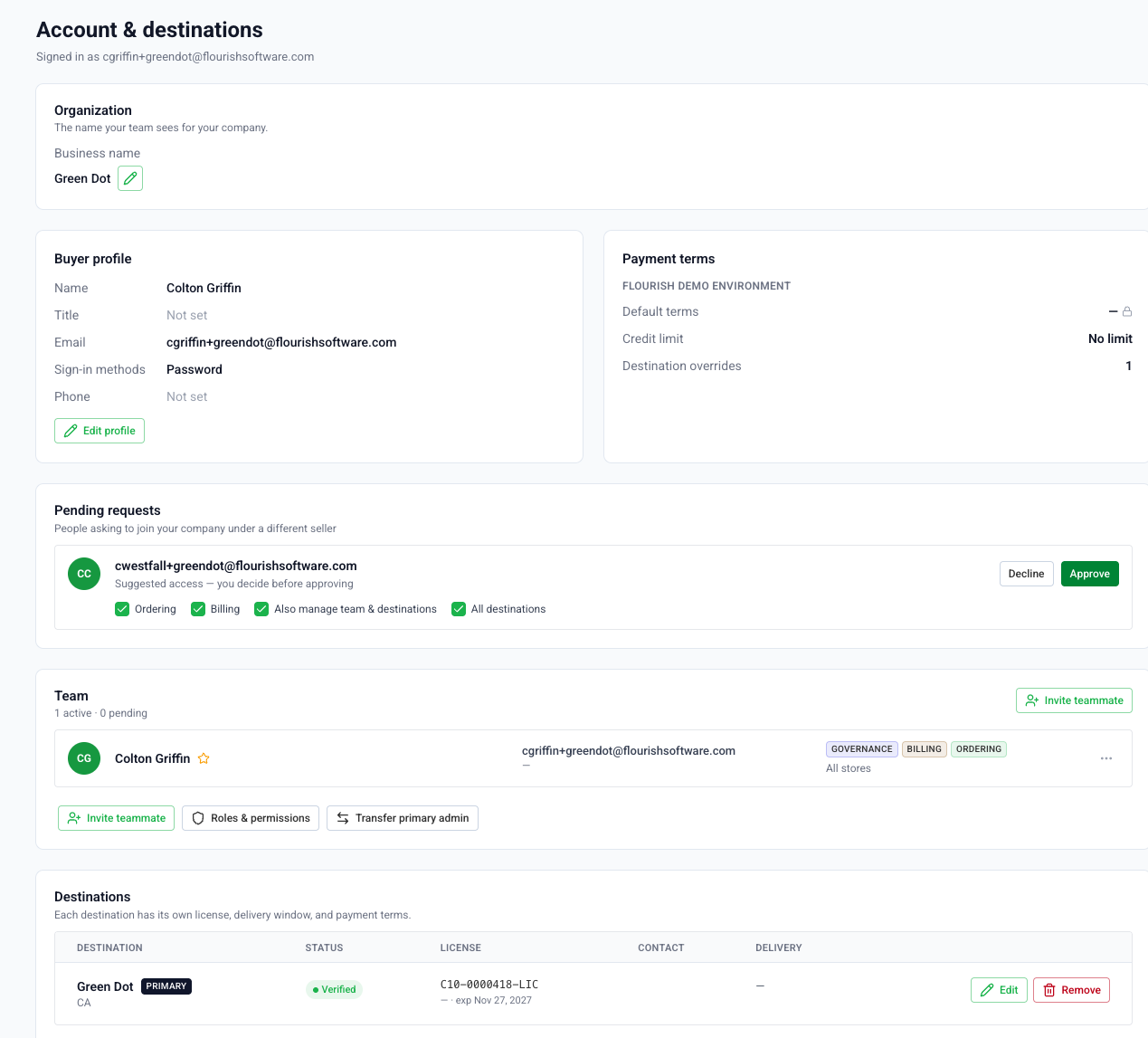
Already buying from another seller on Flourish?
You'll see Choose your company. Select your existing company so all your sellers, orders, and invoices stay under one account. Choose "Set up a new company" only if you're buying for a different business.
If someone else is your company's administrator, you'll see Request sent. You can sign in once they approve you.
Confirm your locations
The first time you sign in, you may see Confirm your locations. This confirmation ensures that the license(s) you are buying for are correct.
- Click Confirm if it's correct.
- Click Rename to change the name your team sees.
- Click Flag as incorrect if the location/license is wrong. Describe what's wrong and click Submit. See What happens when you flag a location.
What happens when you flag a location
Flagging a location gives the seller the option to correct the invitation. This is an exception scenario if the seller accidentally invited you to purchase under the wrong license. You or the seller can remove the destination and add the correct one.
- The location shows Flagged, ordering paused.
- Your Account page shows the banner Ordering is paused for a flagged location, with a Review locations link, until the location is confirmed again.
- Nobody can order to that location until it's confirmed again.
Sign in Options
- Go to your seller's Buyer Portal address, or click the link in any portal email.
- Click Continue to sign in and enter your email and password, or click Sign in with Google.
If you buy from more than one seller, use Switch storefront in the user menu at the top right.
Forgot your password? Click the forgot password link on the sign-in page and follow the emailed instructions.
Check how you sign in
Not sure whether you use a password or Google? Open Account. Your profile card shows a Sign-in methods row next to your name, title, email, and phone. It lists Password, Google, or both.
This row is for reference only. You can't add or remove a sign-in method from the Account page.
Change your password
- Open Account and click Edit profile.
- Under Sign-in & security, click Change password.
- Enter your Current password and a New password, enter the new password again to confirm it, and click Update password.
Troubleshooting
Message | What to do |
Invite expired | Click Request a new invite. If the invite is still valid, a new link is emailed to you. |
Invite not found | The link was revoked or is incorrect. Ask your seller or your company's administrator for a new invite. |
Already accepted | Click Sign in instead. |
This invite isn't for the account you're signed in with | Click Sign out, then open the link again and sign in with the email address the invite was sent to. |
This e-mail already has an account with a password. Sign in with your e-mail and password instead. | You clicked Sign in with Google, but your account uses a password. Click Continue to sign in and enter your email and password. If you don't remember it, use the forgot password link. To check which methods your account uses, see Check how you sign in. |
This destination was flagged as incorrect. Confirm it in your account settings before you order to it. | The location was flagged. Click Review locations, check the location, and click Confirm. See What happens when you flag a location. |
No access | Your account isn't connected to this seller. Ask your administrator or your seller for access, or click Sign out and switch account. |
Our terms have been updated | Review the updated terms and click Continue to accept them. |
How did we do?
Buyer Portal Invoices and Online Payments (Sellers)
Place a Wholesale Order in the Buyer Portal (Buyers)
