Table of Contents
Retail POS Complete a Purchase
After you've created your order and then fulfilled it, you're ready to check out your customer. Complete the purchase by following these steps.
Table of Contents
Complete a Retail Purchase
Purpose
Complete an in-store, pickup, or delivery purchase by opening the order in its Retail POS queue, selecting a till, and recording the customer's payment.
Prerequisites
- Complete the applicable package-allocation or packing workflow.
- Confirm the order is in the correct queue and ready for checkout.
- Confirm the accepted payment methods under Settings > Facilities > select your facility > Payment Methods > Edit. Some methods, such as CanPay, also require merchant credentials.
- Configure and assign any required payment terminal.
- Required permissions: Confirm permissions for checkout, manual payments, integrated payments, and split or partial payments.
Open the Order
Use the queue that matches the order type:
Order Type | Retail POS Location | Action |
In-store | Queue > In-Store > Check Out | Select Checkout |
Pickup | Queue > Pickups | Select View Cart |
Delivery | Queue > Deliveries | Select View Cart |
Review the customer, items, quantities, packages, discounts, taxes, and total before accepting payment.
Record Payment
- Select Pay.
- Select the till that should record the payment.
- Select the customer's payment method.
- Enter the amount for that method. Use a quick-select amount button for common denominations, or the exact-amount-due shortcut when applicable.
- Complete any method-specific authorization or transaction steps.
- Select Submit Payment or the method-specific record or submit action.
- Confirm the order's payment status and remaining balance.
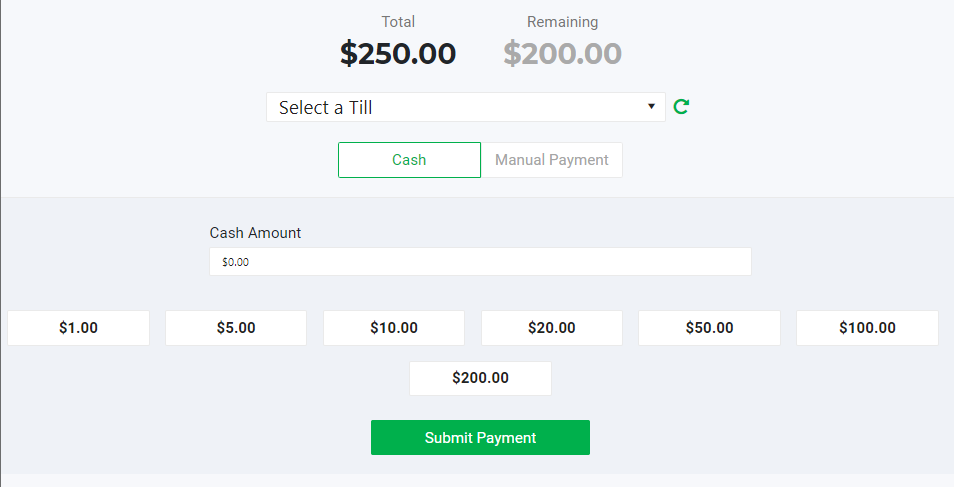
If a balance remains, record the next supported payment until the order is fully paid.
Expected Result
The order shows Paid payment status and Completed order status. Confirm the receipt output before leaving the order.
Payment-Specific Instructions
Use the focused article for configuration or provider-specific transaction steps:
- Manage Facility Payment Methods
- Adding Payment Terminals & Assigning to a Till
- Recording a POSaBIT transaction
- POSaBIT Payment Method & Configurations
- Aeropay Manual for Retail Point of Sale
- Credit Card Manual payments for Retail Point of Sale
- Set Up Spendr Mobile Payments at Checkout
- Vector Payments - POS Check Out and Reporting
Common Issues
The order doesn't appear in the expected queue
Review its order type and status. Pickup and delivery orders use different queues than in-store orders.
A till can't be selected
Confirm the till exists, is open when required, and is available to the applicable POS device or workflow.
A payment method doesn't appear
Confirm the method is enabled for the facility and that its credentials or payment terminal are configured.
Purchase completion is blocked for an expired medical card
Update the customer's medical-card information, or review the facility's Block purchase due to expired med card setting with an administrator. Don't bypass facility or jurisdiction requirements.
Related Articles
How did we do?
POS Item Scanning Rules
Build a Customer's Cart in Retail POS
