Table of Contents

Edit Your Flourish Software User Profile

Edit your Flourish Software user profile to streamline your work. Access Your User Profile. Please follow the steps below: Login to Flourish Software. Click on your name in the top right corner of th…

Table of Contents

Edit your Flourish Software user profile to streamline your work.

Access Your User Profile

Please follow the steps below:

  1. Login to Flourish Software.
  2. Click on your name in the top right corner of the screen.
  3. Select "Your Profile" to view the "Edit Your Profile" screen.
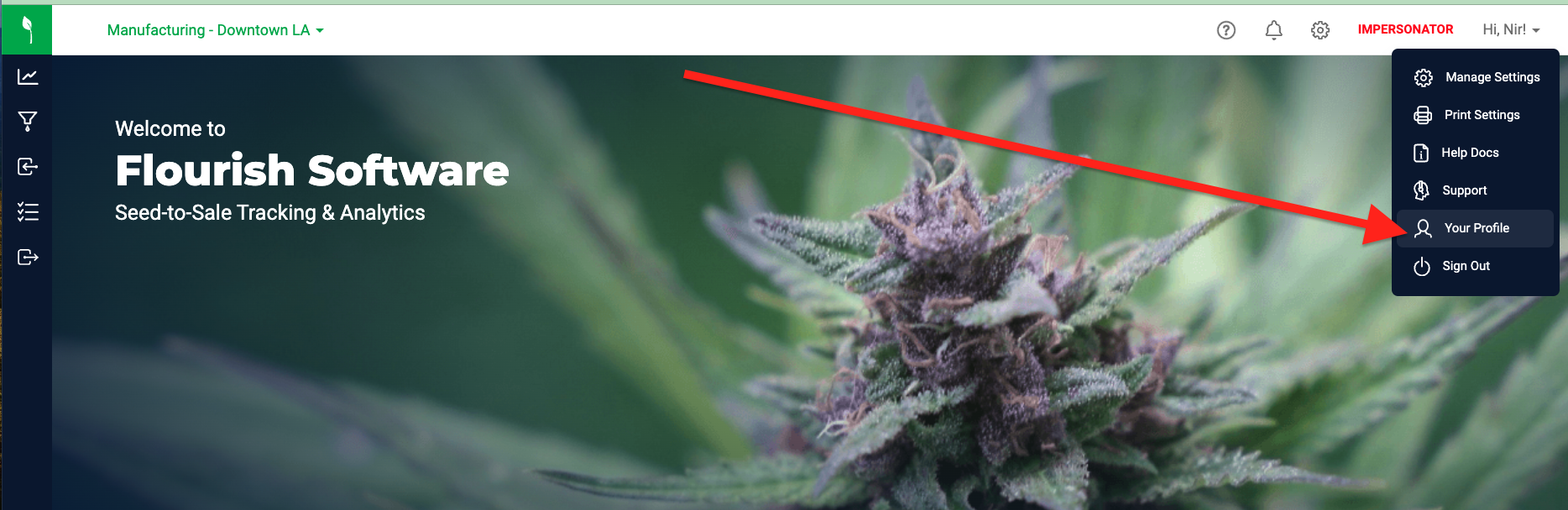
    The Flourish Software dashboard homepage with a dropdown menu expanded in the top-right corner, showing options including Manage Settings, Print Settings, Help Docs, Support, Your…
  4. From here, you can:
    1. Set your Default Facility.
    2. Edit your user's First and Last Name.
    3. Set the Default Home Page.
    4. Change your password.

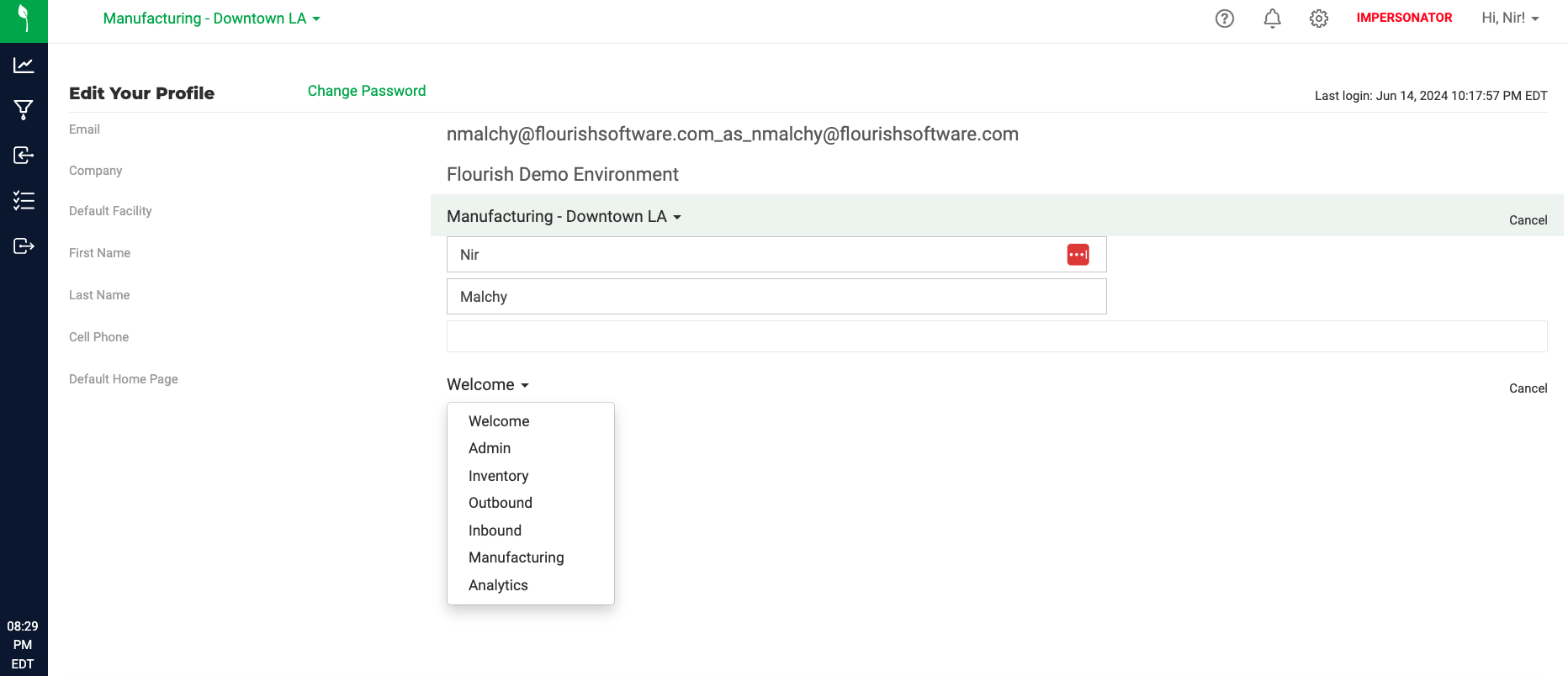
Set your Default Facility

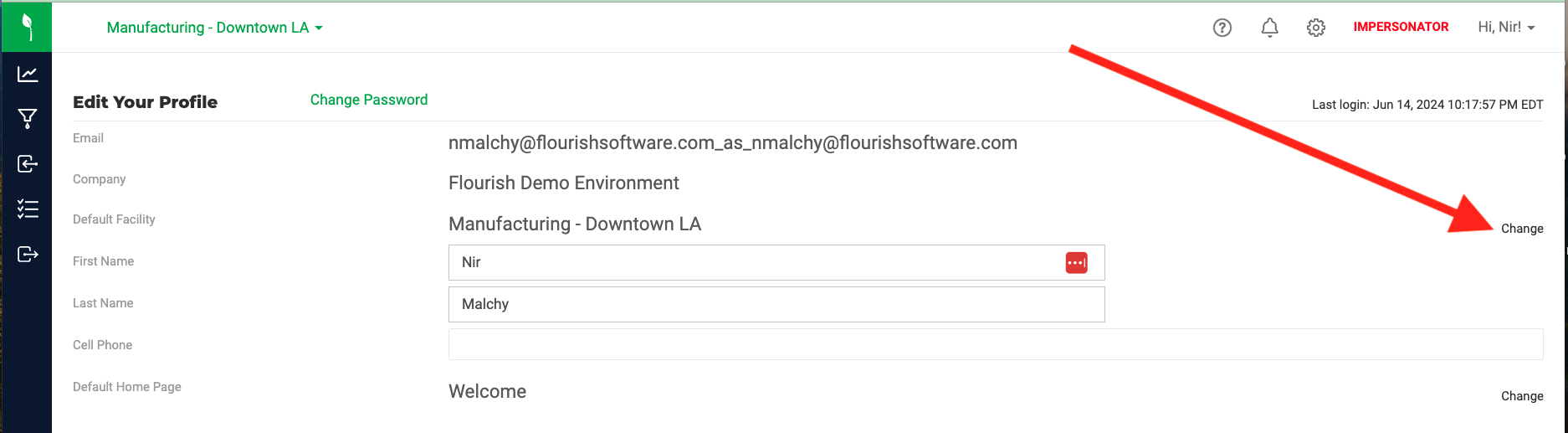
If you have multiple facilities, you can set your home page to the one you visit the most.

  1. Click Change next to the "Default Facility".
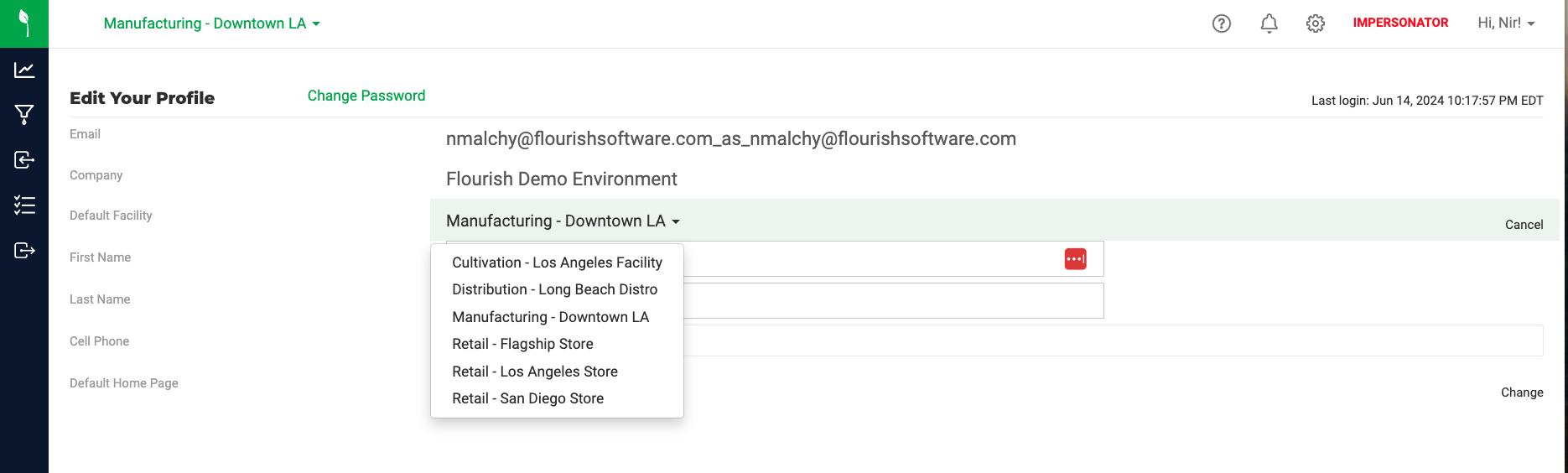
  2. Select the Default Facility from the dropdown.
  3. Click Cancel to cancel.

The screenshot shows the "Edit Your Profile" screen in Flourish Software, displaying editable fields for Email, Company, Default Facility, First Name, Last Name, Cell Phone, and…

The screenshot shows the "Edit Your Profile" screen in Flourish Software, displaying fields for Email, Company, Default Facility, First Name, Last Name, Cell Phone, and Default…

Edit your user's First and Last Name

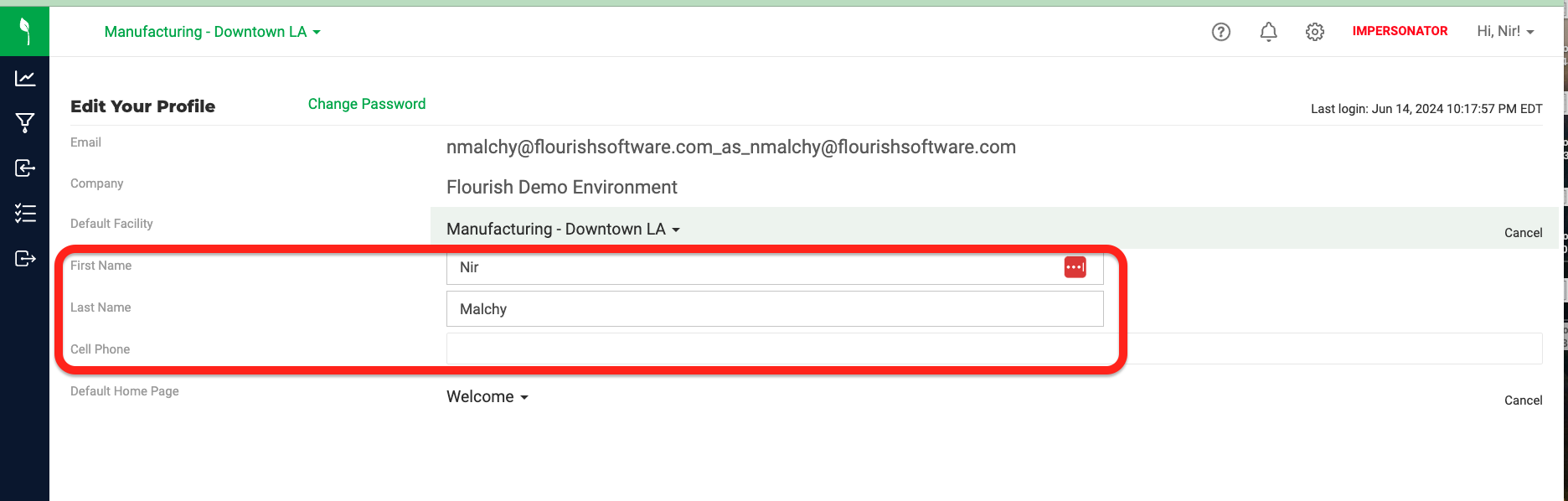
  1. Type in the First Name.
  2. Type in the Last Name.
  3. You can type in your Cell Phone.

The Flourish Software "Edit Your Profile" screen displaying user profile fields including Email, Company, Default Facility, First Name, Last Name, Cell Phone, and Default Home…

Set the Default Home Page

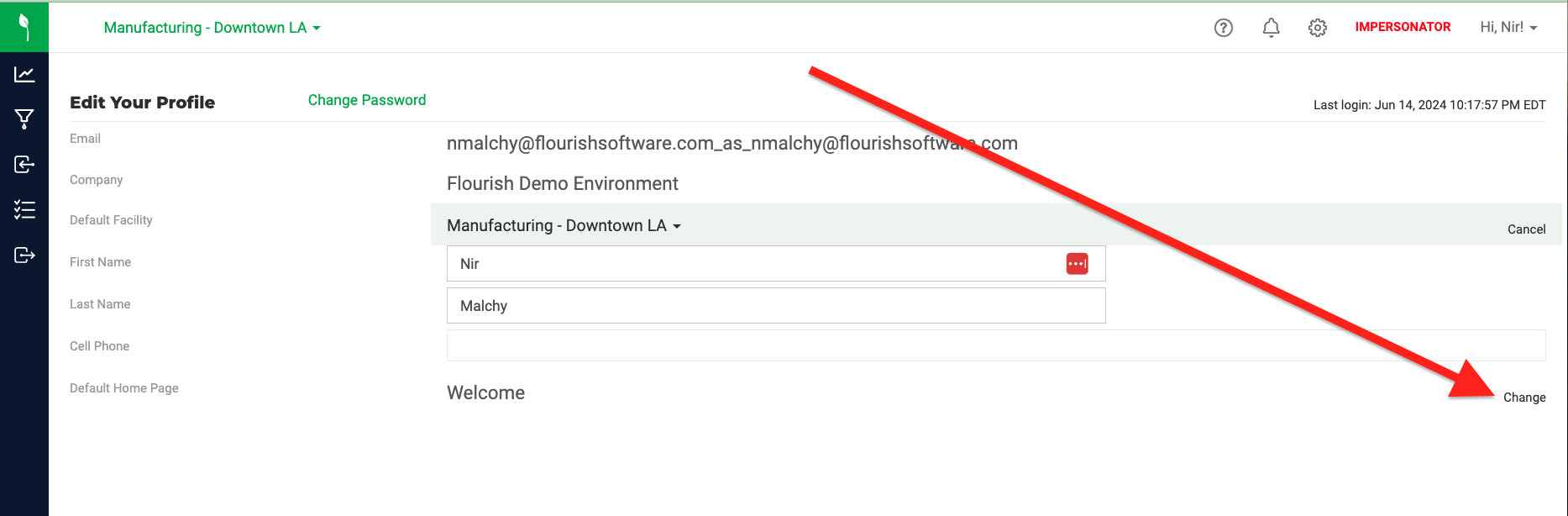
  1. Click Change next to the "Default Home Page".
  2. Select your Default Home Page from the dropdown.
  3. Click Cancel to cancel.

The screenshot shows the "Edit Your Profile" screen in Flourish Software, displaying editable fields for Email, Company, Default Facility, First Name, Last Name, Cell Phone, and…

The "Edit Your Profile" screen in Flourish Software, showing editable fields for Email, Company, Default Facility, First Name, Last Name, Cell Phone, and Default Home Page, along…

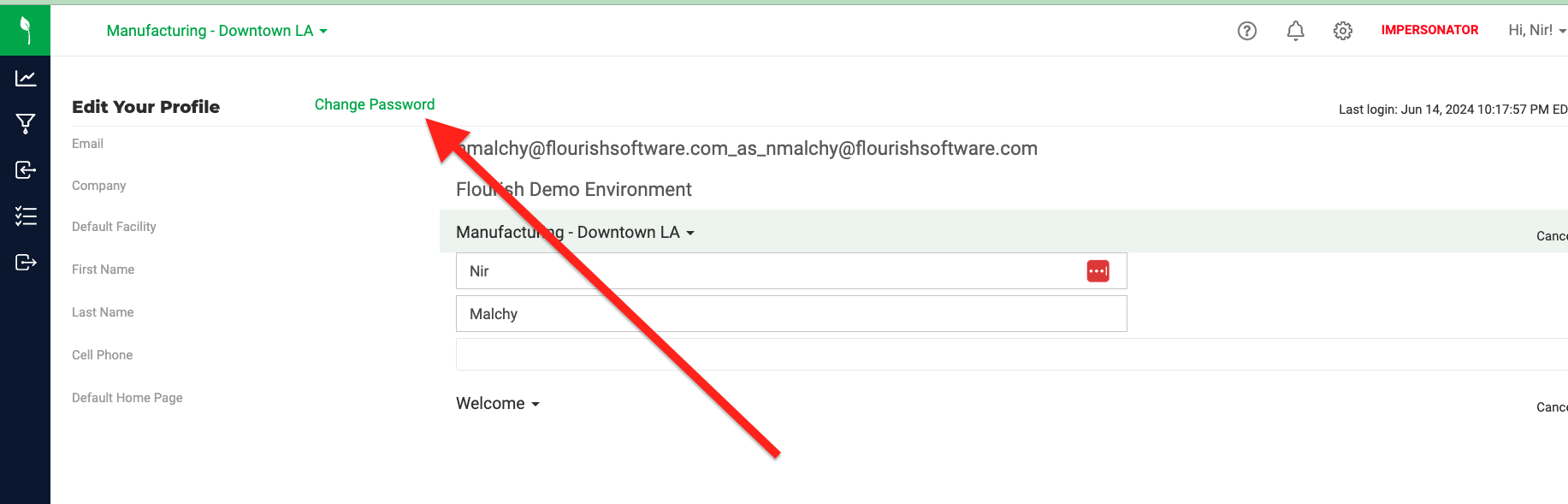
Change your password

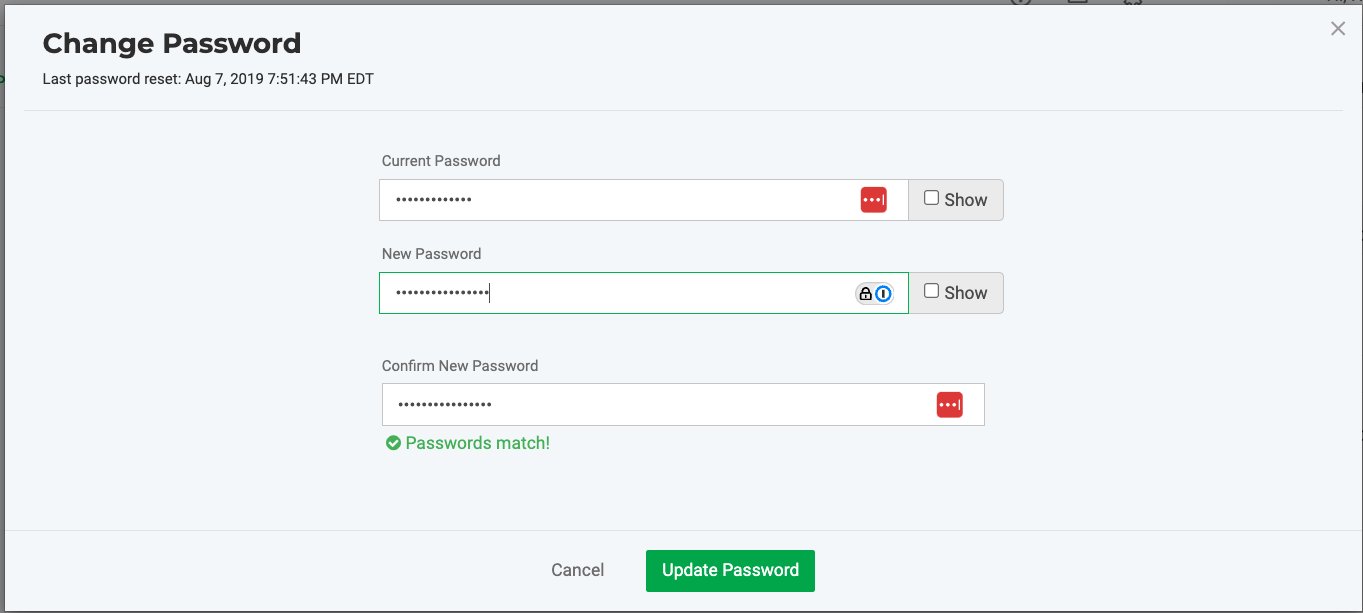
  1. Click "Change Password" to load the "Change Password" screen.
  2. Type in the "New Password".
  3. Type in the "Confirm New Password".
  4. Click Update Password.
  5. Click Cancel to cancel before you update.

The Flourish Software "Edit Your Profile" screen displaying editable fields including Email, Company, Default Facility, First Name, Last Name, Cell Phone, and Default Home Page,…

The screenshot shows the Change Password modal dialog in Flourish Software, which includes fields for Current Password, New Password, and Confirm New Password—each with a "Show"…

How did we do?

Prevent Users from Exporting All Grid Data

Contact